



Connect Workplace Tools in Appspace: A Guide to Generally Available Integrations
Appspace connects workplace experience, intranet, and digital signage with the systems your people already use. The catalog below is the generally available set: every integration listed here is live and available now as of the June 2026 customer guide, with Dropbox library and search added as of 2604.4.0. For planned or limited-release connectors, speak to your Appspace account team.
This article is a customer catalog first, and a deployment guide second. Library and search rows include console procedures in this guide. Other generally available types (SSO, cards, hardware, messaging) appear in the catalog so you can plan the full estate; their console click-paths are in published Knowledge Center articles.
Audience: IT administrators and workplace experience owners who plan and configure Appspace integrations
Goal: After finishing this guide, you can see which integrations are generally available, understand each type, deploy SharePoint, Box, Google Drive, and Dropbox document libraries, and deploy SharePoint, Box, Google Drive, Dropbox, and ServiceNow federated search from the Appspace Console without a customer-side install.
Note: Availability can change. Confirm the latest status with your Appspace account team before a wide rollout. Limited Release HRIS widgets (for example UKG Pro, Workday, BambooHR, SAP SuccessFactors) and generic Merge widgets (HRIS, Ticketing, Expenses), which are behind a feature flag, are not in this guide.
Key Benefits
- One workplace surface — Employees browse files, search tickets and documents, sign in, and view workplace content without switching apps for every task.
- Console-only deployment for libraries and search — Document libraries and federated search are admin-configured in the Appspace Console. There is no on-premises agent, VPN, or install in the Microsoft 365, Box, Google, Dropbox, or ServiceNow tenant beyond OAuth consent (and a ServiceNow OAuth app for search).
- Permission-aware access — Library and search connections are trimmed to the passport you authorize, so employees see content they are allowed to see.
- Front-line access without extra seats — SharePoint, Box, and Google Drive connections can generate short-lived, view-only links so deskless workers can open files without a full source-system seat.
- A complete GA map — Use the catalog tables to brief stakeholders on what is live today across identity, content, messaging, rooms, cards, and alerts.
What This Guide Covers
- The generally available integration catalog (name, category, type)
- Shared prerequisites for library and search deployments
- Deploying SharePoint, Box, Google Drive, and Dropbox document libraries
- Deploying SharePoint, Box, Google Drive, Dropbox, and ServiceNow federated search
- A combined intranet rollout use case
- Best practices and troubleshooting
Prerequisites
- An Appspace account on Public Cloud or Private Cloud with Appspace Intranet on a current plan (required for document libraries and federated search).
- Account Owner access to the Appspace Console to create passports, document libraries, and federated search connections.
- Source-system licences for each integration you plan to turn on (see each catalog row and the deployment sections).
- Ability to authorize an Appspace Passport (OAuth 2.0) against the source API. ServiceNow federated search also requires an OAuth application registered in ServiceNow (instance URL, Client ID, Client Secret). Dropbox library and search use Appspace-registered Dropbox API applications; you do not register an app in the Dropbox tenant.
- Outbound HTTPS from Appspace to the source API. No customer-side firewall change or VPN is required for these library and search integrations.
- A pilot Community (libraries) or a pilot audience (search) before you enable the connection for everyone.
- For SSO, cards, calendars, messaging bots, and hardware listed in the catalog: follow the published Knowledge Center article for that type.
Generally Available Integrations
Use these tables as the outline of the published catalog. Every row is General Availability. The Deployment column is a short summary: library and search rows point to the procedures in this guide; other rows point to published Knowledge Center articles.
SharePoint, Box, and Google Drive are listed as a combined document library and search type. This guide splits library and search because they use different console objects and passports. Dropbox library and search are generally available as of 2604.4.0 and are also split the same way.
Identity and Single Sign-On
| Integration Name | Type | Deployment |
|---|---|---|
| Microsoft Entra ID (Azure AD) | Directory sync, SSO (SAML/OIDC), SCIM | Configure SSO, directory sync, and SCIM from Appspace account authentication. See Introduction to Configuring SSO with Appspace, Configure Single Sign-On (SSO) & Just-in-Time (JIT) for Appspace Cloud, Set up JIT using Microsoft Azure (Entra ID), and Configure SCIM User Provisioning with HRIS/IdP for Appspace Cloud. |
| Okta | SSO (SAML/OIDC), SCIM provisioning | Same SSO and JIT path as above. See also Setting Up SSO through Okta: A Test Example and Configuring Okta SCIM with Appspace. |
| Ping Identity (Ping Federate) | SSO (SAML/OIDC) | SAML 2.0 IdP configuration in account authentication. See Configure Single Sign-On (SSO) & Just-in-Time (JIT) for Appspace Cloud. |
| OneLogin | SSO (SAML/OIDC), SCIM | SAML 2.0 IdP configuration in account authentication, plus SCIM if you provision users. See Configure Single Sign-On (SSO) & Just-in-Time (JIT) for Appspace Cloud and Configure SCIM User Provisioning with HRIS/IdP for Appspace Cloud. |
| SCIM (any compatible IdP) | User provisioning protocol | Automated user creation, updates, and deactivation across compatible identity providers. See Configure SCIM User Provisioning with HRIS/IdP for Appspace Cloud. |
Document Libraries
| Integration Name | Type | Deployment |
|---|---|---|
| Microsoft SharePoint | Document library | Admin-configured in the Appspace Console. No customer-side install. See Deploy Document Libraries. |
| Box | Document library | Admin-configured in the Appspace Console. No customer-side install. See Deploy Document Libraries. |
| Google Drive | Document library | Admin-configured in the Appspace Console. No customer-side install. See Deploy Document Libraries. |
| Dropbox | Document library | Admin-configured in the Appspace Console. No customer-side install. See Deploy Document Libraries. |
Live since Q2 2025 for SharePoint (write-back added Q3 2025), Q1 2026 for Box and Google Drive, and 2604.4.0 for Dropbox.
Federated Search
| Integration Name | Type | Deployment |
|---|---|---|
| Microsoft SharePoint | Federated search (Microsoft Graph) | Create a Federated Search Connection under Intranet settings → Federated Search. See Deploy Federated Search. |
| Box | Federated search | Create a Federated Search Connection under Intranet settings → Federated Search. See Deploy Federated Search. |
| Google Drive | Federated search | Create a Federated Search Connection under Intranet settings → Federated Search. See Deploy Federated Search. |
| Dropbox | Federated search | Create a Federated Search Connection under Intranet settings → Federated Search. See Deploy Federated Search. |
| ServiceNow | Federated search | Register an OAuth app in ServiceNow, then create a Federated Search Connection under Intranet settings → Federated Search. See Deploy Federated Search. |
SharePoint search has been live since Q1 2025. Box, Google Drive, and ServiceNow search have been live since Q4 2025. Dropbox search has been live since 2604.4.0.
Enterprise Messaging
| Integration Name | Type | Deployment |
|---|---|---|
| Microsoft Teams | Content publishing | Publish intranet and signage content to Teams. See Publish Content to Microsoft Teams for Team Communications. |
| Slack | Content publishing | Publish content to Slack channels. See Publish Content to Slack for Team Communications. |
| Webex Teams | Content publishing | Publish content to Webex channels. See Publish Content to Webex for Team Communications. |
| Workplace from Meta | Content publishing | Publish content to Workplace. See Publish Content to Workplace for Team Communications. |
Calendar and Room Booking
| Integration Name | Type | Deployment |
|---|---|---|
| Microsoft 365 / Exchange Calendar | Calendar service | Room schedules, availability, and booking on signage, panels, and the Employee App. See Create Application Passport for Third-Party Integration and Configure and Manage Workspace & Desk Reservations - Calendar Providers. |
| Google Calendar | Calendar service | Same calendar surfaces as Microsoft 365 / Exchange. See Configure Google Calendar Permissions for Passport Service Account and Configure and Manage Workspace & Desk Reservations - Calendar Providers. |
Widgets and Custom Integrations
| Integration Name | Type | Deployment |
|---|---|---|
| Custom Passport framework | OAuth-based custom integration | Connect an OAuth service and build custom widgets that use authenticated data without exposing credentials. See Create a Custom Passport. |
Dashboards and Business Intelligence
| Integration Name | Type | Deployment |
|---|---|---|
| Power BI | Dashboard card | Display Power BI dashboards on signage and the Employee App via a dashboard card and passport. See Cards: Display Power BI Dashboards. |
| Tableau | Dashboard card | Display Tableau dashboards via a dashboard card and passport. See Cards: Display Tableau Dashboard. |
| Salesforce | Dashboard card | Display Salesforce dashboards and live reports. See Cards: Display Salesforce Dashboards. |
Social Media
| Integration Name | Type | Deployment |
|---|---|---|
| Card (Passport) | Display Facebook posts on a card. See Cards: Display Meta (Facebook) Posts. | |
| Card (Passport) | Display Instagram posts on a card. See Cards: Display Instagram Posts and Hashtags. | |
| YouTube | Card | Display video content on a card. See Cards: Display YouTube Feeds. |
Meetings and Recordings
| Integration Name | Type | Deployment |
|---|---|---|
| Zoom | Card + Passport | Display Zoom meeting recordings. Library passports for Zoom Meetings are documented separately from intranet libraries; do not reuse the document-library procedure below. See Create Library Passport for Third-Party Integration and Cards: Display Zoom Recordings. |
| Cisco Webex | Card + Passport | Display Webex recordings. Same library-passport family as Zoom Meetings, not the intranet Libraries UI. See Create Library Passport for Third-Party Integration and Cards: Display Webex Recordings. |
Room and Desk Hardware
| Integration Name | Type | Deployment |
|---|---|---|
| Cisco Meraki | Sensor / IoT | Occupancy and environmental sensing for space reservations. See IoT Sensor Framework - Cisco Meraki Environmental Sensor Integration: Technical Guide and Sensor-Based Occupancy Rules: User Guide. |
| Cisco Webex Control Hub | Device / IoT | Device and sensor integration. See Configure Appspace Signage for Webex Control Hub v2 and IoT Sensor Framework - Cisco Control Hub: Setup Guide. |
| Neat (Neat Pad) | Device | Room scheduling on Neat devices. See Configure Appspace on Neat Devices with Pulse. |
| Qbic | Device | Desk and room hardware for hoteling. See Configure Desk Booking for Qbic TD-0350 Smart Panel PC Devices (PWA). |
| Microsoft Teams Rooms (MTR) | Device | Display Appspace signage on Microsoft Teams Rooms devices. See Register Microsoft Meeting Room Devices via MTR PMP. |
Microsoft 365 and Viva
| Integration Name | Type | Deployment |
|---|---|---|
| Microsoft 365 | Resource sync | View and reserve Microsoft workspaces. Distinct from SharePoint library/search and from Exchange calendar. See Configure and Manage Workspace & Desk Reservations - Calendar Providers. |
| Microsoft Viva Engage | Content publishing | Publish Appspace content to Viva Engage. See Create Publishing Passport for Third-Party Integration and Configure publishing from an Appspace Space to a Microsoft Viva Engage Community. |
Emergency and Mass Notifications
| Integration Name | Type | Deployment |
|---|---|---|
| CAP Connector (RAVE, Everbridge, Alertus, and other CAP sources) | CAP / RSS broadcast | Push emergency and mass-notification alerts to signage. See Configure and Manage Broadcasts. |
Deploy Document Libraries
Use this procedure for SharePoint, Box, Google Drive, and Dropbox. Appspace hosts the integration microservice and sync pipeline. You configure the library in the Console. Nothing is installed in the Microsoft 365, Box, Google, or Dropbox tenant.
Important: Intranet document libraries are not the same as Library passports used by SharePoint, Zoom, or Webex cards. Card passports live under Integrations > Passports. Document libraries live under Intranet > Spaces > Document Libraries. Do not follow the card-passport article to deploy an intranet library.
1. Confirm licences and the content to map
- Confirm Appspace Intranet is on a current plan (Public Cloud or Private Cloud).
- Confirm the source-system licence and the exact site, library, Drive, or folder you will map:
| Platform | Licences and modules | What you map |
|---|---|---|
| SharePoint | Microsoft 365 with SharePoint Online | A SharePoint site and document library (optionally a folder) |
| Box | Box Business or higher (multi-user) | A Box folder |
| Google Drive | Google Workspace with Google Drive | A My Drive or Shared Drive folder |
| Dropbox | Dropbox Business or Advanced | A Dropbox folder or namespace |
2. Create a document library in Appspace
- Sign in to the Appspace Console.
- Open the Appspace menu, select Intranet, then go to Spaces > Document Libraries.
- Create a Document Library and select the platform (SharePoint, Box, Google Drive, or Dropbox).
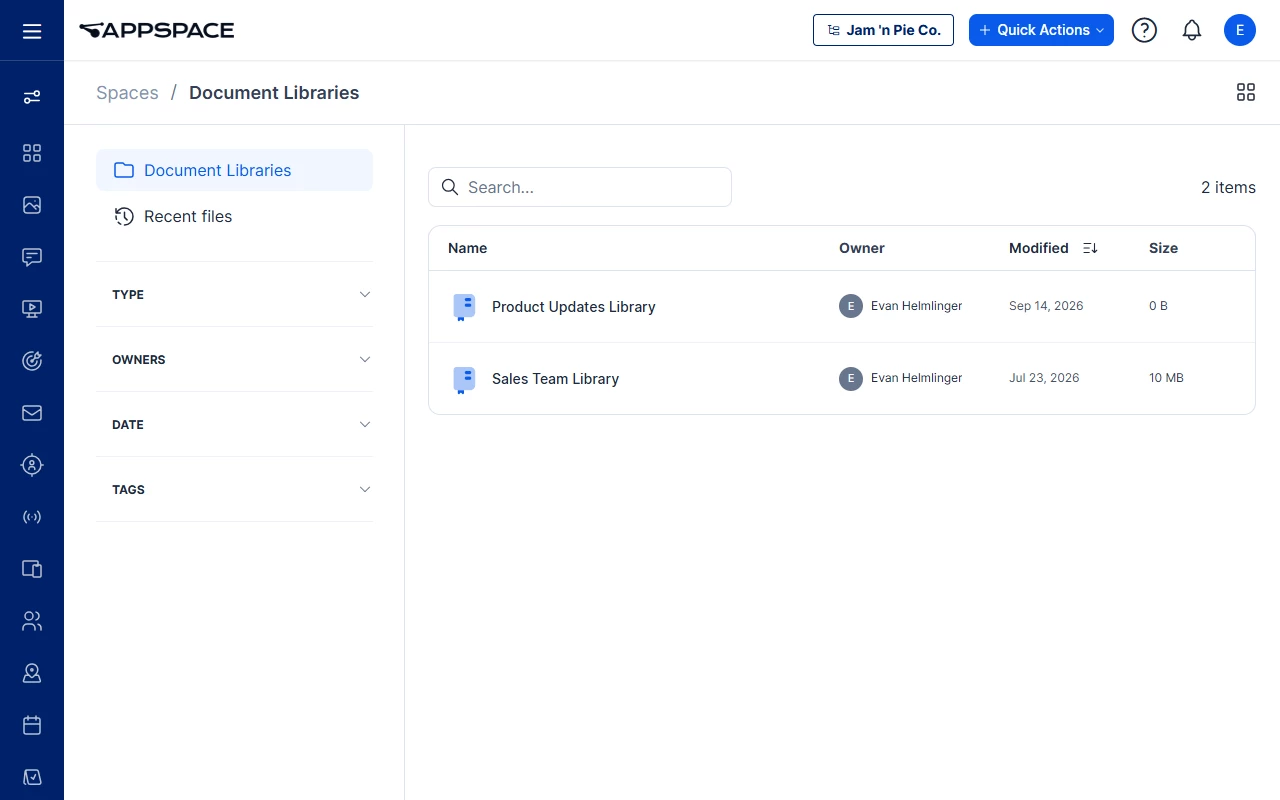
The list above is Intranet > Spaces > Document Libraries. Create the library from this page; the platform picker is on the create form, not on the list.
3. Authorize the passport and choose the root
- Authorize the connection with an Appspace Passport (OAuth 2.0).
- Select the root location employees will browse.
| Platform | Authentication | Root you select |
|---|---|---|
| SharePoint | Microsoft Graph. User or admin passport authorizes the library. Write-back is available to users with a Microsoft identity. (Files created in the Appspace SharePoint library sync back to SharePoint and show as created by the owner of the library passport, not the user who created the file.) | Root site, library, or folder |
| Box | Box API v2. An admin passport authorizes the library. Write-back uses impersonation for users with a Box identity. Files created in Appspace are attributed to the signed-in user. Box native versioning is preserved. | Root Box folder |
| Google Drive | Google Drive API. An admin passport authorizes the library. Write-back uses impersonation for users with a Google identity. | Root Drive or folder |
| Dropbox | Dropbox API. An Appspace Passport authorizes the library. Appspace registers the Dropbox API applications; you do not register an app in Dropbox. | Root Dropbox folder or namespace |
4. Let the library populate in the background
- After you authorize the passport, initial sync starts indexing content into the Appspace library. You do not have to wait for it to finish, and you can close the browser session. Sync continues in the background. Large libraries can take a while.
- Confirm a webhook (SharePoint, Google Drive, and Dropbox) or Box Events subscription keeps the library current as items change in the source — and, for SharePoint, as items change in Appspace.
As content appears, employees can:
- Browse, open, filter, and sort files in the Intranet Libraries UI (type, date, author/owner, or tags).
- Discover the same files in Appspace Universal Search.
- Create, move, and download files (SharePoint, Box, and Google Drive). SharePoint also supports rename, delete, and in-browser Office edit, with two-way sync.
- Open view-only, short-lived links (SharePoint and Google Drive) or pre-authorized Box shared links with configurable expiry — for front-line workers.
Note: Files created in the Appspace SharePoint library sync back to SharePoint and show as created by the owner of the library passport, not the user who created the file.
Usage reports into the Intranet console analytics dashboard. Access is permission-trimmed to the passport used.
5. Pilot with one Community, then roll out
- Enable the library for one Community.
- Confirm browse, open, and (if required) write-back with a small group that has source-system identities.
- Roll out to additional Communities.
Deploy Federated Search
Use this procedure for SharePoint, Box, Google Drive, Dropbox, and ServiceNow. Search runs as a dedicated microservice that registers with Appspace Universal Search and queries the source live. There is no separate index to maintain, and nothing is installed in the source tenant except the ServiceNow OAuth application.
1. Confirm licences and search scope
| Platform | Licences and modules | What employees will find |
|---|---|---|
| SharePoint | Microsoft 365 with SharePoint Online, including the libraries in scope | Documents, Site Pages, Wiki Pages, and Web Part Pages |
| Box | Box, including the folders or workspaces in scope | Files and folders |
| Google Drive | Google Workspace with Google Drive, including Drives or shared folders in scope | Docs, Sheets, Slides, and other Drive files |
| Dropbox | Dropbox Business or Advanced, including the team content in scope | Files and folders |
| ServiceNow | ServiceNow with REST API access (ITSM / Now Platform for tickets; Knowledge for articles) | Incidents/tickets and knowledge articles |
2. Complete any source-side registration
SharePoint, Box, Google Drive, and Dropbox do not require a customer-side install.
For ServiceNow only:
- Register an OAuth application in ServiceNow.
- Collect the instance URL, Client ID, and Client Secret.
3. Create a Federated Search Connection
- Open Intranet settings, then Federated Search.
- Create a New Connection and select the platform (SharePoint, Box, Google Drive, Dropbox, or ServiceNow).
This is not Spaces > Settings (General, Permissions, Space Templates). It is the Intranet Federated Search settings page.
4. Authorize and scope the connection
- Authorize with an Appspace Passport (OAuth 2.0), then select content types and audiences.
- Validate the connection before you enable it broadly.
| Platform | Authentication | Scope you set |
|---|---|---|
| SharePoint | User passport for per-employee, permission-trimmed results, and/or an admin passport that generates anonymous links for front-line workers | Document libraries, content types, and audiences |
| Box | User passport (individual permissions) or an admin / enterprise service account (requires Box admin approval) so chosen folders are searchable for everyone | Folders or workspaces, and audiences |
| Google Drive | User passport for per-employee permissions, and/or an admin passport for pre-authorized front-line links (restrictable to your organization) | Drives, content types, and audiences |
| Dropbox | User passport for per-employee permissions, or an admin / team passport so a chosen Dropbox namespace is searchable across the team. Appspace registers the Dropbox API applications; you do not register an app in Dropbox. | Dropbox namespace and audiences |
| ServiceNow | Admin passport, using the OAuth app you registered. Results are email-matched from the Appspace user to ServiceNow. Each person sees tickets they raised or are involved in, and knowledge they authored. | Content types (Tickets, Knowledge) and audiences |
Selecting a result opens the file or page in the source system (SharePoint, Box, Google Drive, Dropbox, or ServiceNow). A Dropbox result opens or downloads the file from Dropbox via a short-lived link. Employees can refine by type, date, author/owner, and source (Appspace vs the connected system).
Front-line workers can open SharePoint results via short-lived, view-only anonymous links (no SharePoint seat), Box results via pre-authorized links with configurable expiry (single-use is possible), and Google Drive results via pre-authorized, view-only links.
5. Pilot with one audience, then enable for all
- Pilot with one audience.
- For ServiceNow, confirm email-matching with that pilot group before you enable for all.
- Enable the connection for remaining audiences.
- Confirm usage appears in the Intranet console analytics dashboard.
Use Case
Scenario: A global manufacturer needs one intranet search and file experience for desk and factory employees.
Corporate policies live in SharePoint, plant procedures live in Box, regional working files live in Google Drive, and IT tickets live in ServiceNow. Desk workers already have those accounts. Factory operators often do not.
- Confirm Microsoft 365, Box Business, Google Workspace, and ServiceNow ITSM plus Knowledge licences, and list the sites, folders, Drives, and ticket types in scope.
- Deploy the three document libraries (steps in Deploy Document Libraries). Map one SharePoint policy library, one Box plant-procedures folder, and one Google Shared Drive. Pilot each library in a single Community (for example the IT Community, then a plant Community).
- Deploy federated search for the same four systems (steps in Deploy Federated Search). Use user passports for permission-trimmed results, and admin passports so operators can open view-only links without extra SharePoint or Drive seats. For ServiceNow, register the OAuth app, then confirm that a pilot operator sees only their own tickets.
- After the pilot, enable search for all employees and add the libraries to the Communities that need them.
Employees then search once in the intranet, open files without a second login, and reach ServiceNow as the system of record from the search result.
Best Practices
- Treat library and search as two connections per vendor when you need both browse and search. They use different Console objects.
- Pilot with one Community or audience before a global enable.
- Use a user passport when employees must see only their own content; add an admin passport when front-line workers need view-only links.
- Keep write-back limited to people who have a matching Microsoft, Box, or Google identity.
- For ServiceNow search, treat email matching as a go-live gate, not a follow-up.
- Do not install agents or open inbound firewall ports for these library and search integrations. Outbound HTTPS is enough.
- Do not use a SharePoint card Library passport as a substitute for an intranet document library.
Troubleshoot
| Symptom | Likely cause | What to try |
|---|---|---|
| Employees cannot create, edit, or move files in a library | Write-back requires a matching source identity (Microsoft, Box, or Google) and the correct passport | Confirm the signed-in user has a source-system identity. For Box and Google Drive, an admin passport authorizes the library; write-back still uses impersonation of that user. |
| Front-line workers cannot open a search result | Admin passport (anonymous or pre-authorized links) is missing or not granted | Add or re-authorize the admin passport, then validate the Federated Search Connection. |
| Box search shows too little or too much | Access model is user-passport vs admin/service account | Revisit the access model. An enterprise service account requires Box admin approval and shares selected folders with everyone in scope. |
| ServiceNow search returns nothing, or the wrong tickets | OAuth app details are wrong, or Appspace email does not match ServiceNow | Re-enter instance URL, Client ID, and Client Secret. Confirm email-matching with a known pilot user before a wider enable. |
| SharePoint, Box, Drive, or Dropbox content is stale in the library | Initial sync still running, or the webhook / Box Events subscription did not attach | Sync continues in the background even if you close the browser; large libraries can take a while. If the library stays stale, re-authorize the passport and confirm outbound HTTPS to the source API. |
| Card or Library passport steps do not show Intranet libraries | Different product surface | Use Intranet Document Library and Federated Search Connection. Card passports under Integrations > Passports do not deploy intranet libraries. |
Related
- Introduction to Configuring SSO with Appspace
- Configure Single Sign-On (SSO) & Just-in-Time (JIT) for Appspace Cloud
- Setting Up SSO through Okta: A Test Example
- Configure SCIM User Provisioning with HRIS/IdP for Appspace Cloud
- Create Library Passport for Third-Party Integration — signage/card passports, not intranet libraries
- Cards: Display SharePoint Content — SharePoint card, not the intranet document library
- Publish Content to Enterprise Messaging Apps
- Create Application Passport for Third-Party Integration
- Configure and Manage Workspace & Desk Reservations - Calendar Providers
- Create a Custom Passport
- Create Publishing Passport for Third-Party Integration
- Configure and Manage Broadcasts
- Register Microsoft Meeting Room Devices via MTR PMP