


QBic Technology’s Smart Panel PC devices are optimized and specifically designed for reservation applications, making them ideal for hot-desking or resource reservations. Employees can easily scan the QR code displayed on the device and make reservations using the Employee View of Appspace.
The Qbic TD-0350 Smart Panel PC device utilizes the Appspace App for Devices (PWA), and currently only supports the Desk Booking card displayed on a playlist channel.
This article provides Administrators with guidance to configure and register the Qbic Smart Panel PC devices with the Appspace App for Desk Booking.
Prerequisites
- An Account Owner or Location Admin user role with the Platform User license assigned.
- Sufficient Device Licenses when registering the device, and Content Licenses if displaying premium content.
- Ensure the device meets the manufacturer’s minimum hardware and technical specifications, as per our Appspace Supported Devices and Operating Systems article.
- Ensure your network is configured to allow Appspace allowed URLs and network ports.
- Ensure the device clock is set to automatically retrieve time from a Network Time Protocol (NTP) server, with the correct time zone for it to sync correctly with the Appspace server.
Note
- Appspace Cloud servers are configured to retrieve time from an NTP server by default. If an On-prem server is used, ensure the server is configured to retrieve time from an NTP server automatically.
- Appspace timezone configuration includes time zones other than GMT. This enables users with daylight savings to adjust time accordingly.
Device Specific Prerequisites
- Ensure the Qbic TD-0350 Smart Panel PC device is running the latest firmware, as per our Appspace Supported Devices and Operating Systems article.
Configure Qbic TD-0350 Smart Panel PC Devices
Follow the instructions below to configure Appspace App for Devices on Qbic TD-0350 Smart Panel PC devices:
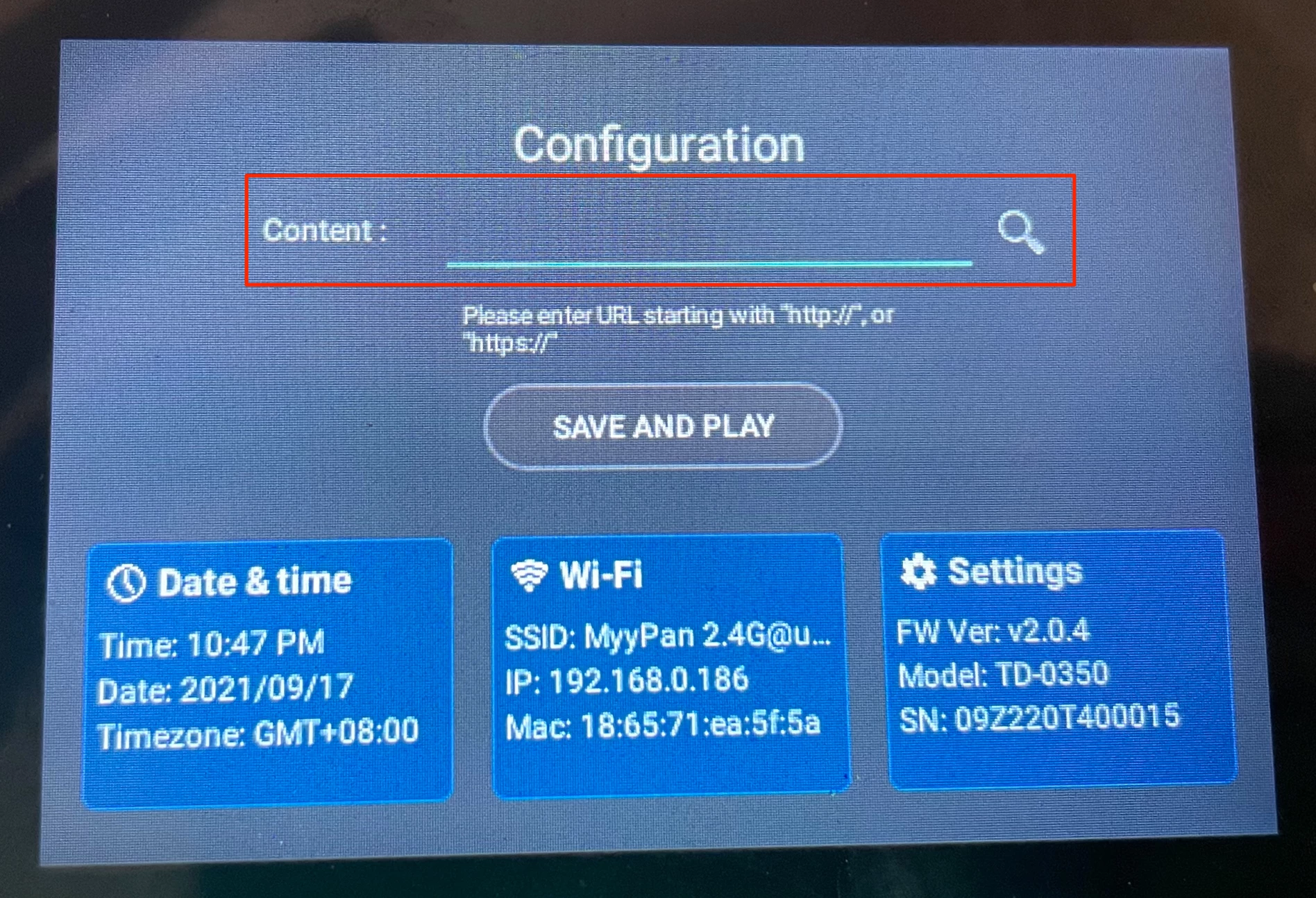
- Power ON the Qbic Smart Panel PC device to launch the Configuration screen.
- Enter the Appspace App PWA URL in the Content field.
- Appspace Cloud:
Note
The Appspace App PWA URL for public cloud is https://cloud.appspace.com/app/?registrationmode=passive
- Appspace Cloud:
- Click PLAY to launch the Appspace App PWA.
- Once successfully connected, the Appspace App PWA Registration page is displayed:
- Follow the instructions in the Register a device article (from Step 2 onwards) to register your device using the 6-character code displayed.
- In Step 11, ensure the device Channel selection mode is set to “Administrators can select a single channel“.
- Assign the desired playlist channel containing the Desk Booking card.
Book Desks via Appspace Employee App for Mobile
For booking instructions, please refer to Reserve Workspace QR Codes on Qbic Devices.