WHAT’s IN THIS ARTICLE:
Introduction
Appspace has made a commitment to continuously improve the experience of our products for our users, regardless of their disability. To address the needs of users with motor, physical, and audio-visual impairments, we are introducing the following accessibility features to the Employee View and Appspace Admin Console on supported web browsers (Google Chrome, Firefox, Safari, and Microsoft Edge):
- Translation of on-screen elements to speech
- Keyboard navigation of interface elements
- Keyboard interaction with input controls
This is in accordance with the accessibility guidelines set by the World Wide Web Consortium (W3C) in the Web Content Accessibility Guidelines (WCAG) version 2.1.
Benefits
With these accessibility features, Appspace users with disabilities can navigate through the various interface elements, and interact with Appspace systems’ functionality:
- better perceive information from the user interface – Users who are visually impaired will benefit from the usage of a screen reader (VoiceOver in MacOS or Narrator in Windows) to translate on-screen elements to speech.
- easily navigate through the on-screen interface elements – Users who are physically impaired will be able to use a keyboard instead of a mouse to navigate the Appspace system, while users who are visually impaired will be able to use combination of a screen reader and keyboard navigation.
- easily interact with the functionality of Appspace systems – Users who are visually impaired will be able to use a screen reader and a keyboard instead of a mouse to interact with the functions of the Appspace system.
Included Interface Elements
The accessibility features outlined in the next chapter below apply to the following interface elements within the Employee View and Appspace Admin Console on supported web browsers (Google Chrome, Firefox, Safari, and Microsoft Edge):
- Menu items, cards, buttons, checkboxes, drop-down menus, hyperlinks, radio buttons, and toggle switches
- Search fields with the typeahead feature (predictive text) with drop-down menus
- The Date Picker feature in calendars
- The Search Autocomplete feature
- The Remove button in the Visitors feature in the Employee View
Accessibility Features
The accessibility features below apply to the interface elements outlined in the section above. They are based on the accessibility guidelines set by the World Wide Web Consortium (W3C) in the Web Content Accessibility Guidelines (WCAG) version 2.1.
The interface elements in the Employee View and Appspace Admin Console are made to work with assistive technologies. These interface elements are mapped to a programmatically associated name that can be identified by a screen reader.
Translation of On-screen Elements to Speech
To translate the on-screen elements to speech, you must enable the screen reader on your operating system (VoiceOver in MacOS or Narrator in Windows), and then open the Employee View or the Appspace Admin Console open in an Appspace supported browser.The enabled screen reader will read aloud the information on the current interface element that currently is in focus.
Example 1:
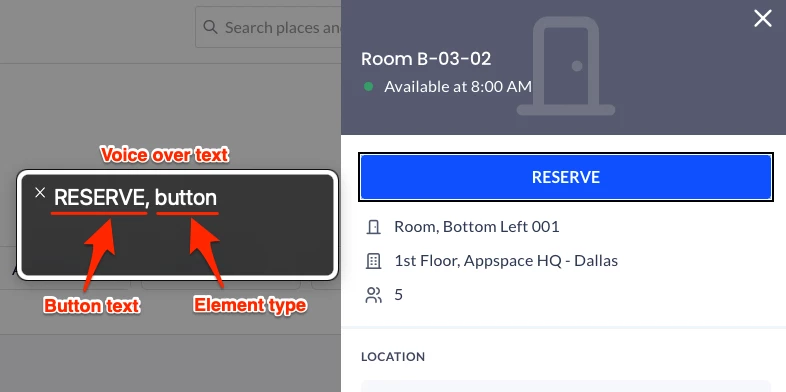
If a button is in focus, the screen reader will read the text within the button, as well as the type of element (button). This also applies to other elements, such as check boxes, drop-down menus, hyperlinks, radio buttons, and toggle switches.
Example 2:
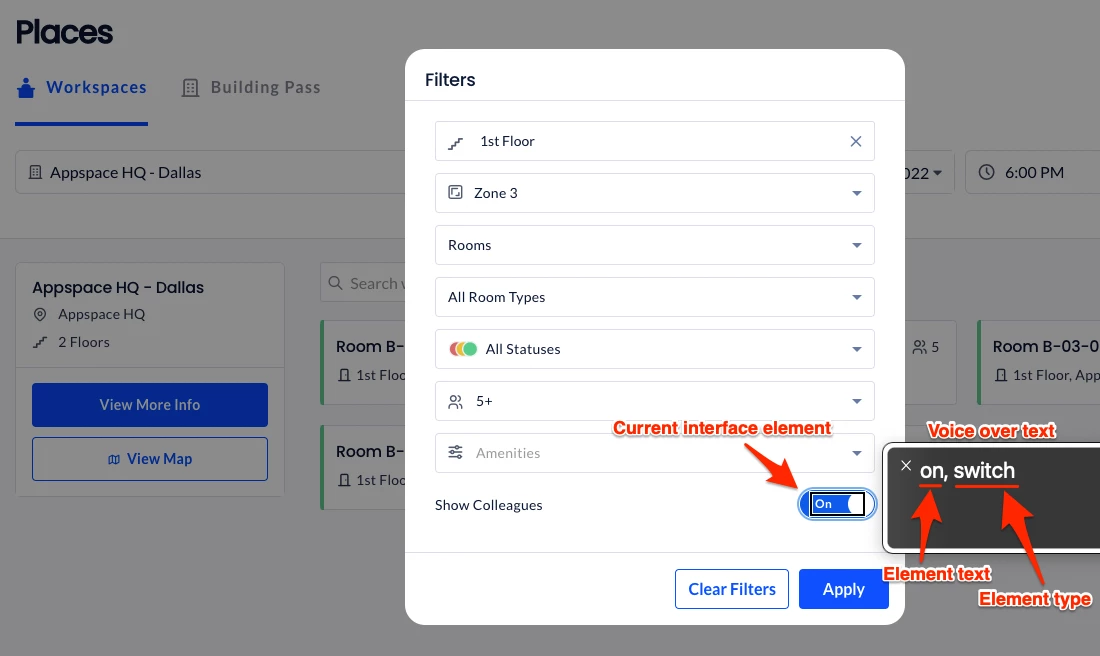
If a toggle switch is in focus, the screen reader will read the type of element (switch) and the state of the toggle switch (on or off).
Example 3:
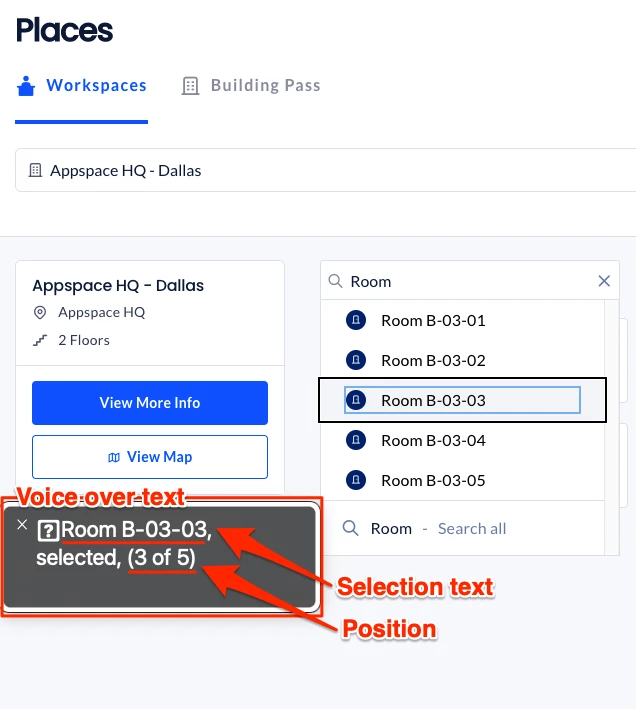
If you enter text in a search field with the typeahead feature (predictive text), a drop-down list of potential results is displayed based on the text entered. As you browse up or down the list, the screen reader will read the text of each selection in focus as well as the option position (e.g. ‘3 of 5‘).
Keyboard Navigation and Selection of Interface Elements
All interface elements have been made accessible for selection via a keyboard. Users who are visually or physically impaired will be able to use a keyboard instead of a mouse to navigate the Employee View or the Appspace Admin Console on supported web browsers.
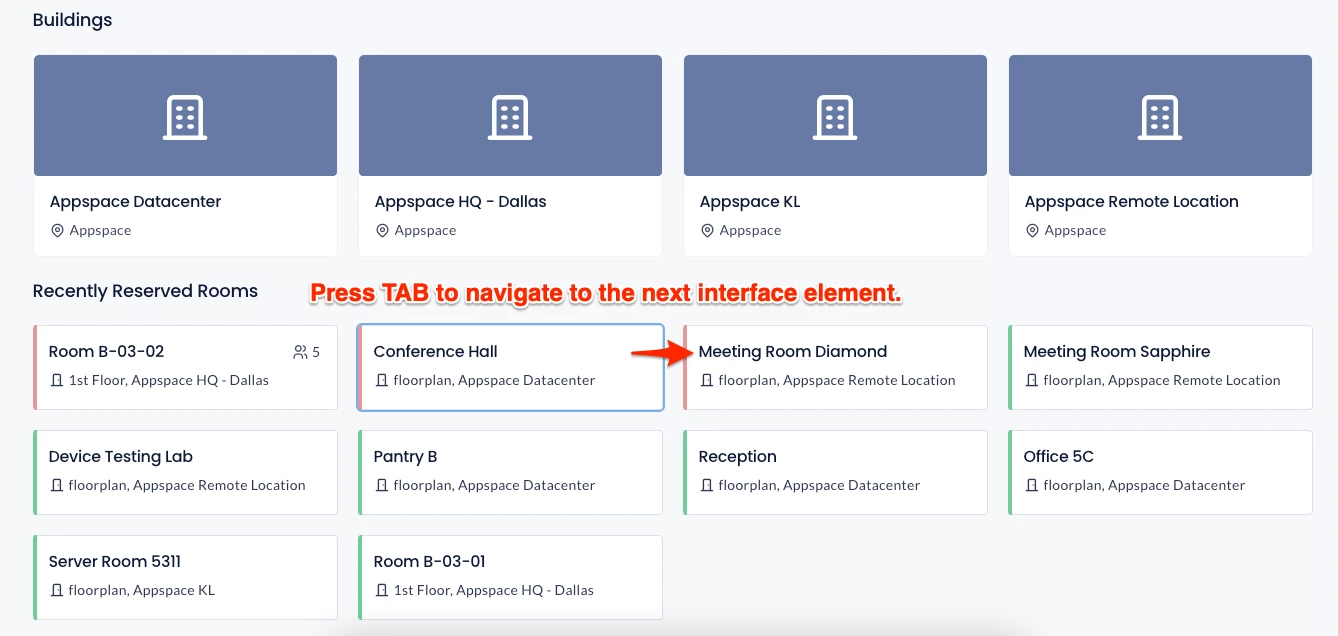
With the Employee View or the Appspace Admin Console open on-screen, press TAB on the keyboard to navigate to the next interface element.
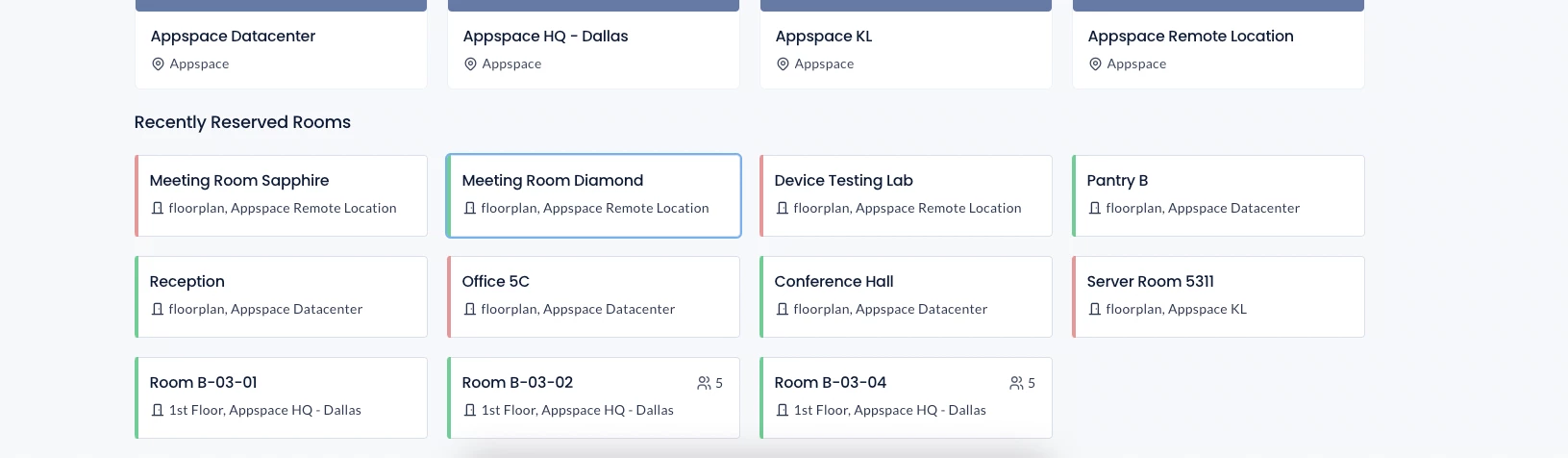
If a screen reader is activated, the screen element will be read aloud once the focus moves to the element. An interface element that is in focus is highlighted by a clear outline. Thus a visually impaired user is able to use a combination of a keyboard and a screen reader to navigate between the elements.
Keyboard Interaction with Input Controls
The following input controls can be interacted with via keyboard instead of a mouse in the Employee View or the Appspace Admin Console on supported web browsers.
When an input control is in focus, perform the following actions for the following input controls:
Menu items
The menu is displayed at the top of the page on the Employee View. With the element in focus, select the menu item (Home, Places, Reservation, and More) with the ENTER or SPACEBAR key on the keyboard.

Cards
Cards on all pages (Home, Places, Reservation, Visitors, Concierge, Channels, Apps, and Videos) of the Employee View are selectable. With the element in focus, select the menu item with the ENTER or SPACEBAR key on the keyboard.
Checkboxes, radio buttons, and toggle switches
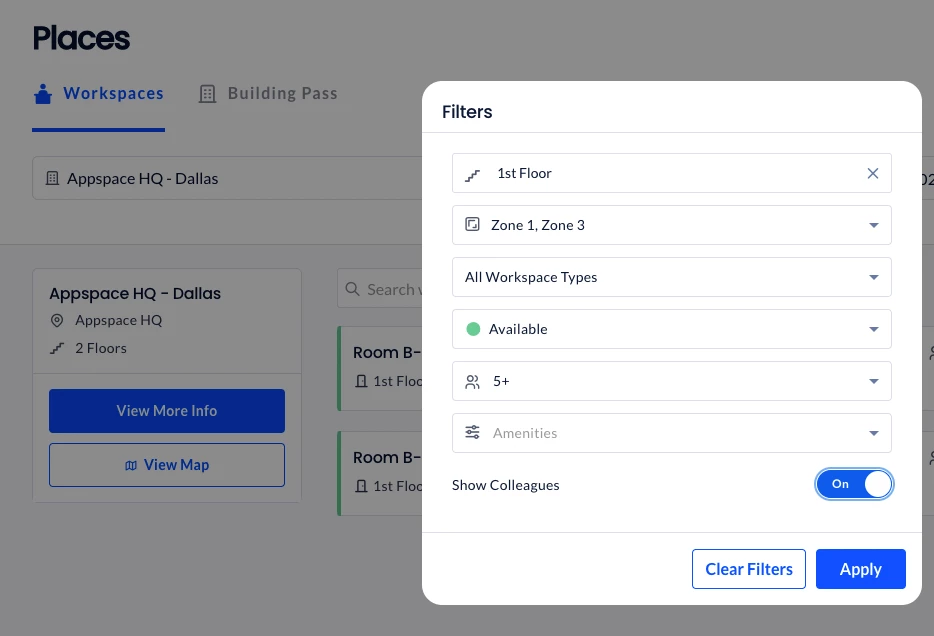
With the element in focus, toggle the option on/off or selected/deselected with the SPACEBAR key on the keyboard.
Buttons, hyperlinks, and search fields
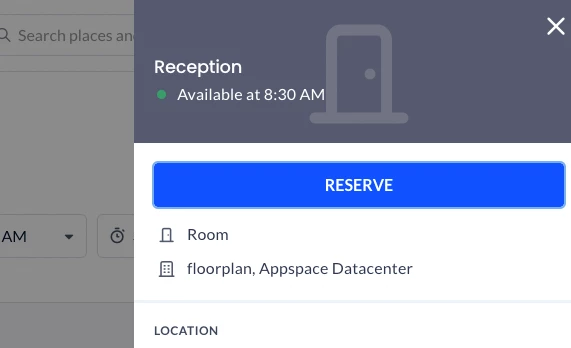
With the element in focus, select or activate the input control with the ENTER or SPACEBAR keys on the keyboard.
Drop-down menus
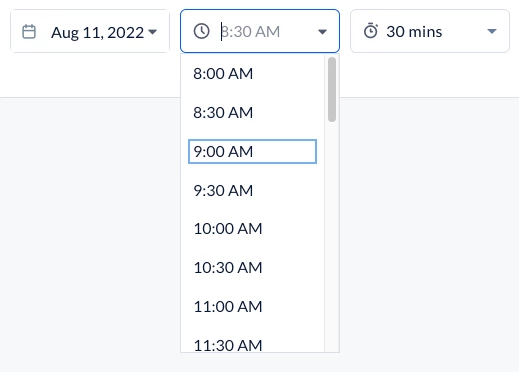
With the element in focus, press ENTER on the keyboard and navigate through the options with the directional ARROW keys on the keyboard. Select an option using the ENTER or SPACEBAR keys on the keyboard.
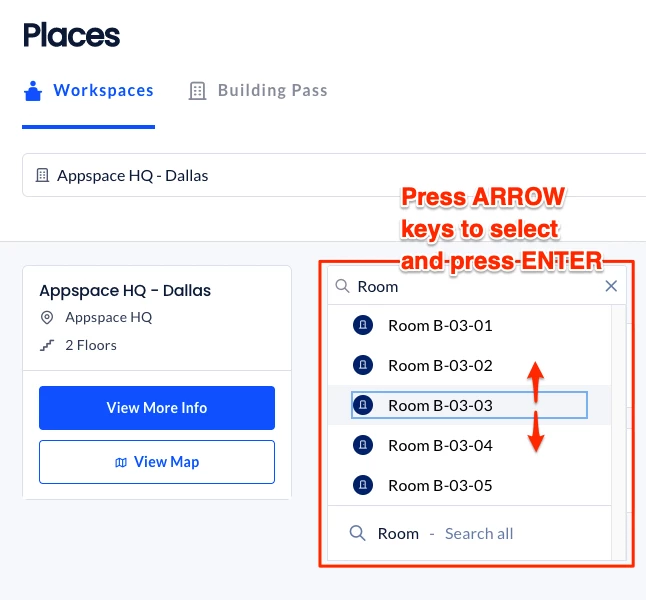
Search fields with the typeahead feature and drop-down menus
When the focus is on the text field, the cursor is placed inside the text field and is immediately ready for typing. After entering text in the field, the search suggestions list appears below. Use the directional ARROW keys on the keyboard to navigate through the search suggestion options. Select an option in the search suggestions list by pressing the ENTER key. When the drop-down menu is navigated away, the result list automatically closes, regardless of whether or not you have selected an option.
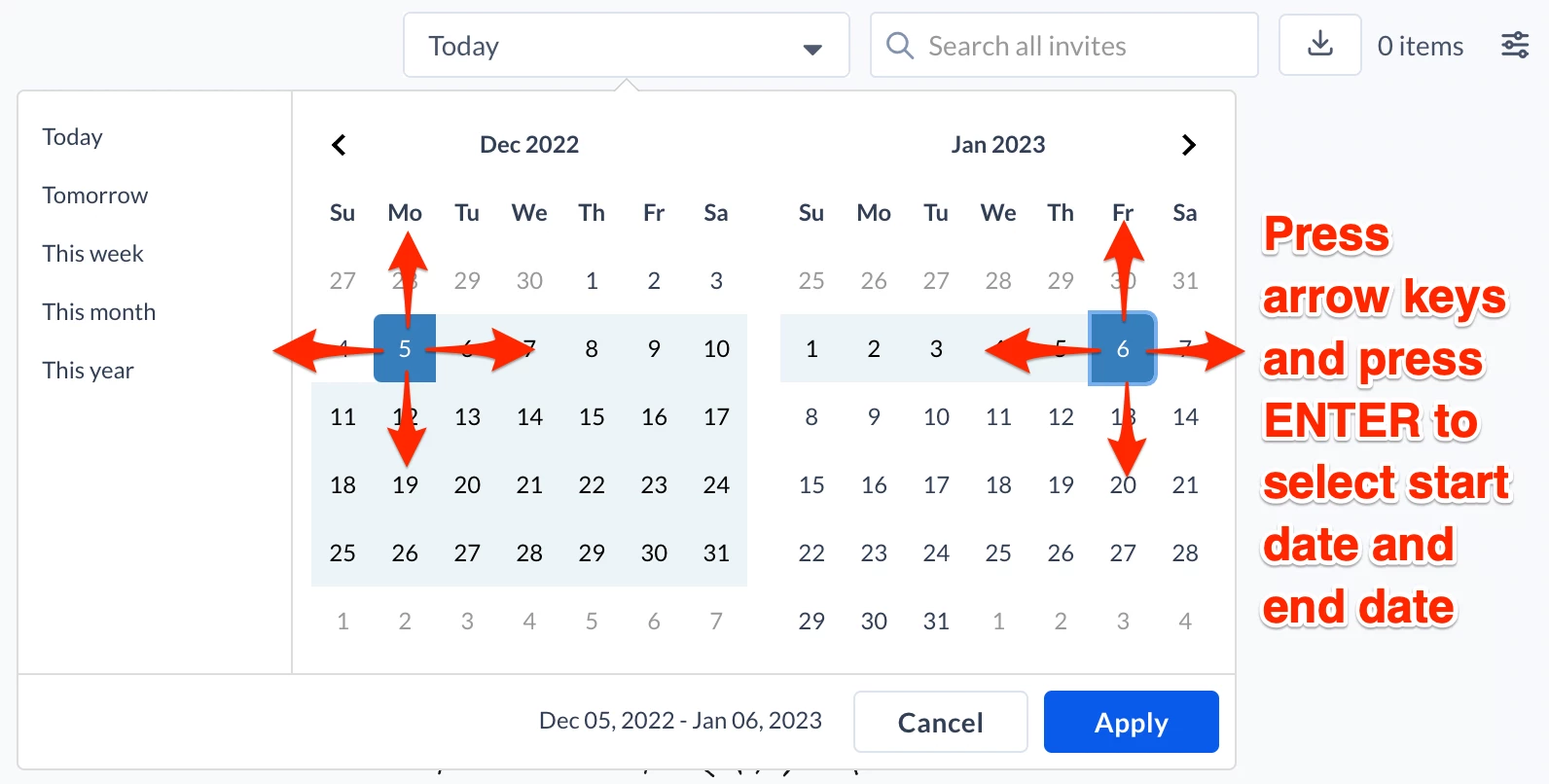
Date picker in calendars
When the focus is on the field, the calendar is opened. Navigate through the options with the TAB key until the date is selected. Use the directional ARROW keys on the keyboard and select the date(s) via the ENTER key.
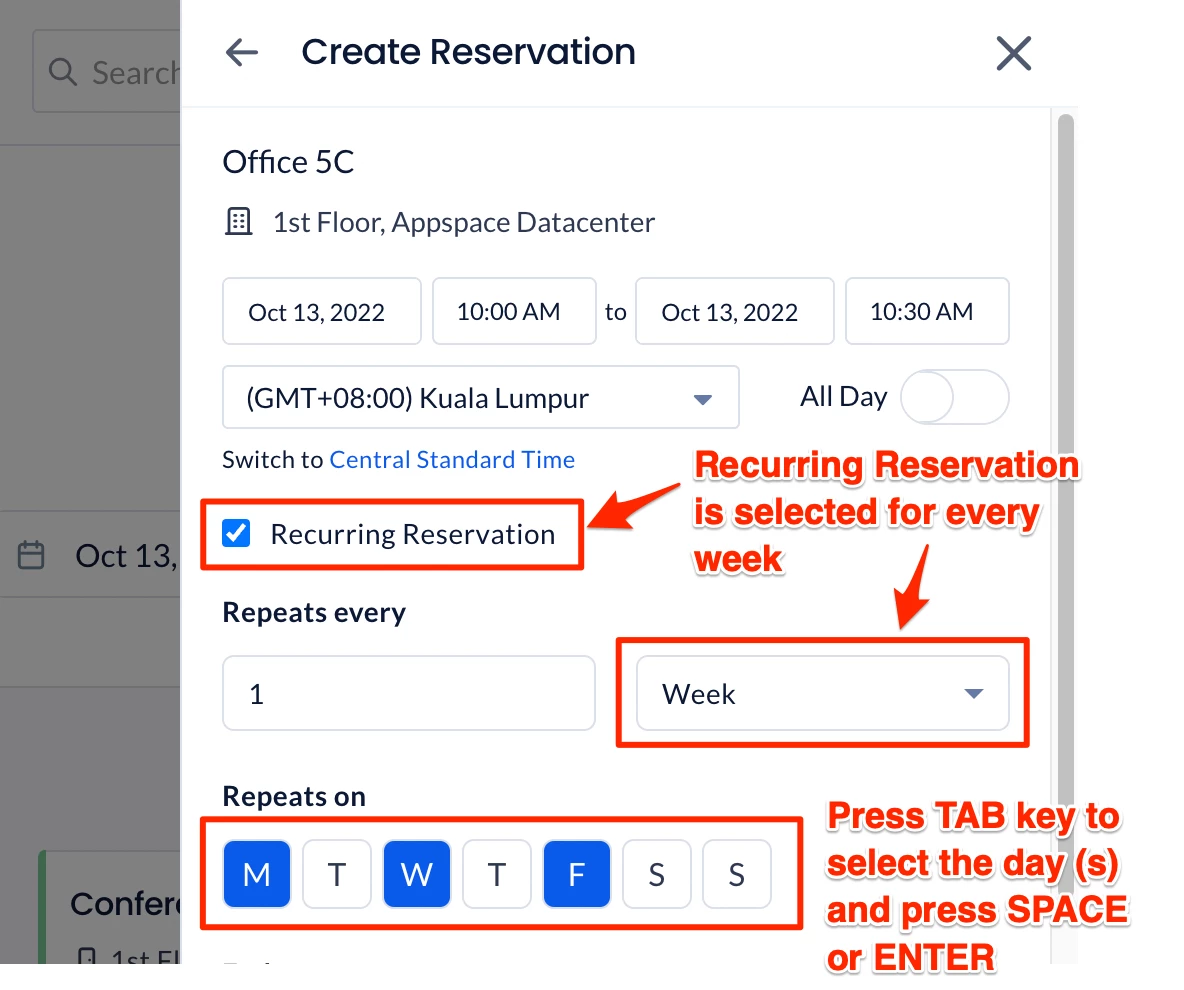
Day picker for recurring reservations
This option is available when the Recurring Reservation option is selected when reserving a workplace. Navigate through the options with the TAB key and select a day of the week via the ENTER or SPACEBAR keys.
Zoom in, Zoom out, Reset and Close button in maps
When viewing a map or floor plan (such as when reserving a workplace), press the TAB key to navigate to the Zoom In, Zoom Out, or Reset View button and press ENTER or SPACEBAR.
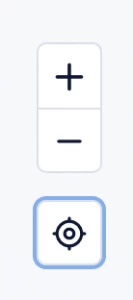
Close the map or floor plan by pressing TAB to navigate to the Close button and press ENTER or SPACEBAR.

Remove button for Visitors in Employee View
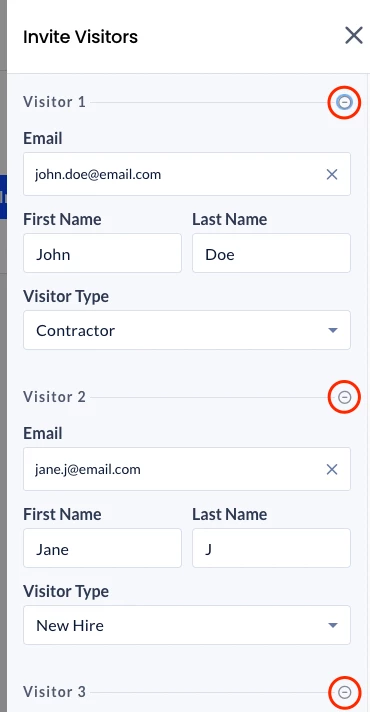
When you are inviting visitors in the Employee View, navigate to the minus button for a visitor to remove and press the ENTER or SPACEBAR key on the keyboard
.
Other Accesibility Features
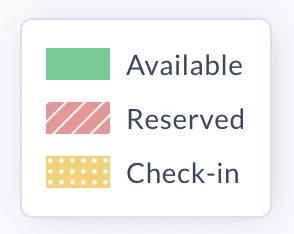
Improved visuals for Available, Reserved and Checked-in statuses on maps.
The map and floor plans are adapted for users with color and visual disabilities. The colors indicating the different room statuses (Available, Reserved, and Checked-in) are enhanced with other visual cues (linear and checkered patterns).