



Reach the Right Audience Without Restricting Access: A Guide to Spotlight Targeting
Employees often share organization-wide spaces where every post is visible to everyone who has access — but not every post is equally relevant to every reader. Without a way to signal intended audiences, communications teams duplicate content across spaces or watch important updates get lost in a noisy feed.
Spotlight Targeting lets authors mark a Page, Story, or post as especially relevant for specific audiences, user groups, and locations — without changing who can open or view the content. Space permissions still control access. Spotlight targets act only as a relevance signal so Newsfeed, Hero, Banner, Featured Posts, Content Index, and related widgets can prioritize matching content for each employee.
Spotlight Targeting works independently from featuring content:
| Not featured | Featured | |
|---|---|---|
| No Spotlight targets | Standard feed content | Highlighted for all users who can see the content |
| With Spotlight targets | Personalized prominence for matching users | Highest priority: featured and personalized for matching users |
Audience: Content authors, communicators, and Employee App page builders who publish Pages/Stories and configure homepage widgets
Goal: After finishing this guide, you can assign Spotlight targets when publishing content, configure widgets to surface Spotlight-matched posts for each employee, and verify that relevance does not override space permissions.
Key Benefits
- Publish once, signal relevance — Reach multiple audiences from a shared space instead of copying the same update into separate locations or communities.
- Relevance without restriction — Spotlight targets do not hide content from people outside the target; permissions and space membership still decide who can view it.
- Clearer employee feeds — Widgets can prioritize posts spotlighted for a user’s location, audience, or group so the most meaningful updates appear first.
- Independent of featuring — Use featuring for organization-wide importance or timing, and Spotlight for who the content is most relevant to — or combine both.
- Works with existing feed filters — Spotlight settings sit alongside existing widget filters such as feeds, communities, and topics.
What This Guide Covers
- What Spotlight Targeting is (and is not)
- How Spotlight differs from featuring and from access control
- Prerequisites for authors and page builders
- Assigning Spotlight For targets on a Page or Story
- Configuring Newsfeed, Hero, Banner, Featured Posts, Content Index, and Spaces widgets for Spotlight surfacing
- What employees see when content matches their attributes
- A real-world communications use case
- Troubleshooting common targeting and widget issues
Prerequisites
- Access to the Appspace Employee App as a content author (or equivalent role that can create or edit Pages and Stories) in a space where you are allowed to publish
- Existing audiences, user groups, and/or locations (network/subnetwork) that match how your organization profiles employees — Spotlight matching uses these attributes; this guide does not create them. See Add and Manage Audiences if you still need to build audiences (including rule-based audiences that use Department).
- For widget configuration: permission to edit the Employee App page (or theme) that hosts Newsfeed, Hero, Banner, Featured Posts, or Content Index widgets. See Configure Employee Experience Settings (part 1).
- Cloud version 2603.1.2 or later for Spotlight Targeting GA. Use 2603.2.0 or later for Hero / Banner / Featured Posts Spotlight, and 2603.3.0 or later for Content Index and Spaces Newsfeed Spotlight.
- Understanding that Spotlight Targeting does not replace space, community, topic, or content permissions — users must still have access to the source content. A reported Newsfeed permission bypass was closed as Cannot Reproduce; pen-test work is still In Progress.
Steps
1. Understand what Spotlight Targeting does
Before you configure anything, keep these product rules in mind:
- Spotlight Targeting is optional. If you leave targets empty, the content is treated as relevant to everyone who already has access.
- You can assign multiple targets. Matching uses OR logic: a user who matches any selected target is treated as a Spotlight match.
- Spotlight does not change visibility. It only influences how widgets prioritize or filter content for personalization modes.
- Featuring and Spotlight are independent. You can feature a post, spotlight it, do both, or do neither.
Spotlight For lets authors select Audiences, User groups, and Locations. Department is not a separate type-ahead group in the authoring control. If you need department-based relevance, create an Audience whose rules already use Department, then select that audience in Spotlight For.
Out of scope for this feature (do not expect these behaviors): behavioral or AI recommendations, consumption analytics per individual, advanced ranking algorithms, or changes to the permission model.
2. Open Feature & Spotlight settings on a Page or Story
- Sign in to the Appspace console and open the Page or Story you want to target (create a new one from Posts → Create, or edit an existing draft/published item you can manage). Page editor URLs follow
/console/#!/page/<id>/edit. - Select Publish to open the publishing summary.
- Set Publish to to a community, topic, or Space. From 2603.3.0, a new Space alone is enough to enable Feature & Spotlight.
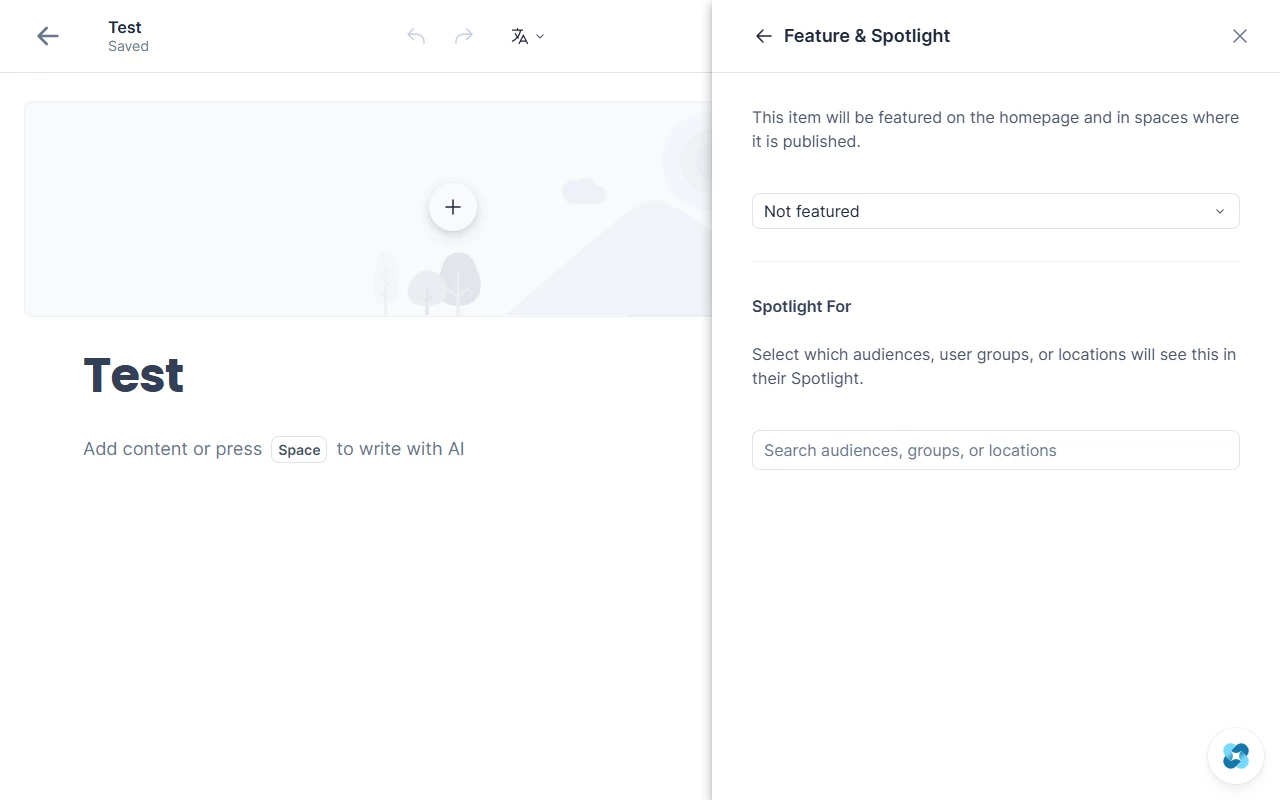
- In the summary, open Feature & Spotlight — this is the entry point for featuring and Spotlight Targeting controls. The row shows No when neither featuring nor Spotlight is set.
3. Assign Spotlight For targets
- In Spotlight For, start typing to search. The placeholder text is Search audiences, groups, or locations.
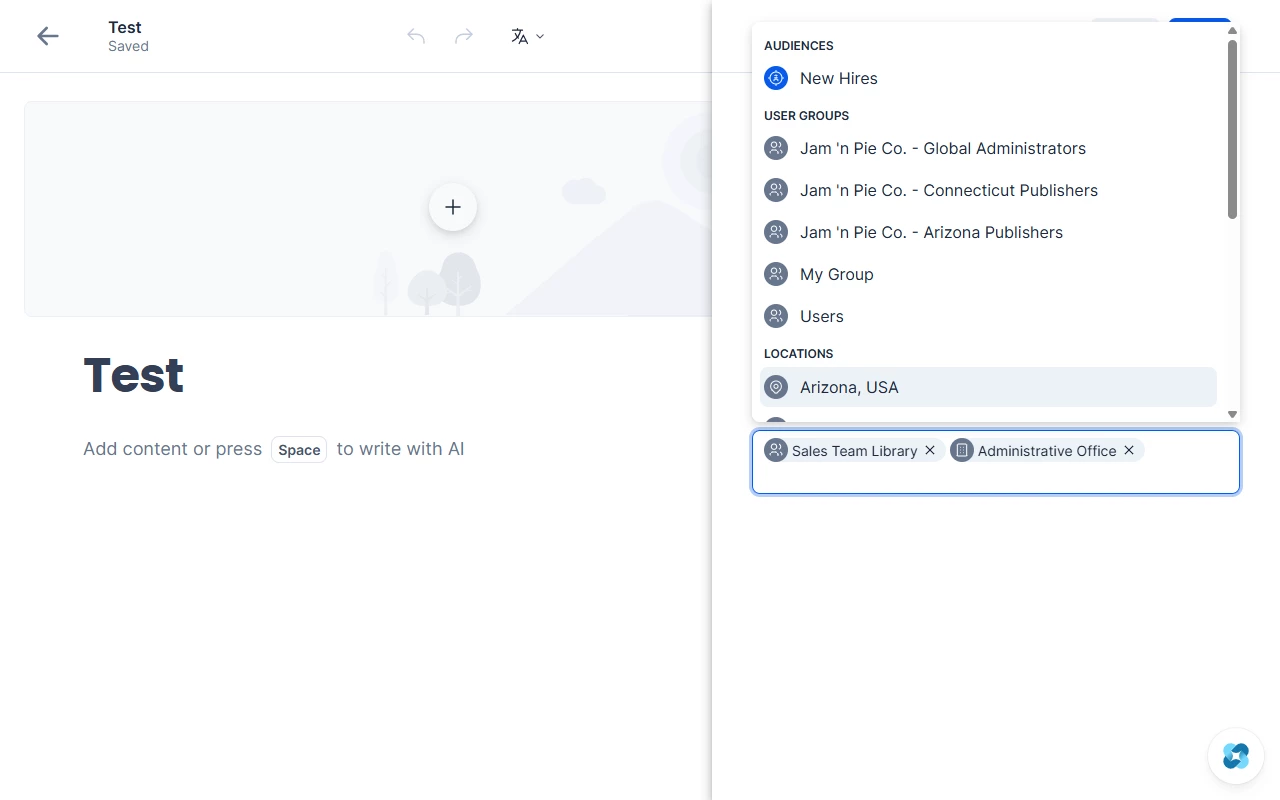
- Select one or more targets from the type-ahead results. Selected values appear as chips/tags in the field.
- Results are grouped by dimension (Audiences, User groups, and Locations) when available.
- Leave the field empty if the post should remain relevant to everyone (no Spotlight prioritization beyond normal feed behavior).
- Optionally use the featuring dropdown (Not featured, Next week, Next month, or a custom date) if the post should also be featured organization-wide — featuring is separate from Spotlight.
- Save or publish when your changes are ready. The settings summary can reflect states such as No, Spotlight, Featured, or Both when those options apply.
Alternatives
- To clear Spotlight Targeting, remove all chips from Spotlight For and save. The post returns to the default “for everyone” relevance state.
- If search returns no matches, you should see a clear empty-state message rather than a blank dropdown.
4. Configure the Newsfeed widget for Spotlight surfacing
Use this when a homepage should prioritize posts spotlighted for the signed-in employee.
- From Employee App home, select Configure (or go to Employee Experience → Themes).
- Open the home theme that contains a Newsfeed widget (theme editor URL pattern:
/console/#!/appconfig/employeeapp/homepage/themes?locationThemeId=<id>). - Select the Newsfeed widget in the theme editor.
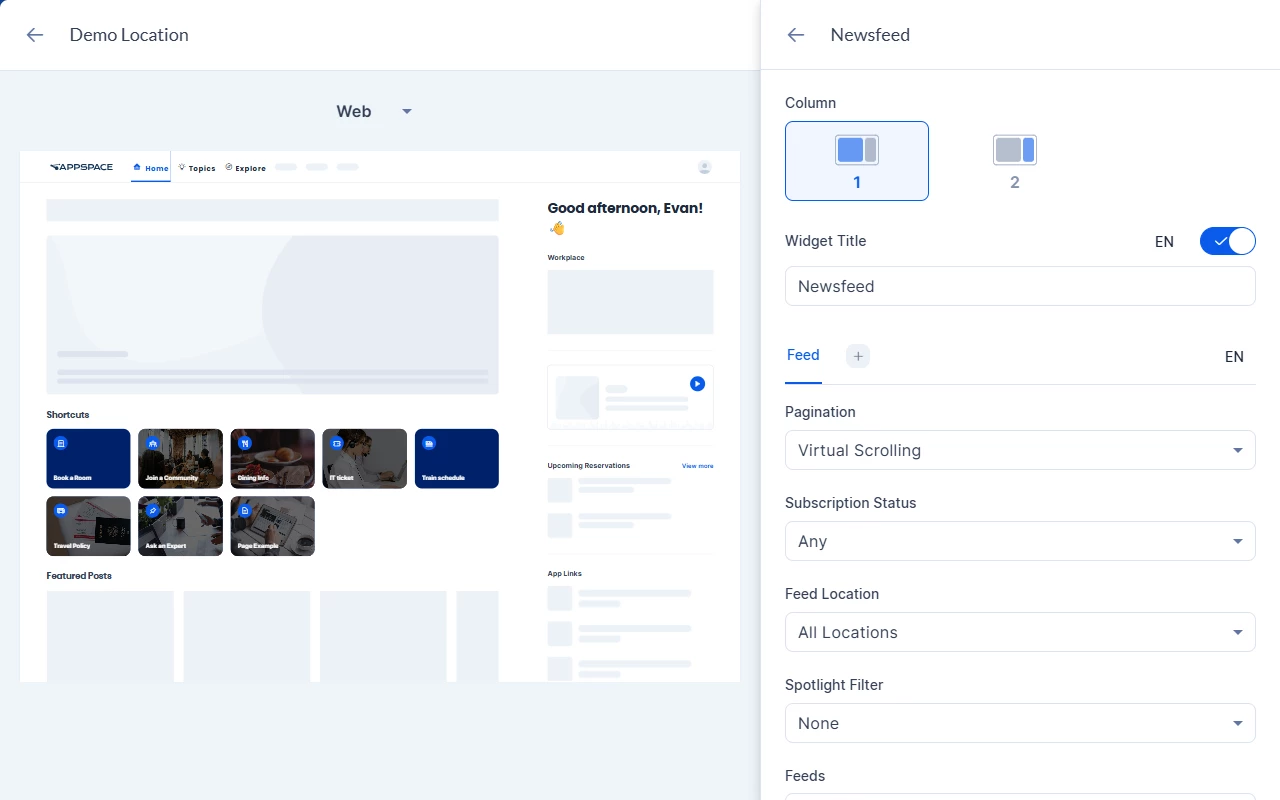
- Set Spotlight Filter to Spotlighted posts only when the widget should limit itself to Spotlight-matched content. Leave it at None (the default) for standard feed behavior.
- Keep or adjust your existing filters (feeds, communities, topics) — they continue to work with Spotlight enabled.
- Save the theme.
Spotlight Filter values shipped on Newsfeed (and on Space Newsfeed / Content View from 2603.3.0) are None and Spotlighted posts only. None keeps standard feed behavior. Spotlighted posts only limits the widget to Spotlight-matched content for the current user; if there are no matching posts, Newsfeed can hide. Hero and Banner still fall back to their default layout when no Spotlight match exists.
5. Configure Hero, Banner, Featured Posts, and Content Index widgets
Hero, Banner, and Featured Posts widgets can prioritize Spotlight-matched content for the current user. Content Index Spotlight support shipped in 2603.3.0.
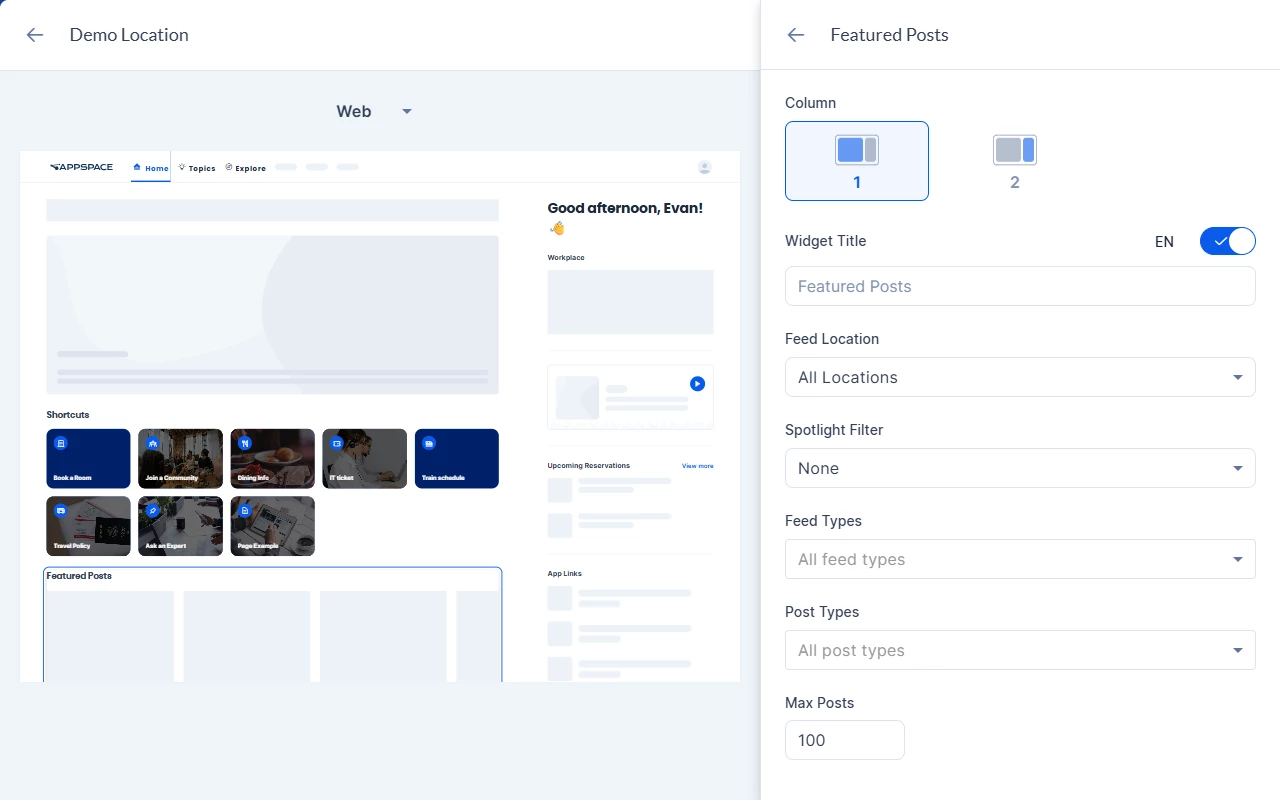
- In the same Employee App Themes editor, select the Featured Posts, Hero, Banner, or Content Index widget.
- Set Spotlight Filter for that widget (default None).
- Featured Posts can limit the widget to spotlighted content depending on the selected filter value.
- Hero and Banner surface Spotlight-matched items in a prioritized presentation when matches exist, and fall back to the default layout when they do not.
- Content Index renders a prioritized Spotlight state when the feed returns
is_spotlighted: truefor the current user, and does not show a Spotlight empty state when there is no match.
- If you choose Spotlighted posts only, review Post Types: options should be limited to types that support Spotlight (Page and Story on Spaces Newsfeed). Content Index supports one post type at a time regardless of Spotlight. When the Content Index source is a topic, Spotlight is limited to Pages.
- If you need the widget to pull from a new Space, use Newsfeed or Featured Posts — those widgets can select new Spaces as a feed source. Content Index’s Spaces dropdown still does not list new Spaces (still open as of 2026-08-28).
- Save the theme.
From 2603.3.0, the Space Newsfeed widget and Content View sections use the same Spotlight Filter control (None | Spotlighted posts only) as homepage Newsfeed, in both Center and Sidebar layouts.
6. Verify the employee experience
Sign in (or use a test account) as a user who matches at least one Spotlight target, and as a user who does not.
- Open the page with your Spotlight-enabled widgets.
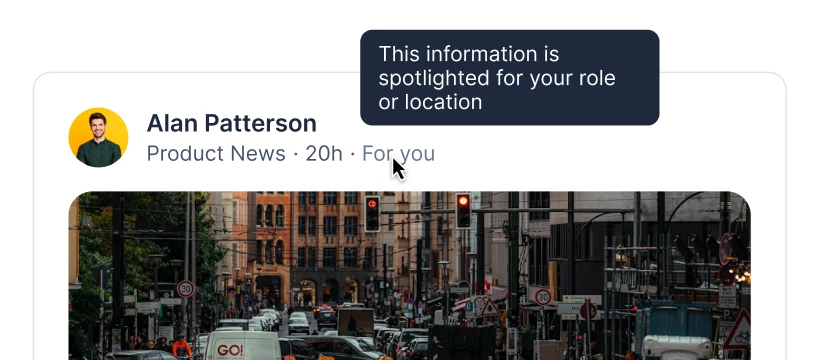
- For a matching user, confirm Spotlight-matched posts appear with priority. Newsfeed cards show a For you label; hover it to read This information is spotlighted for your role or location.
- For a non-matching user who still has space access, confirm they can still see non-restricted content according to permissions — Spotlight must not grant access to content they cannot open.
- Hero, Banner, and similar widgets can also show For you on Spotlight-matched items for the current user.
Use Case
Scenario: A global internal communications team publishes campus-specific safety updates in one company-wide community.
Your organization has a single “Company News” community (or Space) so everyone can browse the same archive, but office-specific notices (parking closures, weather alerts, visitor rules) clutter the homepage for people at other sites. Instead of creating a separate community per campus, authors publish each notice once in Company News, open Publish → Feature & Spotlight, and set Spotlight For to the relevant Location (and an Audience or User group when only certain roles need emphasis). Page builders set Spotlight Filter on the homepage Newsfeed (and on Featured Posts, Hero, Banner, Content Index, or Space Newsfeed as needed). Employees in London see London notices first; employees in Singapore see Singapore notices first; both groups retain access to the full community feed when they scroll or browse, and featuring can still elevate a rare all-hands announcement for everyone.
Best Practices
- Prefer Spotlight over duplicating the same post into multiple spaces when the goal is relevance, not separate governance or permissions.
- Use featuring for time-bound, organization-wide importance; use Spotlight for who should notice the post first.
- Keep target lists short and intentional — OR logic means any single match prioritizes the post for that user.
- Align Spotlight targets with attributes your identity/HR sync already maintains (location, audiences, groups). Use a rule-based Audience when department is the real targeting key.
- After changing Spotlight Filter to Spotlighted posts only, re-check Post Types so unsupported types are not left selected.
- Always validate with a user who lacks permission to the source community: they must not see Spotlighted content from that community in widgets.
Troubleshoot
| Symptom | Likely cause | What to try |
|---|---|---|
| Spotlight For does not list a known location | Locations come from the network/subnetwork tree and may not appear if search or location indexing failed | Search the exact location/subnetwork name; confirm the location exists in your network hierarchy |
| No results while typing a target name | No matching audience, group, or location for the query | Check spelling; confirm the target exists; you should see an explicit no-matches message |
| Department does not appear as its own Spotlight For group | Authoring UI targets Audiences, User groups, and Locations | Create or select an Audience whose rules already include Department |
| User sees Spotlight content from a community they cannot access | Widget surfacing incorrectly bypassed permissions (regression) | Remove the content from the widget’s source filters or fix permissions; Spotlight must never override access — escalate if reproducible. The original Newsfeed report was closed as Cannot Reproduce; pen-test work is still In Progress. |
| Widget looks empty after enabling Spotlighted posts only | No Spotlight-matched posts for the current user, or widget hides when empty | Confirm posts have Spotlight For targets that match the test user; confirm the user has access to the source content; Newsfeed may hide when it has no posts |
| Spotlighted item never appears in Featured Posts unless something else is featured | Featured Posts can still require a featured item to render | Use Content Index Spotlight (from 2603.3.0) when you need Spotlight surfacing without a featured item. Hero and Banner fall back to their default layout when there is no Spotlight match. |
| Feature & Spotlight is greyed out when publishing only to a new Space | Older builds required a community or topic destination first | On 2603.3.0 or later you can configure Feature & Spotlight with only a Space selected. On older builds, temporarily set Publish to to a community or topic, configure Spotlight, then switch back to the Space. |
| Content Index cannot select a new Space as a source | Content Index’s Spaces dropdown does not yet list new Spaces | Use Newsfeed or Featured Posts to source new Spaces; or source Content Index from communities, topics, or Spaces that already appear in the list |
| Post Types still lists unsupported types in Spotlight-only mode | Widget settings did not constrain post types | Re-open widget settings after selecting Spotlighted posts only and limit post types to supported options |
| Spotlight controls missing entirely | Feature not enabled on the account/version | Confirm cloud 2603.1.2 or later and that Spotlight Targeting is on for your tenant |
| Content Index or Space Newsfeed has no Spotlight Filter | Build is older than 2603.3.0 | Update to 2603.3.0 or later |
Related
- Configure Employee Experience Settings (part 1) — Homepage theme and widget configuration
- Add and Manage Audiences — Build audiences (including Department rules) to use as Spotlight targets
- Create and Manage Pages — Publish Pages and set featuring
- Create and Manage Stories — Publish Stories and set featuring
- Create and Edit Posts, Stories, and Pages in a Community
- Create Posts in Employee App
- User Groups vs. Audiences: What's the Difference?
- Create and Organize User Groups
- Create a Reliable Location Hierarchy: A Guide to Setting Up and Structuring Locations
- Browse and Navigate Posts Management
- Configure Employee Experience in Appspace Console