



Prepare Your Document Libraries for Appspace Federated Search: Best Practices for SharePoint, Google Drive, Box, and OneDrive
Organizations connect external document systems to Appspace so employees can search SharePoint, Google Drive, and Box from Spotlight global search and browse linked Document Libraries inside Communities—without leaving the intranet. That experience works best when the source library is organized for discovery, not just for storage.
For: IT administrators, SharePoint/Google/Box owners, and Appspace administrators who configure federated search connections and Document Library integrations.
It covers SharePoint, Google Drive, and Box as document-management sources. Federated Search also includes ServiceNow; that provider is out of scope here. OneDrive is not a Document Library or Federated Search provider—only Microsoft Drive passport / OAuth plumbing exists today.
Search behavior is not the same for every provider. Google Drive federated search matches file names only. SharePoint uses Microsoft Graph Search (KQL) and can return summary snippets from indexed content. Box Search is called without a content-type restriction, so enterprise Box can match file content. How you name files, scope connections, and assign permissions still determines whether Appspace search feels fast, relevant, and trustworthy—but do not tell SharePoint or Box admins that Appspace never searches body content.
Federated search (Spotlight / Universal Search) and Document Library connections (Community library tab) are configured separately. You can enable one without the other, but both benefit from the same source-library hygiene.
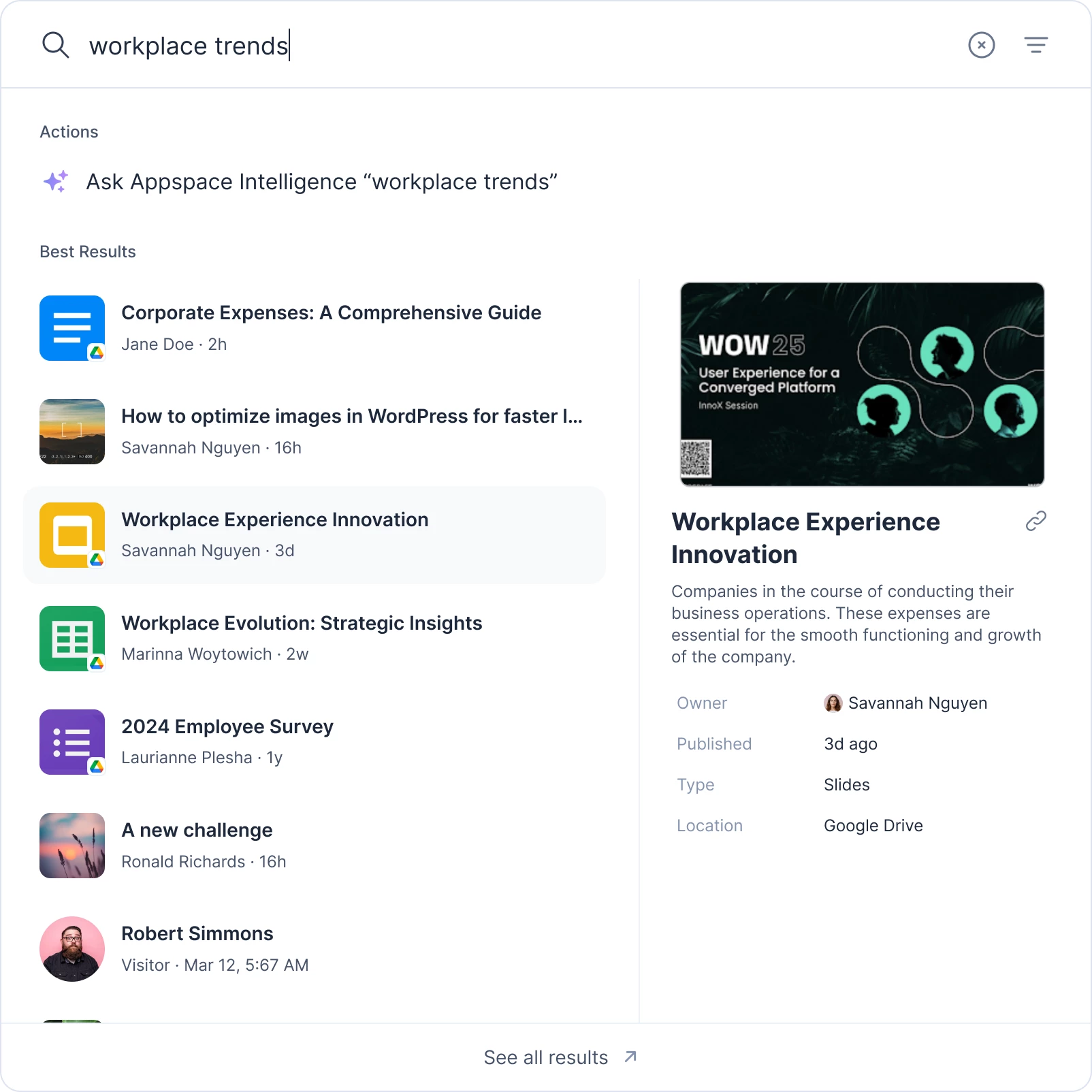
How Appspace Uses Your Source Library
Understanding these platform behaviors helps explain the recommendations below.
| Behavior | What it means for your library |
|---|---|
| Provider-specific search | SharePoint: Graph Search over list items (full-text where Microsoft indexes the file) plus result summaries. Google Drive: name contains — filename only. Box: Box /search for files; default enterprise search can include content. |
| Scoped connections | SharePoint federated search can be tenant (no site selected), site, or selected libraries—library scope is optional, not forced. Prefer site or library scope for relevance and API load. Google Drive and Box folder/drive scope is available only with an admin passport; user-passport connections search allDrives (Google) or the enterprise (Box). Document Library integrations can further limit to a single root folder. |
| Native permissions (user passport) | With a user passport, users only see results they can already access in the source system. Appspace does not elevate access. If you choose an admin passport, results follow that account's access ceiling instead. |
| User vs admin passport | Product modes are user passport (RequireUserPassport, the usual default) and admin passport (UseAdminPassport). Some Box materials also say "service account"—that is the same admin-passport concept, not a third mode. |
| My Drive and personal files | User-passport Google Drive search can surface My Drive files the searcher can access. Document Library can use My Drive root ("root"). Use Shared Drives + admin passport when you need curated, non-personal discovery. |
| Result limits | Federated search returns a bounded number of hits per source. Universal search caps at 50. SharePoint search defaults to 25 when a limit is not passed. Large, noisy libraries still make relevant items harder to surface. |
| Document Library sync | When you link a library to a Community, Appspace syncs metadata from a single root folder and keeps it updated via webhooks (SharePoint, Box, and Google Drive). SharePoint nuance: sync can be folder-scoped, but the Graph subscription is registered on the drive root. |
| One library per Community | Each Appspace Community can link to one external Document Library. Plan Community ↔ library mapping deliberately. |
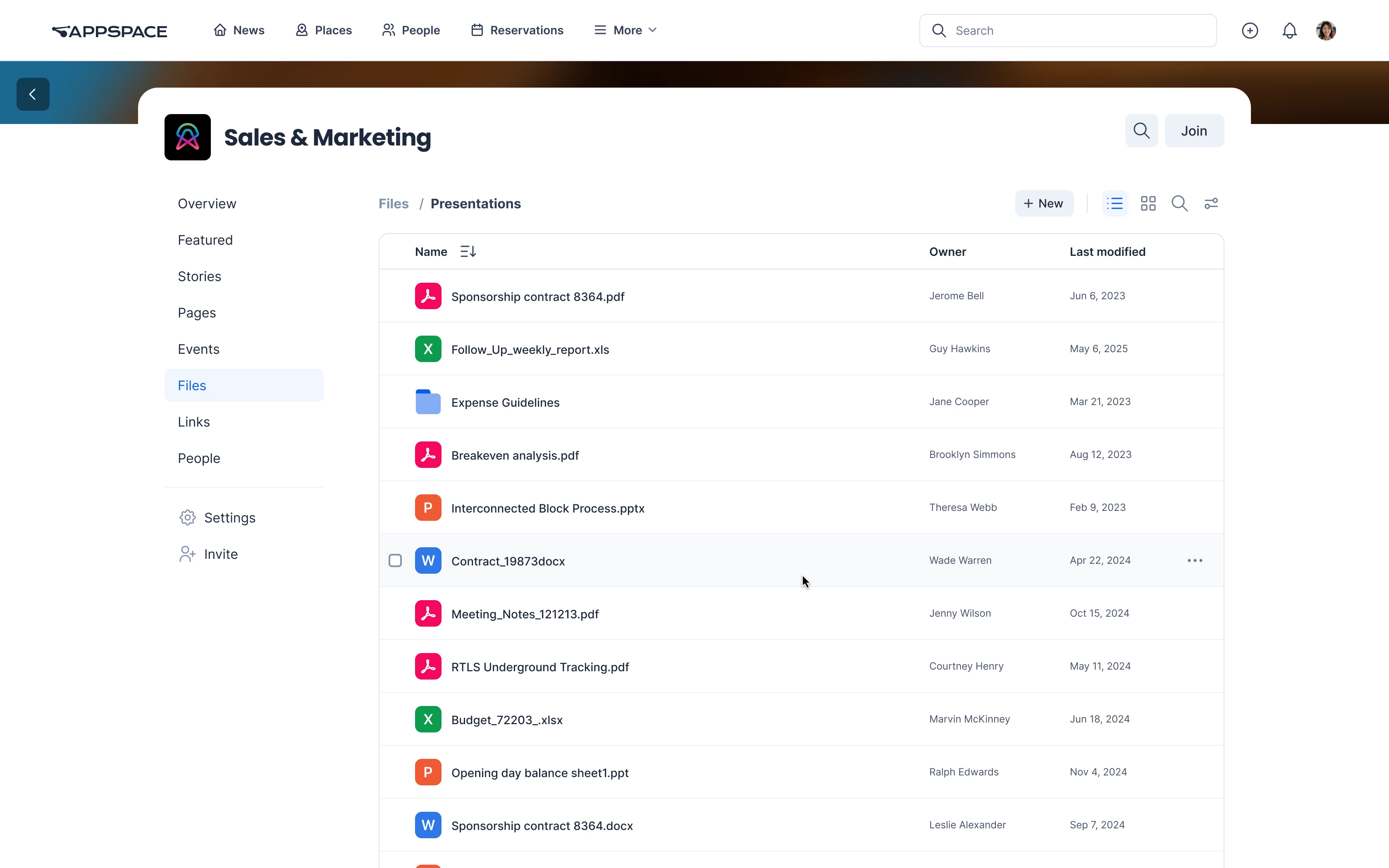
SharePoint Document Libraries, Google Drive, and Box are configured in Admin Console with library passports and Search Integrations. For setup, see Configure Employee Experience Settings (part 2) and Create and Edit Posts, Stories, and Pages in a Community. OneDrive / Microsoft 365 federated search is not generally available; OneDrive is not in the live Document Library or Federated Search provider set.
Search semantics by provider
| Provider | What federated search actually queries | What to optimize |
|---|---|---|
| SharePoint | Microsoft Graph Search (entityTypes=listItem), KQL, result Summary snippets | Naming still helps; do not assume body content is ignored. Scope at site or library when you can. |
| Google Drive | Filename only (name contains '{query}') | Treat file names as the search index. Shared Drive + admin passport if you must exclude personal My Drive. |
| Box | Box Search API (type=file) with no content_types restriction | Naming and shared folders still matter; enterprise search can match file content. Folder scope requires admin passport. |
| OneDrive | Not available for Federated Search or Document Library | Do not plan intranet discovery on OneDrive as a peer of SharePoint / Drive / Box. |
| ServiceNow | Live Federated Search provider (appspace.federated.servicenow) | Out of scope for this DMS hygiene guide. |
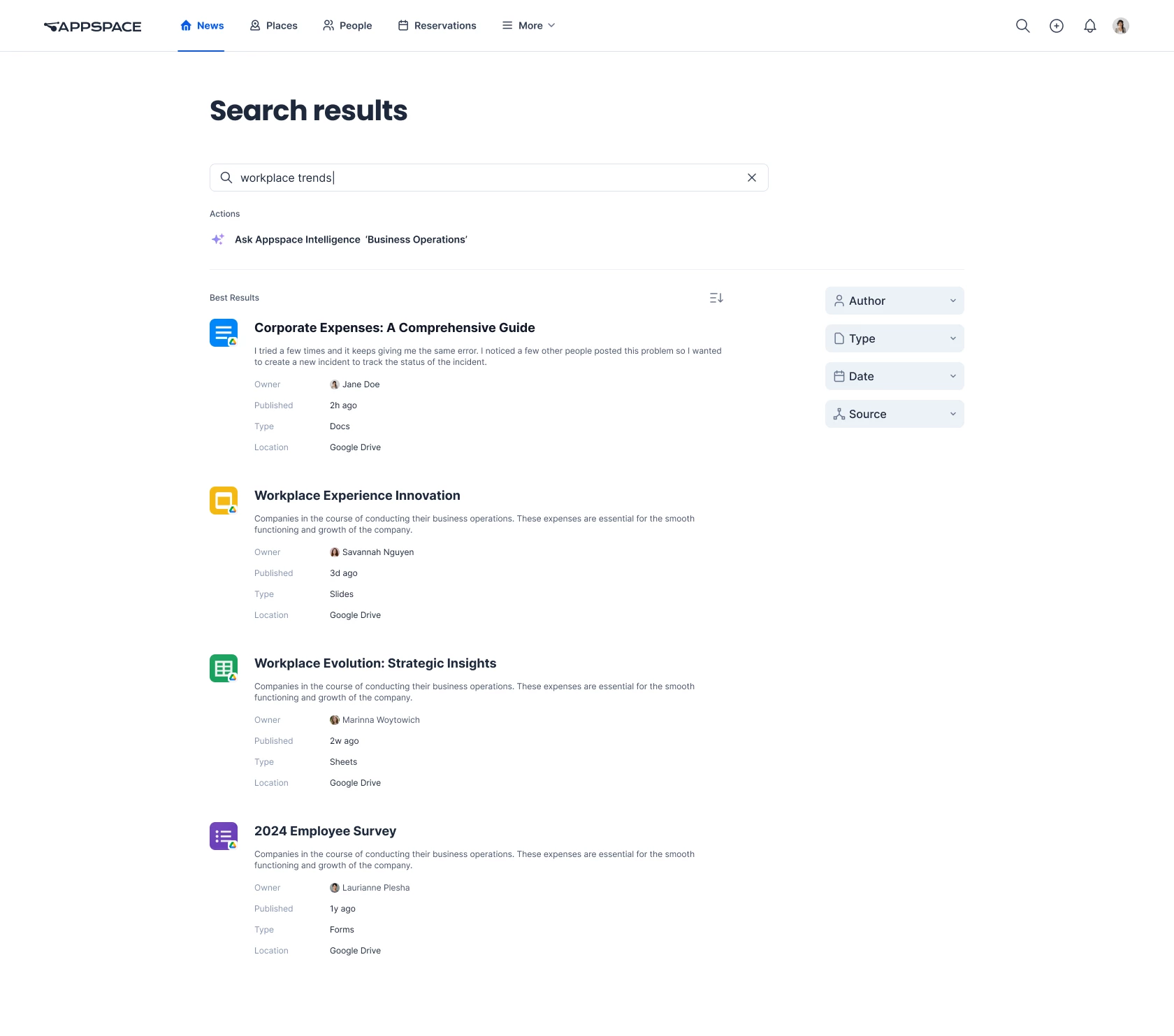
Core Principles
- Optimize for how each provider searches — Google Drive lives or dies on file names. SharePoint and Box can also match indexed body content; still use clear names and titles.
- Scope as narrowly as the product allows — Prefer selected SharePoint libraries or sites over the whole tenant. For Google Drive and Box, drive/folder scope exists only on the admin passport path; user-passport connections cannot pick a Shared Drive or ancestor folder.
- Align permissions before go-live — Fix access in the source system. With a user passport, Appspace cannot expose content a user cannot already reach. With an admin passport, everyone sees up to that passport's ceiling.
- One logical home per document — Duplicates, drafts, and archived copies create confusing search results.
- Match Community intent to folder intent — The Appspace Community audience should mirror the SharePoint library or folder audience.
Do
Naming and metadata
- Use descriptive, searchable file names that include topic, document type, and audience where helpful (for example,
2026-Employee-Benefits-Guide-HR.pdfinstead ofFinal_v3.pdf). This is essential for Google Drive and still valuable for SharePoint and Box. - Populate native title and description fields in SharePoint columns, Box descriptions, or Google Drive file details. These values appear in result metadata and can improve findability where the provider indexes them for search—not all fields are query targets in Appspace.
- Apply a consistent naming convention across teams (date prefix, department code, document type) so employees can predict search terms.
- Keep file names unique within a connected library when versioning matters. SharePoint native versioning handles same-name uploads in SharePoint. Appspace upload/version alignment with SharePoint native versioning is limited today—prefer uploading new versions in SharePoint.
- Use standard, supported file types for content you expect employees to open from Appspace (Office documents, PDF, common image formats).
Information architecture
- Create purpose-built libraries or root folders for intranet discovery—for example,
HR Policies,Brand Assets, orSales Enablement—rather than connecting a general-purpose team site dump. - Keep folder depth manageable (aim for three to four levels or fewer). Deep paths are harder to browse in Document Library views and add little search value when folder names are not descriptive.
- Separate active content from archives using distinct libraries or top-level
Archivefolders, and exclude archives from federated search scope when possible. - Map one Appspace Community to one well-defined source root so browsing and search context stay aligned.
- Document the canonical location for each document type so authors do not scatter copies across sites.
- SharePoint: Prefer site or selected library federated search scope. Tenant-wide search (no site/library selected) is available but noisy and heavier on Microsoft Graph.
- Google Drive / Box: If you need a curated Shared Drive or folder (and to keep personal My Drive out of results), use an admin passport so source-group / folder controls are enabled. User-passport Google Drive search uses
allDrivesand can include My Drive files the user can access.
Permissions and identity
- Grant access through groups (Microsoft 365 groups, SharePoint groups, Google Groups, Box groups) rather than ad hoc individual sharing.
- Ensure employee email addresses match between Appspace and the document system so ownership and access mapping work correctly.
- Prefer user passports for federated search when you want each employee to see only what they personally can access.
- Use admin passports deliberately—only when a shared, consistent result set is intended (for example, a curated public knowledge base folder). Remember this is also the only path that lets you pick Google Drive / Box folder or Shared Drive scope in the console.
- Validate access with representative test accounts before announcing federated search to the organization.
Operations and governance
- Review connected scope quarterly and remove libraries or folders that no longer belong in intranet search.
- Assign a library owner responsible for naming standards, permission hygiene, and retiring outdated content.
- Test search with real employee queries during pilot (policy names, form numbers, acronyms) and adjust naming or scope based on misses.
- Plan for rate limits on large tenants by avoiding unnecessarily broad connections that query huge libraries on every search.
Don't
Naming and metadata
- Don't rely on folder path alone to convey meaning. Cryptic file names stay hard to find—especially in Google Drive, where federated search is filename-only.
- Don't use generic names such as
Document.docx,Untitled,Copy of…, orFinal_FINALacross hundreds of files. - Don't assume Appspace never searches document bodies. That is true for Google Drive (filename only). SharePoint Graph Search and Box enterprise search can match indexed content. Native DMS search may still differ from Appspace results.
- Don't treat custom metadata columns, Box metadata templates, or Google Drive labels as primary Appspace filters yet. Advanced provider-specific metadata filters are planned for future releases.
Information architecture
- Don't connect an entire SharePoint tenant or all Shared Drives unless you accept noisy results, slower queries, and higher API load. Tenant-wide SharePoint search is possible; it is rarely a good default.
- Don't assume private My Drive is excluded. User-passport Google Drive federated search can return My Drive files the user can access. Don't mix personal drafts with official content if employees will search with a user passport.
- Don't maintain multiple uncoordinated copies of the same policy in different sites if employees are expected to find "the" official version through Appspace.
- Don't reorganize folder structures aggressively during initial rollout. Moves within a connected library are supported, but large restructures can temporarily disrupt browse views, webhook sync, and user bookmarks—validate moves during pilot, especially for non-admin authors.
- Don't expect cross-library move/copy in Appspace to preserve a single item identity. Document Library integrations treat each connected library independently.
Permissions and identity
- Don't assume Appspace elevates access when using a user passport. If a user lacks SharePoint (or Drive/Box) read permission, the file will not appear in their federated search results.
- Don't use an admin passport with broader access than intended. Search results reflect what that passport can access; user passports are required when each employee should see only their own permitted content.
- Don't leave broken inheritance and one-off sharing links unmanaged; they produce inconsistent "sometimes I find it, sometimes I don't" behavior.
Operations
- Don't publish federated search before validating passport authentication and connection scope in Admin Console.
- Don't store sensitive or legal-hold content in broadly connected libraries unless access controls are explicitly verified.
- Don't ignore duplicate-file/version behavior. Prefer uploading new versions in SharePoint. Appspace upload/version alignment with SharePoint native versioning is limited today.
Provider-Specific Guidance
Microsoft SharePoint
SharePoint supports both federated search and Document Library browsing with webhook-based metadata sync. Google Drive and Box follow similar patterns for library vs search connections, but search semantics and scoping UI differ (see the matrix above).
SharePoint federated search scope is one of:
- Tenant — no site (
SourceGroup) selected → search across SharePoint - Site — site selected, no libraries (
Sources) → that site - Libraries — site plus selected lists/libraries (
listIdfilters)
| Do | Don't |
|---|---|
| Connect document libraries with clear business purpose; prefer site or library scope over the whole tenant. | Assume search is always library-scoped. Leaving site and libraries unset searches the tenant. |
| Set provider filter types to Document Library if you want pages out of results. | Assume Site Pages are excluded by default. With no provider filter types, search includes Modern Site Pages, Wiki Pages, Web Part Pages, and Web Page Library content. |
| Use SharePoint groups / M365 groups for permissions. | Rely on broken permission inheritance across subsites. |
| Enable versioning on libraries in SharePoint, and upload new versions in SharePoint. | Expect Appspace uploads to follow SharePoint native version history the same way SharePoint itself does. |
| Select a single root folder when scoping a Document Library to a Community. | Expect moves between two different connected libraries to behave as a single item. |
OneDrive: Passport app microsoft-drive exists. OneDrive is not in Document Library, Federated Search, or external storage provider types. Do not treat it as a peer of SharePoint for this guide.
Google Drive
| Do | Don't |
|---|---|
| Store intranet-worthy content in Shared Drives and shared folders. | Tell admins that private My Drive is out of federated search. With a user passport, allDrives can include My Drive files the user can access. Document Library may use My Drive "root". |
Use an admin passport when you need to scope to a specific Shared Drive or folder (SourceGroup controls). | Expect user-passport connections to pick a drive/folder—the UI enables that only for admin passport. User mode is unscoped allDrives filename search. |
| Invest in file naming; federated search is filename-only. | Depend on Google Drive labels or in-document full-text in Appspace (Drive federated search does not search bodies). |
| Use domain-wide delegation and service accounts per your Google Workspace admin guide when configuring OAuth. | Connect deprecated Team Drives naming or legacy structures without reviewing current Shared Drive layout. |
Box
| Do | Don't |
|---|---|
| Organize content in Box workspaces and shared folders intended for collaboration. | Assume Appspace Box search is metadata-only. The Search API is called without a content_types restriction, so enterprise Box can match file content. |
| Choose carefully between user passport (per-user results, enterprise-wide query) and admin passport (shared visibility and optional ancestor-folder scope). | Mix "service account" and "admin passport" as if they were different products—they are the same UseAdminPassport mode. |
| Use an admin passport when you need to limit search to a parent folder. | Expect user-passport connections to select a folder scope—the console enables source-group controls only for admin passport. |
| Apply Box metadata templates for governance in Box itself. | Assume Box metadata templates map to Appspace search filters in the initial release. |
| Assign an admin passport only to the folders you intend to expose. | Assign an admin/service passport with excessive folder access—it becomes the effective ceiling for search results. |
Recommended Rollout Checklist
Use this sequence when connecting a new source library:
- Define the audience — Which employees should find this content from Appspace?
- Pick the smallest viable scope the product allows — SharePoint: one site or selected libraries, not the whole tenant. Google Drive / Box: admin passport plus Shared Drive or folder if you need a curated, non-personal result set; otherwise user-passport search is broad (
allDrives/ enterprise). - Audit top 20 documents — Rename and add descriptions where file names are unclear (required for Google Drive findability).
- Fix permissions — Group-based access; remove orphaned shares.
- Configure passport — User passport for personalized results; admin passport only if you intend a shared ceiling or need Drive/Box folder scope.
- Create federated search connection — Admin Console → search integration settings. For SharePoint, set provider filter types to Document Library if pages should not appear.
- Optionally link a Document Library to a Community — When browse + context matter, not search alone. One Community → one library; optional single root folder.
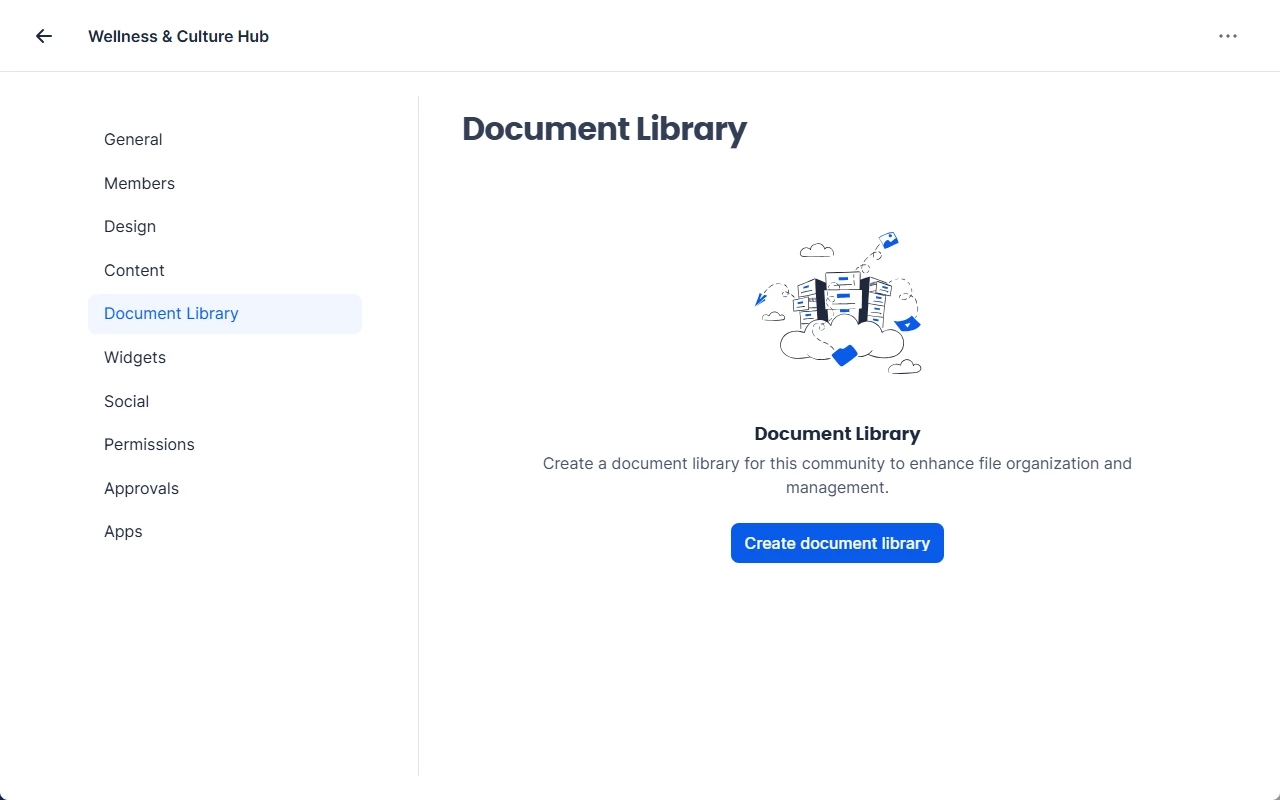
Community settings Document Library tab with Create document library 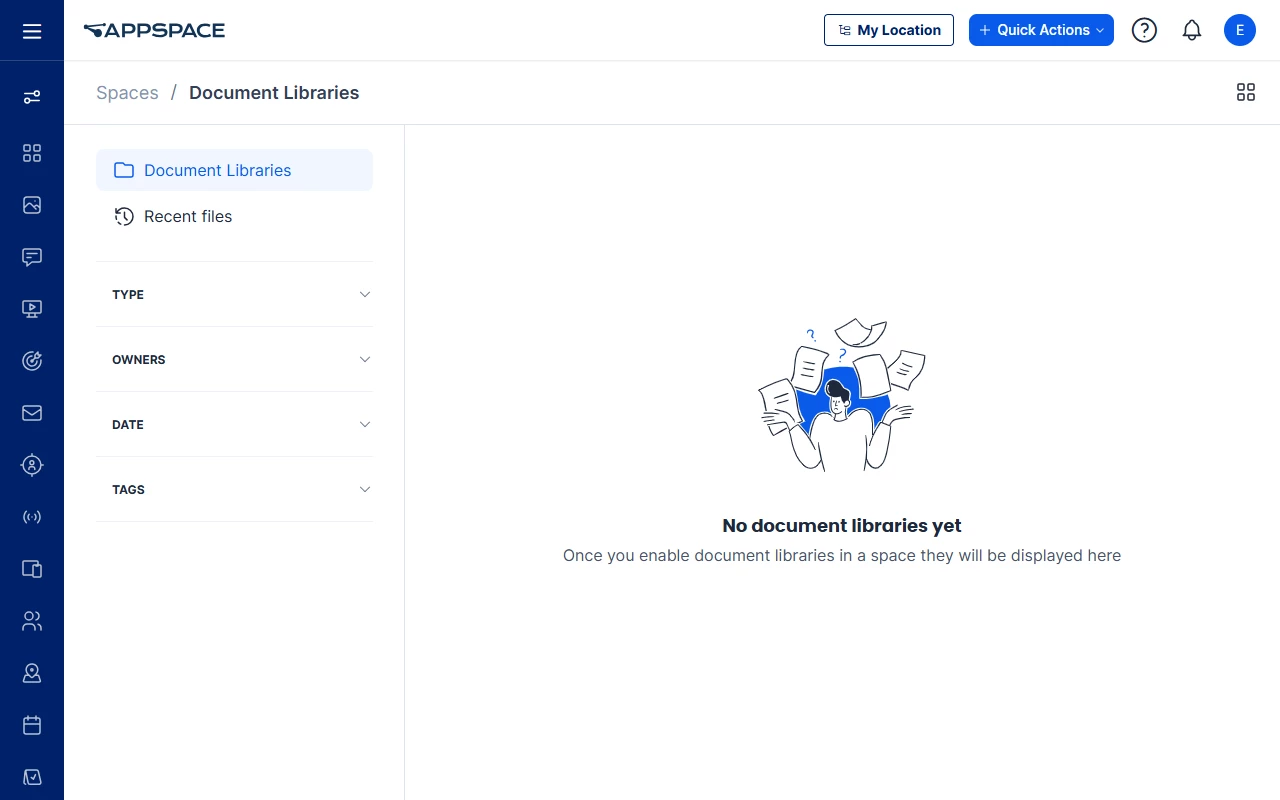
Spaces Document Libraries list in Admin Console - Pilot with 5–10 real queries — Confirm SharePoint summaries vs Drive filename hits vs Box content matches behave as you expect.
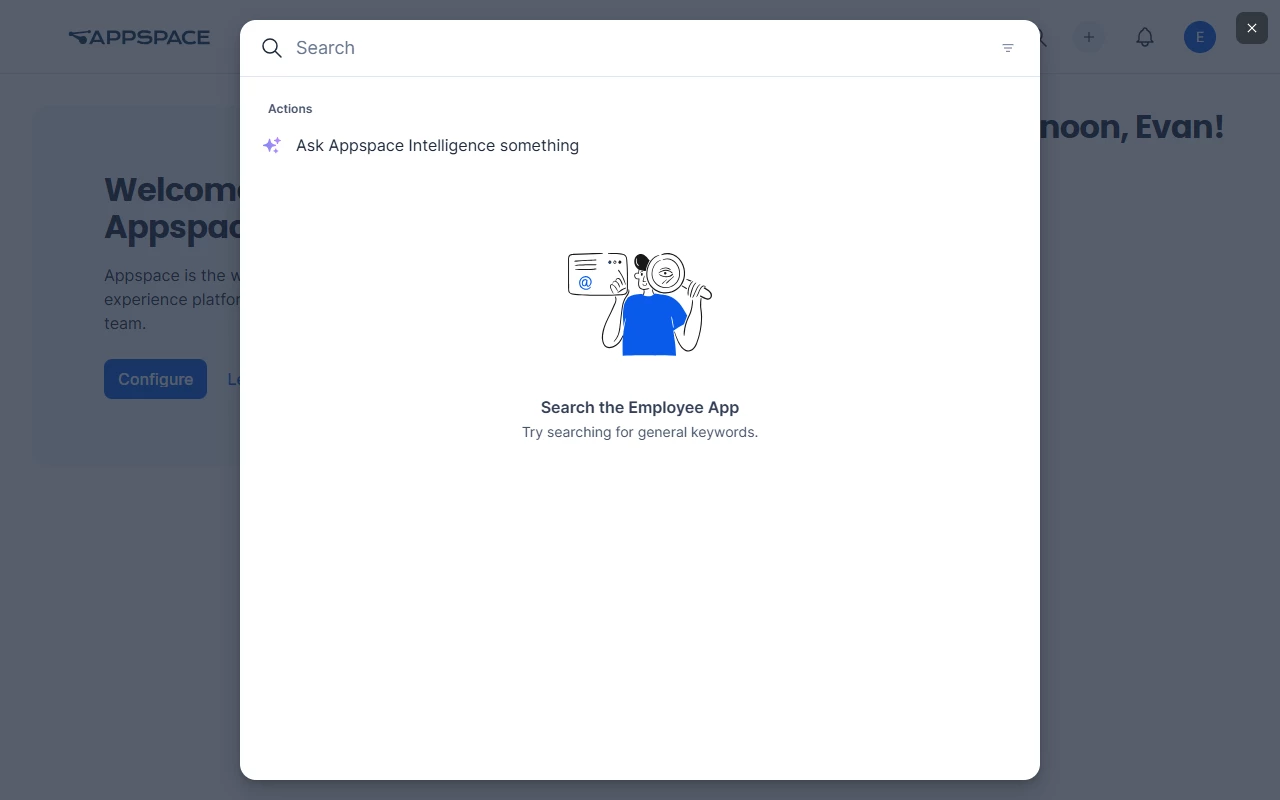
Employee App Spotlight search overlay - Assign an ongoing library owner — Quarterly scope and content hygiene review.
Troubleshoot
| Symptom | Likely cause | What to try |
|---|---|---|
| Expected file never appears in Appspace search | User lacks permission (user passport), file is outside connected SharePoint site/libraries, or Google Drive query does not match the file name | Confirm the user can open the file in the native system; verify SharePoint site/library scope; for Drive, search the filename |
| SharePoint results include Site Pages or wiki/web-part pages | Default federated search content classes include those page types when provider filter types are unset | Set provider filter types to Document Library only if you want pages excluded |
| Google Drive returns personal My Drive files | User-passport search uses allDrives | Use Shared Drives + admin passport for curated, non-personal discovery; keep drafts out of searchable names |
| Cannot pick a Shared Drive or Box folder in the connection UI | Source-group controls require admin passport | Switch the connection to admin passport, or accept unscoped user-passport search |
| Too many irrelevant results | Tenant-wide SharePoint scope, unscoped Drive/Box user passport, or generic file names | Narrow SharePoint to site/libraries; use admin passport + folder/drive scope for Drive/Box; improve naming |
| User sees files they should not access (or vice versa) | Admin passport ceiling, or group misconfiguration | Switch to user passport for per-user results; audit source groups. Admin passport will not hide files that account can read. |
| Results appear for some users but not others | Email/identity mismatch or different group membership | Align Appspace user email with IdP; compare group membership |
| Document Library browse view missing new files | Sync delay, file outside the configured root folder, or (SharePoint) webhook registered on drive root while browse is folder-scoped | Confirm the file is under the configured root; allow time for webhook/delta sync; check the file was added in the source system |
| Duplicate items or wrong version shown | Multiple copies with similar names; Appspace upload versioning not aligned with SharePoint | Consolidate to a canonical copy; upload new versions in SharePoint; use distinct file names during transition |
| Search slow or empty during peak use | API rate limiting on large scoped libraries (especially tenant-wide SharePoint) | Reduce connection scope; split into multiple focused connections |
| Author confusion about document ownership in SharePoint | Write operations attributed to the library passport | Communicate that Appspace-attributed ownership may not match the end user; manage versions in SharePoint |
Use Case
Scenario: A global HR team publishes policies in SharePoint while employees are expected to find everything through Appspace.
The SharePoint site historically mixed project folders, personal drafts, and official policies in one default document library. Federated search returned hundreds of Policy.docx and Draft.docx matches—including Site Pages from the team site, because the connection used default content classes.
What worked:
- Created a dedicated
HR Policieslibrary with versioning enabled in SharePoint. - Renamed files using
{Year}-{Topic}-{DocType}.pdf. - Connected that library (site + selected library)—not the entire tenant or the whole HR team site—to Appspace federated search, and set provider filter types to Document Library so Site Pages stayed out.
- Linked a subfolder root within that library to the HR Community Document Library tab—the archive lived in a separate library that was not connected.
- Used a user passport so employees only saw policies their role could access.
Employees now find the correct policy in the first few Spotlight results, and the Community library browse view matches search expectations.