
IoT Sensor Framework - XY Sense: Setup Guide
Introduction
This guide provides a configuration and integration walkthrough for the IoT Sensor Framework, focusing on the setup required to capture and utilize data from XY Sense sensors. The XY Sense Driver Support feature expands the Appspace IoT ecosystem with native, out-of-the-box integration, allowing administrators to connect and configure sensors without custom integrations or middleware layers.
Key Benefits
The integration of the XY Sense IoT Sensor Framework provides the following benefits:
- Simplified Deployment: Connect and configure sensors without custom integrations, reducing operational overhead.
- Real-Time Automation: Power automations that respond to real-world conditions by enabling direct communication between XY Sense devices and the Appspace platform.
- Unified Intelligence: Consolidate data from XY Sense sensors directly within Appspace to enhance visibility, responsiveness, and operational efficiency across global environments.
What This Guide Covers
This guide will cover the following topics:
- Understanding the Solution Overview and Architecture
- Configuring the Appspace IoT Driver
- Configuring the XYSense Webhook
- Registering the XYSense sensor to an Appspace Resource
- Testing and validating the XYSense sensor
Prerequisites
Before diving into the integration process, ensure the following requirements are met:
- Access Credentials: Administrator access to the XYSense configuration page to set up webhooks.
- Appspace Configuration: Access to the Appspace Console with Account Owner permissions to manage Reservations and IoT settings.
- Sensor Mapping: You will need the floorSpaceId for each space defined in XYSense to map it correctly to an Appspace resource.
Configuration and Integration
Step One: Installing the Appspace IoT Driver
The IoT Drivers define the framework by which Appspace interacts with the sensors, allowing it to correctly identify, parse, and store incoming data.
To install the driver, navigate to Reservations > Settings > IoT Sensors > Drivers.
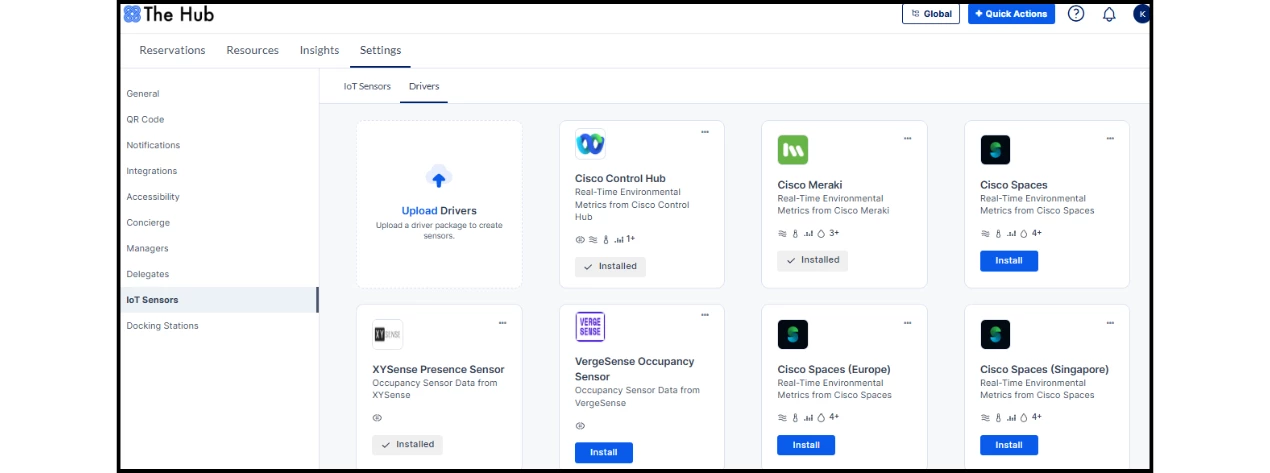
Then, locate the XYSense driver and click Install.
Installing the driver automatically generates a URL for the broker service to push data to, as well as a key for Appspace to authorize the incoming data. You will then need to click the ellipsis (...) on the driver and select Copy URL and Copy Key. Save the URL and KEY for later during the webhook configuration.
Step Two: Configuring the XYSense Webhook
To enable data flow, you must configure a webhook in the XYSense platform to push occupancy changes to Appspace.
- Log in to the XYSense configuration page (requires administrator access).
- Go to Settings and select Webhooks.
- Click Add Webhook.
- In the pop-up window, configure the following fields:
- Name: Enter an identifier for the webhook (e.g., "Appspace Integration").
- Customer: Select the appropriate data source.
- Type: Select Occupancy Changes.
- Endpoint: Add the URL you copied from the XYSense Driver in Appspace
- Additional headers: Add the x-appspace-iot-token and the unique KEY you copied from the XYSense Driver as the value
- Leave all other fields as default.
- Save the configuration.
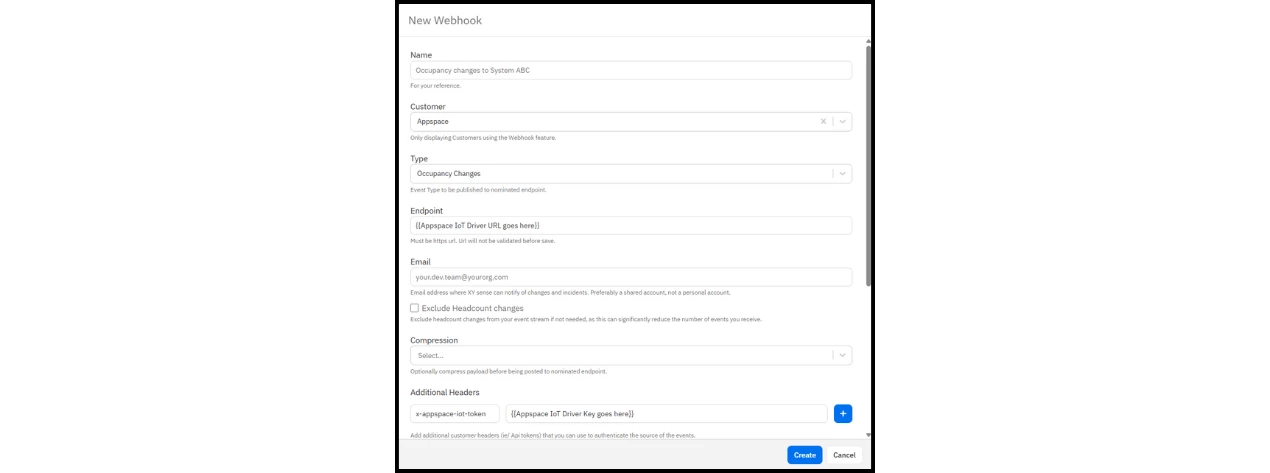
Note: The webhook will trigger whenever the headcount changes. Events are batched and sent to the configured URL based on configurable delay and batch size settings.
Step Three: Registering the Sensor to an Appspace Resource
Once the driver is active and the webhook is communicating, you must register the specific sensor in Appspace and link it to a location/resource.
- In Appspace, navigate to Reservations > Settings > IoT Sensors.
- Select the IoT Sensors tab and click +Add.
- Fill out the registration form:
- Name: Enter a recognizable name for the sensor.
- Driver: Select XYSense from the dropdown menu.
- Identifier: Enter the unique ID sent in the payload. Crucial: This must match the floorSpaceId of the space defined in XYSense.
- Location: Select the appropriate location from the hierarchy dropdown.
- Resource: Map the sensor to the existing Appspace resource (e.g., the specific meeting room or desk).
- (Optional) Fill in Manufacturer, Model, Serial Number, and Description for better asset management.
- Click Save.
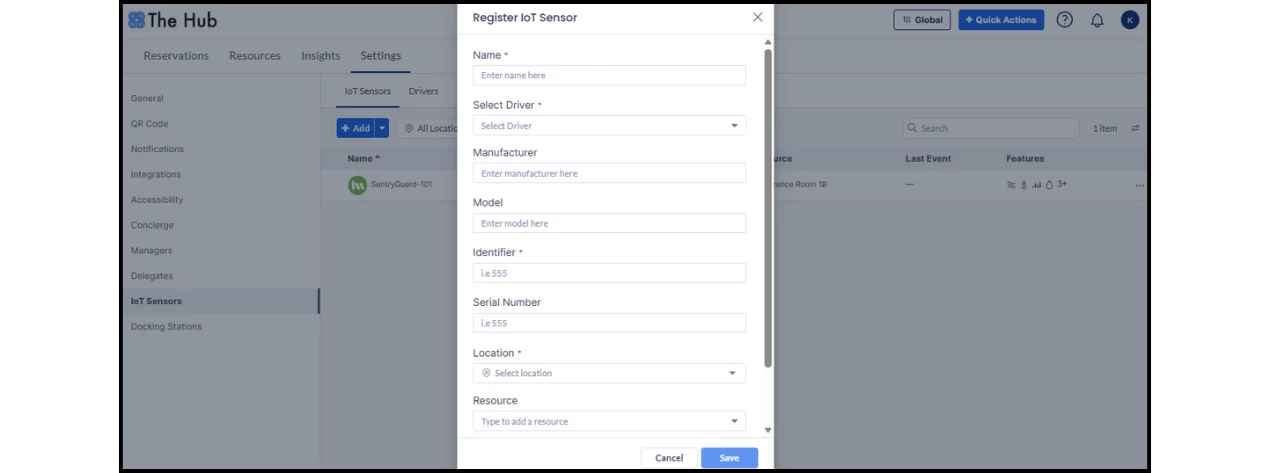
Tip: If you need to register multiple devices at once, you can use the Import feature to upload an Excel sheet using the template available in the console.
Step Four: Configuring Occupancy-Based Sensor Rules
Even with data flowing into Appspace, resource statuses will not automatically update until specific occupancy rules are established.
- Navigate to Reservations > Settings.
- Configure the Occupancy-based Sensor Rules for your resources to ensure the space reacts to real-time presence.To learn how to configure these rules, follow this article.
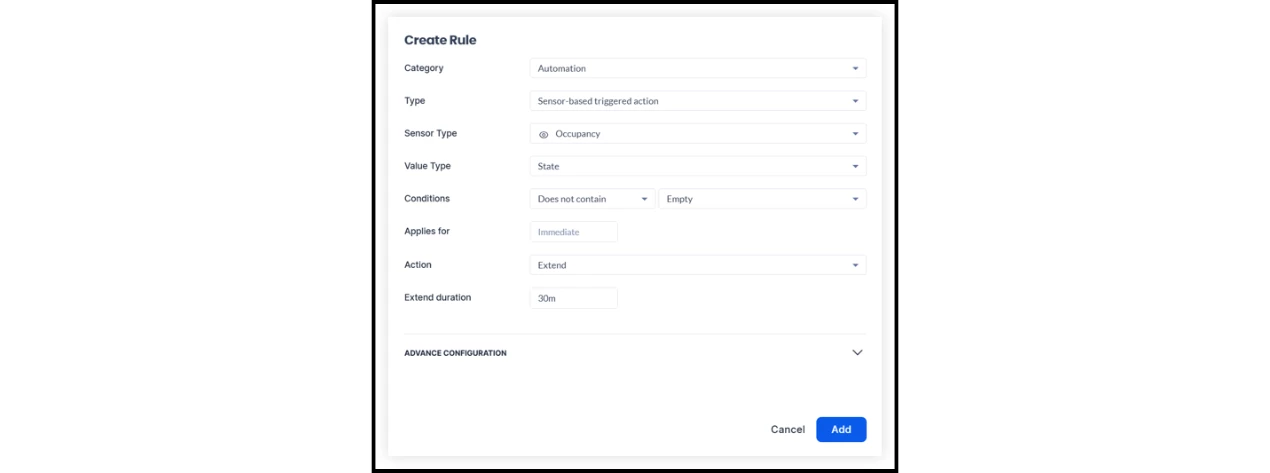
Note: Without these rules, physical occupancy will not trigger status changes (e.g., "Occupied"), though you can still see raw data updates in the Last Event column under IoT Sensors.
Testing and Validation
Verify that occupancy metrics are reporting correctly and that occupancy rules are triggering as intended.
- Functional Rule Test: Trigger an occupancy change in the physical space (e.g., enter the room) and verify that the status updates to Occupied for the mapped resource in the Employee Experience.
- Real Data Verification: In the IoT Sensors tab, check the Last Event column to confirm the sensor is receiving live data by verifying the updated timestamp.
- Rule Troubleshooting: If the Last Event column updates but the resource status remains unchanged, revisit your occupancy rule configuration to ensure the resource is correctly mapped to react to real-time presence.