


This article provides instructions for employees to reserve and manage workspace reservations, such as office spaces, meeting rooms, and hot desks via the Appspace Employee View on web browsers, or from the Appspace Mobile App on mobile devices.
Important
The Employee View is only available on Appspace public/private cloud 8.0 and later. It is not supported on 8.0 on-prem.
See part 1 of this article here.
Appspace Mobile App
Reserve from the Quick Reservation Widget
(New) If your administrator has configured the Quick Reservation widget for your Home page, you can quickly create a workspace reservation directly from Home in the Appspace Mobile App.
Refer to the Reserve a Workpace Using the Quick Reservation Widget article.
Reserve Workspace
- Log in to your Appspace Mobile App with your Appspace Premium User credentials.
- Click Places from the menu, and click the Workspaces tab.
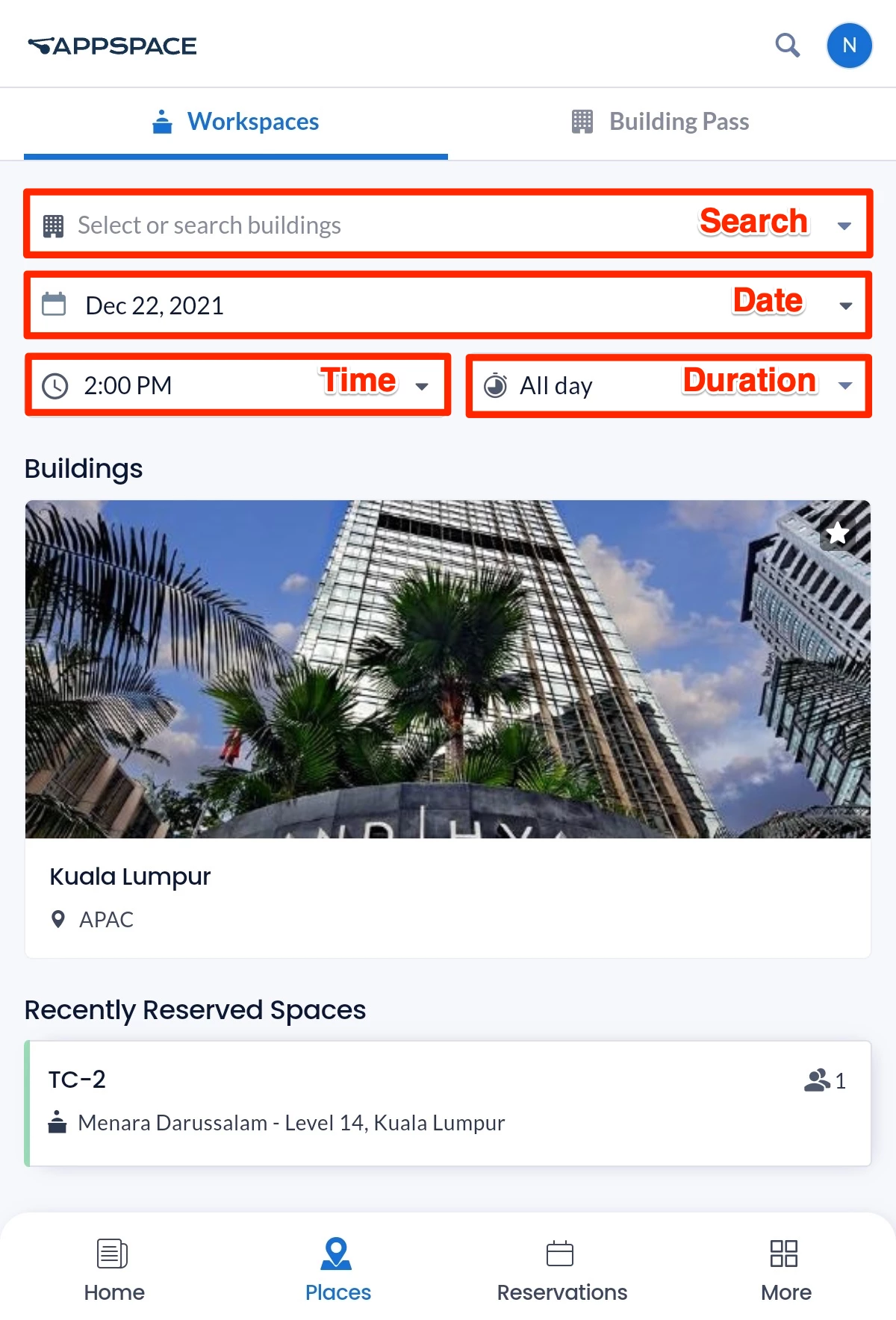
- Select the Date, Time, and Duration of the workspace you wish to reserve from the respective drop-down menus.
- Select a building or type a building name in the Building drop-down menu. Alternatively, you may also select from a list of recently reserved buildings, workspaces, or rooms. These lists will not exist if this is your first time in the Employee View.
- If in a building, select from the listed workspaces, click View Map for a graphical layout of the available workspaces, or search for the desired workspace.Only resources that you have permission to are displayed.
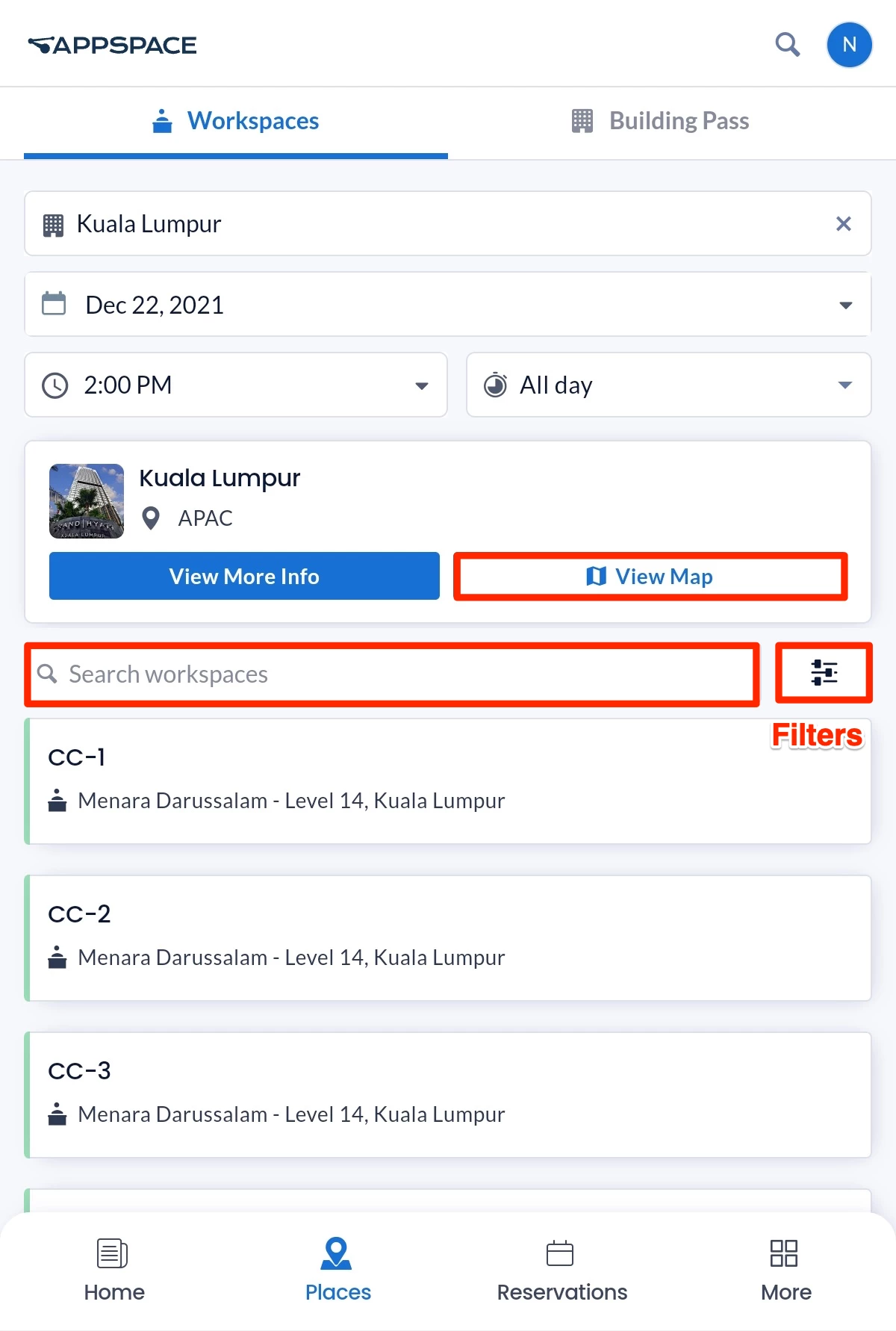
Use the Filters button to refine your search for your desired workspace, based on the following:- floor
Note
All inactive floors and corresponding inactive resources are hidden from being displayed and listed in the Map view on the Appspace Mobile App, if the Administrator has set the floor resource Status to Inactive.
- zone
Note
There are a few limitations when filtering zones in map view:
- When a zone from a different floor is selected from the drop-down menu, the map does not automatically switch to the respective floor, and must be done manually.
- When a floor is selected, only the zones from that floor are listed in the drop-down menu to be selected. Users will not be able to search for zones within other floors.
- workspace type and sub-type
- reservation status
- workspace capacity
- amenities
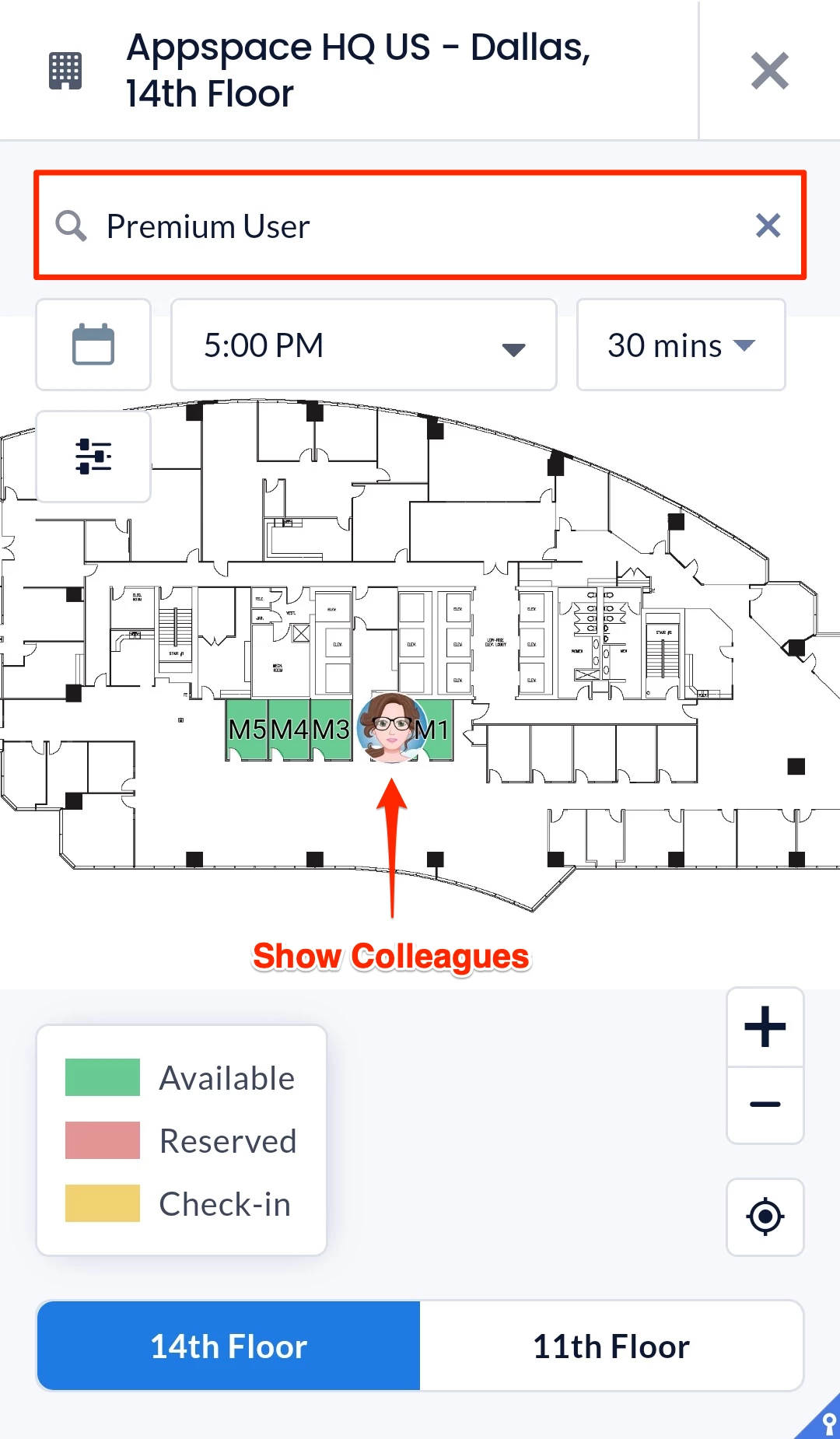
- show colleagues – enabled by default
Note
The Show Colleagues field allows you to identify your fellow colleagues and their reserved workspaces, in both list and map views. This feature is OFF by default and can be toggled to ON.However, if the workspace reservation is set to private, then the user icon will not appear on their booked workspace reservation.In Map View, you may also search and locate workspaces reserved by your colleagues, by entering their username in the search field.
- floor
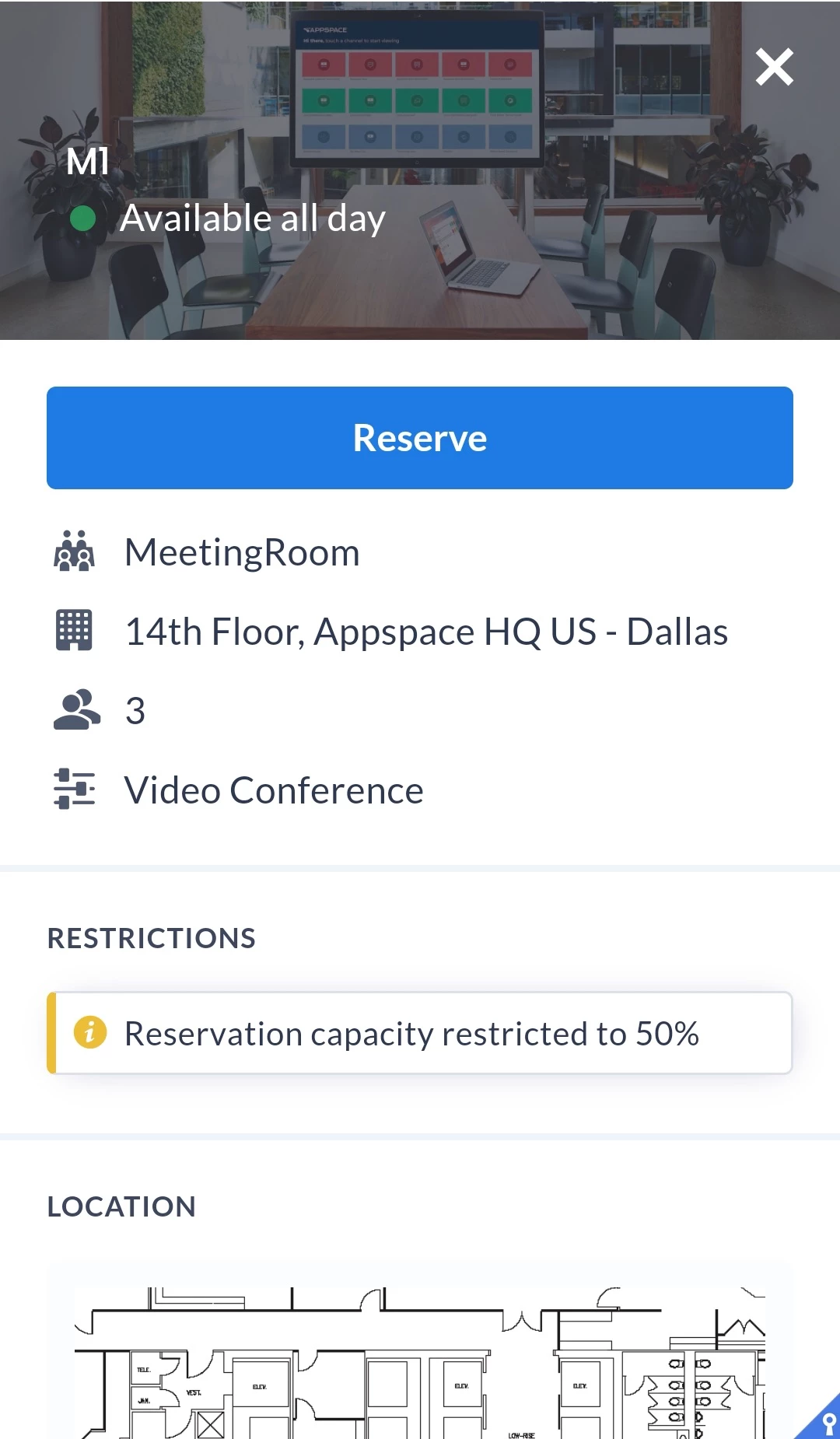
- Select the desired workspace and click the Reserve button.You may also view any restrictions that may have been configured for the workspace here.
- In the Create Reservation window, configure the following fields:
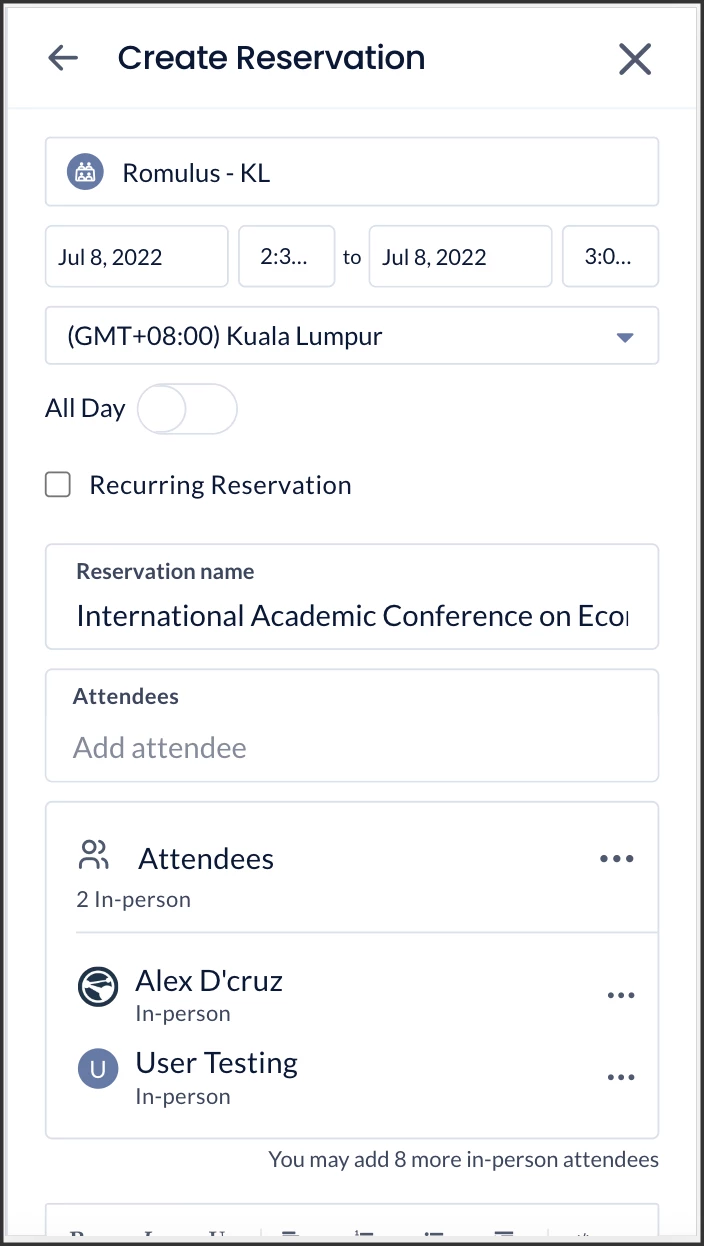
- Confirm the Date and Time (start time and end time) of the reservation from the drop-down calendars.
- You also have the option of switching to a different Time Zone from the drop-down menu, in case the reservation is for someone else.
- Optionally, you may check the Recurring Reservations checkbox if the reservation would occur periodically. If the checkbox is checked, the following settings can be configured:
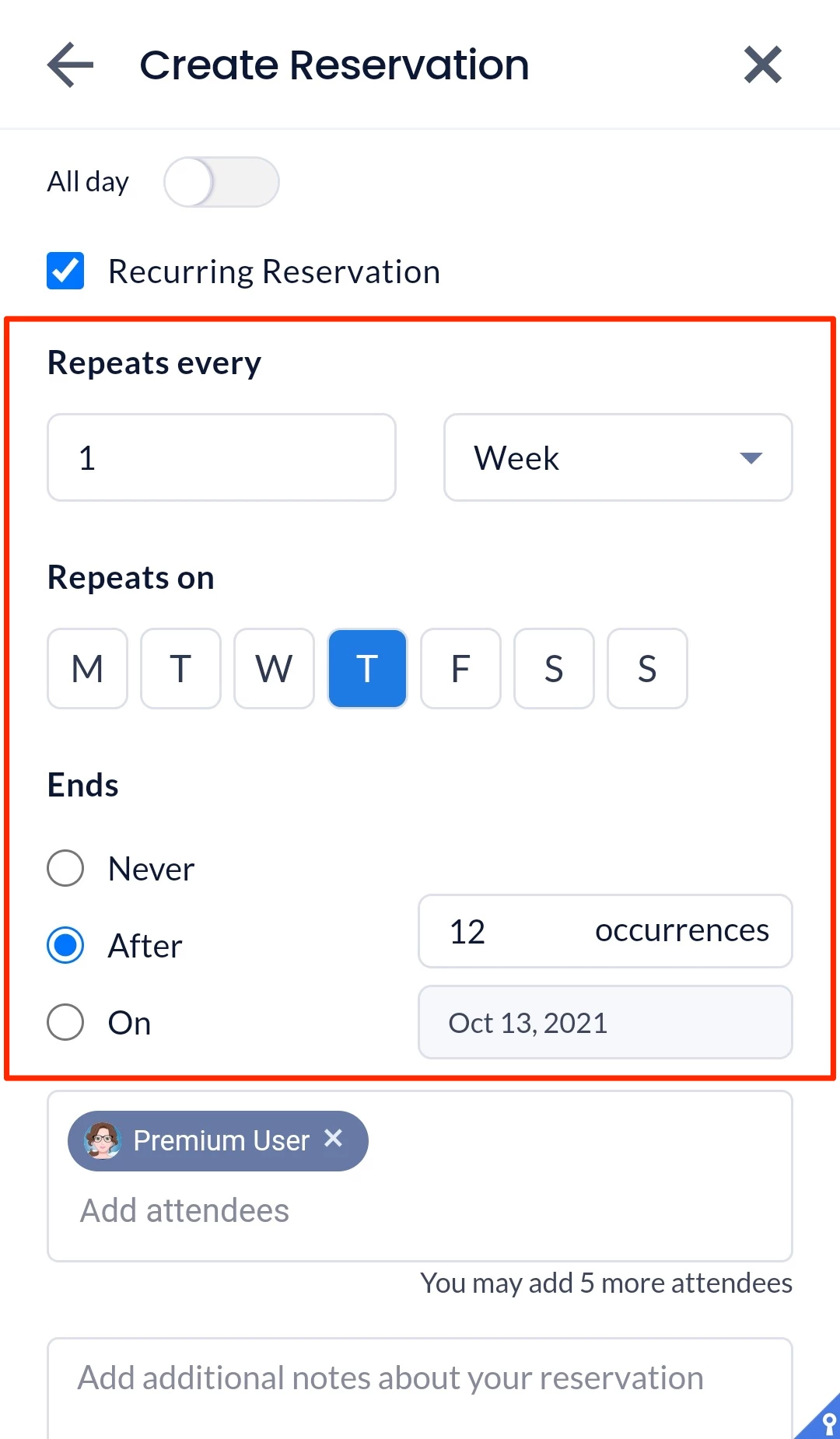
- Enter the number of times the reservation occurs in the Repeats every field and drop-down menu:
- Day – The reservation occurs every set number of days.
- Week – The reservation occurs every set number of weeks.
- In the Repeats on drop-down menu, you may select if the reservation is repeated on the day of each week. For example:
- Reservation is repeated every Monday, Wednesday, and Friday of each week.
- In the Repeats on drop-down menu, you may select if the reservation is repeated on the day of each week. For example:
- Month – The reservation occurs every set number of months.
- In the Repeats on drop-down menu, you may select if the reservation is repeated on the date, or day of each month. For example:
- Day 6 – 6th of each month.
- The first Sunday of each month.
- In the Repeats on drop-down menu, you may select if the reservation is repeated on the date, or day of each month. For example:
- Year – The reservation occurs every set number of years.
- In the Repeats on drop-down menu, you may select if the reservation is repeated on the date, or day of each year. For example:
- 6 June – 6th of June each year.
- The first Sunday of June each year.
- In the Repeats on drop-down menu, you may select if the reservation is repeated on the date, or day of each year. For example:
- Select when the reservation Ends:
- Never – The recurring reservation never ends.
- After – The recurring reservation ends after the set number of occurrences.
- On – the recurring reservation ends after the set date.
- Enter the number of times the reservation occurs in the Repeats every field and drop-down menu:
Important
When one of the multiple recurring reservations is in conflict with some other independent reservation, you will be notified of the conflict, but will still be able to go ahead with this recurrent reservation. You may then separately modify the conflicting event.
- Enter the Reservation Name in the text field.
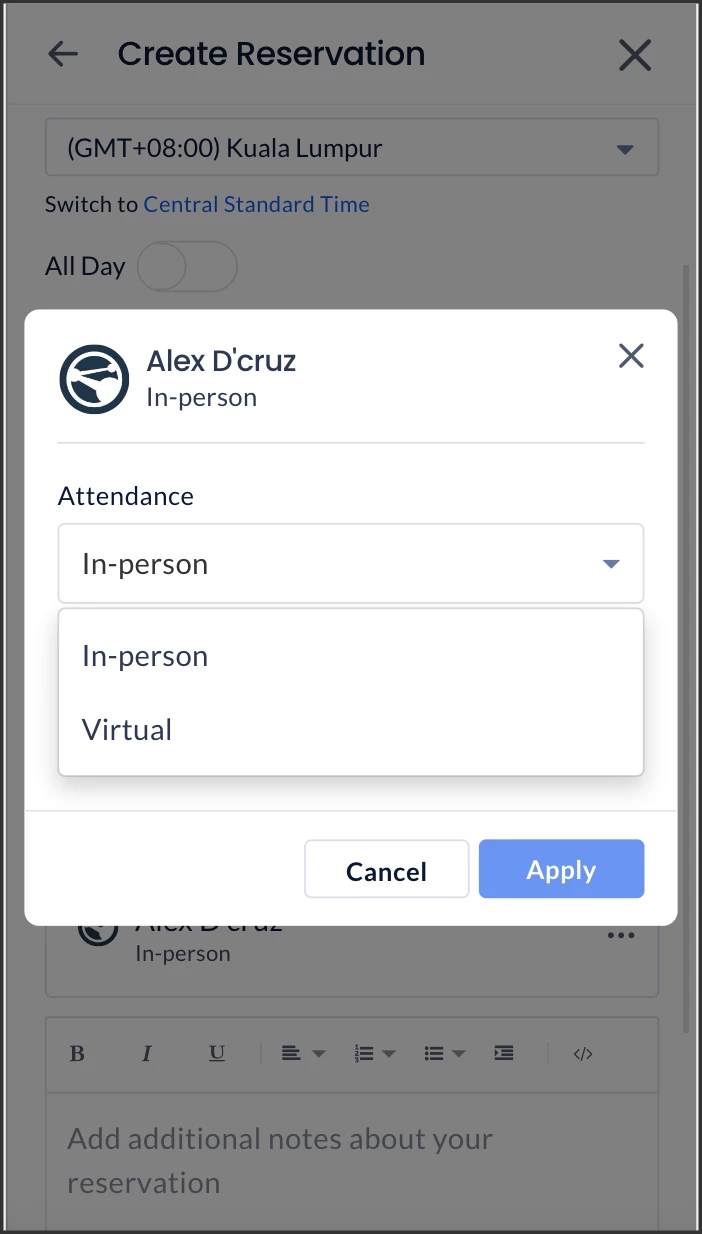
- Add Attendees of the reservation by entering their user names or email addresses in the field. For each invited attendee, you have the choice to edit and choose the attendance type (In-person, Virtual).
Note
The reservations panel will now list attendees as well as their attendance type. All reservations must have at least one in-person attendee. When an event has checkpoints, only the in-person attendee needs to complete the checkpoints.
Note
The Add Attendees field will be hidden if the resource capacity has been configured to be equal or less than two (2). If unconfigured or left blank, it would default to zero (0)
- Optionally, you may enter Notes for the reservation.
- Optionally, you may make your reservation private, preventing other employees from identifying your reservation via the Show Colleagues option, by toggling the Reservation privacy slider to PRIVATE (which is PUBLIC by default).
- Once done, click CONFIRM.
- Optionally, you may be required to complete any checkpoints that may have been configured for the workspace, before being able to proceed with the reservation. For future reservations, you may be requested to return at a later date to complete the checkpoint, this however is all dependant on how the checkpoint has been configured.
- Once the workspace reservation has been successfully reserved, it would be listed and available in the Reservations section.
Smart Suggestion Notifications for Mobile
Depending on push notification settings, you may receive a push notification on the Appspace Mobile App if three or more of your favorite colleagues have reserved workspaces within the building set as your location in the Mobile App. These notifications may be sent an hour before office hours if you have no reservations (in-person) within the office building for that day.

Manage Workspace Reservations
- Log in to your Appspace Mobile App with your Appspace Premium User credentials.
- Click Reservations to view all your workspace reservations.
- Select the workspace reservation you wish to manage to perform the following actions:

- Confirm Attendance – You may confirm your attendance by clicking the relevant response.
- Complete Checkpoints – This option is displayed if you have incomplete checkpoints for the reservation. Click to view and complete your checkpoints.
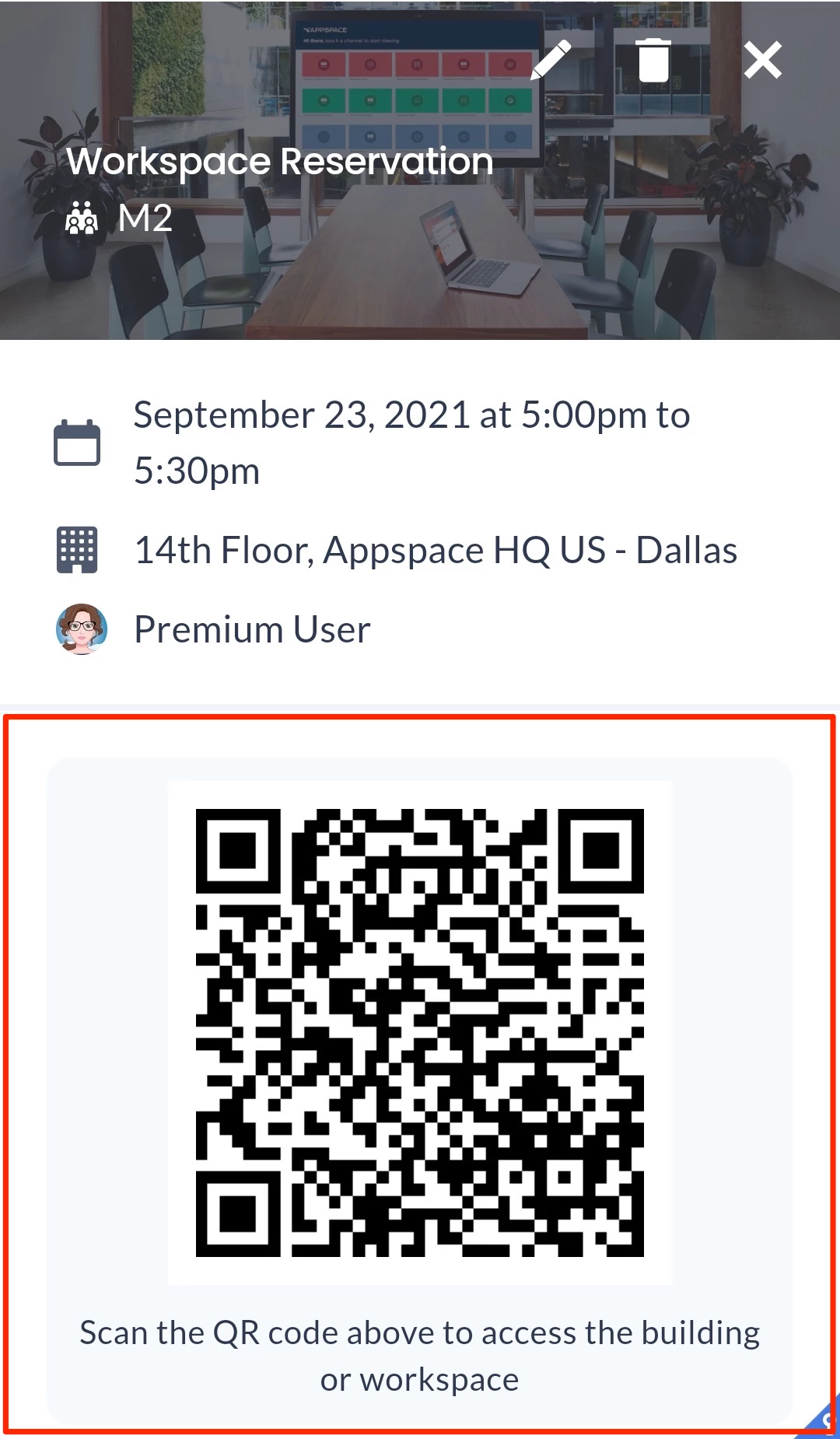
- View or scan QR Code – You may view the QR code, or click to enlarge the QR code for scanning if needed.
- View location – View the location of the resource on a map.
- View Attendees – View the list of attendees for the reservation.
- View completed checkpoints – View your completed checkpoints for the reservation. Click the ellipsis next to the checkpoint names and select View My Response to view your previous responses for the checkpoint.
- Edit this reservation – Click the Modify Reservation button at the top (pencil icon) to make the following edits on the reservation, and click CONFIRM once done.
- Change the Reservation Name.
- Change the Date, Time, or Duration of the workspace reservation.
- Enable or disable Recurring Reservations.
Important
The Recurring Reservations checkbox may be disabled due to a limitation where once an event is created, it cannot be changed to recurring. We are currently working on a fix for this.
- Add or remove Attendees.
- Edit the workspace reservation Notes.
- Enable or disable the Reservation privacy of the workspace reservation.
- Delete Workspace Reservation – Click the Cancel Reservation button at the top (dustbin icon) to delete the workspace reservation, and click OK to confirm.
Access Workspace QR Code for Check-Ins or Attending Meetings
- Log in to your Appspace Mobile App with your Appspace Premium User credentials.
- Click Reservations to view all your workspace reservations.
- Select the desired workspace reservation to display the QR code to be scanned.Click to enlarge the QR code for scanning if needed.
Important
If a checkpoint has been configured for the workspace, users are then required to complete the checkpoint, before being able to scan the QR code to check-in, or attend the meeting. Failure to do so may result in the user being removed from the attendee’s list, depending on how the checkpoint is configured.
- Once scanned, you may exit the app.
Reserve Workspace QR Codes on Qbic Devices
Employees can also scan QR codes that are displayed on Qbic Panel-PC devices or tablets that are running the Desk Booking card to reserve a desk or workspace, as follows:
- Scan the QR code displayed on the Qbic Panel-PC device or tablet with your QR code scanner on your mobile device.
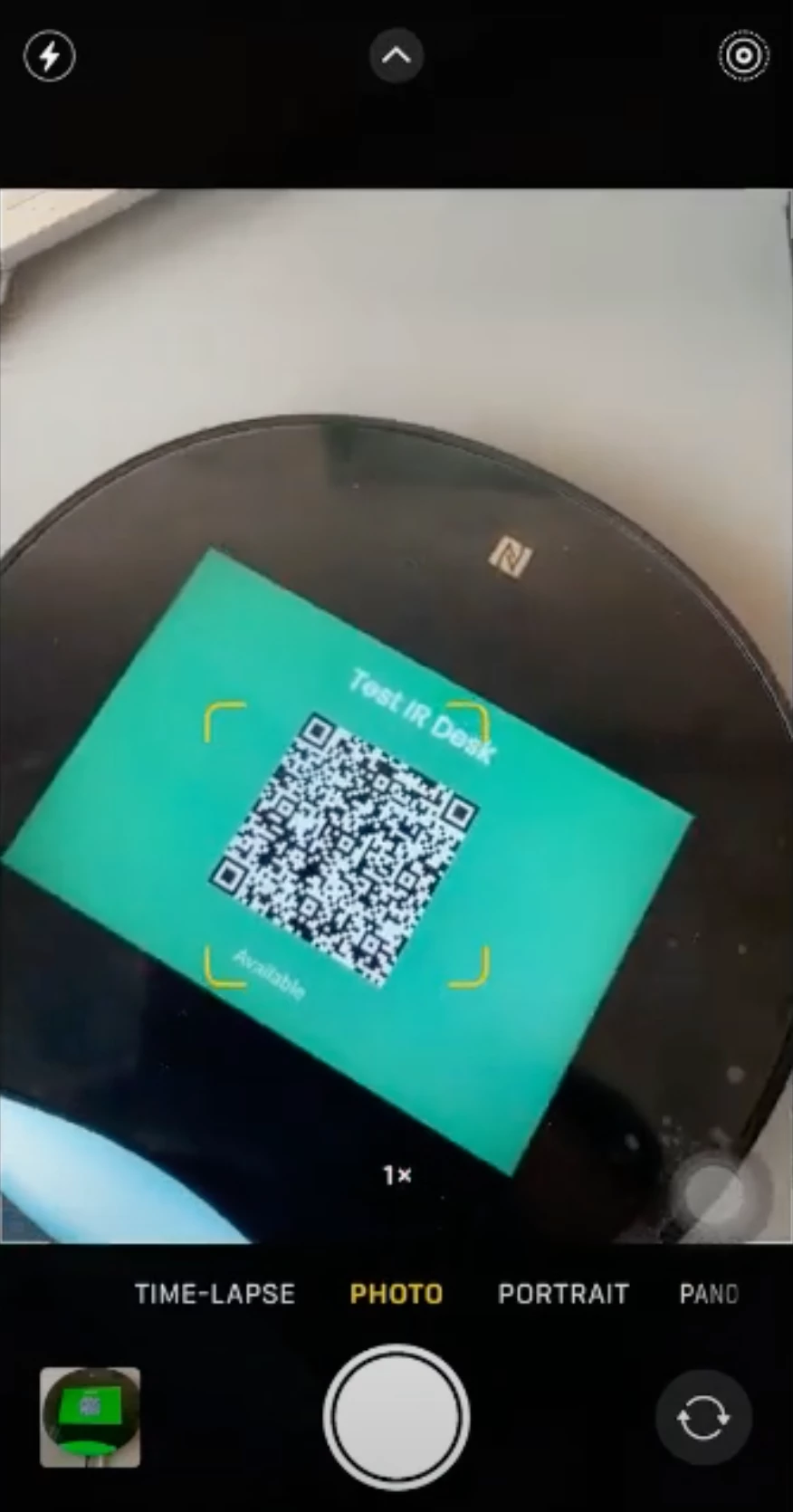
- Once scanned, this will redirect you to either launch the Appspace Mobile App on your mobile device or launch the Employee View from a web browser.
- Log in to Appspace with your Appspace Premium User credentials.
- Click Reserve, and perform the desk booking by following Step 7 onwards from the Reserve Workspace section above.