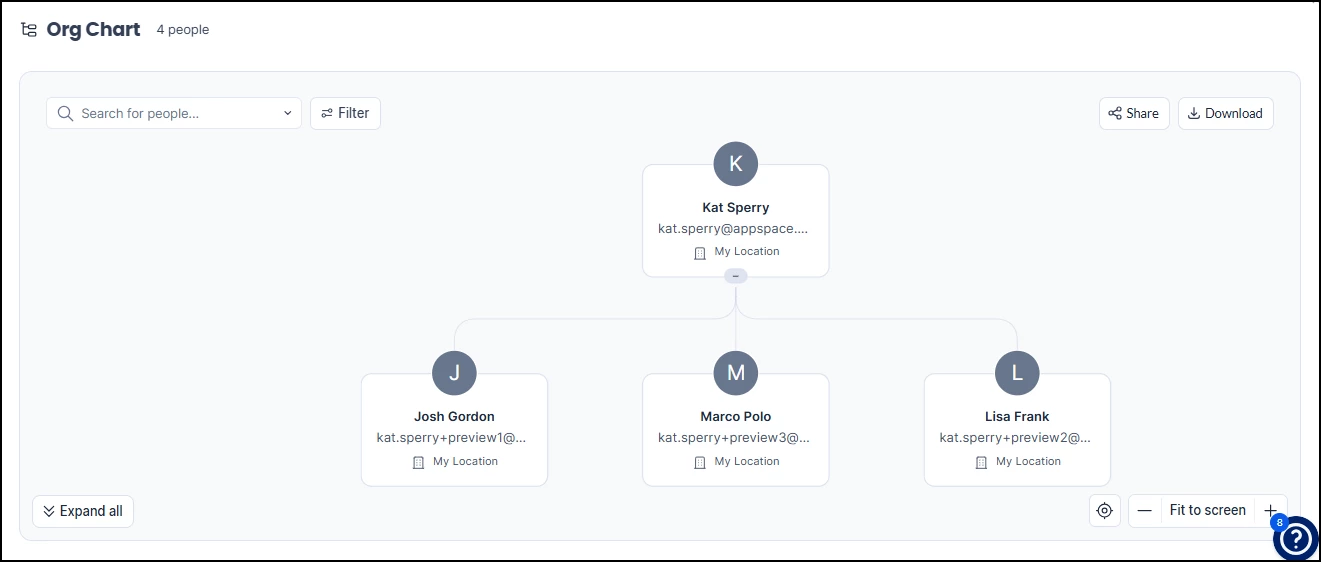
Bring Organizational Clarity to Employees: A Guide to the Org Chart
A visual Org Chart (short for "Organizational Chart") can now be accessed in Appspace. It is built by synchronizing a customer's Microsoft Entra ID or through SCIM provisioning, allowing users to see reporting lines and find colleagues.
Key Benefits
- Clarity for Employees — Provide employees with up-to-date reporting lines and team structures, giving them context and clarity in the platform
- Faster Onboarding — Accelerates onboarding for new hires by presenting an easy-to-understand chart
- Automated Mapping — Automates the building of the visual chart, saving time and effort
What This Guide Covers
- Choosing your chart data source
- Enabling the Org Chart feature
- Configuring your chosen data source method
- Adding Org Chart widgets to Communities and Themes
- Viewing and navigating the Org Chart
Prerequisites
- Platform license
- Location Admin or Account Owner user role
- One of the following, depending on your chosen method:
- Access to user profile management (for manual configuration)
- SCIM provisioning configured with your IdP (for SCIM method)
- Microsoft Entra ID account with admin permissions (for Entra ID method)
Step One: Choosing a Data Source for Your Chart
You can build your Org Chart in three ways, each suited to different scenarios:
Manual configuration in user profiles works best for small organizations or teams that don't use SCIM or Entra ID. This approach gives you direct control over each user's profile information directly in the platform.
User data through SCIM is ideal if your organization already has SCIM configured or has the capability to set it up in Appspace. This method automatically syncs your organizational structure from your existing identity management system.
User data through Microsoft Entra ID serves organizations that prefer not to implement SCIM but still want to automatically pull organizational data from Microsoft's identity platform. This provides a streamlined alternative for organizations that heavily use Microsoft.
Step Two: Enabling the Org Chart
Activating the Org Chart allows users to access the directory within the Appspace Employee View.
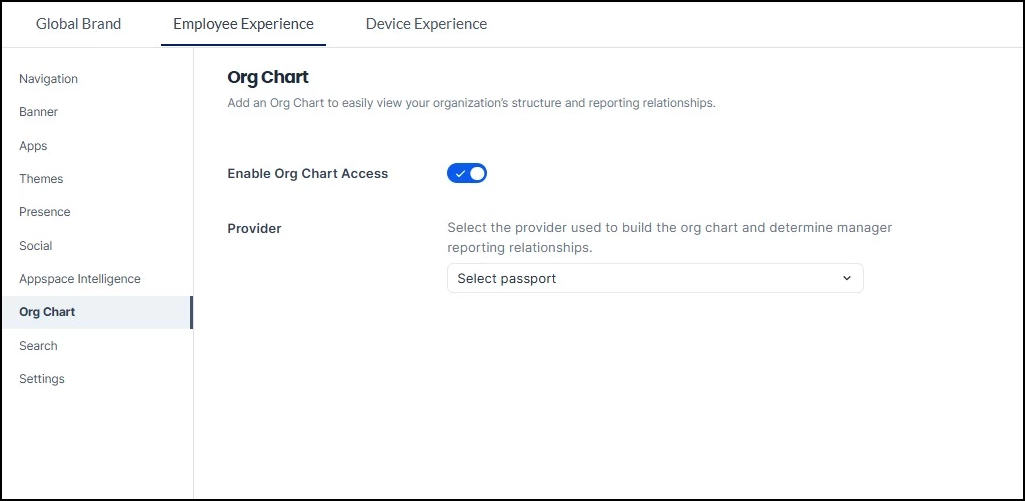
- Navigate to Settings > Configuration > Employee Experience > Org Chart.
- Toggle Enable Org Chart Access to the ON position.
Step Three: Configuring Your Data Source
After enabling the Org Chart, follow these steps based on your chosen configuration method:
- Manual configuration: No provider passport is required. Navigate directly to User Profiles to edit organizational information for each user.
- SCIM provisioning: No provider passport is needed. Appspace automatically pulls user attributes, including manager relationships, directly from your identity provider system.
- Microsoft Entra ID: First, set up a Passport connection to Entra ID. Once configured, select your connection from the Org Chart Provider drop-down menu to sync your organizational structure.
Step 3.1: Manually Adding Org Chart Positions
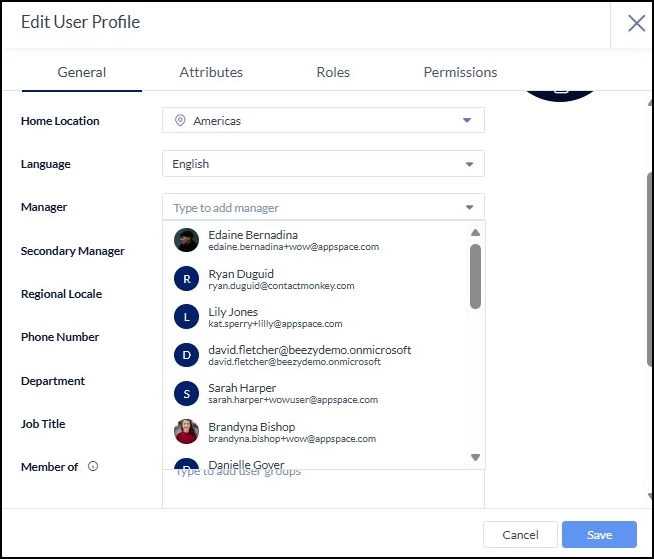
To manually add positions to your Org Chart, you'll need to assign managers within individual user profiles.
Navigate to Users, select a user, and under the General tab, choose names from the Manager and Secondary Manager dropdown menus.
Step 3.2: Enabling SCIM for Your Org Chart
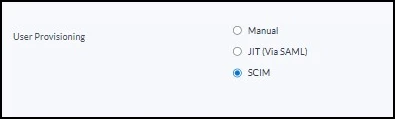
Appspace has tested and officially supports the two leading SCIM compliant IdPs: Microsoft Azure AD and Okta. However, most SCIM compliant IdPs should be able to integrate with Appspace.
If you already have your SCIM set up, you will not need to configure anything further.
If you do not have your SCIM set up, follow this article to do so: Configure SCIM User Provisioning with HRIS/IdP for Appspace Cloud
You will also need to map your attributes on the Azure side to fill the Manager and Secondary Manager fields: SCIM - Azure Setup | Community
Step 3.3: Setting Up a Microsoft Entra ID Passport
If you are using the Microsoft Entra ID method for the Org Chart, you must first establish a Passport connection.
To configure a Microsoft Entra ID Passport:
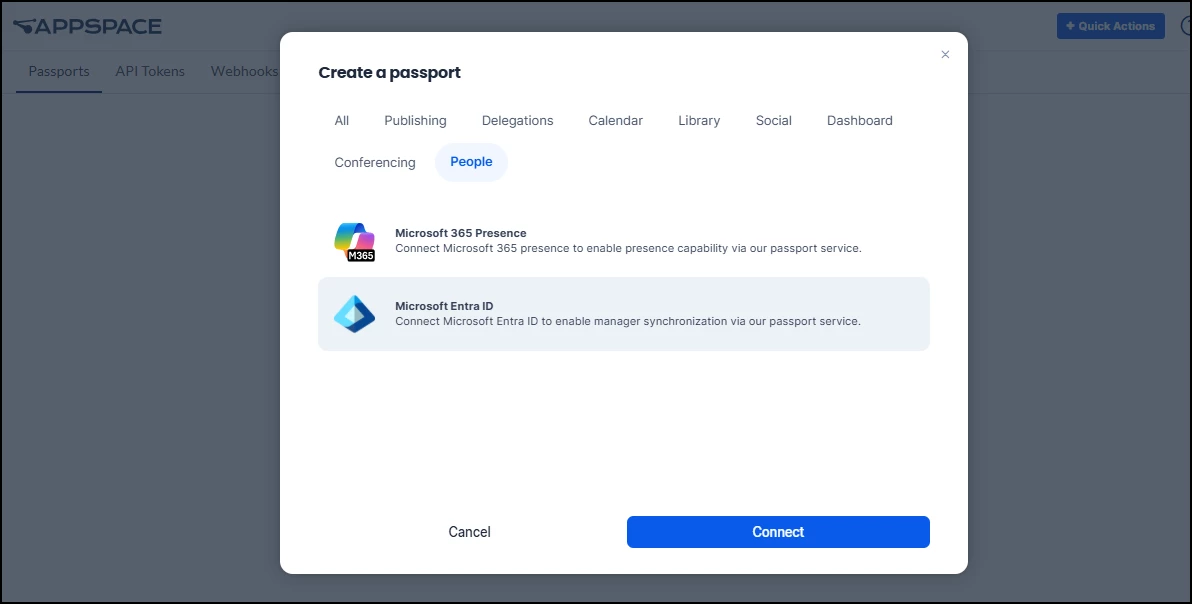
- Navigate to Integrations > Passports.
- Click +Create (for first-time setup) or +Add (if existing passports are present).
- Select the People tab and click Microsoft Entra ID.
- Click Connect and enter the required account credentials.
Step Four: Configuring a Community Org Chart
You can display the Org Chart within a specific Community. For example, you could show a team's structure in their Community by selecting the team's manager as the Top Person.
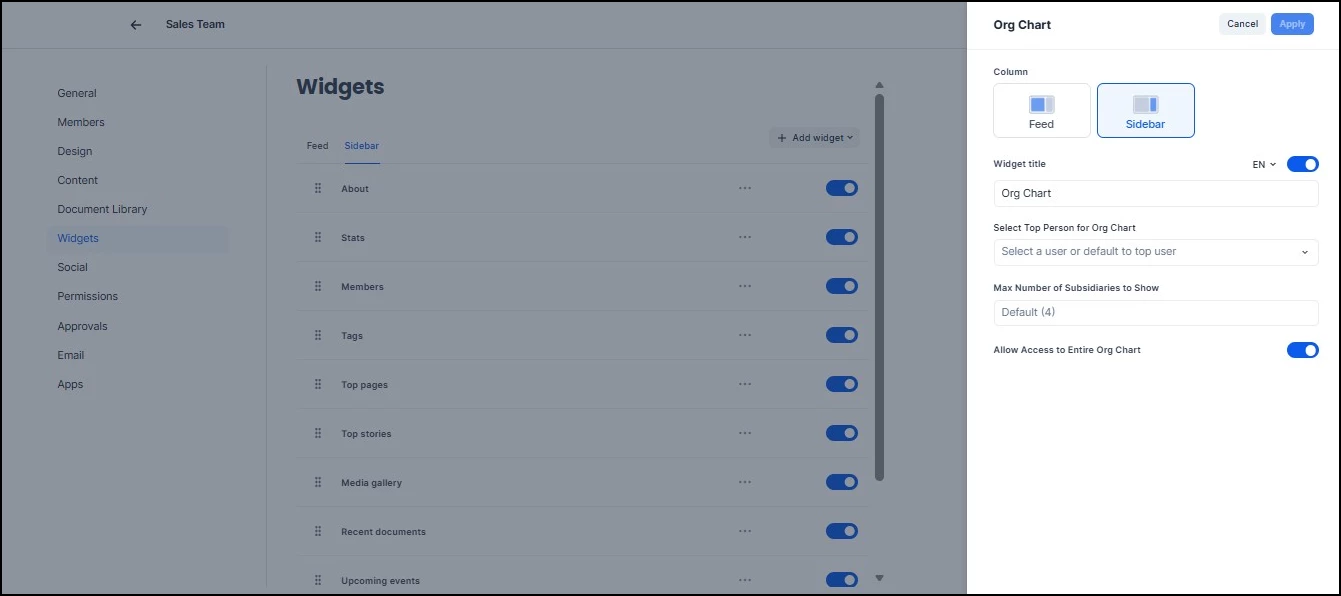
To add an Org Chart widget to a Community:
- Navigate to Spaces > Communities and select the desired community. Go to the Widgets tab, click +Add Widget, and select Org Chart from the drop-down menu.
- Choose where to place the widget: Feed or Sidebar.
- Configure these settings:
- Title: Enter a name for the widget.
- Top Person: Select the individual at the top of the chart hierarchy.
- Max Subsidiaries: Define the maximum number of levels to display.
- Show Entire Org Chart: (Optional) Toggle this to enable full directory viewing.
- Click Apply to save your changes.
Step Five: Adding an Org Chart to a Theme
Adding the Org Chart widget to a theme displays the directory directly on the Employee View homepage, giving all employees quick access to organizational structure and contact information from their main landing page.
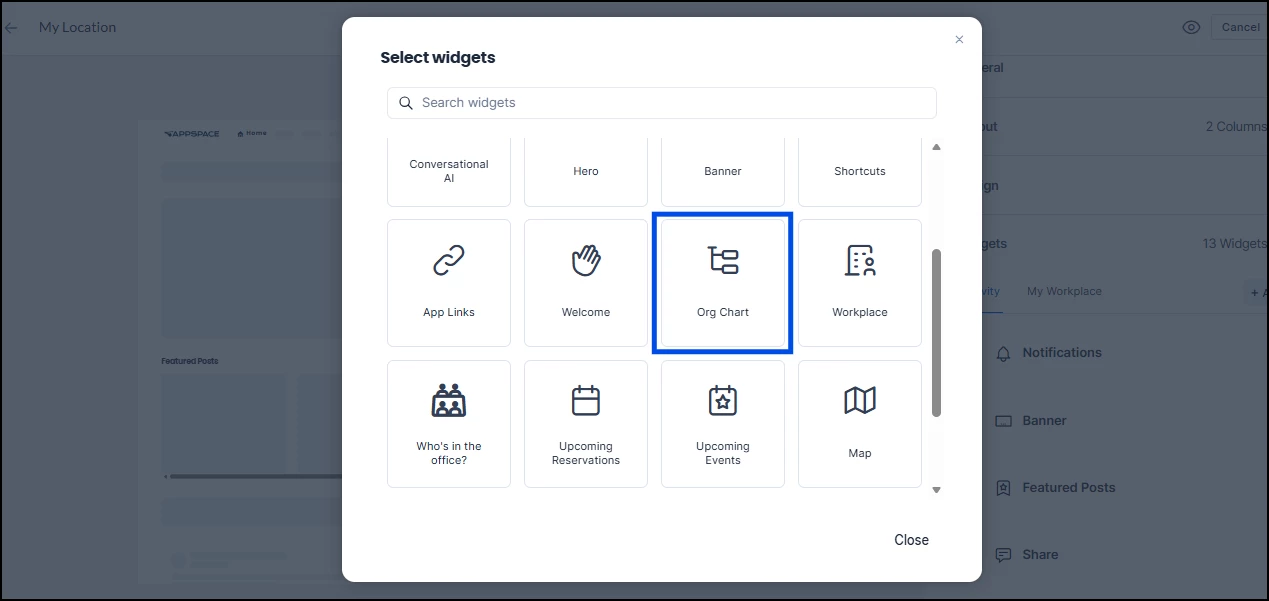
- Navigate to Settings > Configuration > Employee Experience > Themes and select the target theme.
- In the Widgets tab, click +Add and select Org Chart. Select the Org Chart widget to open the configuration window.
- Configure the following settings:
- Column Placement: Select the layout column where the widget will appear.
- Top Person: Select the individual at the top of the chart hierarchy.
- Max Subsidiaries: Define the maximum number of levels to display.
- Entire Org Chart Access: (Optional) Toggle to enable full directory viewing.
- Click Apply.
Step Six: Viewing the Org Charts
The Org Chart can be accessed from multiple locations within Appspace:
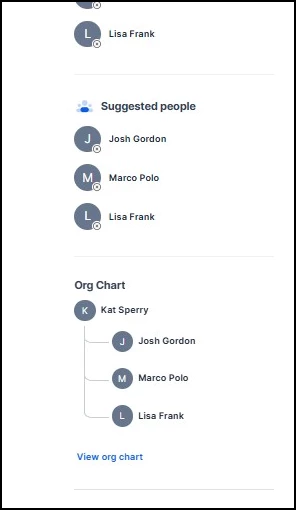
People Directory
Navigate to the People tab. The Org Chart widget is located in the right-hand sidebar.
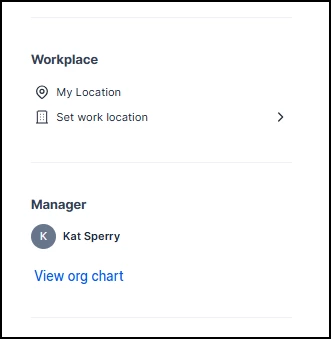
User Profiles
Select a specific user from the directory or feed. The Org Chart is displayed in the left-hand navigation panel of their profile.
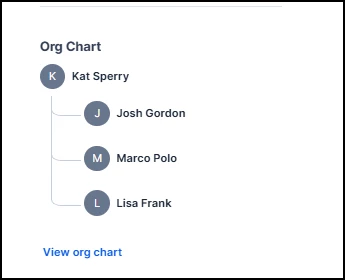
Community View
- Sidebar: Appears in the right-hand column of the community page.
- Feed: Appears as a widget within the main activity stream.
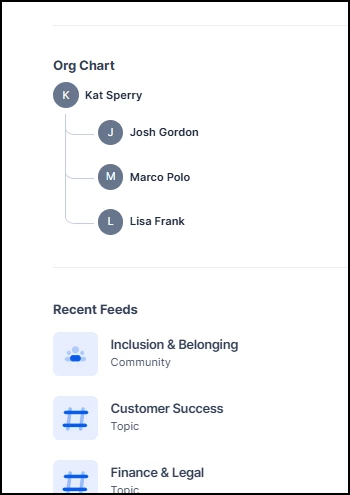
Employee Experience Homepage
Appears as a dashboard widget in the specific column designated in the Theme settings.
Step Seven: Navigating the Full Org Chart
To access the expanded interactive view, click View Org Chart on any Org Chart widget.
Note: The View Org Chart option is only available on Community and Homepage widgets if Allow Access to Entire Org Chart was enabled during the administrative setup.
Once the full Org Chart is open, the following actions are available:
- Visualize Hierarchy: View direct and indirect reporting relationships.
- Expand View: Navigate through the entire organization beyond the initial top-level view.
- Search: Locate specific individuals using the search bar.
- Filter: Refine the chart by Location or Manager.
- Share: Generate and copy a direct link to the Org Chart for sharing.
- Download: Export the current Org Chart view as a PNG image file.