

Configure Displays to Respond to Events: A Guide to Actions in Multizone Signage Channels
A Multizone Signage Channel can do more than play content on a schedule. Actions let the channel respond when something happens — a layout loads, a playlist finishes, a visitor taps a zone — so one channel can move between layouts, advance media, or talk to a connected system without you publishing a separate channel for every behavior.
Actions are available only on Multizone Signage Channels. Fullscreen Signage Channels do not have an Actions tab. An action is a rule you build in the console: Source, Event (with optional Conditions), Target, and Method. When the event occurs and any conditions are met, the method runs on the target.
This guide covers channel-level actions — the Actions tab on the channel. If the behavior should run only when someone interacts with one widget, configure that widget’s Actions tab in the layout editor instead. See Configure Signage Channel Widget Actions.
Goal: After finishing this guide, you can add a channel action that loads another layout or advances media when a supported event occurs, then confirm it on the channel Preview tab.
Key Benefits
- Interactive experiences from one channel — Drive wayfinding, kiosk menus, and layout changes from events instead of maintaining a separate channel for every screen state.
- Playlist and layout control — Advance media, replay an item, or load a named layout when playback ends or a visitor taps the display.
- Conditions that keep actions precise — Fire only when the current media title, type, or playlist position matches what you intend.
- The right place for the rule — Use the channel Actions tab for behavior that belongs to the channel as a whole; use a widget’s Actions tab when the trigger is a click or touch on that widget.
- Preview before you publish — Confirm the action on the channel Preview tab, not the Edit-page layout wireframe.
What This Guide Covers
- Where channel actions live (and when to use widget actions instead)
- Opening the Actions tab on a Multizone Signage Channel
- Adding an action with Source, Event, Conditions, Target, and Method
- Saving the action and verifying it on the channel Preview tab
- A lobby-kiosk use case that loads another layout on tap
- Troubleshooting empty parameters, missing Actions tabs, and imported channels
Prerequisites
- You must be a Publisher for the selected location, channel, or channel group, or have another role that allows you to manage channel settings.
- Create a Multizone Signage Channel with at least one layout before you configure actions. See Create a Multizone Signage Channel.
- Know which layout, zone, or widget the action should affect, and which event should start it.
- Signage Channels (including the Actions tab on Multizone) are available from cloud 2603.1.0.
- Devices configured for Autoplay mode are not supported for Multizone Signage Channels. Use a supported playback mode before you publish.
Steps
1. Open the Actions tab
- Select Channels from the Appspace menu.
- Open the Multizone Signage Channel.
- Select the Actions tab.
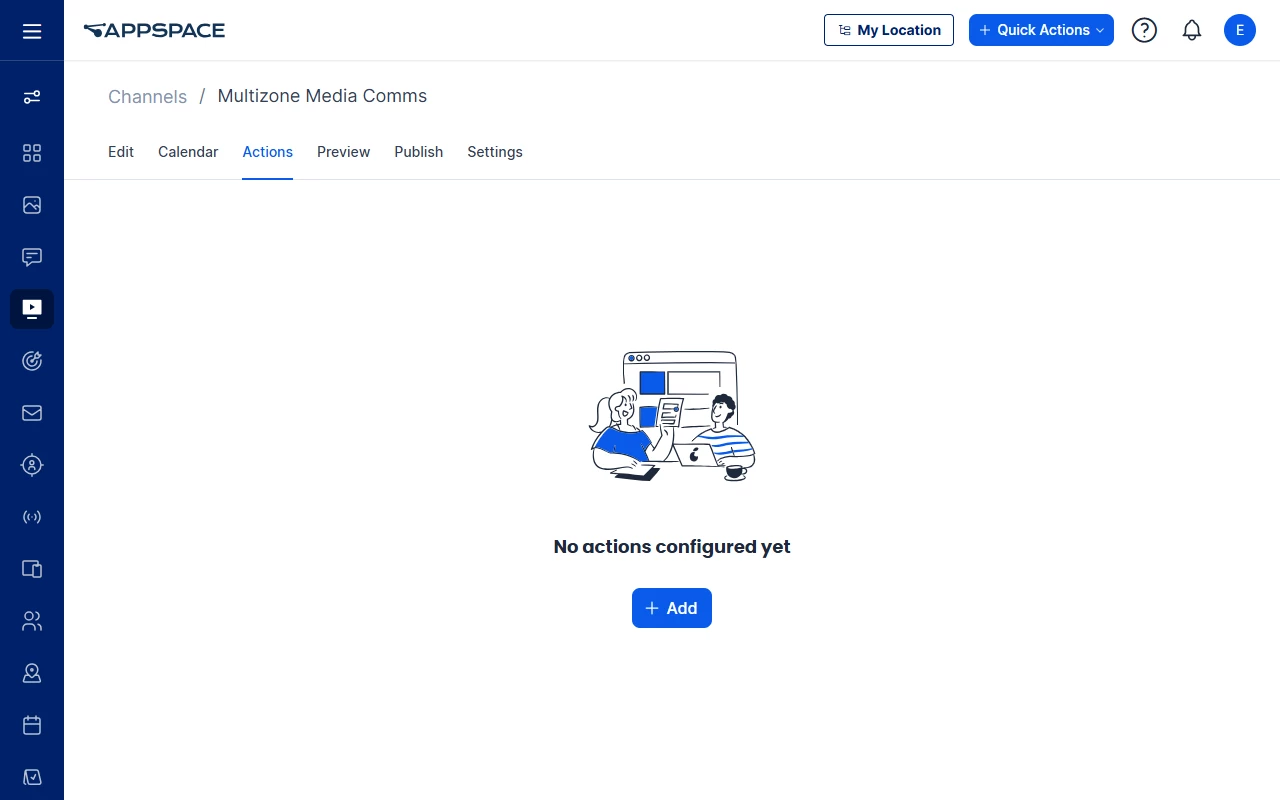
The Actions tab is in the Multizone channel navigation with Edit, Schedule (when layout scheduling is on), Calendar, Preview, Publish, and Settings. If you opened a Fullscreen Signage Channel, you will not see Actions.
If the channel has no actions yet, the list is empty and no other call-to-action appears until you click + Add.
Alternatives
- If the behavior should run only when someone clicks or touches one widget, skip the channel Actions tab. On the Edit tab, open the layout editor, select the widget, and use that widget’s Actions tab. Widget actions affect only that widget; channel actions apply to the channel as a whole.
- When the list already has actions, use search to find a row by source, event, or method name (for example On Load or Load Layout By Name).
2. Add an action
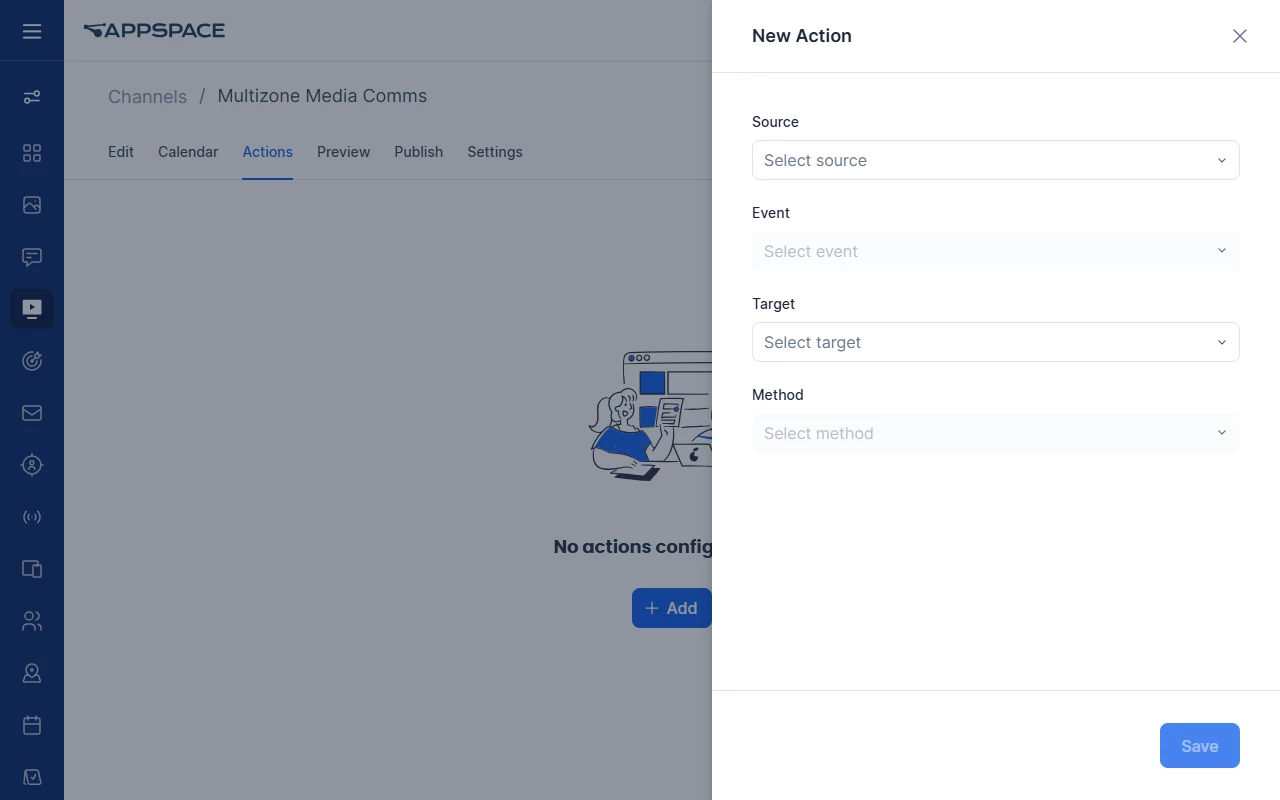
- Click + Add.
The New Action panel opens.
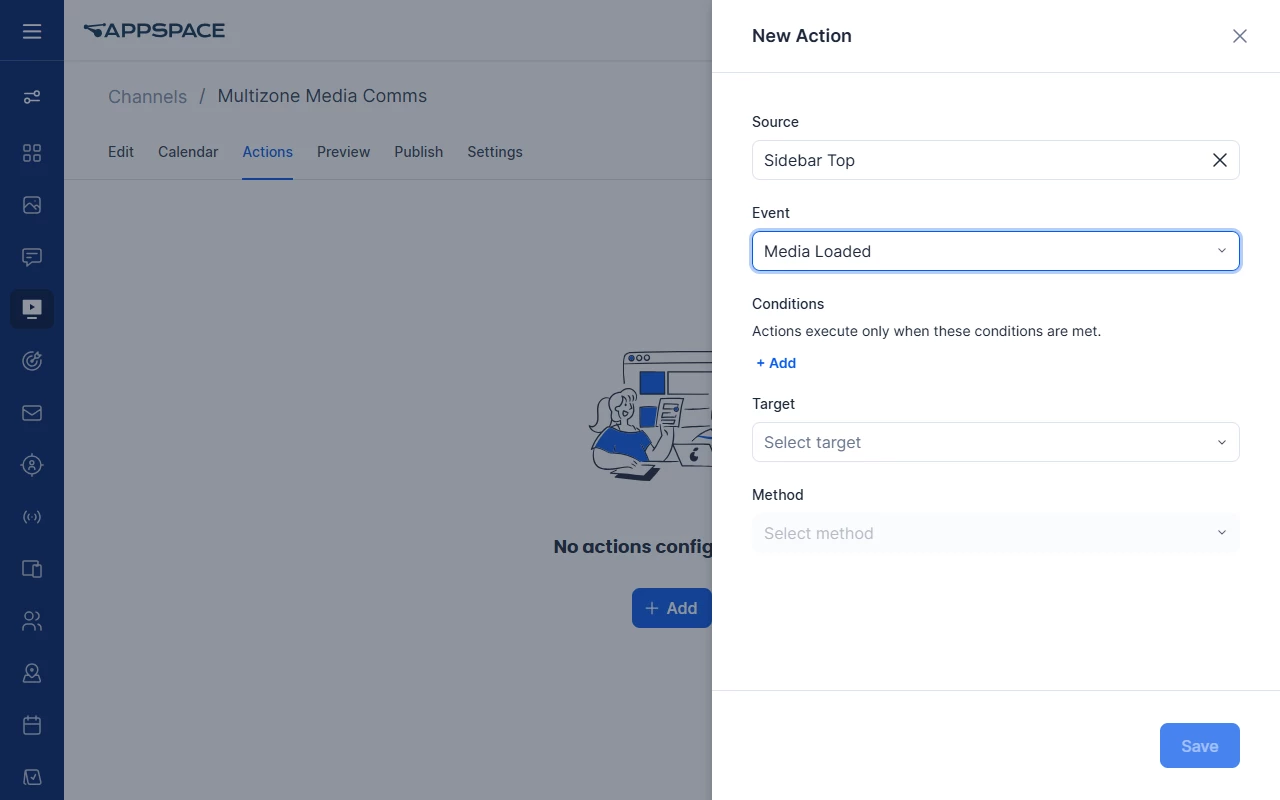
- Select the Source — the channel, layout, or widget that raises the event.
- Select the Event that should start the action.
Events documented for Multizone Signage Channels include:
| Event | Triggered when |
|---|---|
| On Load | The channel or layout loads. |
| Mouse Click / Touch | The source is clicked, or the designated area of a touch screen is touched. |
| Media Loaded | A content item finishes loading. |
| Media Complete | A content item completes its playback duration. |
| End Of Playlist | The media playlist completes its playback duration. |
| On Freeze | A widget moves off an active layout and content playback pauses. |
| On Unfreeze | A widget moves back into an active layout and content playback resumes. |
The Event list changes with the Source. On a media zone, the console also shows Playout Interval. On a table listing widget it shows Item On Click, Row Click / Touch, and Column Click / Touch instead of the media events. On Load is listed in the Signage Channel actions reference; it does not appear for media-zone or table-listing sources.
Media events can expose condition fields (title, media type, playlist index, and similar). Mouse Click / Touch, On Load, On Freeze, and On Unfreeze do not.
3. Add conditions (optional)
Use conditions when the action should run only if the current media matches a rule — for example, only when the media title contains “Welcome”, or only for a specific playlist index.
- Select an event that supports conditions.
- Click + Add under Conditions.
- Select Condition Logic:
- At least one condition is met — the action runs when any one configured condition is true.
- All conditions are met — the action runs only when every configured condition is true.
- Select a condition field, a comparison operator, and a value.
| Condition field | What it checks |
|---|---|
| Title | The title value available to the action condition. |
| Media Title | The title of the media item. |
| Media File | The media file value. |
| Media Type | The type of media item. |
| Media Description | The media description value. |
| Media Playout Tags Rule | The playout tag rule associated with the media item. |
| Media Index | The media item index in the playlist or zone sequence. |
Operators include equals, not equals, contains, does not contain, starts with, ends with, and the numeric comparisons is greater than, is less than, is greater than or equal, and is less than or equal.
If you do not need a restriction, leave Conditions empty. The action runs whenever the event occurs.
4. Choose a target and method
The Target determines which methods are available. The Method is what the action does. Method fields change with the selection — only the parameters that method needs are shown.
- Select Target: System, Channel, or Media Zone.
- Select Method.
- Enter any required method parameters.
Common channel methods for layout control:
| Method | What it does |
|---|---|
| Load Layout | Loads the selected layout. Requires a layout ID; duration is optional. |
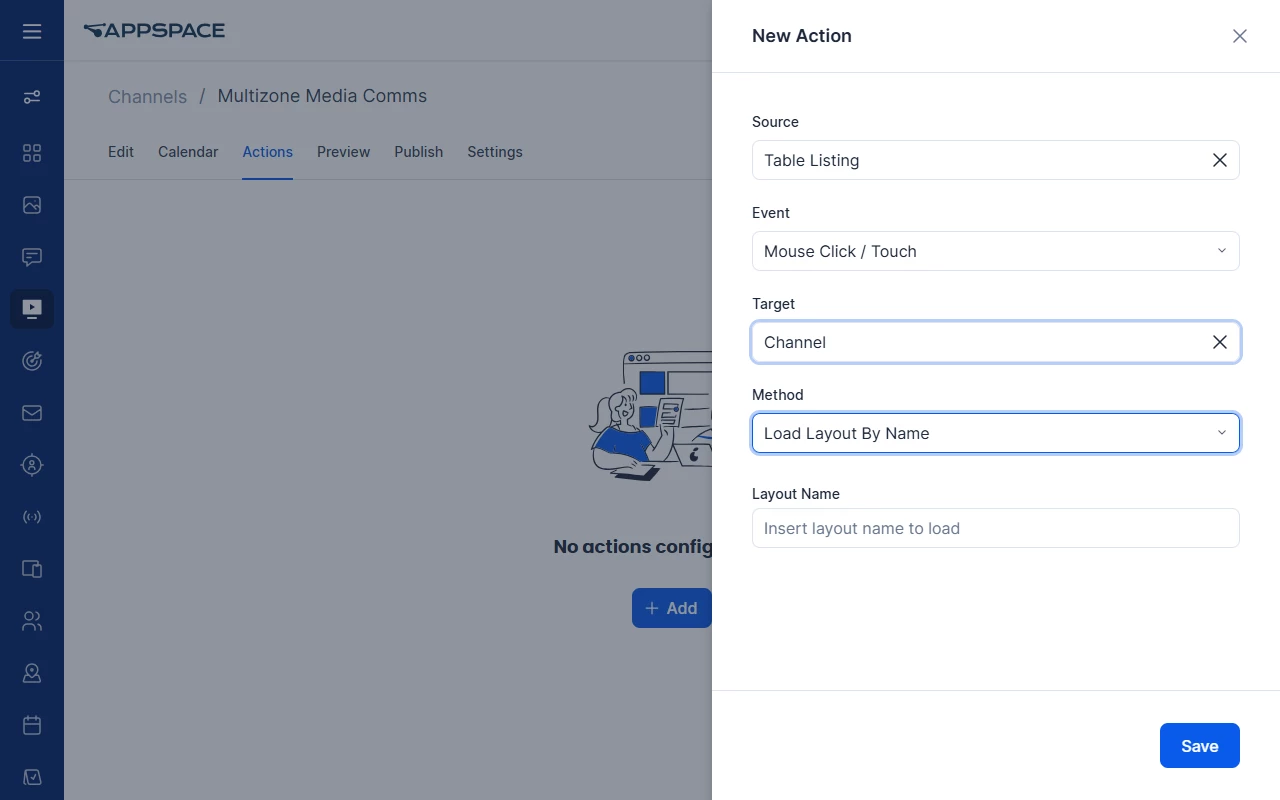
| Load Layout By Name | Loads the layout with the specified name. |
| Next Layout / Previous Layout | Moves to the next or previous layout. |
| Back | Returns to the previously loaded layout. |
Common media zone methods for playlist control:
| Method | What it does |
|---|---|
| Next Media / Previous Media | Moves to the next or previous content item. |
| Replay Media | Replays the current content item. |
| Load Media | Loads a content item from the playlist. Offset is the position in the playlist minus 1 (the item in position 3 uses offset 2). |
Load Schedule and Load Schedule By Name act on schedules in a Media Zone playlist. A zone has those schedules only when Enable Playlist Scheduling is turned on for it. See Schedule and Source Content in a Media Zone.
For the full target, method, and parameter list, see Supported Signage Channel Actions and Events.
The Channel method list still includes Load Playlist From Info Menu Item.
5. Save and preview the action
- Click Save.
- Confirm the action appears in the actions list (source, event, target, method, and parameters).
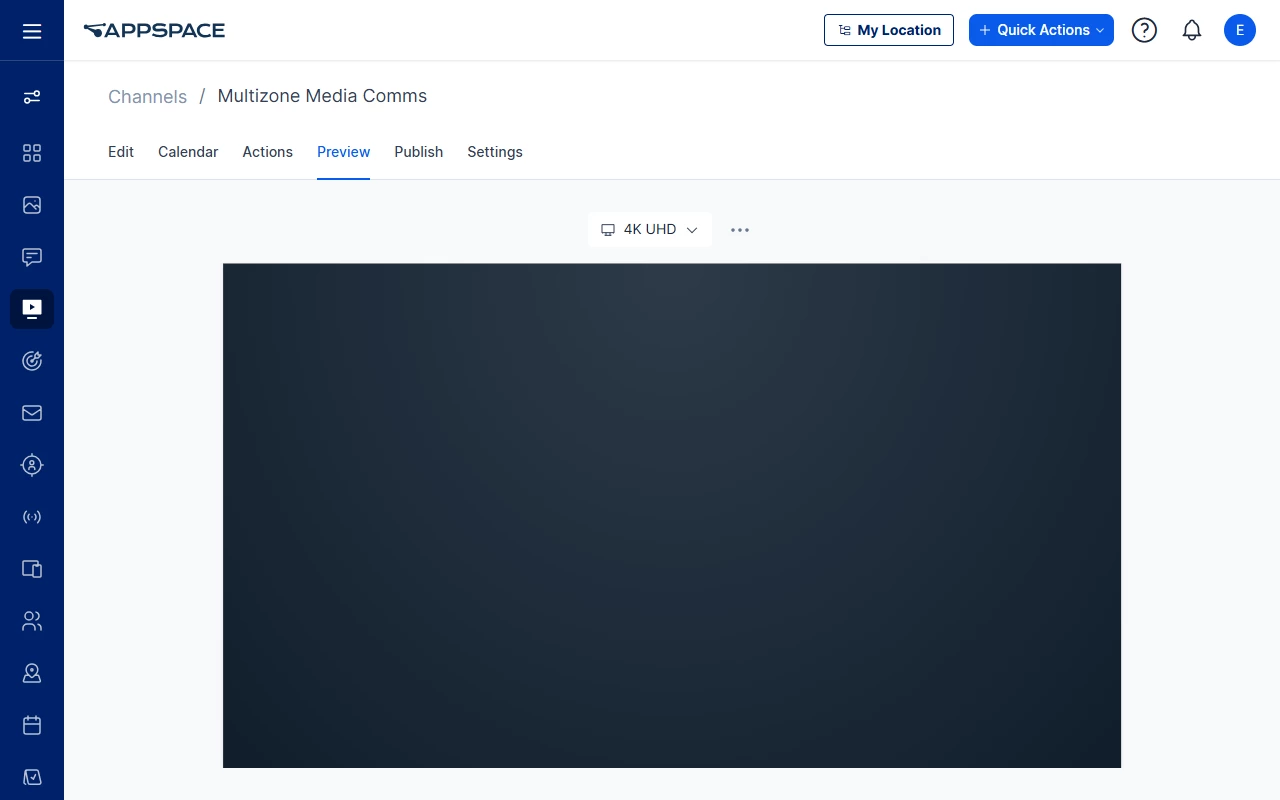
- Select the channel Preview tab — not the Preview toggle on the Edit layout header. Edit-page preview is a layout wireframe/PWA shell and is not the verification path for saved channel actions.
- Select a display resolution if needed, then trigger the event (for example, tap the source for Mouse Click / Touch, or wait for On Load / Media Complete).
- Confirm the target method runs as you configured it.
If you will publish the channel next, use the Publish tab. Publishing is out of scope for this guide; see Publish a Signage Channel to Devices.
Use Case
Scenario: A communicator builds a lobby kiosk that starts on a home layout and opens a directory layout when a visitor taps the main zone.
Your organization has one Multizone Signage Channel for the lobby. Layout Home shows a welcome playlist; layout Directory shows building listings. You do not want a second channel for the directory screen.
- Open the lobby Multizone channel and select Actions.
- Click + Add.
- Set Source to the widget or zone the visitor taps on Home.
- Set Event to Mouse Click / Touch.
- Leave Conditions empty unless only certain media on that zone should open the directory.
- Set Target to Channel and Method to Load Layout (or Load Layout By Name if you prefer to type
Directory). - Select the Directory layout (or enter its name), then Save.
- Open the channel Preview tab and tap the home zone. The display should switch to Directory. Use a Back or Load Layout action on Directory if visitors need a way home.
If the tap is on one specific widget and the channel-level source does not fire, configure the same event and method on that widget’s Actions tab in the layout editor instead.
Best Practices
- Put Mouse Click / Touch on the widget Actions tab when the tap target is one widget; use the channel Actions tab for events that belong to the channel or layout as a whole (for example On Load).
- Prefer Load Layout By Name when layout names are stable and easier for authors to maintain than layout IDs.
- Turn on Enable Playlist Scheduling on the Media Zone before you use Load Schedule or Load Schedule By Name.
- After you change Method, check the Parameters column. A method that takes no parameters should not keep values from the previous method.
- Verify on the channel Preview tab before you publish to devices.
Troubleshoot
| Symptom | Likely cause | What to try |
|---|---|---|
| There is no Actions tab | The channel is Fullscreen, not Multizone | Create or open a Multizone Signage Channel. Actions are Multizone-only. |
| The Actions page looks empty and has no extra buttons | No actions exist yet | Click + Add. The empty list has no other call-to-action. |
| Tap or click does nothing in Preview | The event is not Mouse Click / Touch, the Source is not the widget that was tapped, or you used the Edit-page preview | Confirm Source and Event; use the widget Actions tab for a single-widget tap; verify on the channel Preview tab. |
| Load Schedule / Load Schedule By Name has no effect | The Media Zone has no playlist schedules | Enable Playlist Scheduling on the zone, then select the schedule by ID or name. |
| Buttons on an imported or converted channel do nothing | Load Media (or similar) parameters were empty after import | Open each action and confirm method parameters (offset, layout ID, and similar) are populated, then save and preview again. |
| Search finds nothing for a two-word event or method | Phrase search may match only single tokens | Search one word of the label (for example Load or Layout). If a full phrase does not match, try a single token. |
| Parameters still show after you switch to Next Media (or another method with no parameters) | The form kept the previous method’s values | Re-select the method, clear parameters if they remain, and save. The Actions list should show an empty Parameters column for methods that take none. |