



Developer Mode gives you access to tools for troubleshooting the Appspace mobile app. You can view logs, reload the app, or clear its stored data.
Enable Developer Mode
- On the app login screen, tap the version number seven times.
- When the Enable Developer Mode? message appears, tap Continue. To leave Developer Mode off, tap Cancel.
- Tap the gear icon next to the version number to open the Developer Mode menu. If you are already signed in with Developer Mode enabled, the gear icon appears at the top left, over the logo.
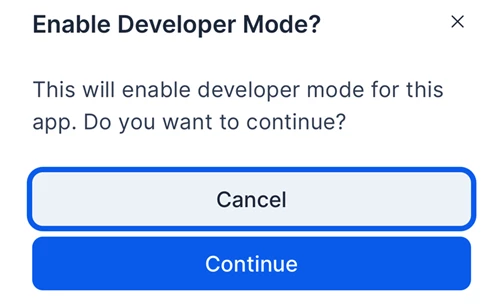
Enable Developer Mode screen
Choose a Troubleshooting Tool
- View Logs: Open the app logs to review information that can help troubleshoot an issue.
- Reload App: Refresh the app.
- Clear Data: Remove stored app data and reload the app.
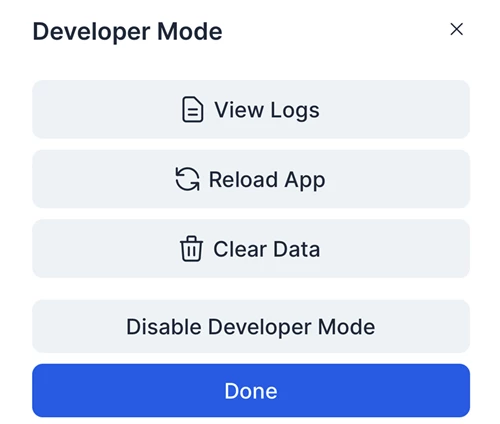
Developer Mode troubleshooting tools screen
Clear App Data
Before you continue: Clear Data removes the app’s stored data and reloads the app. Choose this option only when you intend to reset the app’s stored state.
- In the Developer Mode menu, tap Clear Data.
- Review the Clear data? message.
- Tap Confirm to clear the data and reload the app, or tap Cancel to keep the data.
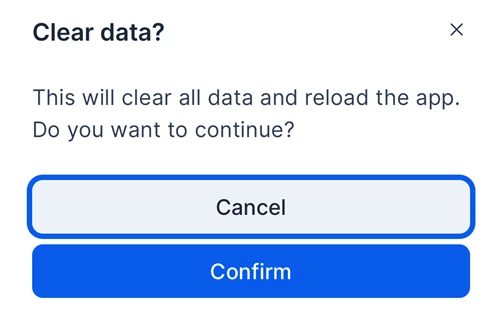
Clear data screen
Finish Using Developer Mode
Tap Done to close the menu. To turn Developer Mode off, select Disable Developer Mode.