




This article provides the complete instructions for linking any Appspace space (Channel, Community, or Topic) directly to a target Microsoft Viva Engage community, enabling automatic content publishing.
Prerequisites
-
An active Microsoft Viva Engage Publishing Passport must be authorized by an Appspace Administrator.
-
An Account Owner, Publisher, or the Space Owner/Moderator of the linked Appspace space is required.
-
Viva Engage Permissions: A Microsoft 365 account with posting and publishing rights in the target Viva Engage community is required.
Configure the Viva Engage Publishing Link
There are two primary methods for setting up this configuration, depending on your Appspace role and the content type you are managing.
Method A: Link via the Appspace Admin Console (Recommended for Channels & Publishers)
-
Log in to your Appspace console.
-
From the side menu, navigate to Channels (or Spaces if linking a Community/Topic).
-
Select the specific Appspace channel or space you want to publish content from.
-
Click the Publish tab at the top of the channel settings page.
-
Click the Apps sub-tab, then select Publish to An App.
-
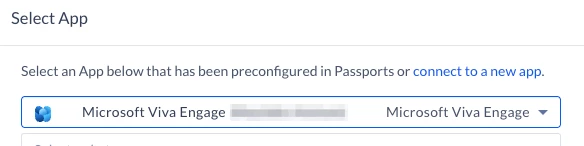
Find and click the created Microsoft Viva Engage passport from the list of available passports.
-
Click the Viva Engage Community field. From the resulting dropdown list, select the target community you want the content to be posted to.
Note:
In the Settings, ensure you have selected the appropriate format and configured all required rules before publishing your content. -
Click Save to complete the configuration.
Method B: Link via the Appspace Employee App (Recommended for Communities & Topics)
-
Log in to the Appspace Employee App.
-
Navigate to the specific Space (Community or Topic) that you own or moderate.
-
Click the Settings for the space.
-
In the space settings menu, click the Apps tab.
-
Click the Add button.
-
Choose the Microsoft Viva Engage passport that your admin has already authorized.
-
A dropdown list will load, displaying your available Viva Engage communities. Select the target community you want the content to be posted to.
Note:
In the Settings, ensure you have selected the appropriate format and configured all required rules before publishing your content. -
Click Add to complete the configuration.
Publish Content (Day-to-Day Action)
Once the Appspace space is configured, content publishing becomes a standard part of your workflow.
-
Navigate to the Appspace channel, community, or topic you just configured.
-
Create a new post or content item in this space.
-
In the content editor, click Publish.
Verification
The Appspace platform will automatically process the new content and post it to the linked Viva Engage Community. Log in to Viva Engage and open the designated community to verify the post is visible.