Description
HAR files contain background actions within your browser and can have useful details such as transaction ID error codes. If you are encountering a technical issue when using Appspace and you would like to reach out to Appspace Customer Care for assistance, including HAR files can be extremely useful for the Support Team to investigate your issue.
If your issue is being experienced in Outlook, please reference this article.
Steps
Google Chrome
- Open Google Chrome and navigate to the page where the issue is occurring.
- Press F12 on the keyboard, OR select the vertical ellipsis and hover over more tools > developer tools.
- In the opened panel, select the network tab. This tab may be hidden in the double-carrot, depending upon the size of your window. You can adjust the size of the window by hovering over the left side of the panel, clicking down your mouse once the double-sided arrow shows up, and dragging the window to the left or right, and releasing the mouse after the adjustment.
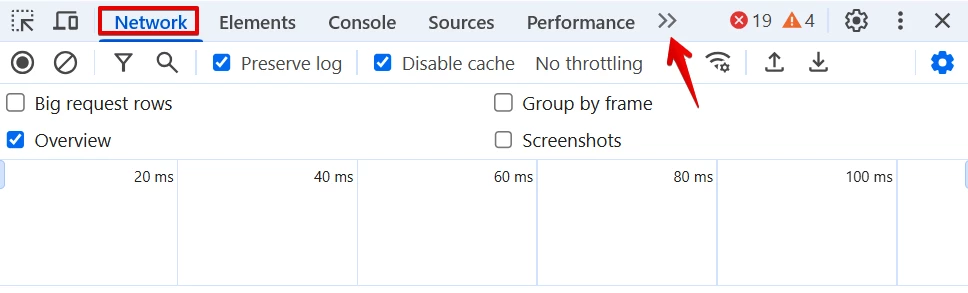
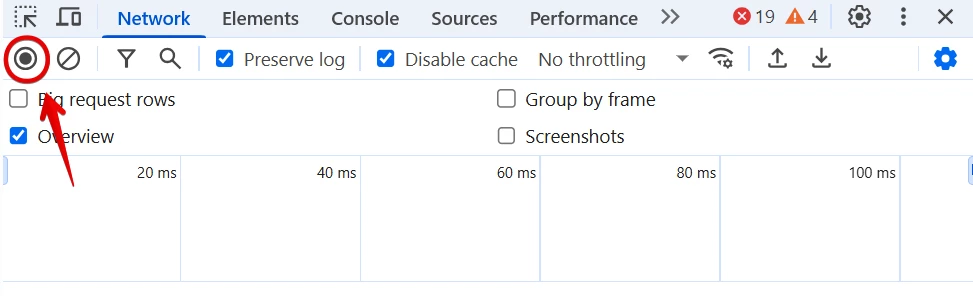
- Look for the record button in the upper left corner of the tab, and make sure it is red. If it is grey, click it once to start recording.
- Check the preserve log box and disable cache box.
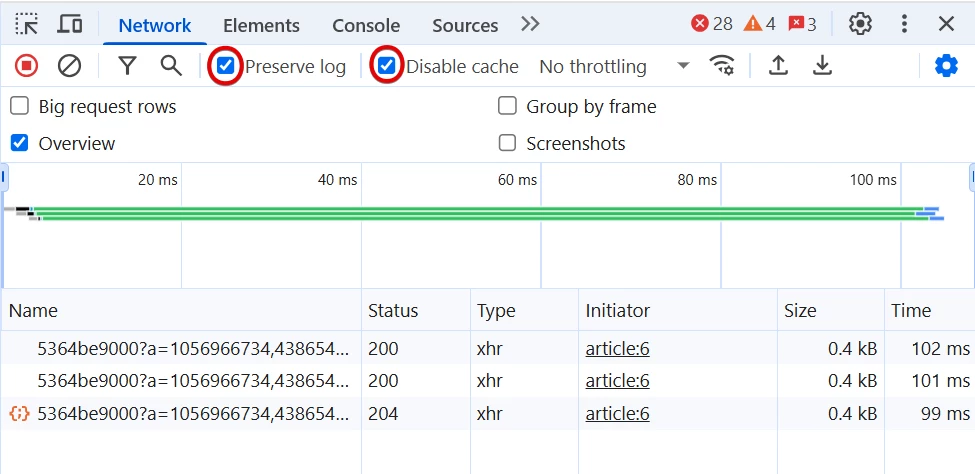
- Reproduce the issue that you are experiencing.
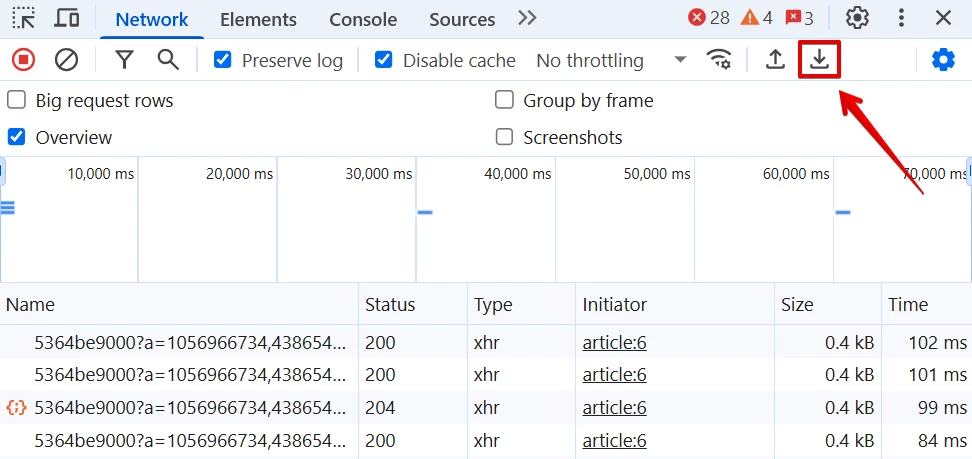
- Once you have reproduced the issue in Chrome, look for and select the down arrow with a bracket underneath to export the HAR file. Then save the file to your computer; save as HAR file (*.har).
- Upload the HAR file to your case. If the file is too large, right-click the file, hover over compress to… and select ZIP file. Then upload this compressed file to the case.
Safari
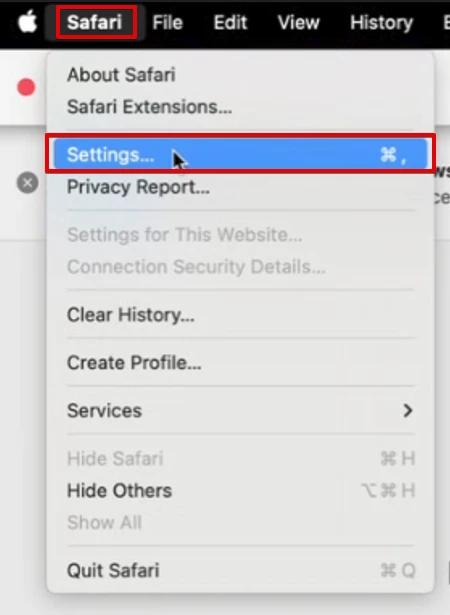
- Open Safari and select the Safari option from the menu bar.
- Select settings.
-
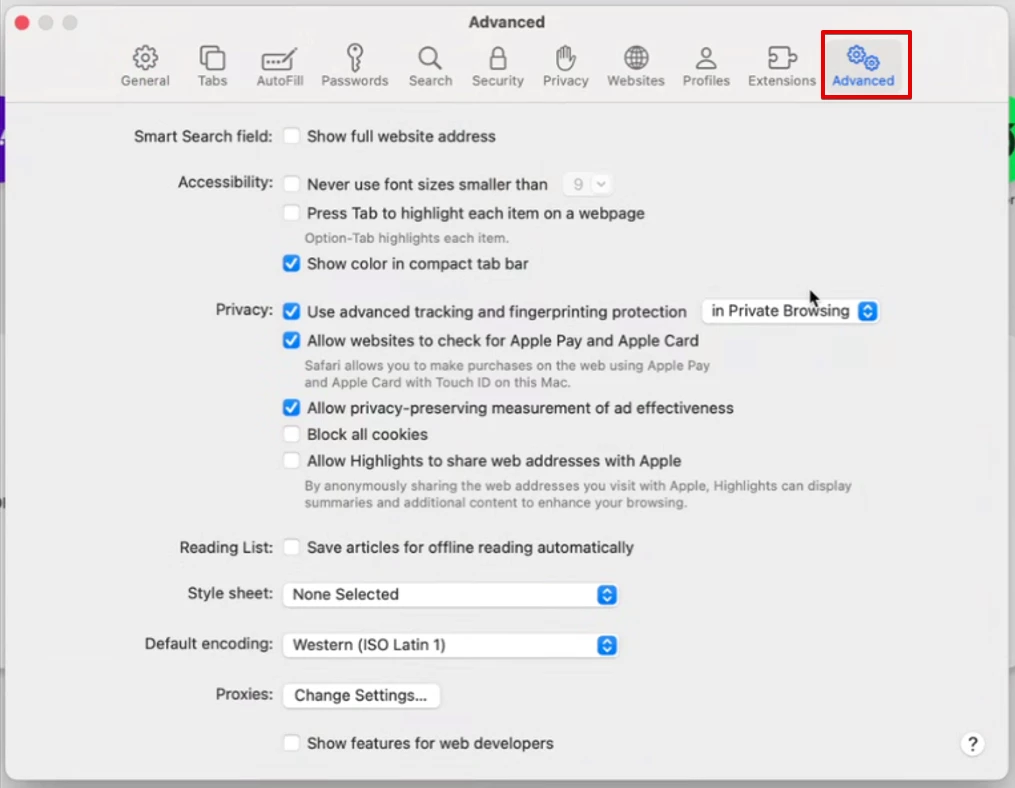
- Select advanced.
-
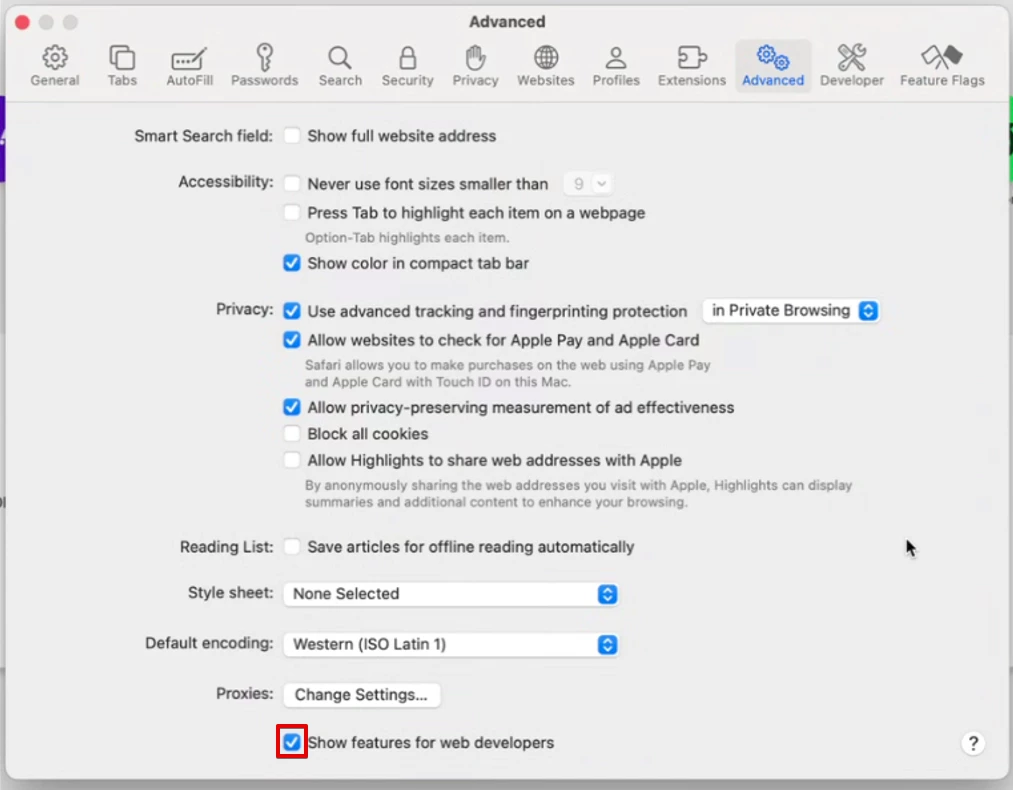
- Select show develop menu in menu bar.
-
- Next, from the Safari window, navigate to the page where the issue is occurring.
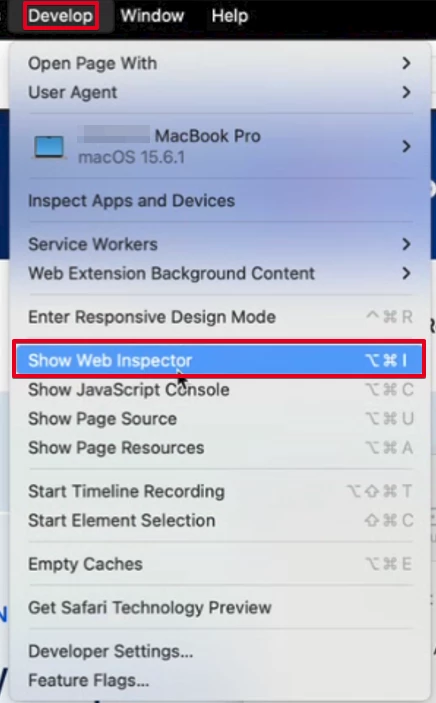
- From the menu bar, select develop, and select show web inspector.
-
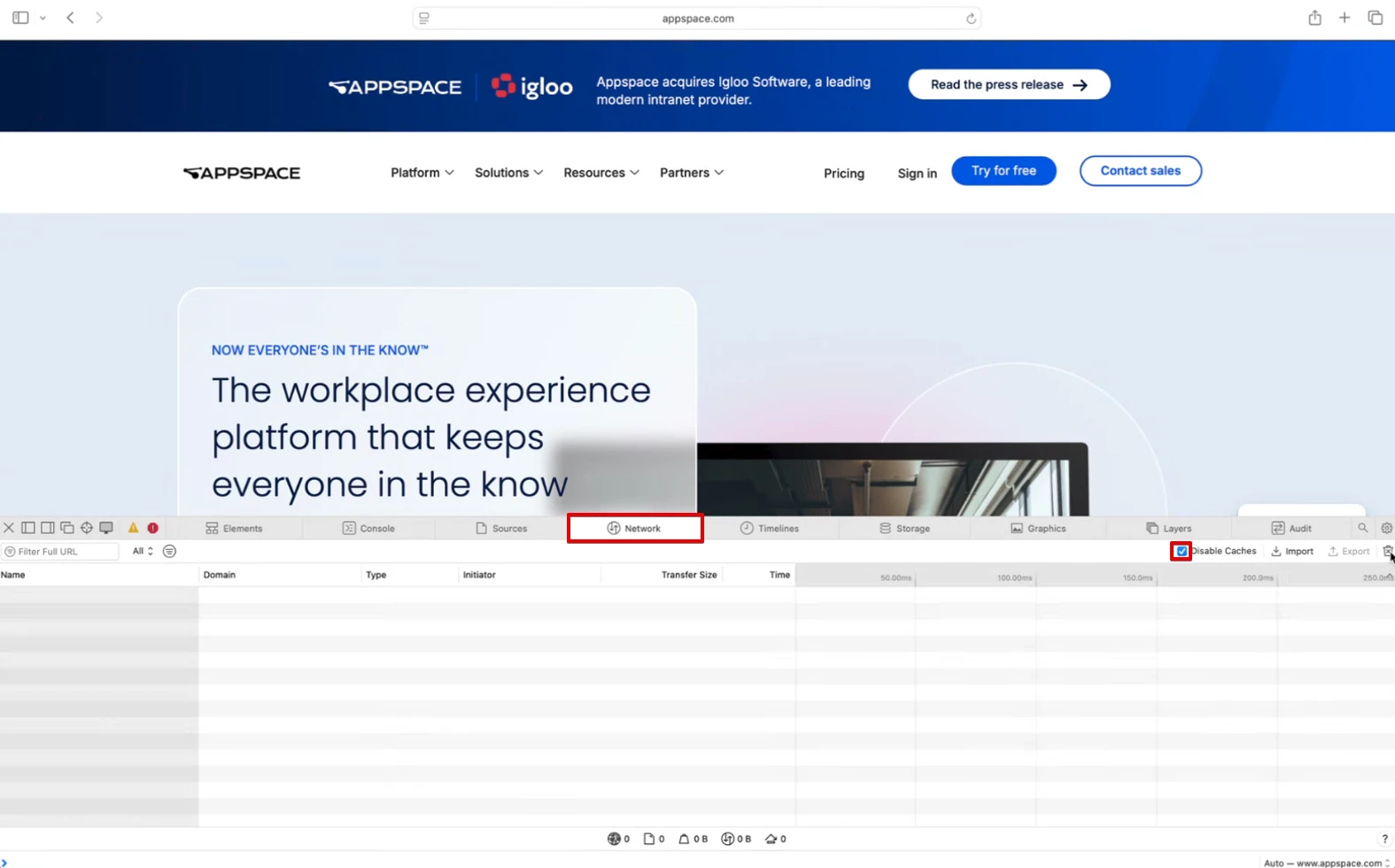
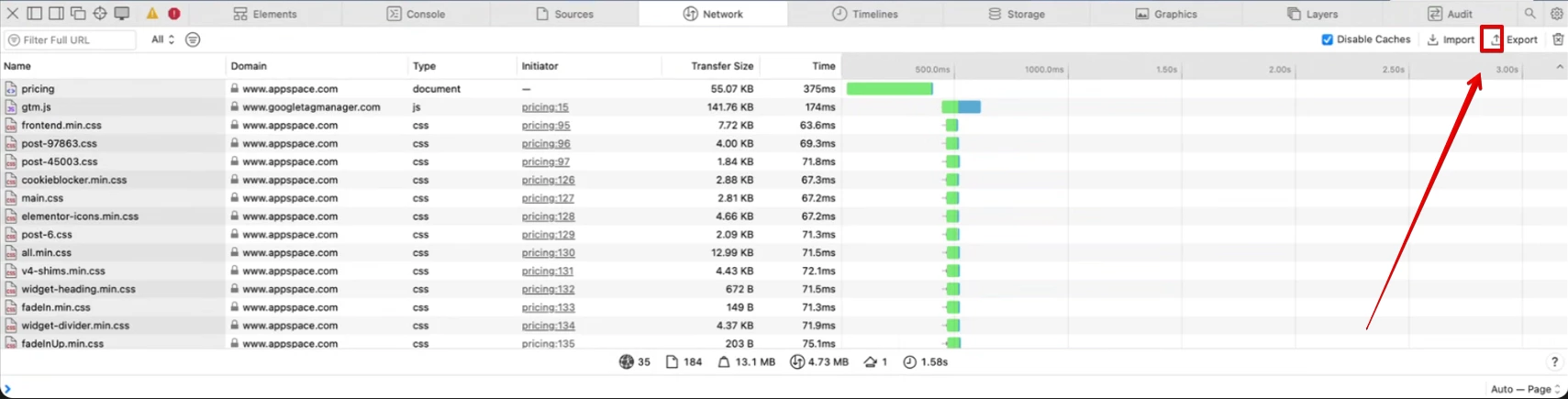
- Select the network tab and ensure that the disable cache option is selected.
-
- Recreate the behavior you’re experiencing within your browser.
- Once you’ve finished replicating the actions that took place, select the export option.
-
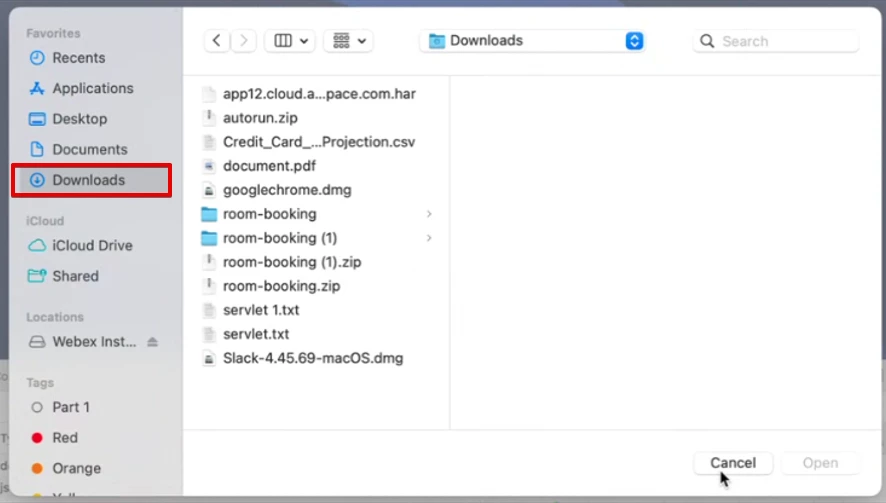
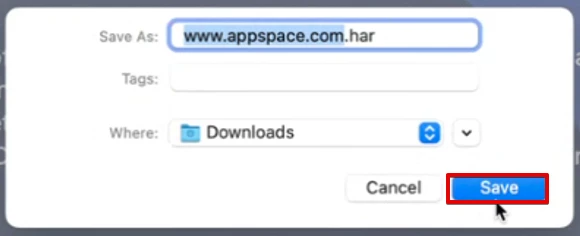
- Save the HAR file to your device and upload it to your support case.
-
- If the file is too large, right-click the file and select compress. Then upload this compressed file to the case.
Firefox
- Open Firefox and navigate to the page where the issue is occurring.
- Press F12 on the keyboard, OR select the 3-line menu in the upper-right corner of the browser, hover over more tools, and select web developer tools.
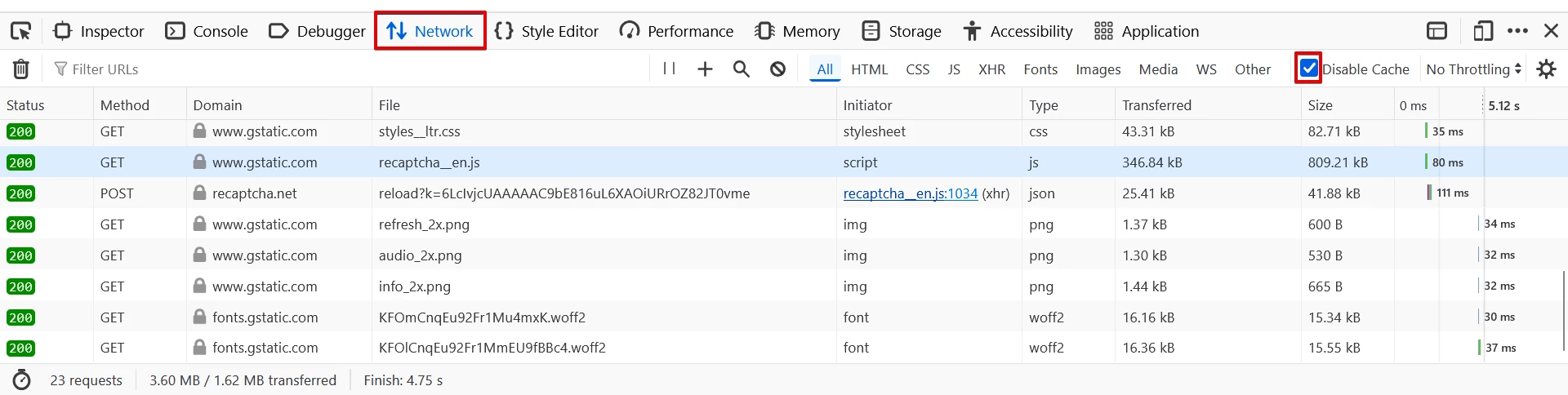
- Ensure the network tab and disable cache options are selected.
-
- Recreate the behavior you’re experiencing within your browser.
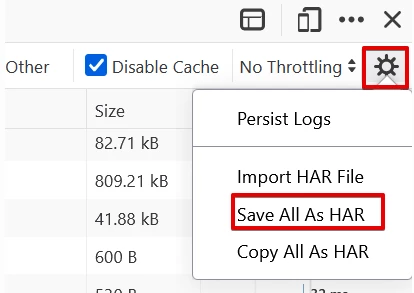
- Select the cogwheel icon in the upper-right corner of your web dev tools window, and select save all as HAR.
-
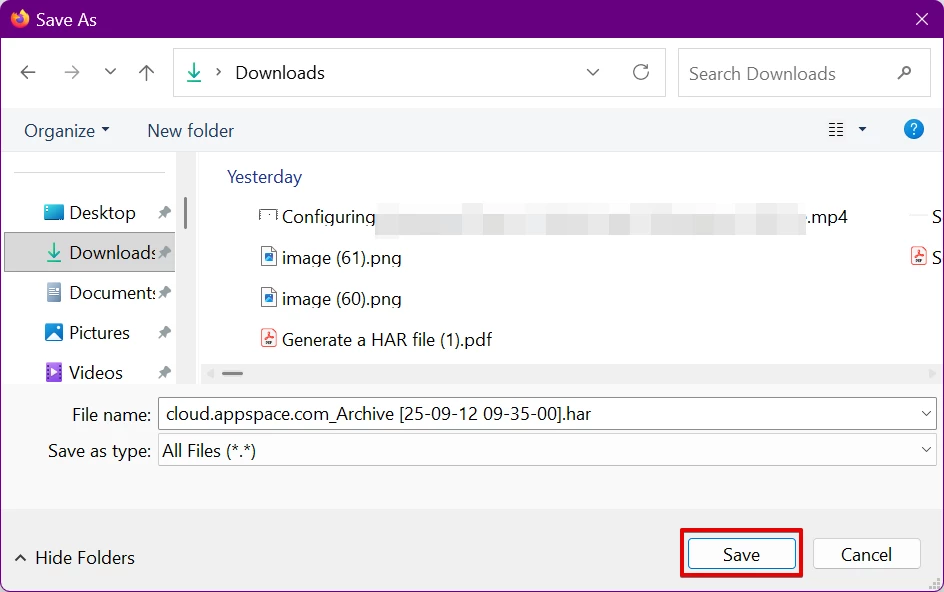
- Save the file to your computer and upload the file to your support case.
-
- If the file is too large, right-click the file, hover over compress to… and select ZIP file. Then upload this compressed file to the case.