
Decommissioning a Location in Appspace: User Guide
Introduction
This guide provides information on how to migrate resources and channels out of a location before permanently deleting that location from Appspace.
Key Benefits
- Preservation of Assets: Ensures that valuable content, channels, and Appspace-managed resources are migrated and preserved before the location is permanently deleted.
- Data Integrity: Guarantees a clean and controlled decommission process, maintaining the integrity of user and group assignments by relocating them to a new location.
- Efficient Clean-up: Facilitates the permanent removal of an obsolete location and its infrastructure from the platform.
What this guide covers
- How to manually move Appspace Channels and Resources to a new location.
- How to permanently delete a location from Appspace.
- How to relocate associated users, user groups, and content.
- How to disable SCIM or JIT user provisioning globally.
Prerequisites
- You must have an Account Owner user role.
- You must have a platform license.
- A designated, existing target location in Appspace to migrate channels, resources, users, and groups to.
- A list of all channels and resources within the location that need to be preserved.
Before You Begin
When you delete a location, all its associated components—like users, groups, and content—will be affected.
- The Appspace platform will prompt you to relocate some items, while others, like channels and resources in Appspace, must be moved manually beforehand.
- Before you delete a location, ensure all channels and resources you want to preserve have been moved.
- If the resources are managed by a third-party calendar provider (like Microsoft 365 or Google Calendar), those resources will not be deleted. Instead, they will be relocated to the Geo location or the original location they were assigned when they were first added.
Decommissioning a Location
Step One: Moving Your Channels
To move your channels and prevent them from being deleted along with your location, follow these steps:
- Go to the Channels tab on the Admin Console.
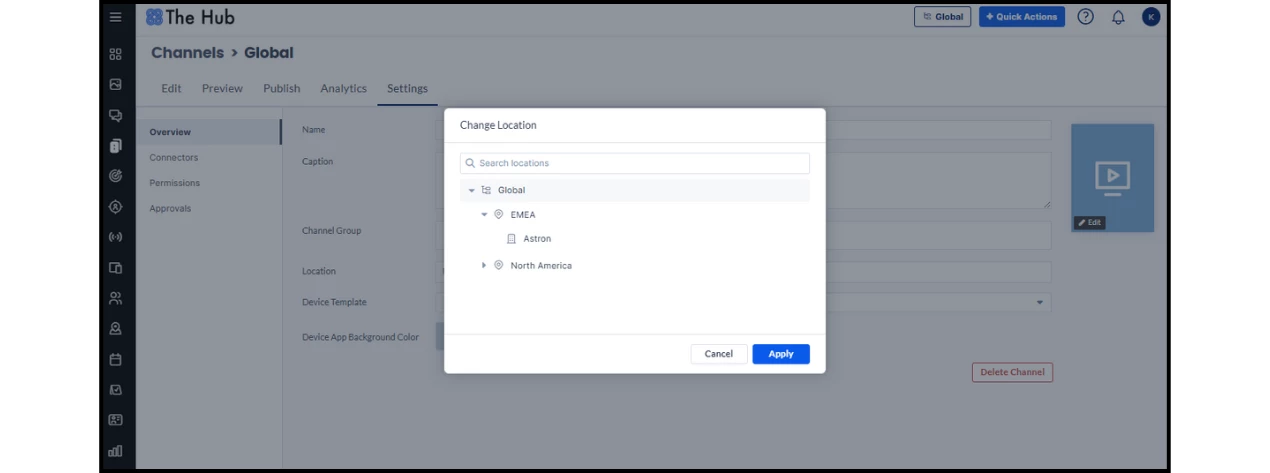
- Click the Location drop-down to select the location you are going to delete from the hierarchy.
- Select the three dots at the corner of the channel you want to move and click Edit.
- Navigate to the Settings tab of the channel.
- Click the Location section and select the location you want to move the channel to and then Apply.
Step Two: Relocating Your Resources
To move your Appspace-managed resources to prevent them from being deleted along with your location, follow these steps:
- Go to Reservations > Resources.
- Click the Location you are going to delete from the hierarchy on the left menu to filter the resources under that location.
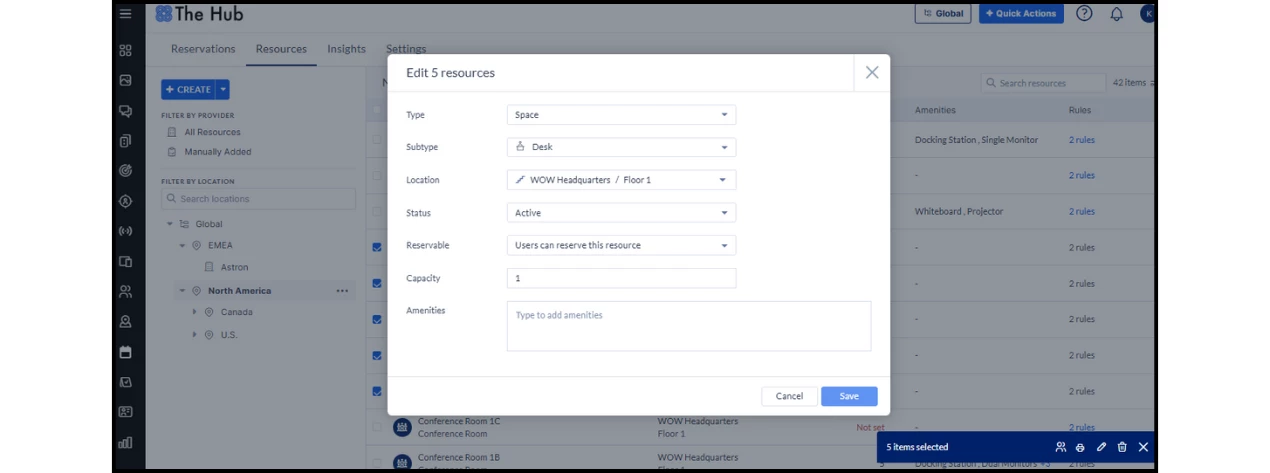
- If you want to move several resources to one location, click the box to the left of the resources and then select the Edit menu from the bottom left menu that pops up.
- From the Location drop-down, select the location where you want to move your resource.
- Click Save.
Step Three: Deleting a Location
Once you have moved any channels or resources to another location, you can now delete the location:
- Navigate to the Locations tab in the Appspace Console menu.
- Select the circle at the top left of the location you want to delete.
- On the bottom left menu that pops up, click the Delete button.
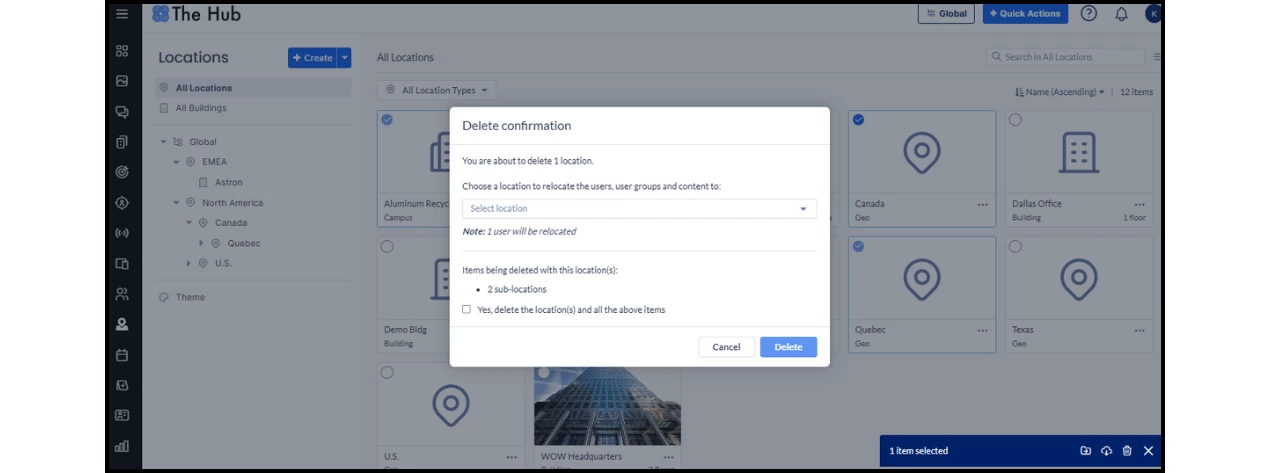
- A pop-up window will appear with a list of all users, user groups, and content tied to the location you are about to delete. You will be prompted to select a new location to relocate these items to.
- Select a new location from the dropdown menu.
- Click OK.
Disabling SCIM or JIT Provisioning
Another item you can disable in Appspace is SCIM or JIT provisioning of users in all your locations. Disabling your SCIM or JIT provisioning is a global setting, and cannot be changed for only one location.
To disable the provisioning:
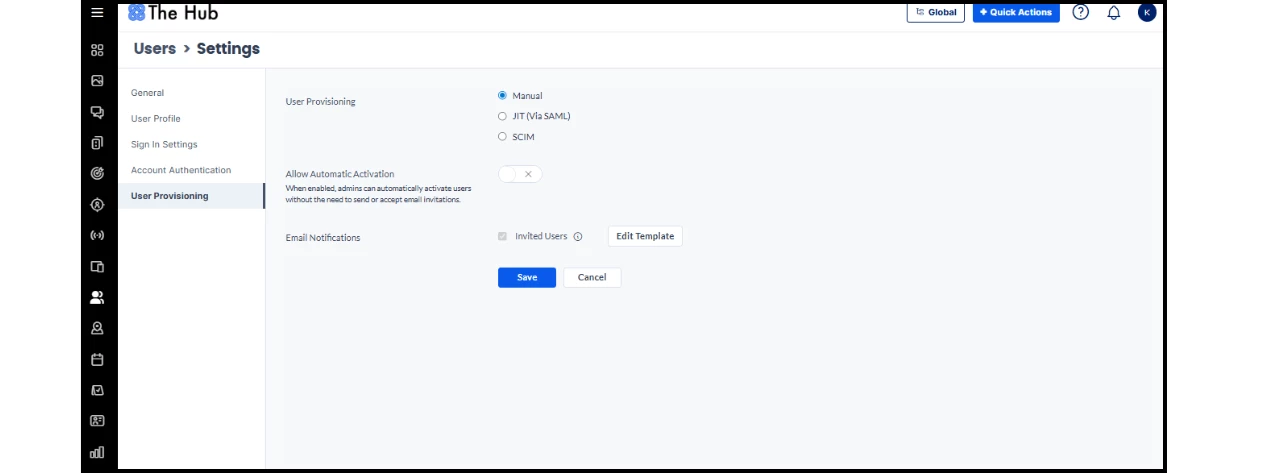
- Go to Users > Settings > User Provisioning.
- Change the User Provisioning option to Manual from SCIM or JIT.
- Click Save.
If you disable provisioning:
- No new users or user changes will be added to Appspace.
- Existing users will have to reset their passwords because single sign-on (SSO) will no longer be available.
- Users who were already pulled into Appspace will remain and must be removed manually or through SCIM deprovisioning.