Resource Rules: Definitions and Use Cases
Introduction
This guide provides definitions and examples of the rules Administrators can create within Appspace to control how users interact with reservable resources. There are four types of rules available: Constraints, Checkpoints, Workflows, and Automations.
Key Benefits
Implementing resource rules offers several benefits:
- Controlled Interaction: Limits how and when users can reserve resources, ensuring fair and optimized usage.
- Enhanced Compliance: Requires users to acknowledge policies or complete forms before securing a space.
- Automated Management: Streamlines approval processes and automates occupancy status based on real-time data.
What This Guide Covers
This guide will cover the following topics:
- Constraints: Limiting reservations based on time, capacity, or user type.
- Checkpoints: Requiring user interaction (e.g., forms, notices) during reservation.
- Approval Workflows: Setting up approval processes for specific resources.
- Automation: Using sensor data to trigger reservation actions.
Prerequisites
Before you can configure resource rules, ensure you meet the following requirements:
- You must be an Administrator with access to the Appspace console.
- Reservable resources must be created and mapped within Appspace.
Constraints
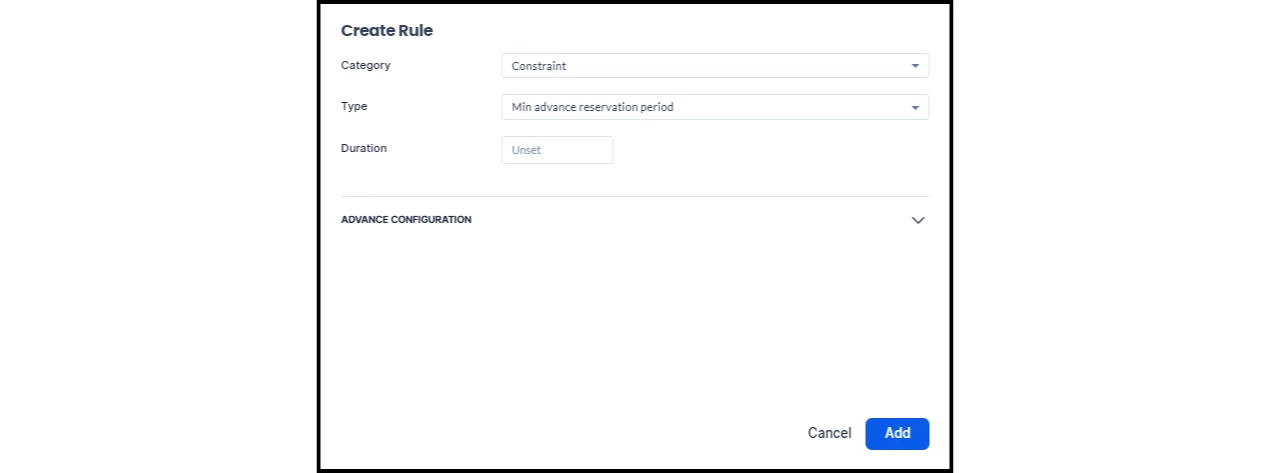
A constraint is a rule that limits or controls how end-users can interact with a reservable resource. It can define parameters such as maximum reservation duration, capacity limits, or check-in requirements.
List of Constraints
The following table outlines the available constraints:
| Constraint | Definition | Use Case |
| Allow visitor reservations | Visitors can be invited to buildings that are not reservable. | A location doesn’t allow employees to reserve meeting rooms, but visitors can be invited to the building. |
| Allow visitor drop-in | Visitor drop-ins can check in with a different host if the original host has not responded to the guest's arrival notification within a certain duration. | The original host who invited the visitor is out of the office, but another host is available to check the visitor in. |
| Minimum advance reservation period | Users will have a minimum period of time in which they can make a reservation in advance. | An employee will have to create a reservation at least an hour before their meeting time. |
| Maximum advance reservation period | Users will have a maximum period of time in which they can make a reservation in advance. | An employee can create a reservation one day ahead of time. |
| Min reservation duration | Users will have a minimum duration of time they can set for a reservation. | An employee will have to reserve a meeting room for at least 30 minutes. |
| Max reservation duration | Users will have a maximum duration of time they can set for a reservation. | An employee will only be able to reserve a room for 2 hours at the longest. |
| Max capacity | A resource will have a maximum capacity of a certain number of people on a reservation. | A meeting room will only be able to have four people at a time. |
| Min duration between reservations | A resource will have a minimum period of time between each reservation. | A meeting room will have a gap of time where cleaning services can prepare before the next meeting. |
| Only available on specific days and/or times | A resource will only be available for reservations on designated days and times. | An employee won’t be able to reserve a meeting room outside of company hours. |
| Recurring reservation limits | Users will be limited on the number of times they can reserve the same resource within a certain period of time. | An employee won’t be able to reserve the same meeting room five times within the same week. |
| Concurrent reservation limits | Users will or won’t be able to book a resource up to its max capacity of reservations. | A meeting room will have a limit of eight back-to-back reservations in a day. |
| Mutually exclusive resource reservations | Users can be blocked from booking specific resources at the same time. | An employee won’t be able to book two meeting rooms at the same time. |
| Requires Check-in | Users will have to check in at the time of their reservation. | An employee must check into their reservation at most 15 minutes beforehand, or the reservation will be canceled. |
| Zombie Meetings | If a meeting organizer misses a certain number of recurring meetings in a row, all future meetings in that series will be automatically canceled. | An employee who is out of the office forgot to cancel the reservations they made for the week, so after two missed reservations, the rest were canceled. |
| In-Person QR Code Actions | A resource can only be reserved or interacted with if the employee scans the QR Code in person. | An employee must scan the QR code on the screen outside the meeting room’s door to make a reservation. |
| Visitor multi check-in/check-out | Hosts and facilitators can allow visitors to check in and check out multiple times throughout the duration of their event, using the same QR code. | A visitor can check in and check out with the same QR code as they leave and return to a conference room. |
| Lock resources while reserving | A user will have a period of time to create a reservation where no other users can reserve the same resource. The locking period begins when the resource is selected. | An employee can have time to create a reservation for a resource, and not have other employees reserve the resource during that time. |
Checkpoints
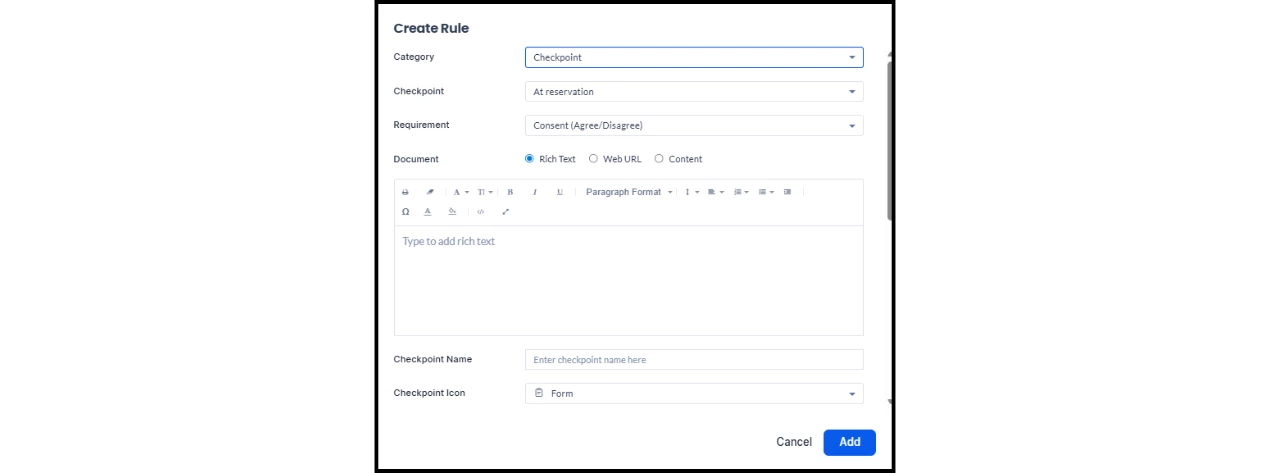
A checkpoint is a rule designed to provoke interaction with the end-user. Information can be displayed, or an acknowledgment may be required before a team member can reserve the resource.
Configuration Options
You can determine whether the checkpoint is required by selecting one of these options from the Checkpoint dropdown:
- At reservation: The user must finish the checkpoint to reserve the resource.
- On-demand: The checkpoint can be finished when the user creates their reservation or completed at a later time. When making the reservation, these checkpoints will be displayed as options under the Services section.
List of Checkpoints
The following table outlines the available checkpoints:
| Checkpoint Type | Definition | Use Case |
| Consent | A consent form that employees or visitors can accept or decline. | A form that covers the procedures a person must follow when using a space. |
| Notice | A notice that employees or visitors can read and then click Done. | A notice that informs the person of the cybersecurity policy of that building. |
| Form | A checklist form where employees or visitors have to select options and click Submit. | A URL link to a form where the person can answer a health screener checklist. |
| Service | A form where employees or visitors can order from the business or catering services. | A form that offers options for a person to order from the location’s catering menu. |
Approval Workflows
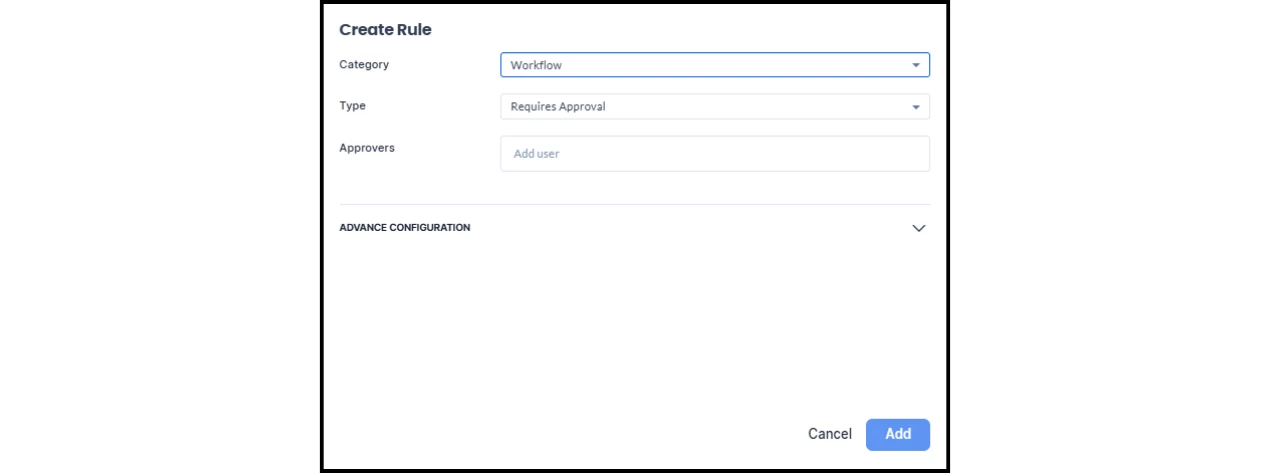
A workflow is a rule that enables organizations to specify that meeting organizers must go through an approval process when attempting to reserve certain resources.
How It Works
- The approval workflow is started when the organizer creates the reservation for a resource that requires approval.
- The assigned approver is notified that the reservation is pending approval and can choose to approve or decline it.
- When the allocation is approved, the resource status is changed from pending approval to reserved.
- The organizer is notified through email that the reservation is approved.
Use Case: An administrator adds an approval workflow rule to a resource that is reserved only for a specific group of people. The assigned approver is the representative of that specific group.
Automation
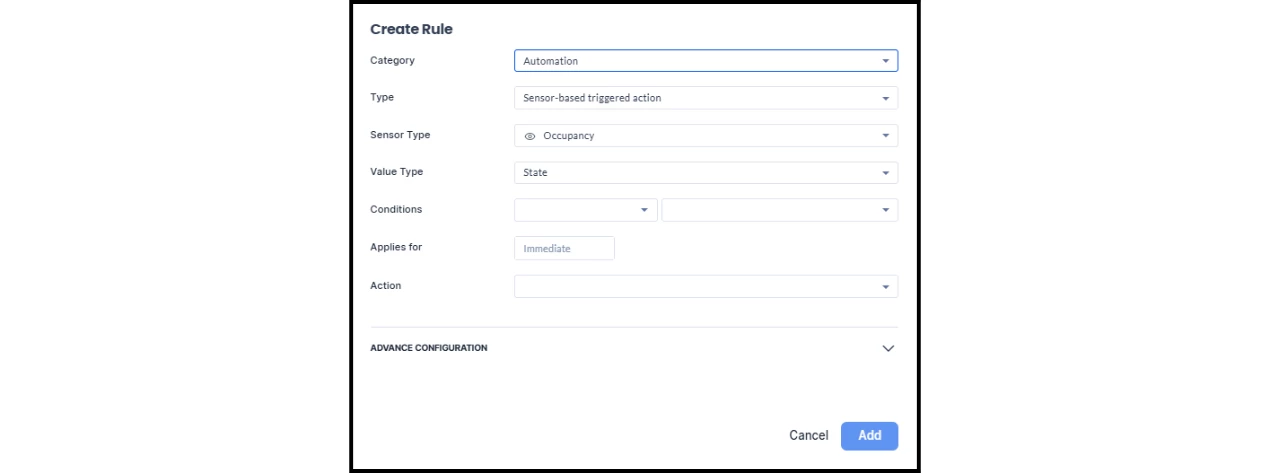
The automation rule currently focuses on automating occupancy status within resources by integrating sensor data. By adding a sensor-based rule, the data collected will automatically trigger actions based on whether a room is occupied. When a sensor detects occupancy, it can change a resource's reservation status.
Use Case: An employee arrives for a meeting but does not check in to their reservation. If the sensor detects their presence for 5 minutes, the rule that has been set will automatically check them in.