
Plan Your Messaging, Engage Your Users: A Guide to the Content Schedule Calendar
This guide provides practical, scenario-based instructions for using the Content Schedule Calendar in Appspace. Rather than walking through each view sequentially, it starts with common content management situations and shows you how to use the calendar to handle each one.
The Content Schedule Calendar gives Administrators and Publishers a visual overview of scheduled publication dates and upcoming content expirations across Employee Experience content, including Posts, Stories, and Pages. It is currently available only for Employee Experience content. The calendar is accessible in three places — the Admin Console, individual Communities, and your personal user profile — each tailored to a different scope of content.
Key Benefits
- Interactive Timeline — View, filter, and search content lifecycles in a clear calendar format.
- Proactive Management — Align content publishing and expiration with organizational events and deadlines.
- Unified Content Planning — Use a centralized scheduling hub to streamline and improve content planning.
What This Guide Covers
- Reviewing what's publishing across your locations this week
- Coordinating content around a major event or initiative
- Checking content related to a specific campaign or program
- Catching expiring content before it goes stale
- Viewing what's scheduled for a specific Community
- Reviewing your own personal publishing activity
Prerequisites
- Appspace Platform license — Required to access the Content Schedule Calendar in the Admin Console.
- Appspace Premium license — Required to access the Calendar in the Employee Experience.
- Account Owner or Publisher role — Required permissions to view and manage scheduled content.
Where the Calendar Lives: A Quick Orientation
Before diving into scenarios, it helps to know that the calendar exists in three places, each with a different scope:
| View | How to Access | What You See |
|---|---|---|
| Admin Console | Posts → Calendar | All content scheduled across your assigned location(s). Filterable by time frame, content type, author, feed, connector, and tag. |
| Community | Community → Calendar | All posts scheduled for that specific Community. Private communities require membership to view. |
| User Profile | Profile → My Activity → View Calendar | Only your own scheduled content. Other users cannot see your personal calendar. |
Note: Posts that are in Draft status or set to be published immediately will not appear on the calendar.
Scenario 1: “What's going out across my locations this week?”
The situation: It's Monday morning, and you want a quick pulse check on what content is publishing this week so you can flag anything that needs attention.
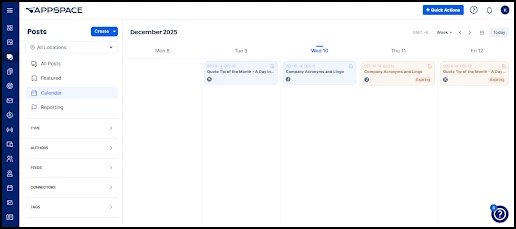
How to handle it: Open the Admin Console and go to Posts → Calendar. The calendar displays a weekly view of everything scheduled. Scan for content density — are certain days overloaded while others are empty? You can filter by time frame to adjust the window you're looking at.
Scenario 2: “We have a town hall on Thursday — what content is running around it?”
The situation: Your company has a leadership town hall on Thursday, and you want to make sure supporting content is properly timed around it.
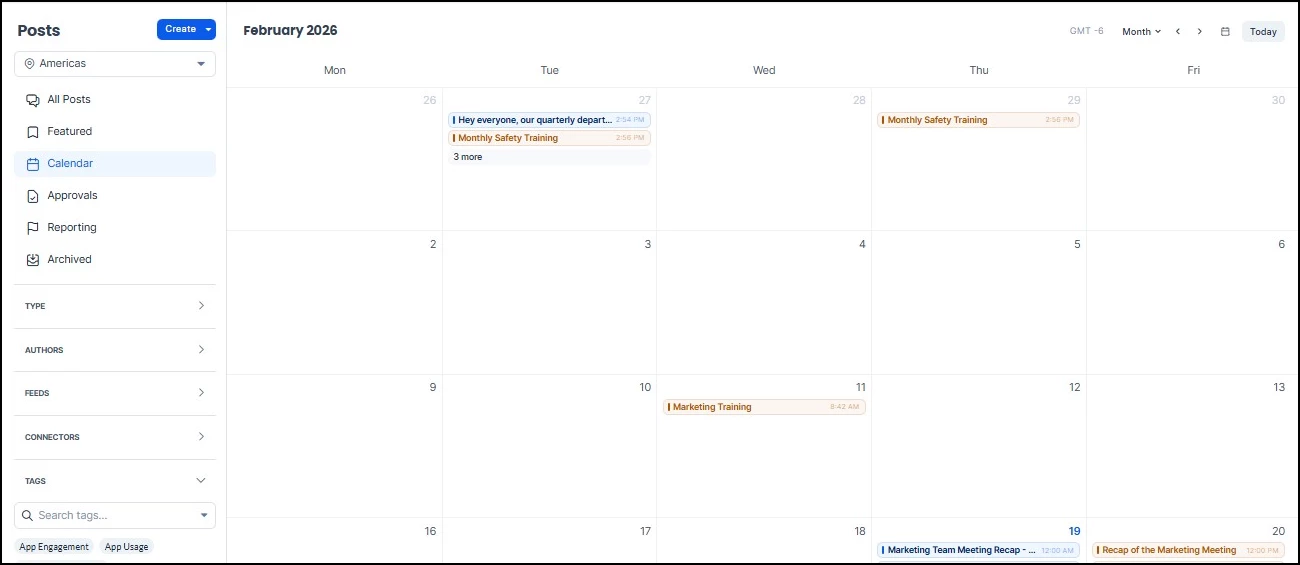
How to handle it: In the Admin Console calendar (Posts → Calendar), navigate to the relevant week and check what's scheduled on and around Thursday. To see the full arc of content leading up to and following the event, switch to the Monthly view to check content distribution across a wider window and identify any scheduling gaps.
Scenario 3: “I need to make sure all our Open Enrollment content is consistent and well-spaced.”
The situation: Open Enrollment runs for three weeks, and multiple publishers have created content for it. You want to verify that nothing overlaps awkwardly and there aren't gaps in the schedule.
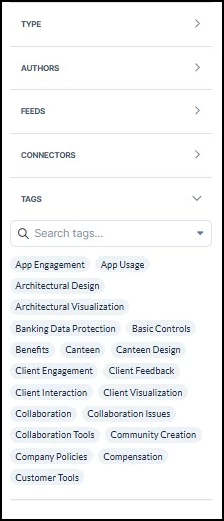
How to handle it: In the Admin Console calendar, filter by keyword (e.g., “Open Enrollment”) to show only content related to that initiative. Switch to the Monthly view to check distribution across the enrollment period. You can also filter by author to see which publishers have contributed.
Scenario 4: “Is there any content about to expire?”
The situation: Your team publishes time-sensitive content — things like weekly lunch menus or limited-time benefits information. You want to make sure nothing expires without being updated or replaced.
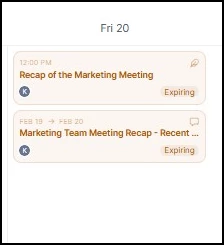
How to handle it: In the Admin Console calendar, look for content flagged as Expiring. Select a piece of content to view its expiration date and confirm whether it needs to be extended, replaced, or allowed to expire on schedule.
Scenario 5: “I manage a Community and want to see what's coming up.”
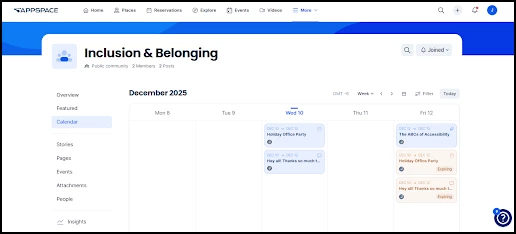
The situation: You're the owner of a Community (e.g., “Inclusion & Belonging”) and want to see what posts are scheduled for the coming weeks so you can plan around them or identify gaps.
How to handle it: Navigate to your Community in the Employee View and click Calendar in the navigation. This shows all posts scheduled specifically for that Community.
If the Community is private, only members will be able to access the calendar view.
Scenario 6: “I just want to see what I personally have scheduled.”
The situation: You've published several posts over the past few weeks and want to check what you have coming up and whether anything is about to expire.
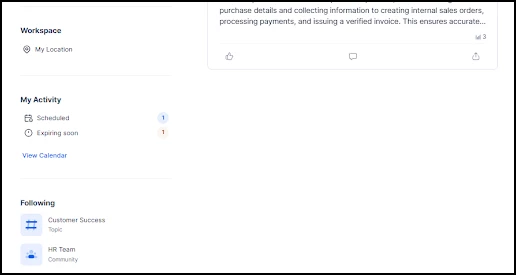
How to handle it: Click your profile button at the top right corner of the Employee View, then go to Profile → My Activity. You'll see counts for your Scheduled and Expiring soon content. Click View Calendar to see your personal content timeline.
Note that this view shows only your own content — you cannot see other users' personal calendars.
Tips for Getting the Most Out of the Calendar
Use consistent naming conventions. The keyword filter is only as useful as your content titles and tags. If your team adopts a standard (e.g., always including “Open Enrollment” or “Q1 Town Hall” in relevant post titles), filtering becomes much more effective.
Check the calendar before scheduling new content. A quick glance at the week or month view before publishing helps you avoid stacking multiple posts on the same day or leaving gaps.
Make expiration reviews a routine. A regular scan of expiring items takes just a few minutes and helps prevent outdated content from lingering.
Use the right calendar for the right job. The Admin Console calendar is for big-picture planning across locations. The Community calendar is for managing a specific audience. The Profile calendar is for your own personal publishing activity.