


This article provides Employees (users) with instructions to install the Appspace on Microsoft Teams.
Introduction
Appspace can be accessed directly from Microsoft Teams, allowing employees to use the Appspace Employee View without leaving Microsoft Teams. Employees can access the functionality available in the Appspace Employee View, such as news feeds, quick posts, space reservations, maps, and links to third-party apps, depending on the organization's configuration.
The Appspace Employee App in Microsoft Teams works alongside other integrations, including publishing Appspace content to Microsoft Teams channels and chats, and configuring Microsoft Teams as an enterprise messaging notification channel. For information about these integrations, see Use Appspace with Microsoft Teams.
Security and Scope
Your privacy is very important to us. To this end, Appspace is committed to protecting the confidentiality and security of your communications.
- We never store your login informationDuring the account authentication process, you will be asked to enter your credentials for your Microsoft Teams account. However, Appspace will not store those credentials. Instead, Appspace will receive an API token, which it will use for future communications.
- We request granular access to your organizationAppspace does not request broad permissions to your organization. The integration only has the permissions required to perform its operation, which is to post content from the Appspace console into the Microsoft Teams spaces/channels/chats.
- One way communication protects the privacy of your dataAppspace is unable to see any messages in a channel/space/chat that are not directed to it, and can only see the messages shared via Appspace.
Prerequisites
Configuration
Below are the user prerequisites to installing Appspace in Microsoft Teams.
- An Appspace Platform user license for access to the Appspace console.
- Microsoft Teams Administrator required to access the Microsoft O365 Teams Admin Center in order to deploy the Appspace ChatBot to all users in the organization
- Microsoft O365 Service Account.
Note
The O365 service account does require a Microsoft Teams license. The O365 service account should not be a member of any O365 administrator role or have any elevated permissions. We recommend a standard user account that does have a Microsoft Teams license.
Appspace
- An Appspace Premium user license.
- An active Appspace public/private cloud user account.
- An active Internet connection.
Install Appspace on Microsoft Teams (Desktop)
Follow the instructions below to add Appspace to Microsoft Teams:
- Launch your Microsoft Teams application, and click the Apps tab.
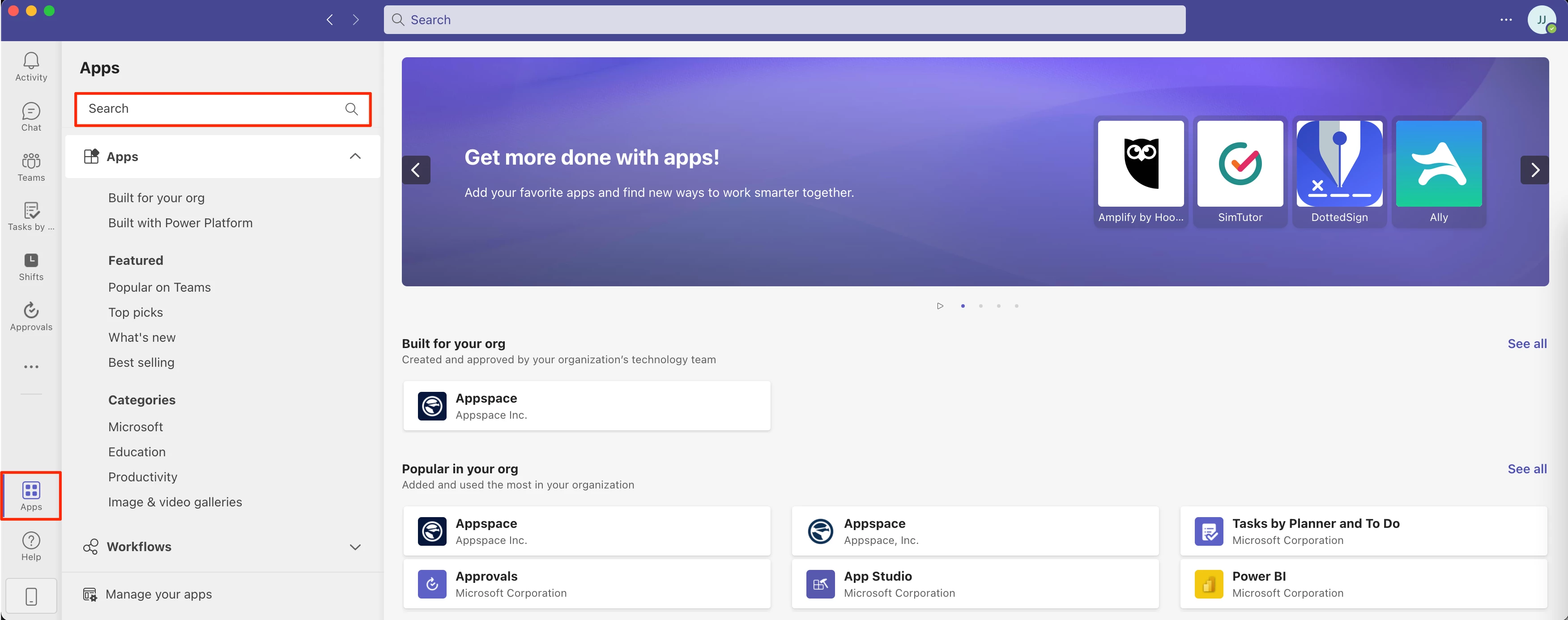
- Search for Appspace in the search field, and select and add the Appspace (embedded) app to your Microsoft Teams.
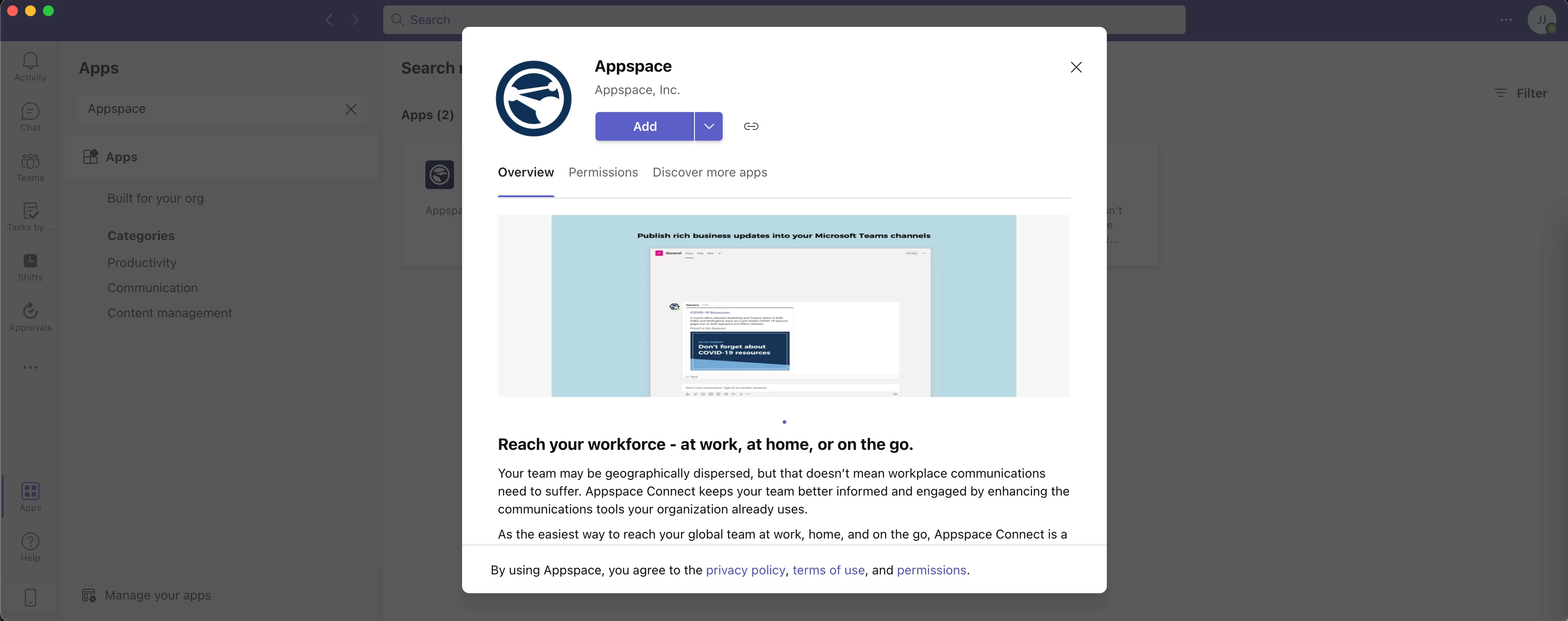
- Once the Appspace app has been added, click the Sign In button. This will launch your browser and display the Appspace for Microsoft Teams sign-in page.
- Sign in to your Appspace instance using your Appspace credentials, and click the PUBLIC CLOUD LOGIN button to authenticate.
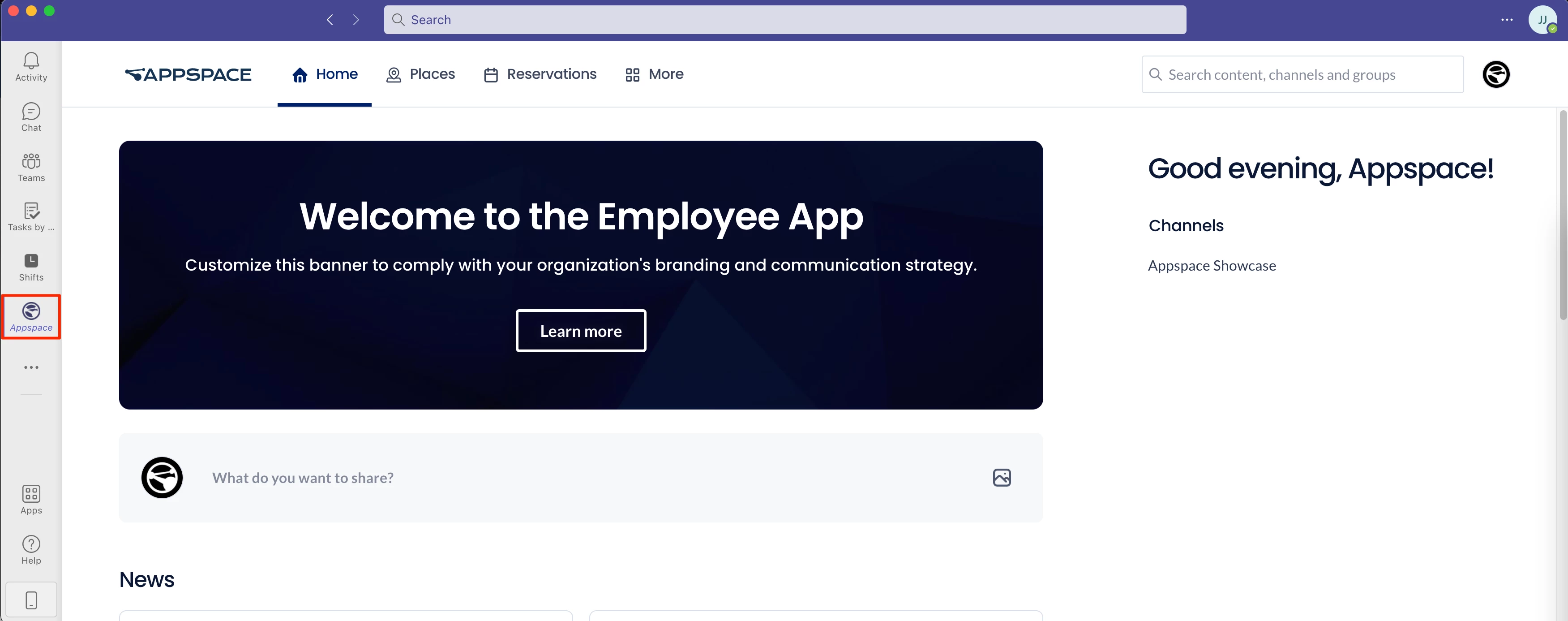
- Once you have successfully signed in, Appspace will be displayed in your Microsoft Teams application, and can be accessed by clicking the Appspace tab.
Install Appspace on Microsoft Teams (Mobile)
Follow the instructions below to add Appspace to Microsoft Teams:
- Launch your Microsoft Teams application, and click the More tab.
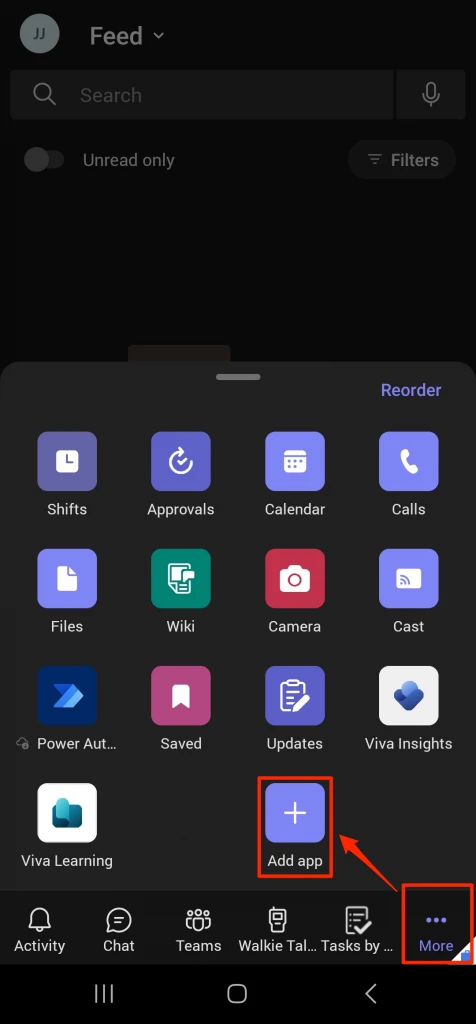
- Click the Add app button, and search for the Appspace (embedded) app from the list of apps displayed. Once found, click the ADD button to install Appspace on to Microsoft Teams.
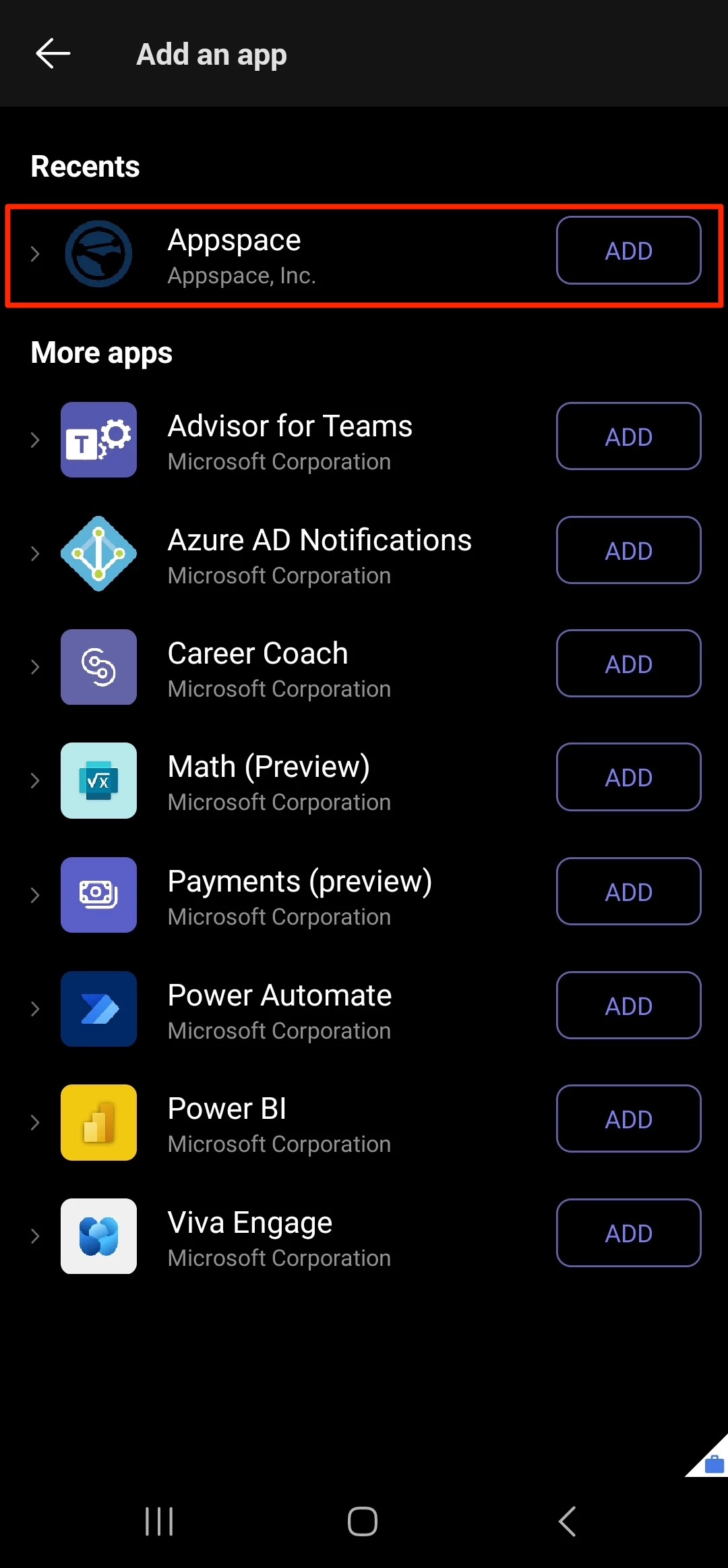
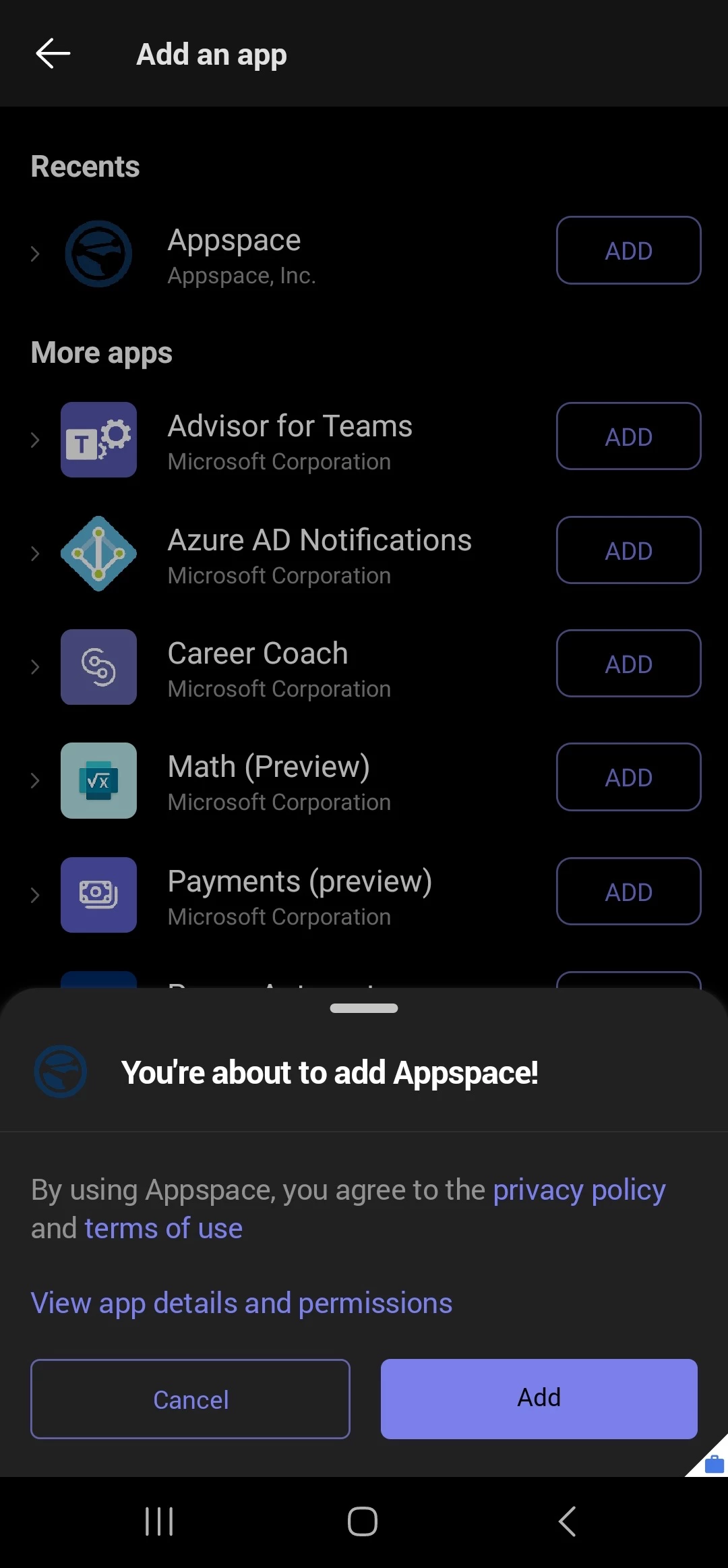
- Once the Appspace app has been added, launch the Appspace app, and click the Sign In button. This will launch your browser and display the Appspace for Microsoft Teams sign-in page.
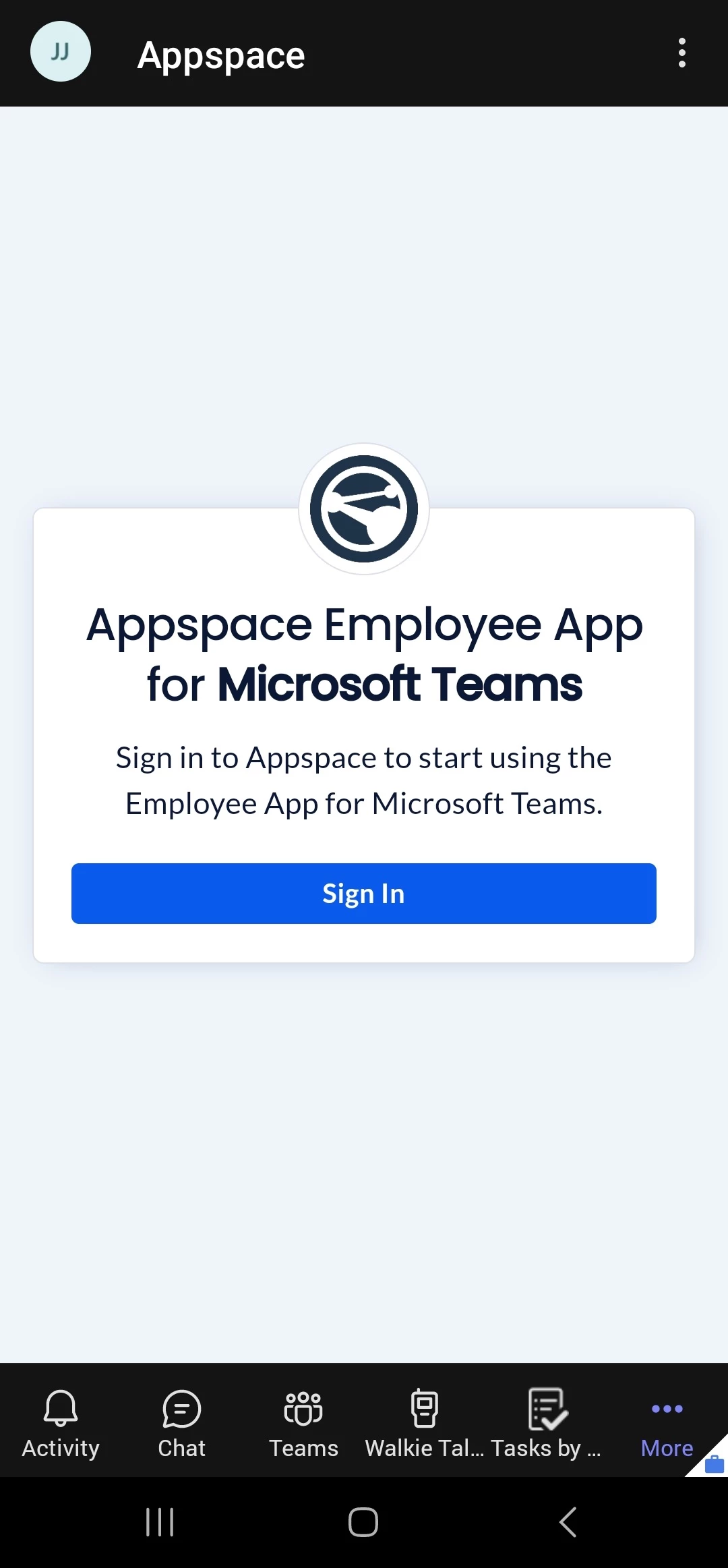
- Sign in to your Appspace instance using your Appspace credentials, and click the PUBLIC CLOUD LOGIN button to authenticate.
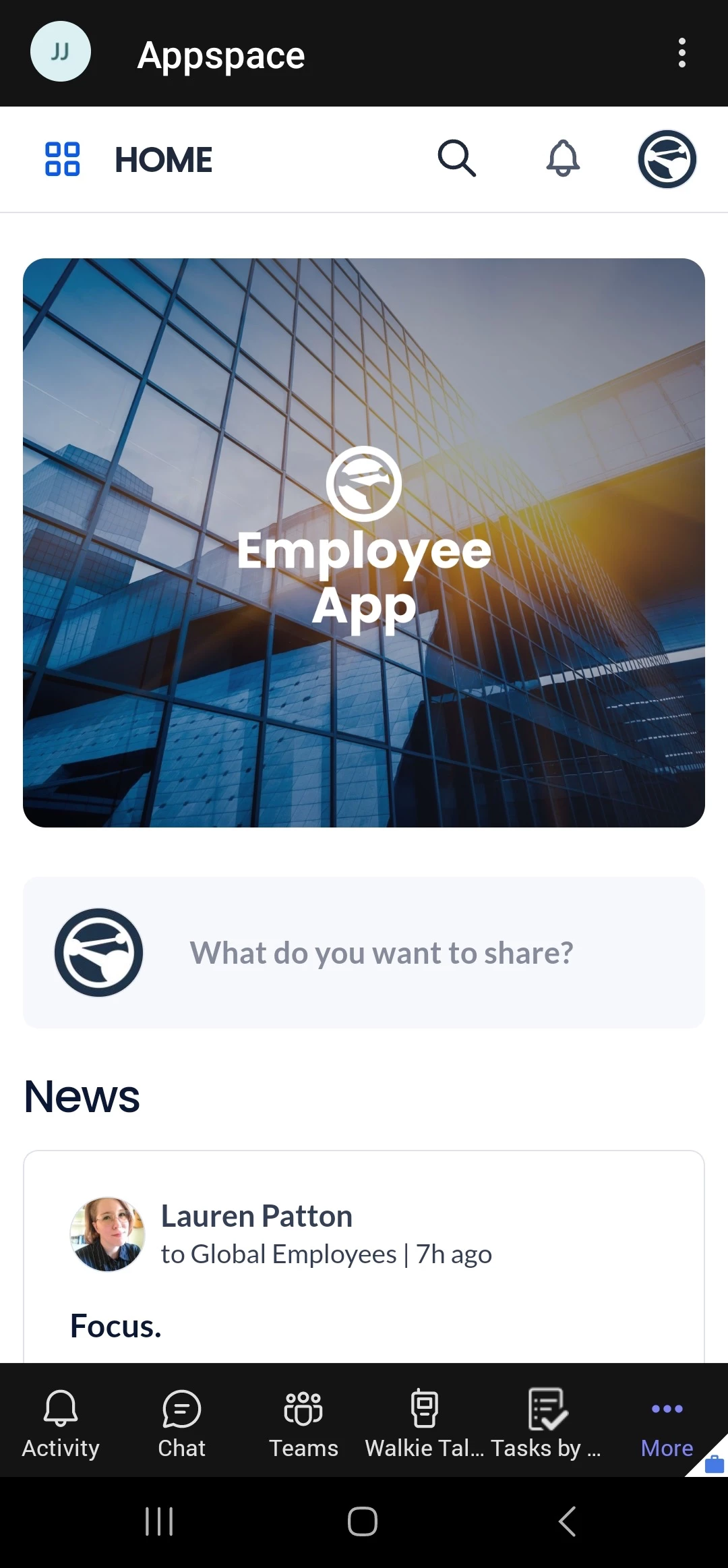
- Once you have successfully signed in, Appspace will be displayed in your Microsoft Teams application, and can be accessed by clicking the Appspace app.
Related Articles
-
Use Appspace with Microsoft Teams – Learn how employees can access and use Appspace features through Microsoft Teams.
-
Publish Content to Microsoft Teams for Team Communications – Configure Appspace to publish content to Microsoft Teams channels and chats.
-
Keep Employees Informed Across Every Channel: A Guide to Configuring Appspace Notifications – Configure Microsoft Teams and other delivery channels for Appspace notifications.