


This article provides instructions for employees with Delegate permissions to reserve and manage workspace reservations (such as office spaces, meeting rooms, and hot desks), on behalf of meeting hosts, via the My Delegations dashboard.
Important
- A Delegations passport must be created first. Refer to this article on how to create a passport for delegation.
- A Delegations passport must be selected first. Refer to this article on how to select a passport for delegation.
- An admin must first assign the employee(s) to be a delegate for the meeting host on the Appspace console. Refer to the article on how to assign delegates.
The dashboard will provide delegates with a calendar view of reservations made by their delegators that they have been assigned to, with the following criteria:
- View current and future reservations in a calendar view.
- View the calendar in a monthly format.
- The calendar view will display reservations of the meeting hosts (delegators) that users have been assigned as delegates to.
- Reservation details can be expanded to display additional information pertaining to the reservations, such as organizer, attendees, duration, meeting name, and other reservation details that are not displayed on the calendar view.
- Reservations can be filtered by delegators.
- The delegate has editing capabilities for the reservations of the delegator.
Prerequisites
- An Appspace Premium user license.
- An active Appspace public/private cloud user account.
- A Delegations passport must be created first.
- A Delegations passport must be selected first.
- An admin must first assign the employee(s) to be a delegate for the meeting host on the Appspace console.
- Supported web browsers .
- Supported mobile device if using the Appspace Mobile App.
The Delegations Dasboard
The My Delegations dashboard in Reservations provides managers with a calendar view of reservations of the meeting hosts (delegators) that users have been assigned as delegates to. Delegates are also able to manage and book reservations on behalf of their delegators through this dashboard.
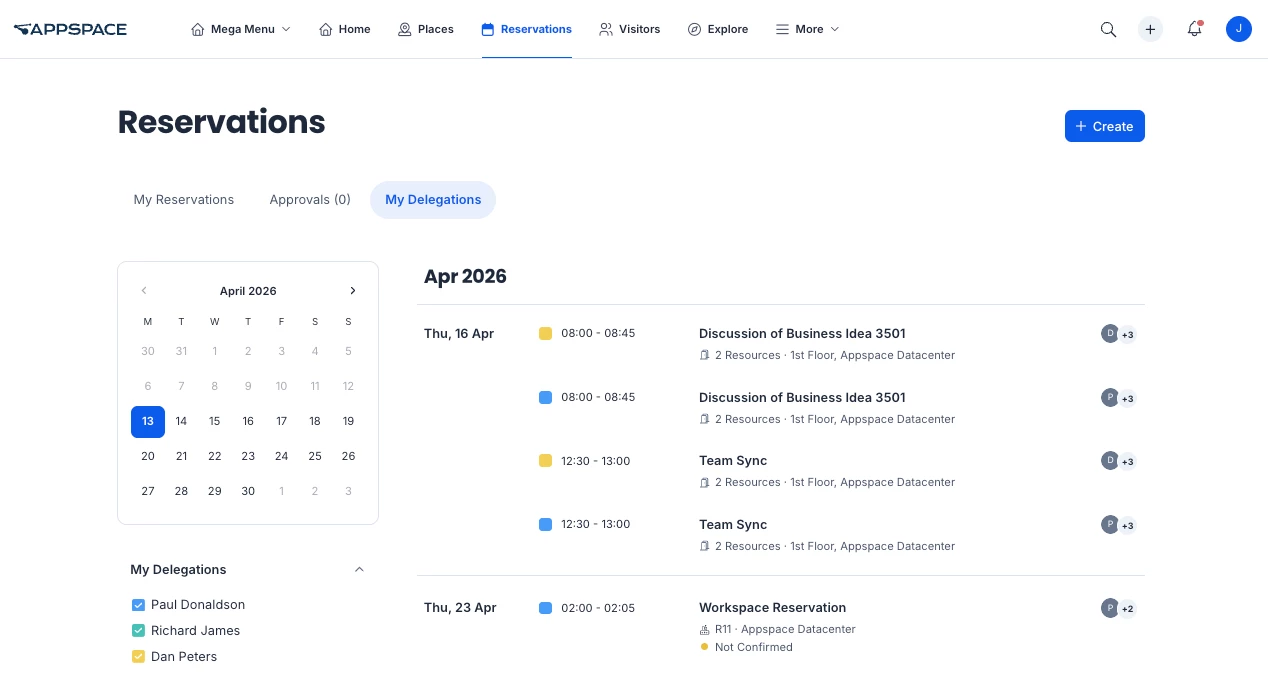
View My Delegations Dashboard
Follow the instructions below to configure the My Delegations dashboard:
- Log in to Appspace Premium User credentials.
- Click Reservations from the menu, and click the My Delegations tab.
- The calendar will display the current month. Select the checkbox next to the delegator name to view the current or future reservations of the delegators.
Manage Workspace Reservations
Follow the instructions below to manage a reservation from the My Delegations dashboard:
- Click Reservations from the menu, and click the My Delegations tab.
- Select the appropriate delegators to filter the reservations as desired, and click the desired reservation to manage.
- To edit the workspace reservation, click the Edit icon. You may perform the following changes to the workspace reservation, similar to the Manage Workspace Reservations article:
- Change the Reservation Name.
- Add or change the Resources (e.g., room, space, or point of interest).
- Change the Date, Time, or Duration of the workspace reservation.
- Enable or disable Recurring Reservations.
- Add or remove Attendees or Visitors.
- (New) Change the Organizer.
Note
- You can only change the organizer to yourself or another meeting organizer for whom you are a delegate.
- After the organizer is changed, ownership, permissions, and notification responsibilities are transferred to the new organizer, and an audit record of the organizer change is maintained.
- Edit the workspace reservation Notes.
- Enable or disable the Reservation privacy of the workspace reservation.
- Click CONFIRM.
Create Workspace Reservations
Follow the instructions below to create a reservation from the My Delegations dashboard:
- Click Reservations from the menu, and click the My Delegations tab.
- Select the appropriate delegators to filter the reservations as desired, and click the desired reservation to manage.
- Click the + Create button to create a reservation.
- Follow the steps in the following Reserve Workspace article.
- For Organizer, change your own name to that of the meeting host. You may only select your delegators.
- Click CONFIRM.
Add Services to a Reservation
(New) Delegated users can submit additional service requests (such as catering, AV equipment, or room setup changes) to reservations even after initial service requests have been made or canceled. After the service is added, the change is automatically routed to the appropriate service provider, helping to ensure that updated the service requirements are fulfilled.
Refer to the Add Services to a Reservation article to add business or catering services to a reservation.