

Simplify Your BrightSign Deployment: A Step-by-Step Guide to Configuring Software Updates
This feature enables Location Administrators to configure inherited, automated, and manual version management for BrightSign devices. It provides scheduled update execution, version pinning, and hierarchical policy inheritance.
Note: Once your device's app version is updated to 2.92 and platform version is updated to 2601.4.0, the BrightSign App Updater device task will no longer work, and you will be instructed to use the Automatic/Manual scheduled Software Updates below.
Key Benefits
- Scheduled Execution — Set and automate routine update checks at a configurable time to avoid disruption to live displays
- Version Pinning — Lock devices to specific versions to maintain stability across production environments
- Hierarchical Inheritance — Configure once at root level to cascade settings to all child locations automatically
What This Guide Covers
- Selecting configuration modes
- Managing version pinning and rollback procedures
- Navigating the location hierarchy and inheritance behavior
- Understanding an update's execution flow and timing
Prerequisites
- Registered BrightSign players — Android, webOS, and Windows devices are not supported
- Appspace app version 2.92 or higher — Required minimum version for this feature
- Location Admin can access all areas of the Devices module except Global > General settings.
- Account Owner can access the entire Devices module.
- Outbound HTTPS access — Devices must connect to Appspace update servers
- NTP time synchronization — Recommended for accurate scheduled updates
Step One: Understanding the Global Software Updates Toggle
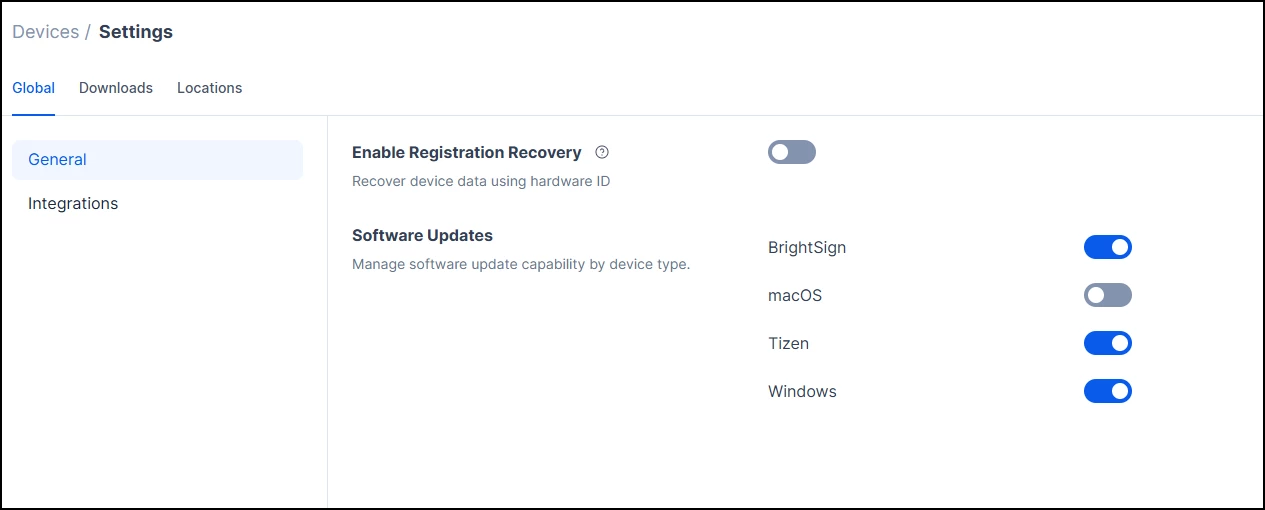
The Global Software Updates toggle is a master switch that controls whether software updates execute across your account by device type. While the toggle is disabled, you can still configure all location-level and device-level update policies as normal. The toggle only controls whether those configured updates actually run. This means you can set up your preferred schedules, versions, and inheritance settings first, and then enable the toggle when you are ready for updates to take effect.
To access the Global Software Updates toggle:
- Navigate to <Devices > Settings > Global Settings.
- Locate the Global Software Updates section.
- Find the toggle for each supported device type (BrightSign, Tizen, Windows, macOS).
- Set the toggle to Enabled for BrightSign (and any other device types you wish to manage) when you are ready for updates to begin.
Step Two: Navigating to Location-Level Updates
BrightSign Automatic Software Updates ensure all devices within a hierarchy inherit the same policy (unless manually overridden at the device level) from their parent location.
To configure location-level updates:
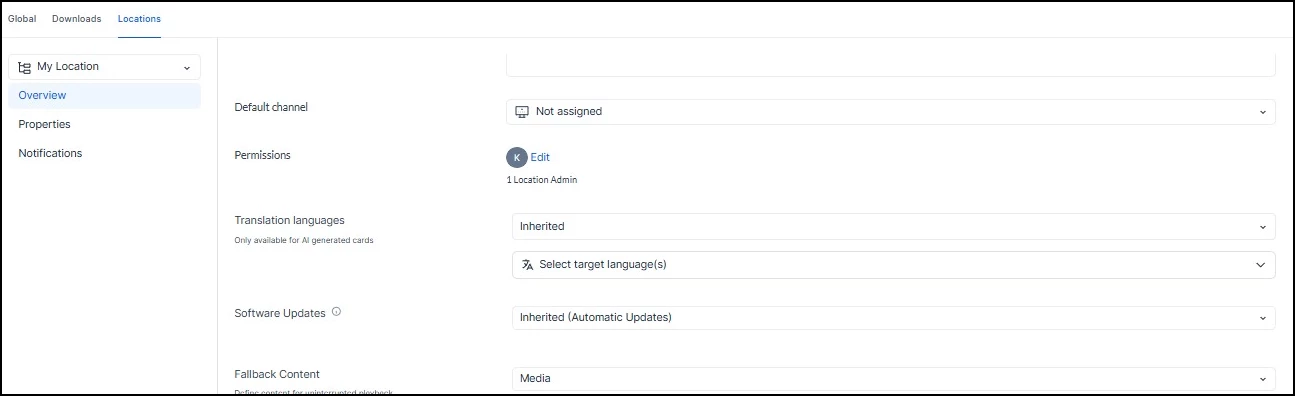
- Navigate to Devices > Settings > Locations.
- Select the target location from the Location Hierarchy dropdown.
- Click the Overview tab and locate the Software Updates section to begin configuration.
Step Three: Configuring Location-Level Settings
At the parent location level, you can configure how devices within the hierarchy receive software updates. The options include:
| Policy | Behavior | Use Case |
|---|---|---|
| Inherited (Default) | Updates automatically from the system. No local scheduling is available; child locations update automatically based on parent settings. | Centralized fleet management where locations must strictly follow a global policy. |
| Automatic | Executes a daily update check at a configured time. Devices update to the latest version or to a specific pinned version you select. | Hands-off management that requires minimal intervention but allows for version control. |
| Manual | Schedules a single, one-time update for a specific date and time. Future updates are disabled until configured again. | Critical maintenance windows, phased rollouts, and strict change control. |
Step Four: Setting Up Inherited Updates
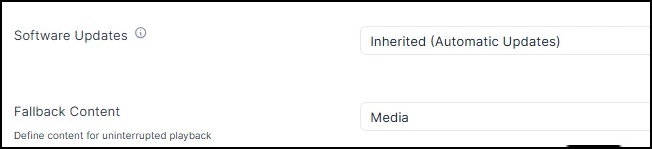
If you set the parent level to Inherited Updates, all the devices in the parent location and child location set to inherit will update based on the system. This means all updates will occur daily at 3:00 AM local time to the latest version.
Step Five: Setting Up Automatic Updates
For Automatic Updates, you can configure devices to install the latest available software or lock them to a specific version.
To Enable the Latest Version
- Click the Software Updates dropdown and select Automatic Updates.
- Configure the schedule for daily updates.

To Pin a Specific Version
- After configuring the schedule, click App Version.
- Select the device type (e.g., BrightSign) from the Add Device Type dropdown.
- Click Select Version to choose a specific target update.
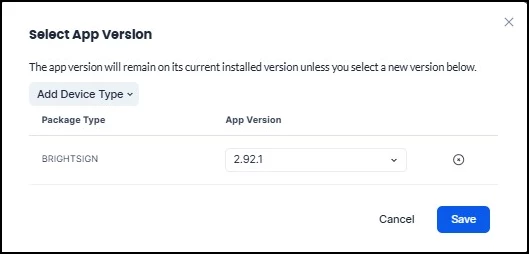
Note: Pinning a version ensures devices do not upgrade beyond the selected release.
Step Six: Setting Up Manual Updates
Manual Updates allow you to schedule a one-time update for a specific date, time, and version.
Note: If you select Manual Updates but do not configure a schedule or version, software updates will remain disabled across all child locations.
To schedule a manual update:
- Click the Software Updates dropdown and select Manual Updates.

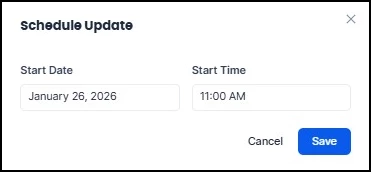
- Click Schedule Update, choose a Start Date and Start Time, then click Save.
- Click App Version.
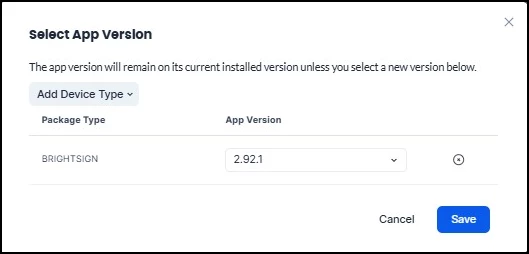
- Select BrightSign from the Add Device Type dropdown.
- Select the desired App Version and click Save.
Parent Location Level Use Cases
Use Case: The Standardized Fleet
Scenario: You want to ensure every device in your global network runs the exact same stable version of the software to minimize support tickets. You do not want individual regions upgrading early.
Configuration:
- Type: Automatic → Schedule: Set to a low-traffic time (e.g., 2:00 AM) → App Version: Select Pinned Version (e.g., v8.5.0)
- Result: All child locations and devices will inherit this specific version and time.
Use Case: The Holiday Freeze
Scenario: It is the busy holiday season. You want to prevent any updates from happening globally to ensure stability during high-traffic weeks.
Configuration — Option A (Location Level): Type: Manual → Schedule: Leave blank (Do not schedule a date)
Configuration — Option B (Global Toggle): Navigate to Global Software Updates and set the BrightSign toggle to Disabled.
Result: Updates are globally disabled until you change the setting back.
Step Seven: Configuring Child Location Updates
To configure a child location differently from its parent, you must override the default inheritance settings.
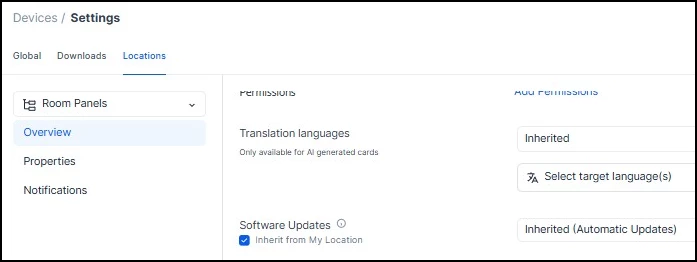
- Select the specific location from the Location Hierarchy.
- Locate the Software Updates section (currently set to Inherited).
- Click the dropdown menu and select Automatic or Manual to apply a local policy.
Child Location Level Use Cases
Use Case: The Regional Pilot (Beta Testing)
Scenario: You want your tech-savvy New York office to have the latest software while the rest of the company stays on the older, stable version.
Configuration:
- Select Location: New York → Type: Switch from Inherited to Automatic → App Version: Select Latest Available (or pin a specific Beta version)
- Result: The Parent location stays on v8.5, but New York updates to v9.0 automatically.
Step Eight: Setting Updates at the Device Level
Configure updates for individual devices to override the location-level policy.
To configure device-level updates:
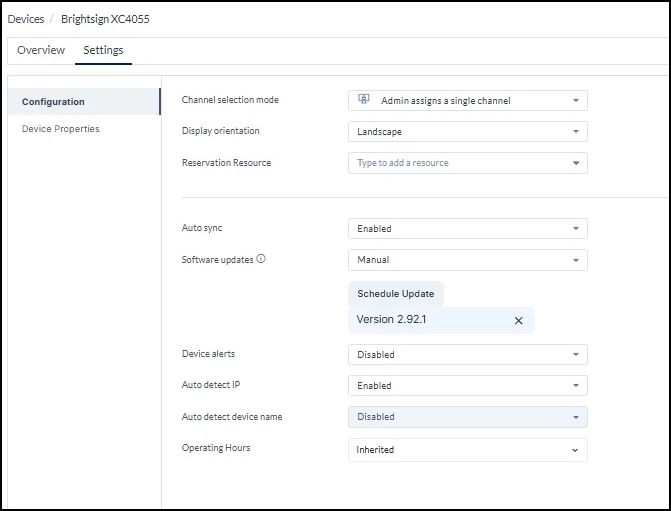
- Navigate to the Devices page and click the specific device name.
- Select the Settings tab and locate the Software Updates section.
- Select Automatic or Manual to apply the specific policy to this device.
Device Level Use Cases
Use Case: The "Canary" Device
Scenario: Before letting your New York office update fully, you want to update just one screen in the breakroom to ensure the new firmware works with your devices.
Configuration:
- Select Device: Breakroom Player 01 → Type: Manual → Schedule: Set for Now (or immediate future) → App Version: Select the new target version
- Result: Only this specific device updates. If it works, you can then change the Child Location setting to roll it out to the rest of the office.
Use Case: The Executive Boardroom
Scenario: The CEO's boardroom screen must never be interrupted or risk a failed update, regardless of what the rest of the building is doing.
Configuration:
- Select Device: CEO Boardroom → Type: Manual → Schedule: Leave blank / No schedule
- Result: Even if the New York office (Child Location) is set to Automatic, this specific device effectively opts out of all updates until an IT admin manually touches it.