




Migrate managed ChromeOS devices from the legacy Appspace Chrome App to the Appspace Chrome Isolated Web App (IWA) to maintain supported digital signage deployments on ChromeOS.
For registered devices, the migration uses an overlap phase where the existing Chrome App and the Appspace companion extension are installed together before moving to Chrome IWA. This allows existing device registration to be preserved during the migration.
The companion extension runs in the background and provides ChromeOS device and enterprise management capabilities required by the Appspace Chrome IWA.
For: IT Administrators — ChromeOS Device Migration
Prerequisites
Before migrating ChromeOS devices:
-
Ensure the ChromeOS devices are managed through Google Chrome Enterprise.
-
Ensure the existing Chrome App is deployed to devices that are already registered with Appspace.
-
Ensure Enable Registration Recovery is enabled in Global Settings so the device can recover its existing registration information when migrating from the Chrome App to Chrome IWA.
-
Ensure access is available to manage kiosk applications and extensions for the target ChromeOS devices.
-
Identify whether the devices are already registered with Appspace.
-
Obtain the Appspace Chrome IWA Web Bundle ID and companion extension ID required by Google Admin Console.
-
Use the following Appspace deployment URLs:
-
Update Manifest URL:
https://cloud.appspace.com/device/chromeiwa/updates.json -
Companion Extension XML URL:
https://cloud.appspace.com/device/chromeext/updates.xml
-
Understand the Chrome IWA Migration Process
The migration process differs depending on whether a ChromeOS device is already registered with Appspace.
For registered devices, migrate through the following phases:
| Phase | Applications on Device | Application Displayed |
|---|---|---|
| Phase 1 — Chrome App | Chrome App | Chrome App |
| Phase 2 — Migration Overlap | Chrome App + Appspace companion extension | Chrome App |
| Phase 3 — Chrome IWA | Chrome IWA + Appspace companion extension | Chrome IWA |
During the migration overlap phase, the companion extension runs in the background. The existing Chrome App remains the kiosk application and continues to provide the current Appspace experience.
Important:
Registered devices must complete the migration overlap phase and reboot at least once before the Chrome App is removed from the kiosk configuration. Removing the Chrome App before completing this phase may cause the existing Appspace device registration to be lost.
Unregistered devices do not require the migration overlap phase and can be deployed directly with Chrome IWA and the companion extension.
Configure Chrome IWA in Google Admin Console
Use Google Chrome Device Management to add the Appspace Chrome IWA and companion extension to the kiosk configuration.
Add the Chrome IWA
- In Google Admin Console, navigate to Devices > Chrome > Apps & extensions.
- Select the Kiosks tab.
- Click the + button, and then select Add an Isolated Web App.
- In Web Bundle ID, enter:
q3ef272g4rvldlaep2z4ob7unnvuj3v67p5n6ngr3uhrdxqqpwnaaaic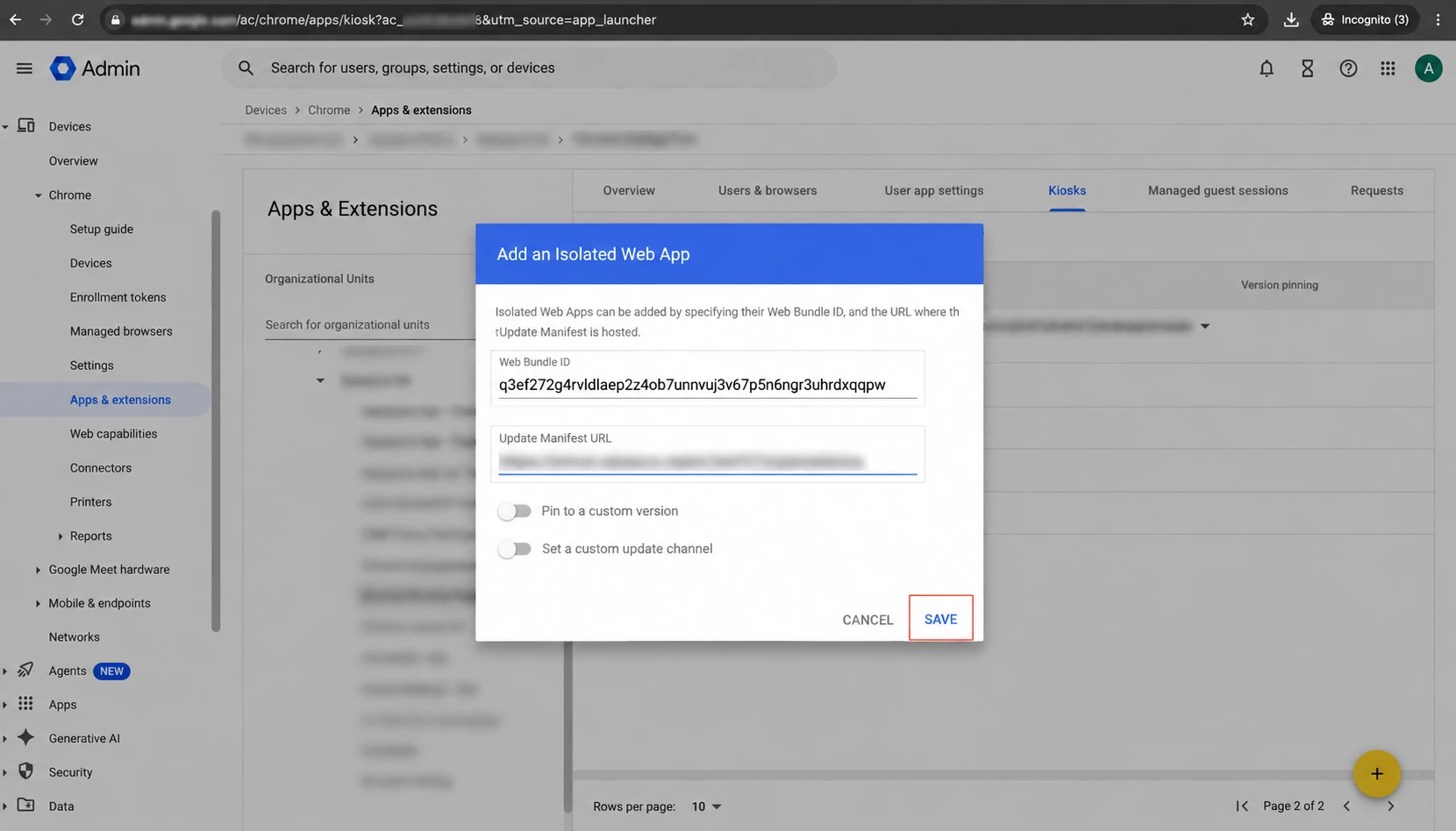
- In Update Manifest URL, enter:
https://cloud.appspace.com/device/chromeiwa/updates.json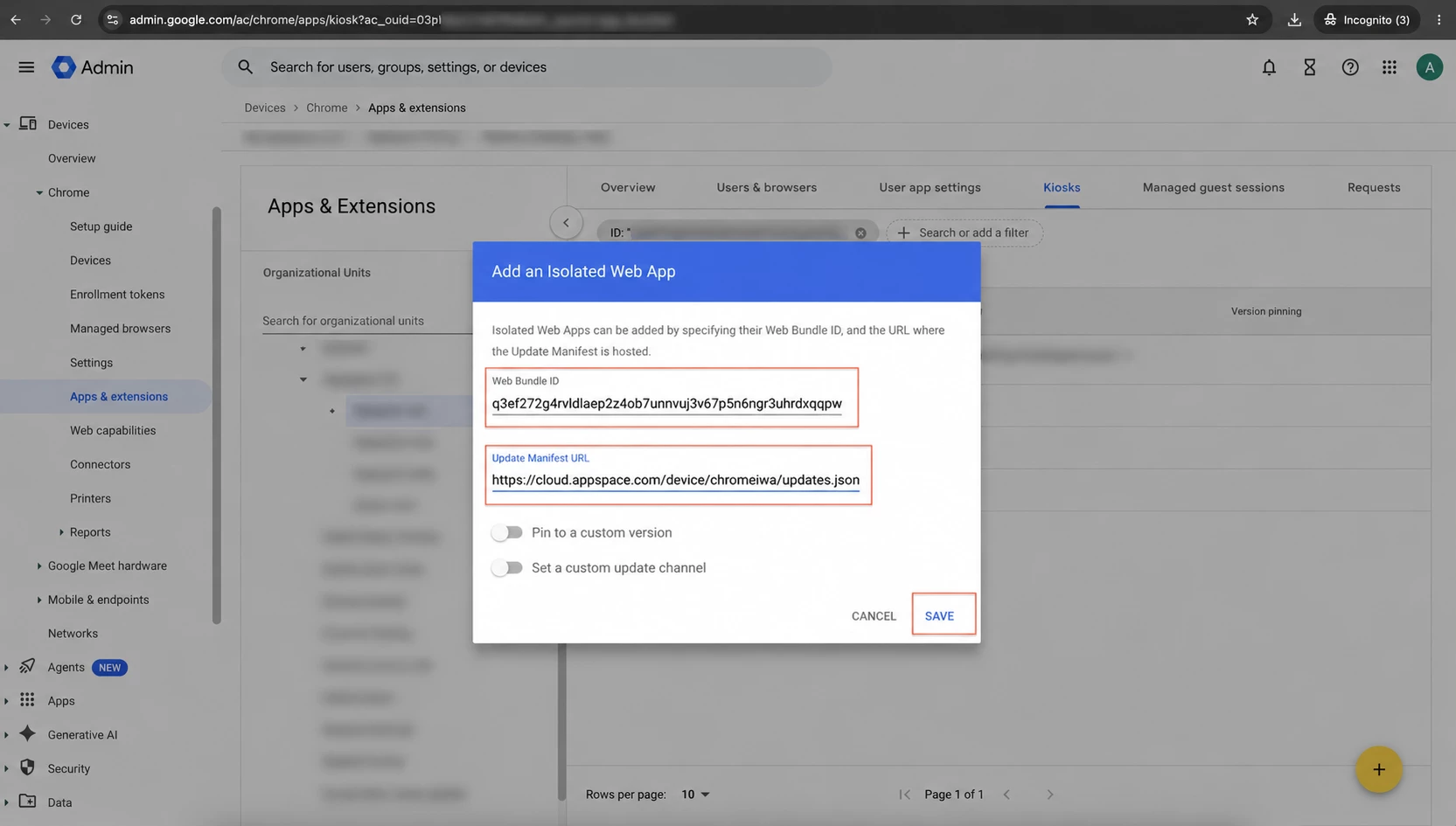
- Click Save.
-
In Kiosk Settings, turn on Allow App to Manage Power.
Add the Appspace Companion Extension
- Select the Appspace Chrome IWA, and then scroll to the Extensions section.
- Click ADD EXTENSION, and then select Add from a custom URL.
- In Extension ID, enter:
mmbodjddllmbjmpcmlegjmgafaeekgob - In URL, enter:
https://cloud.appspace.com/device/chromeext/updates.xml - Click Confirm.
- Click Save in the upper-right corner.
The Chrome IWA and companion extension can then be assigned to the required organizational unit or managed ChromeOS kiosk devices.
Switch the Auto-Launch App to Chrome IWA
When the registered device has completed the required migration overlap, change the Auto-launch app selection from the legacy Chrome App to the Appspace Chrome IWA.
Add the Appspace Companion Extension
For registered ChromeOS devices, deploy the Appspace companion extension while keeping the existing Chrome App as the kiosk application during the migration overlap phase.
The companion extension provides access to ChromeOS capabilities that are not directly available to the Chrome IWA, including managed device information, hardware identity, device management functions, and enterprise policy functionality.
-
Keep the existing Appspace Chrome App configured as the kiosk application.
-
Deploy the Appspace companion extension to the same managed ChromeOS devices.
-
Apply the updated configuration to the target devices.
-
Confirm that the companion extension is installed.
-
Reboot the ChromeOS device at least once.
The companion extension operates in the background and does not replace the Chrome App during this phase.
Complete the Migration Overlap
After the Chrome App and companion extension are installed together:
-
Allow the managed ChromeOS device to start with both applications installed.
-
Reboot the device at least once.
-
Confirm that the existing Chrome App continues to launch normally.
-
Confirm that the device remains registered with Appspace.
Do not remove the Chrome App until the device has completed this overlap phase.
Replace the Chrome App with Chrome IWA
After completing the migration overlap:
-
Assign the Appspace Chrome IWA to the managed ChromeOS kiosk configuration.
-
Keep the Appspace companion extension installed.
-
Configure Chrome IWA as the kiosk application.
-
Remove the legacy Appspace Chrome App from the kiosk configuration.
-
Apply the updated configuration to the target ChromeOS devices.
-
Restart the device.
After the device starts, the Appspace Chrome IWA becomes the primary application and works with the companion extension to provide the required ChromeOS device capabilities.
Verify Device Registration and Identity
For enterprise-managed ChromeOS kiosk devices, the companion extension provides the hardware identity and managed policy information used by Chrome IWA.
After migration, verify the following:
-
The Appspace Chrome IWA launches successfully.
-
The device remains registered with Appspace and does not return to the registration flow.
-
The device uses its enterprise serial number as the hardware identity when available, or its MAC address when the serial number is unavailable.
-
Device Info reports the same hardware identity used for registration.
-
Registration persists after a device reboot.
-
Registration persists after a Chrome IWA application update when a hardware fingerprint is available.
-
Managed registration policies can be read through the companion extension for silent or enterprise registration.
Note:
Enterprise-managed devices use the serial number when available and fall back to the MAC address. Unmanaged or non-kiosk Chrome IWA devices use a generated identifier instead.
Verify Kiosk Playback Behavior
Chrome IWA on a managed kiosk is designed to provide continuous signage playback behavior comparable to the legacy Chrome App.
Verify that:
-
The display remains awake during playback.
-
Videos autoplay with audio in kiosk mode.
-
Audio content autoplays as expected.
-
Supported video cards, including YouTube, Webex Recording, and Vimeo cards, autoplay as expected in kiosk mode.
The kiosk deployment uses ChromeOS and companion-extension capabilities where required to maintain continuous playback behavior.
Verify the Migrated Device
After migration, verify that:
-
Assigned channels and content are available.
-
Content playback operates as expected.
-
Display information and rotation are available where supported.
-
Supported reload and reboot functions operate as expected.
-
Device watchdog and ping behavior continue to operate.
-
IP address, MAC address, and serial number information are available where supported.
-
Supported device management functions remain available.
Migrate Unregistered Devices
Unregistered ChromeOS devices do not need to complete the Chrome App and companion extension overlap phase.
-
Deploy the Appspace Chrome IWA.
-
Deploy the Appspace companion extension.
-
Configure Chrome IWA as the kiosk application.
-
Start the ChromeOS device.
-
Complete the standard Appspace device registration process.
Unregistered devices can proceed directly to the Chrome IWA deployment because there is no existing Appspace registration to preserve.
Limitations
-
The primary supported workflow described in this article is an enterprise-managed ChromeOS kiosk deployment using Chrome Device Management.
-
Managed guest sessions are not supported by this workflow.
-
Some ChromeOS capabilities require the Appspace companion extension and are not available through Chrome IWA alone.
-
Cloud registration persistence requires a hardware fingerprint, such as an enterprise serial number or MAC address. Unmanaged or non-kiosk Chrome IWA devices use a generated identifier and do not persist cloud registration in the same way.
-
Multicast (UDP) support is not included in the current Chrome IWA implementation.