




Appspace Device Management Assistant lets Account Owners and Location Admins register and configure devices with conversational commands. This article is for IT Administrators. After reading this article, an administrator can open the assistant from Devices, register a device with a 6-digit code, and apply bulk registration and configuration changes after reviewing a confirmation summary.
The assistant does not replace manual device registration or advanced registration. Use those methods for a workflow this article does not cover.
For: IT Administrator — Device Management Assistant
This article outlines the steps to register and configure devices with the Device Management Assistant.
Prerequisites
- Account Owner or Location Admin role.
- Appspace Platform 2603.4.0 or later. The assistant is generally available from this release.
- A 6-digit registration code from the device, or a serial number, MAC address, or vendor ID, for device registration.
- Existing locations, channels, and device groups. The assistant applies an existing device group. It does not create a device group from a typed name.
Open the Device Management Assistant
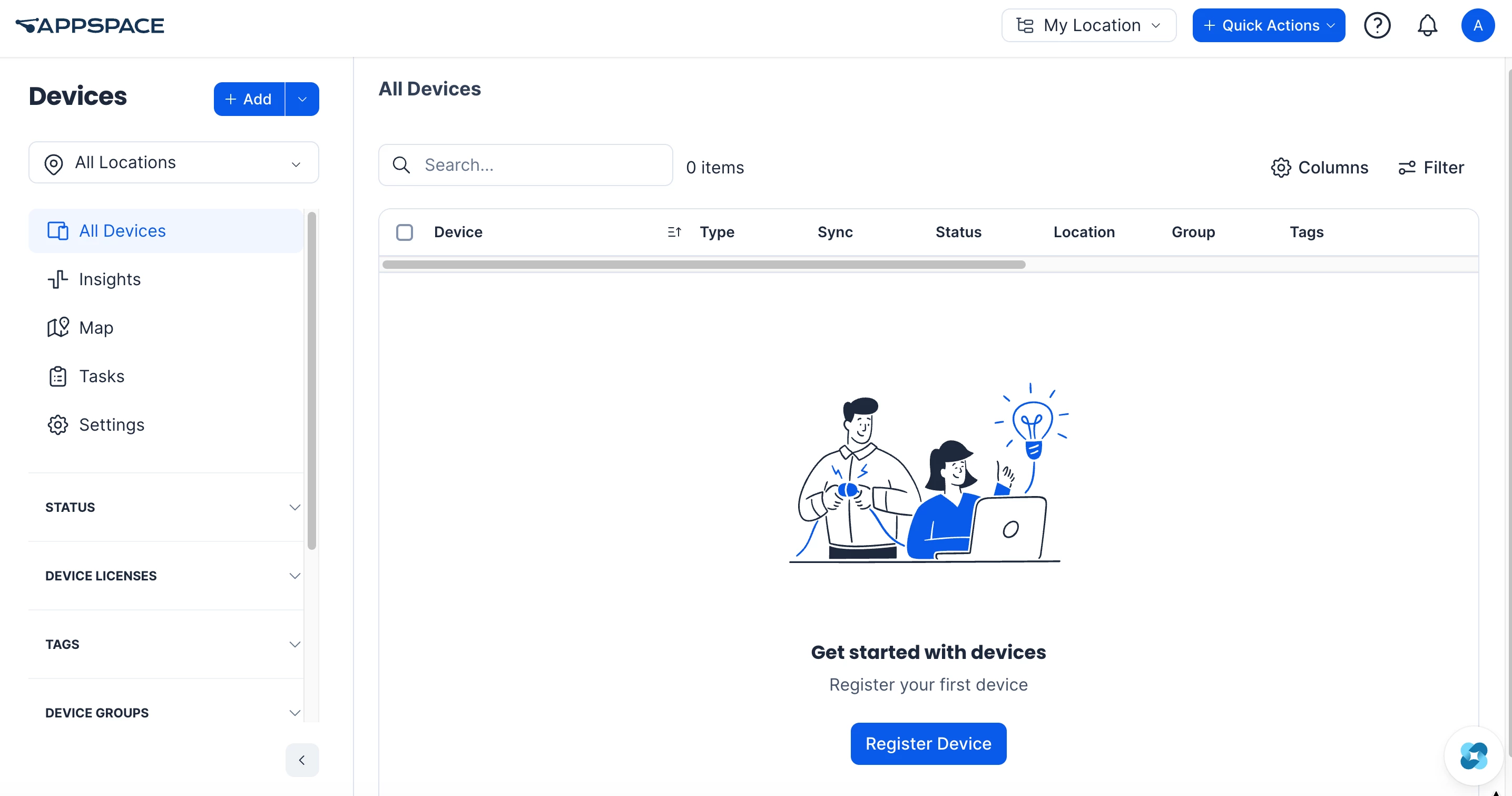
The Device Management Assistant is available on Devices > All Devices. It is not shown on Devices Insights, Maps, Tasks, or Settings.
- Log in to the Appspace console.
- Click the ☰ Appspace menu.
- Click Devices, then open All Devices.
- Open the assistant from the chat launcher.
The assistant opens with this guidance:
Welcome to the Device Management Assistant. Ask me to register devices, update device settings, or make changes across multiple devices.
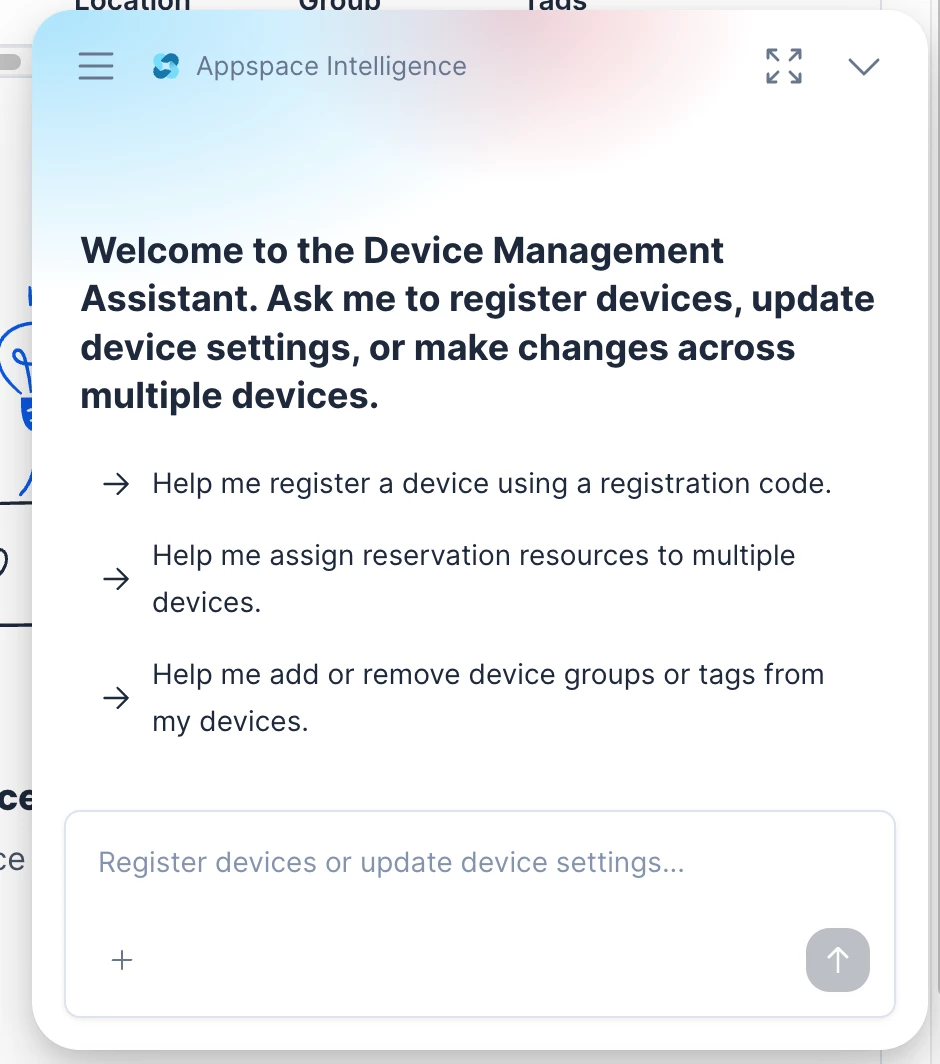
The message box placeholder is Register devices or update device settings...
Use a quick action to start a common task:
- Help me register a device using a registration code.
- Help me assign reservation resources to multiple devices.
- Help me add or remove device groups or tags from my devices.
A custom request can also be typed. Before the assistant applies a change, it validates the request and shows a confirmation summary. Review the summary, then confirm to apply the change. The assistant reports which devices succeeded and which failed.
Register a Device with a 6-Digit Code
Use a conversational request to register one device from its 6-digit registration code and set the registration details in the same request.
- On Devices > All Devices, open the Device Management Assistant.
- Ask the assistant to register the device. Include the registration code and the details to set. The request can include:
- Device name and description.
- Location. If the location is omitted, registration uses the location context of the current Devices page.
- Channel mode: Autoplay, Single channel, or Channel browsing. For Single channel, name the channel to assign.
- Device group. Name an existing device group. If the assistant cannot match the name to an existing group, it registers the device without a group.
- Tags.
Example:
Using registration code ABC123, register the device named Lobby Display in the Los Angeles office location, set to autoplay, in the corporate communications device group, and tag it west-region.
- Review the confirmation summary.
- Confirm the registration.
The device appears on the Devices listing after the list refreshes. An invalid or expired registration code is not registered.
Register Devices in Bulk
Register multiple devices by serial number, MAC address, or vendor ID. List the devices in the conversation, or upload a CSV or XLSX file.
- On Devices > All Devices, open the Device Management Assistant.
- Ask the assistant to register the devices, or upload a CSV or XLSX file that lists them.
For a file, include a fingerprint column (serial number, MAC address, or vendor ID). Optional columns include device name, location, channel, device group, and tags. Location, channel, and device group must already exist.
Example:
Register these devices by MAC: AA:BB:CC:DD:EE:01 as Lobby-1 and AA:BB:CC:DD:EE:02 as Lobby-2 in the Los Angeles location, autoplay, tag west-region.
- Review the confirmation summary, including registered and failed counts.
- Confirm to register the devices.
Update Devices in Bulk
Ask the assistant to update many devices in one request. Target devices by location, device group, tags, or an explicit list. A CSV file can also be uploaded for bulk updates that support file upload, including tags, device groups, and reservation resources.
Review the confirmation summary before confirming. The assistant reports successes and failures.
Move devices, device groups, and tags
- Move devices from one location to another.
- Add or remove an existing device group.
- Add or remove tags.
Example:
Add the West Coast Region tag to all my devices in the California location.
Device Alerts
Enable Device Alerts for the named devices.
Operating hours
Set device operating hours for the named devices.
Example:
Set all devices in the Los Angeles location to have operating hours from 7am to 6pm.
Language translations
Set device language translations for the named devices. The assistant checks each language against the supported translation languages before it shows the confirmation summary.
- If a language is not supported, the assistant reports that it cannot be set. For example, Malay is not a supported translation language.
- If a name matches more than one language, the assistant asks for a choice. For example, Chinese must be Simplified Chinese or Traditional Chinese.
Sync configuration
Turn automatic sync on for the named devices.
Example:
Set all devices in the Los Angeles location to Automatically Sync.
Reservation resources
Assign a Reservation Resource to devices in conversation, or upload a CSV or XLSX file. The assistant checks the device and reservation resource references, then summarizes successful and failed assignments.
Start from the quick action Help me assign reservation resources to multiple devices.
Visitor badge printing and video wall properties
Update visitor badge printing and video wall device properties for multiple devices in one request. The assistant merges the named properties. It does not replace the full property set or delete properties. To replace or remove properties, use Devices > device Settings > Properties.
Technical Limitations
- The Device Management Assistant is available on Devices > All Devices only.
- This article covers conversational registration and the bulk operations listed above. Manual registration and advanced registration remain available.
- A device group must already exist. The assistant does not create a device group from typed text.
- Bulk registration accepts serial numbers, MAC addresses, and vendor IDs, in conversation or in a CSV or XLSX file.
- Visitor badge printing and video wall updates merge the specified properties. Full replacement, deletion, and CSV upload are not available for those properties in the assistant.
- Language translation requests must use a supported translation language. Unsupported or ambiguous names are not applied.