


Learn how to create a Playlist Channel in Appspace for employee communications. This article is for Communicators who publish cards and media to people. After reading, you can create a Playlist Channel, add content, configure playback properties, and publish the channel to users.
For: Communicators — Employee communications playlists
Note: Playlist Channels target people for employee communications, such as the Employee View. For devices and digital signage, create a Signage Channel instead.
What’s in this article:
Prerequisites
-
Account Owner or Publisher role.
Create a Playlist Channel
-
Log in to the Appspace console.
-
Create the Playlist Channel using one of these options:
-
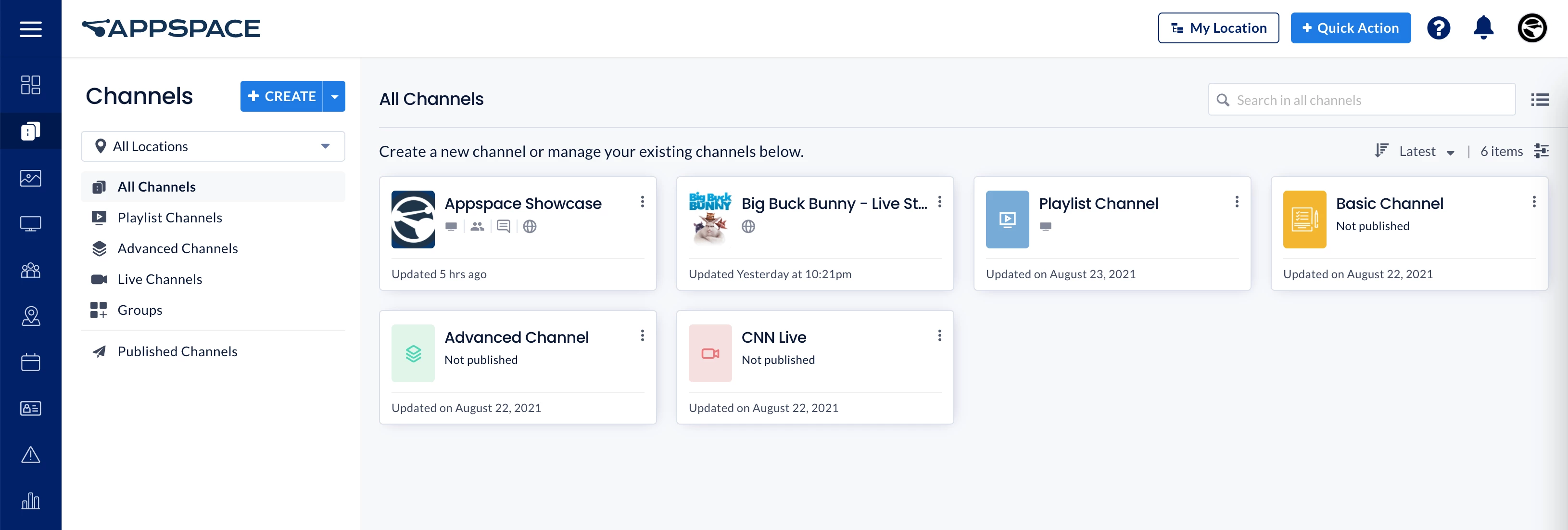
Select Channels from the Appspace menu, then click + CREATE.
-
Click the + Quick Action button in the Appspace navigation bar, then select Create Channel.
-
Select the Dashboard tab, then click the + icon on the Channels widget.
-
-
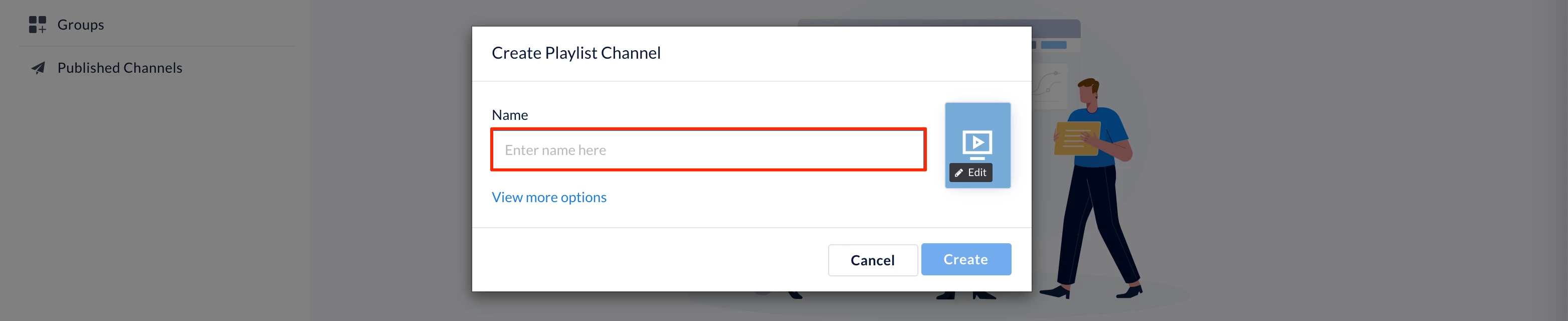
Enter a name for the Playlist Channel in the Create Playlist Channel dialog box.
-
Optionally, click Edit to customize the Playlist Channel color and icon.
-
Click Create.
The Playlist Channel opens so you can add content and continue configuration.
Add Content to the Playlist Channel
-
Select the Edit tab in the Playlist Channel.
-
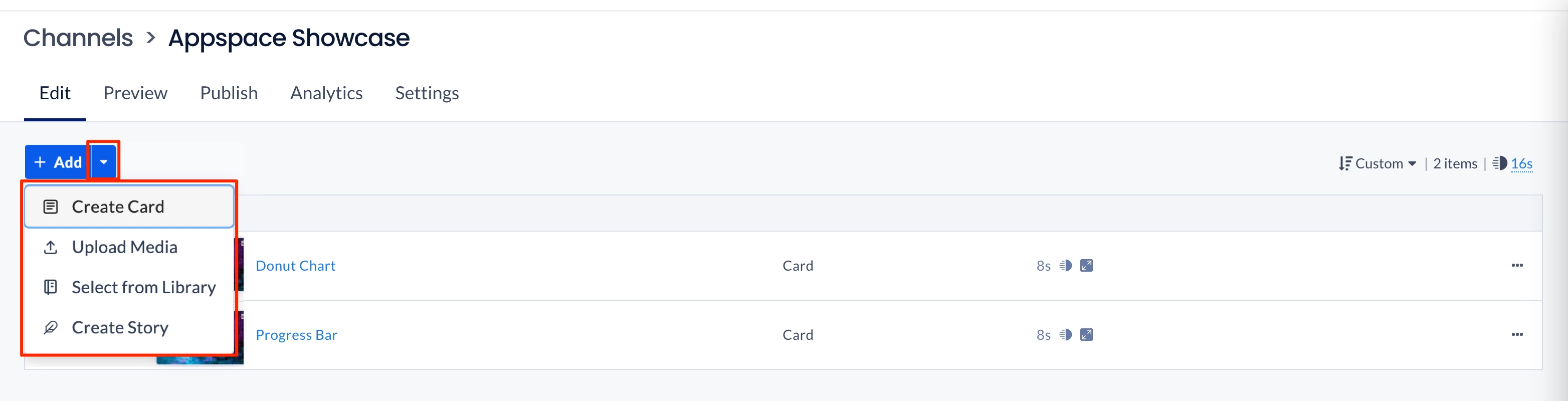
Click the down arrow next to the + Add button.
-
Add content using one of these options:
-
Select Create Card to create content from a card template.
-
Select Upload Media to upload content from your computer.
-
Select Select from Library to choose content or content folders from a library.
-
Select Create Story to create a story in the channel.
-
-
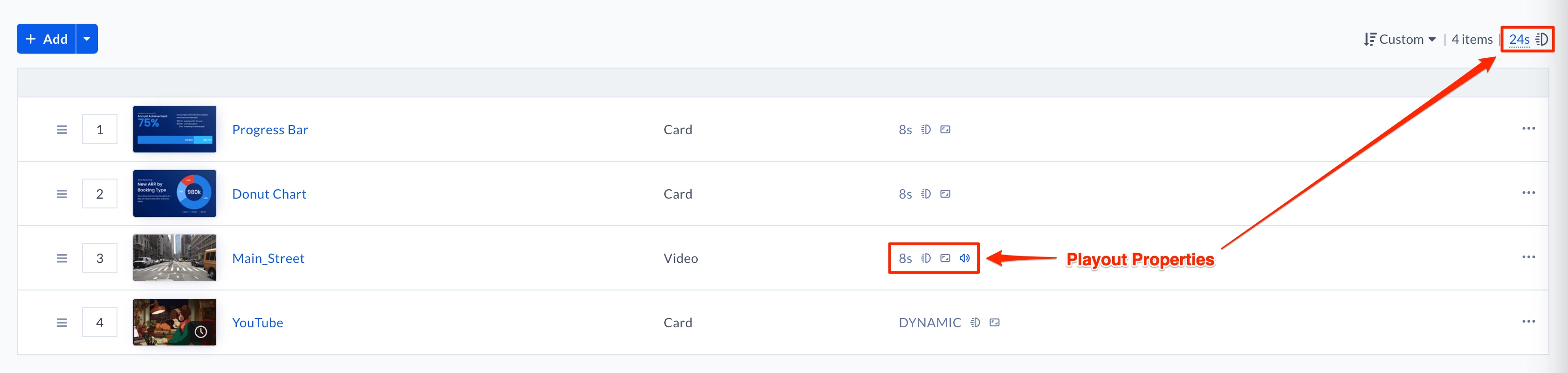
Optionally, click the Playout Properties icon for a content item to configure playback settings such as Transition, Aspect Ratio, Content Duration, Content Audio, Frequency Restrictions, Schedule, Dayparting, and Tag Rules.
-
Optionally, use the Sort menu to arrange content order when the Playlist Channel contains multiple items:
-
Name — Sorts content alphabetically by filename.
-
Updated — Sorts content by the last update time.
-
Shuffle — Plays content in a randomized order.
-
Custom (default) — Lets you move content up or down in the playlist.
-

-
Click Save.
The content is added to the Playlist Channel.
Note: If you cannot see the + Add or Add Content button, contact your Appspace administrator for Library access.
Note: For detailed playback property instructions, see Configure Content Playback Properties: Dayparting, Frequency, Scheduling, in a Playlist Channel.
Preview the Playlist Channel
Important: Due to browser limitations, not all transitions and media formats display correctly in preview.
-
Select the Preview tab.
-
Click Article and select the display format you want to preview.
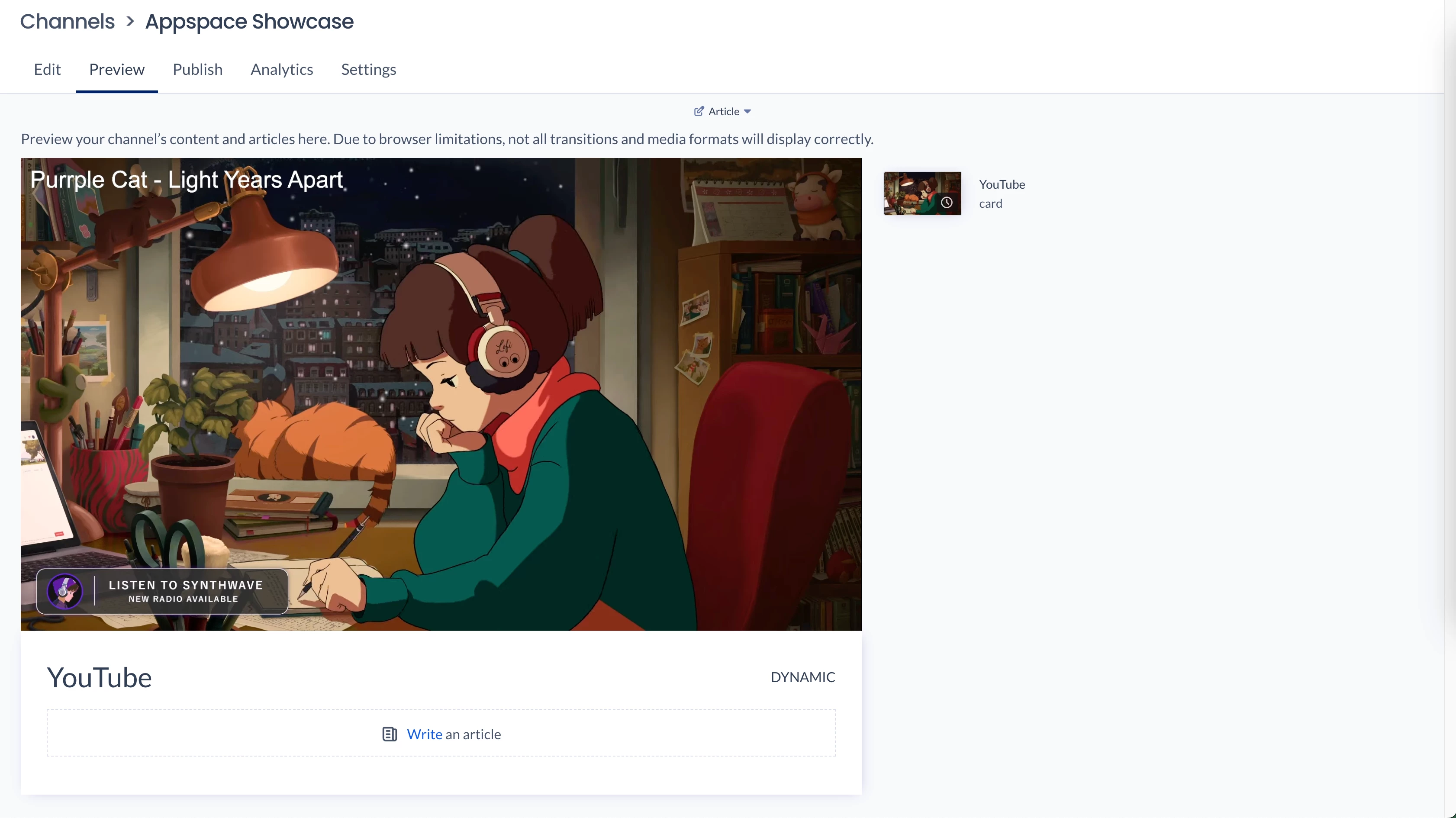
The Playlist Channel preview opens in the selected format.
Publish the Playlist Channel
Publish Playlist Channels to people-focused destinations such as users and the Employee View. You can also publish to apps or the web when those destinations support employee communications.
-
Select the Publish tab.
-
Publish the Playlist Channel to users, apps, or the web as needed.
After publishing, the Channels dashboard shows icons for the destinations where the Playlist Channel is published.

Note: For publishing instructions, see Publish Content to Apps, Devices, Employees, Email, or Web. For devices and digital signage, use a Signage Channel and see Publish a Signage Channel to Devices.
View Playlist Channel Analytics
-
Select the Analytics tab.
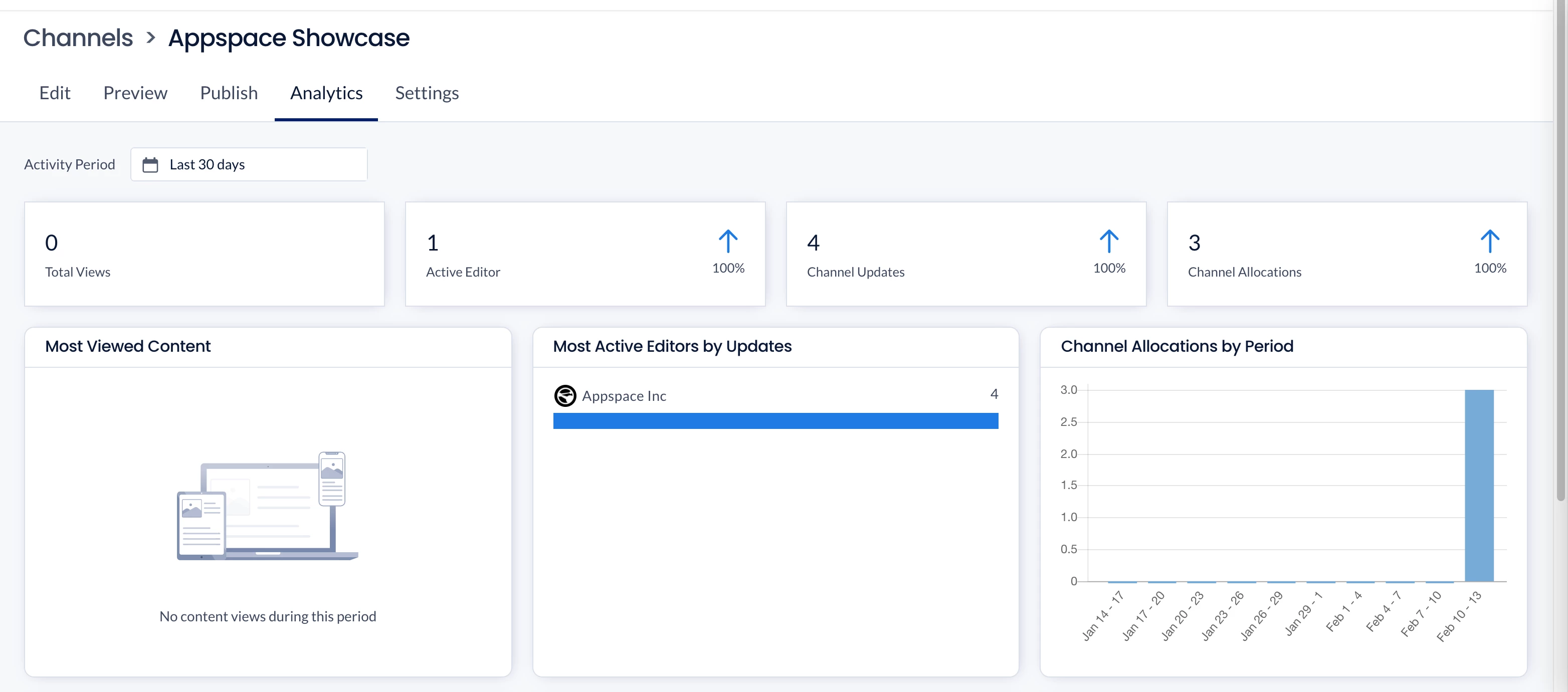
The Analytics tab shows playlist channel analytics widgets for the selected channel.
Configure Playlist Channel Settings
Select the Settings tab to configure channel details, connectors, permissions, and approvals.
Connectors
In the Connectors side panel, connect a third-party source to pull content into the Playlist Channel.
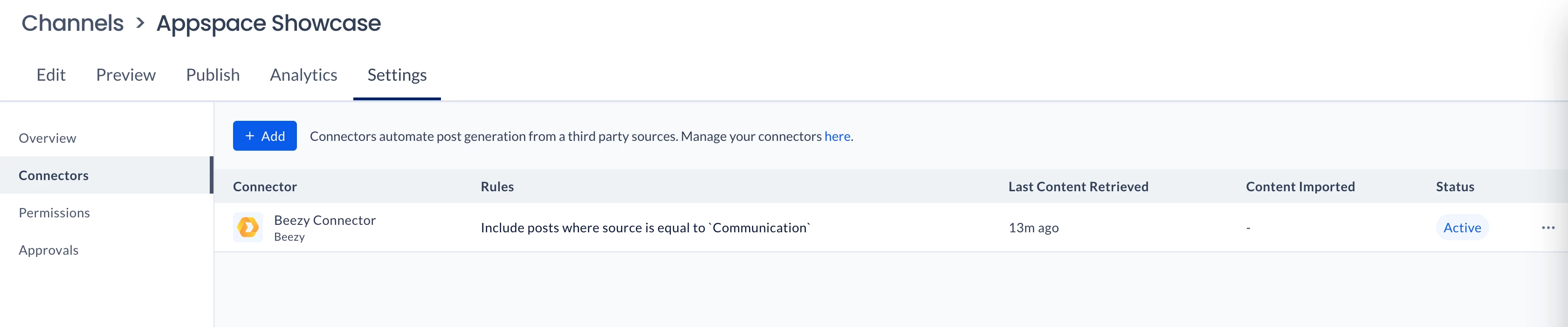
-
Click + Add.
-
Select the connector type from the drop-down menu.
-
After connecting, select specific channels or lists to retrieve content from, or leave the selection blank to retrieve all channels or lists.
-
Optionally, click Show more to configure additional rule fields:
-
Rule — Include or exclude the rule.
-
Property — Select the property for the rule.
-
Operator — Select the operator for the rule.
-
Value — Enter the value for the selected property.
-
-
Click Save.
The connector is added to the Playlist Channel.
Permissions
In the Permissions side panel, assign channel permissions to users or user groups.
Important: Assign the Author user role before you assign channel permissions to a user.
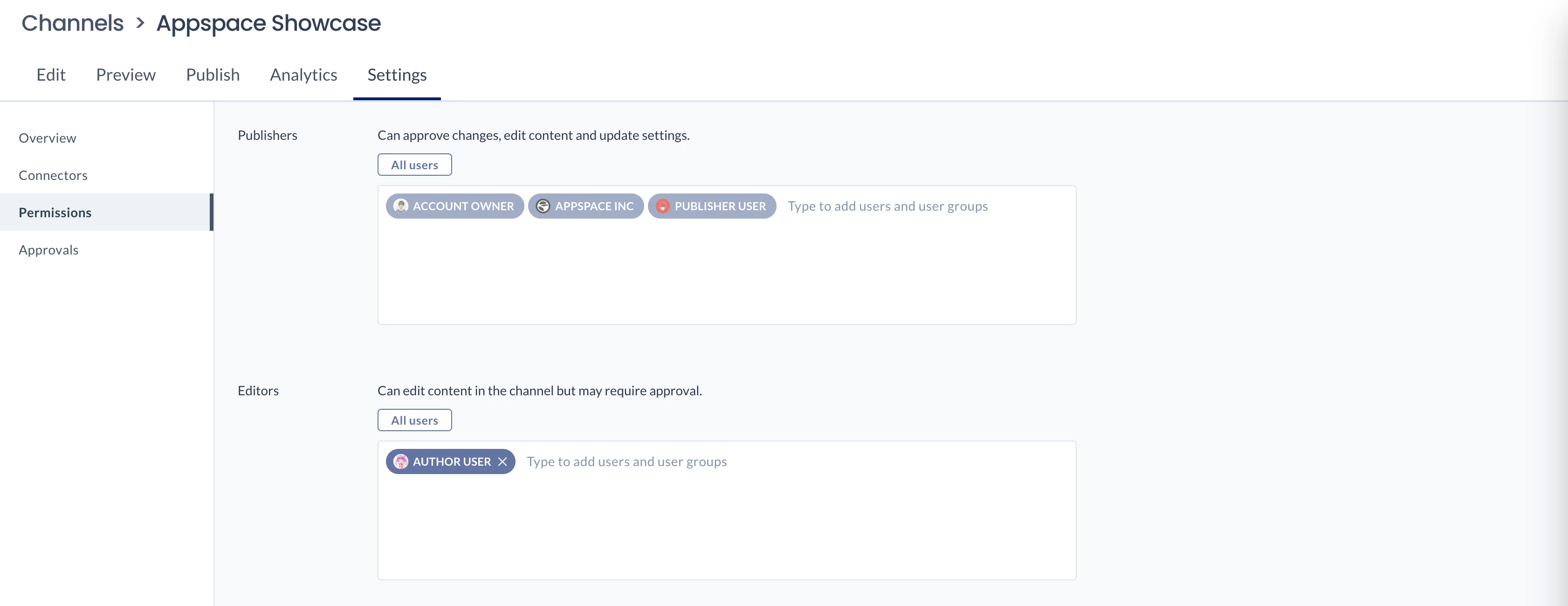
-
Publisher — Full read, write, and delete access to the channel. A publisher can change content and update settings for the channel.
-
Editor — Can edit and manage content in the channel, based on the approval rules applied in the Approvals tab.
Note: Some users are automatically added as publishers when they inherit full access from the account, network, or user group. Click a user that was added automatically to see how the permission was inherited.
Approvals
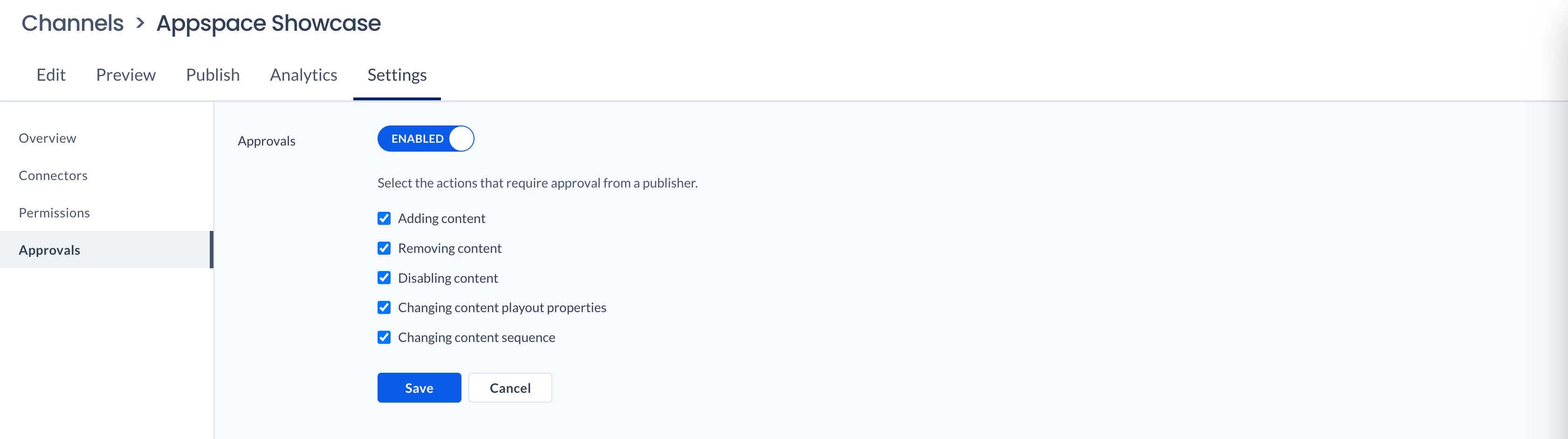
In the Approvals side panel, select the editor actions that require approval from a publisher of the channel:
-
Adding content
-
Removing content
-
Disabling content
-
Changing content playout properties
-
Changing content sequence
Overview
In the Overview side panel, you can configure the following:
-
Name — Enter a name for the Playlist Channel.
-
Caption — Enter a caption for the Playlist Channel.
-
Channel Group — Assign a channel group to the Playlist Channel.
-
Location — Edit the location of the Playlist Channel.
-
Playlist Thumbnail Image — Upload a custom image, or select an icon or color for the Playlist Channel.
-
Delete Channel — Delete the Playlist Channel.
Note: Custom thumbnail images should use a 16:9 aspect ratio for the best display results.