

Securely Display Google Workspace Content on Appspace Signage: A Guide to Google Sheets and Slides Cards
Appspace now supports Google Drive Passport authentication for Google Sheets and Google Slides cards. This means you can securely display private or restricted Google Workspace files on your digital signage without making those files public. Previously, displaying Google Sheets or Slides content on signage required a publicly shared link, which posed security concerns for internal data like performance dashboards, shift schedules, or company presentations. With Passport authentication, your files stay private in Google Drive while your screens show the content.
This guide covers what changed, how the two content modes differ, common use cases for private Google content on signage, and what to expect in the card creation workflow.
Key Benefits
- Secure Access to Private Content: Display restricted Google Sheets and Slides files on signage without changing their sharing permissions to public.
- Seamless Google Drive Integration: Browse and select files directly through the built-in Google Drive file picker. No need to manually publish files to the web first.
- Flexible Content Modes: Choose between Public (unauthenticated) mode for open files or Private (authenticated) mode for restricted files, depending on your needs.
- Maintained Security Standards: Passport authentication ensures that only authorized Appspace accounts can access and display private Google Workspace content on your screens.
Prerequisites
Before displaying private Google content on your signage, ensure the following are in place:
- Google Drive Passport: An admin must create a Google Drive Passport in the Appspace console under Integrations > Passports. See the Create Google Drive Passport in Appspace article for step-by-step instructions.
- Passport Permissions: When creating the passport, the admin selects the appropriate scope: Slides, Sheets, or Slides & Sheets, depending on which card types your organization needs.
- Appspace Role: Account Owner, Publisher, Editor, or Content Producer (Author) role to create or edit cards in the Library.
- Compatible Device: Ensure your signage device is supported. Refer to the Supported Appspace Cards article.
What Changed: Public vs. Private Mode
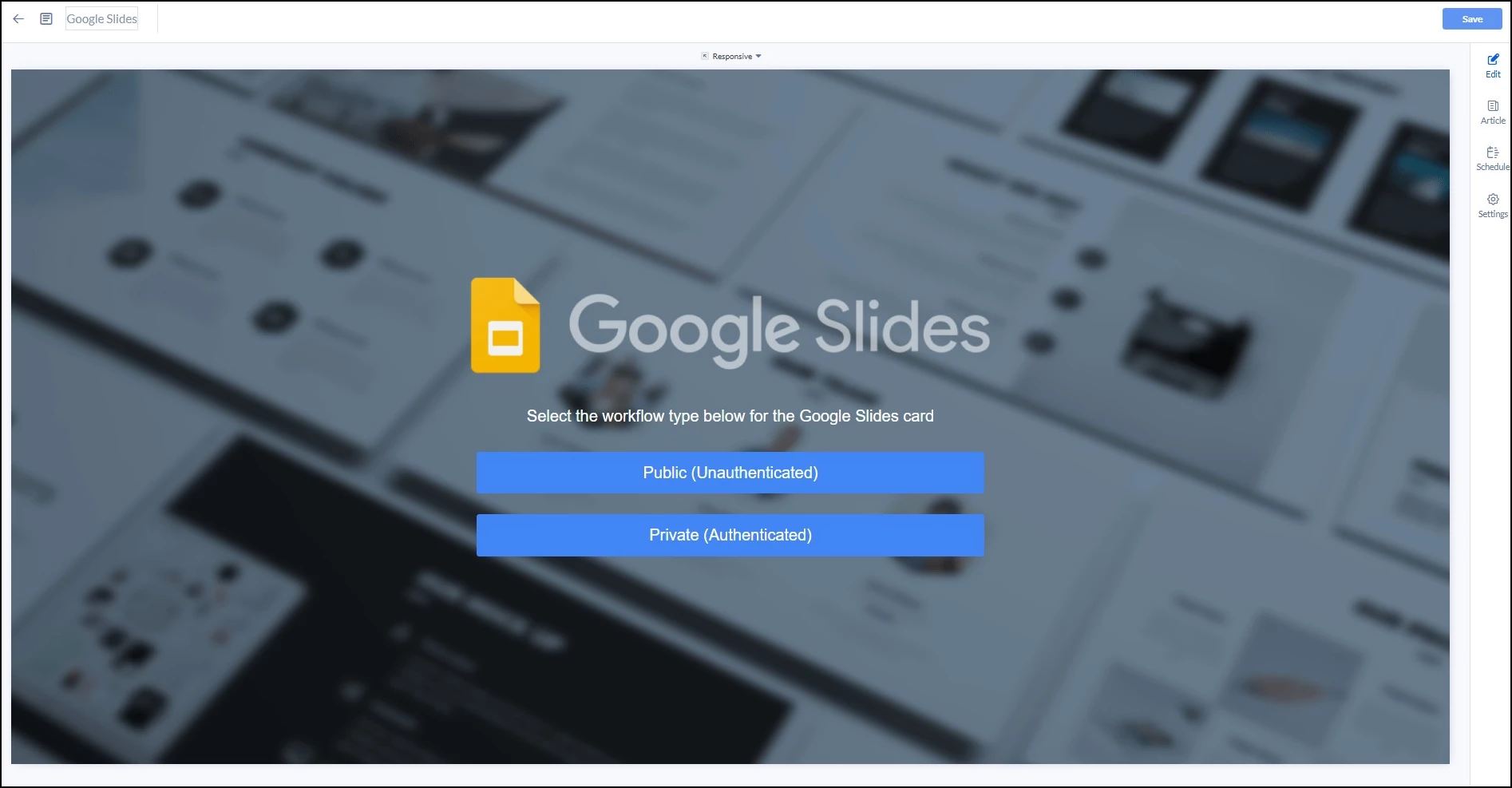
When you create a Google Sheets or Google Slides card, you now choose between two content modes. This selection determines how the card accesses your Google Drive file.
| Feature | Public (Unauthenticated) | Private (Authenticated) |
|---|---|---|
| File visibility | File must be published to the web or shared via public link | File can remain private or restricted in Google Drive |
| Authentication | None required | Requires a Google Drive Passport |
| File selection | Paste a shareable URL | Use the Google Drive file picker to browse and select your file |
| Best for | Public-facing content, open data | Internal dashboards, private reports, restricted presentations |
| Setup required | Publish file to web, copy link | Admin creates a Google Drive Passport once; users select it during card creation |
If you are already using Google Sheets or Slides cards with public links, those cards continue to work as-is. The Private mode is a new option — it does not replace the existing Public workflow.
Common Use Cases
Passport authentication opens up content possibilities that were previously off-limits because files had to be public. Here are some common scenarios for each card type.
Google Sheets on Signage
Google Sheets cards work well for displaying live, tabular data that someone on your team is already maintaining in a spreadsheet:
- Sales Leaderboards: Display quota trackers or performance rankings on a sales floor screen without exposing the data publicly.
- Shift Schedules: Show employee rotation boards or shift assignments in breakrooms, updated in real time as the spreadsheet changes.
- Project Status Trackers: Surface project milestones, task ownership, or progress dashboards in team areas — especially useful when the data is already managed in Sheets.
Note: Google Sheets cards currently display table content only — embedded images, logos, and charts do not render on signage. For a full list of known limitations, refer to the Google Sheets card article.
Google Slides on Signage
Google Slides cards are ideal for rotating visual presentations that run passively on a screen:
- Company Announcements: Display all-hands highlights, leadership updates, or policy changes in lobby or common areas without making the presentation public.
- Onboarding & Training: Run orientation overviews, safety reminders, or process walkthroughs on screens in training rooms or breakrooms.
- Event Schedules: Show conference agendas, campus event lineups, or visitor-facing welcome presentations on lobby signage.
What to Expect in the Workflow
When creating a Google Sheets or Google Slides card, the card creation flow now includes a new step where you select your content mode. Here is a high-level overview of what the Private (authenticated) flow looks like:
- Choose your content mode: During card creation, you are presented with a choice between Public and Private. Select Private to use Passport authentication. (You can use the Back button at any point to return to this selection screen.)
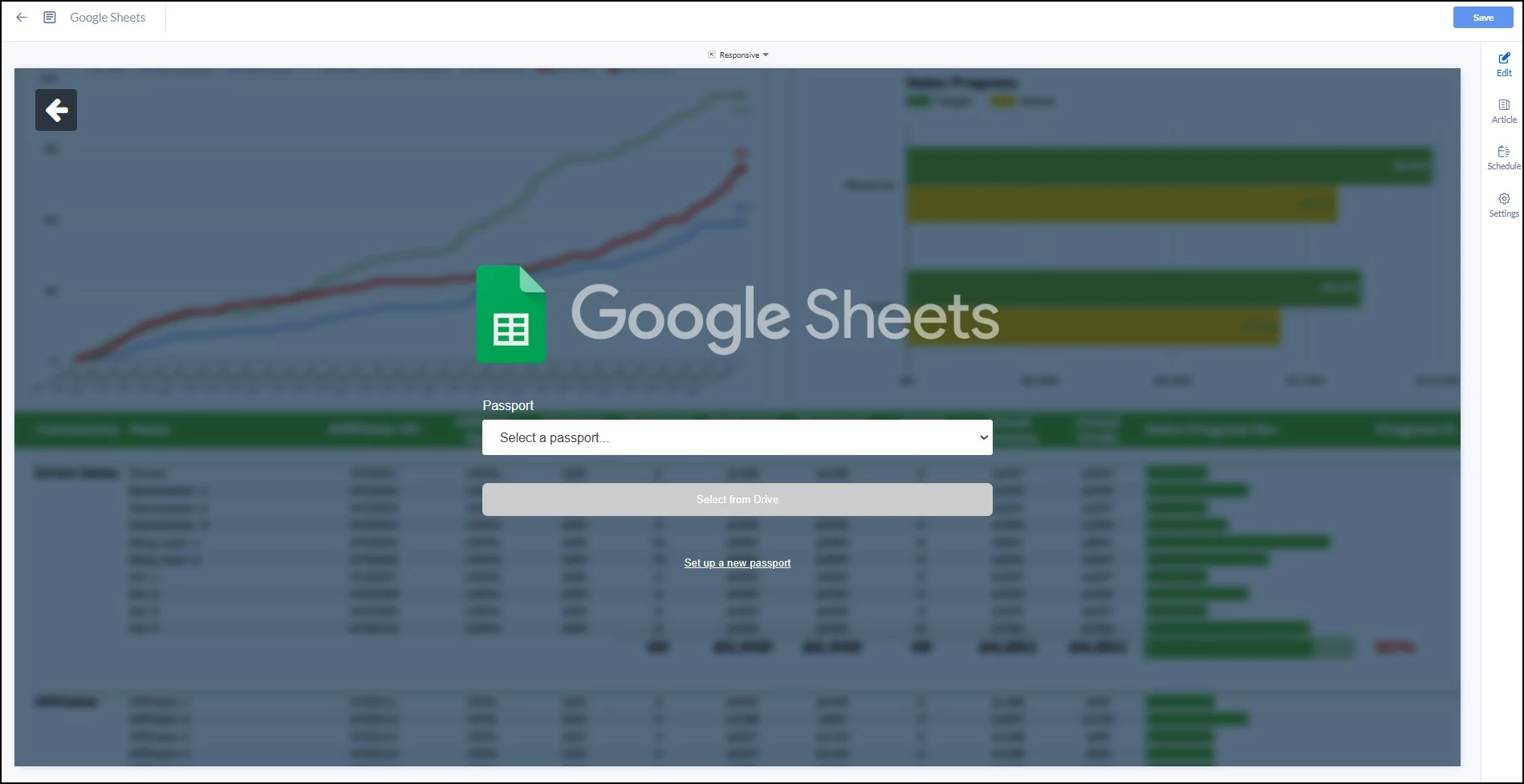
- Select a Passport: A dropdown appears where you can choose an existing valid Google Drive Passport or select Set up a new passport to create one.
- Pick your file: Use the integrated Google Drive file picker to browse and select your file.
- Configure and save: Complete the remaining card settings (zoom level for Sheets, slide duration for Slides) and save your card as usual.
For detailed step-by-step configuration instructions, refer to the card-specific articles in the Related Articles section below.
Note: If a Google Drive Passport is removed or expires, any cards using that Passport will stop displaying content until a valid Passport is reassigned.
Related Articles
For detailed setup and configuration instructions, refer to the following articles:
- Create Google Drive Passport in Appspace — Step-by-step instructions to create and configure a Google Drive Passport for authenticated access.
- Cards: Display Google Sheets Data — Full configuration guide for creating and editing a Google Sheets card.
- Cards: Display Google Slides Data — Full configuration guide for creating and editing a Google Slides card.