
Power BI Dashboard Card: Best Practices
Introduction
The Power BI Dashboard card in Appspace allows organizations to display dashboards from the Microsoft Power BI visualization tool, which includes various custom data visualization charts. These Power BI dashboards offer a convenient, concise way for employees to view relevant data on supported devices.
Key Benefits
Implementing Power BI Dashboard cards offers several benefits:
- Data Accessibility: Provides employees with immediate access to relevant data on digital signage, mobile apps, tablets, and enterprise messaging applications.
- Seamless Integration: Connects securely via a virtual passport that remains active until manually revoked.
- Automatic Synchronization: Updates made within the Power BI system are automatically reflected in the Appspace card without manual intervention.
What This Guide Covers
This guide will cover the following topics:
- Passport Setup: Establishing the connection between Appspace and Microsoft Power BI.
- Configuration: Best practices for designing dashboards within Power BI for signage.
- Audience Strategy: Considerations for layout and security based on location.
- Device Capabilities: Understanding live rendering vs. screenshot modes.
Prerequisites
Before you can configure the Power BI Dashboard card, ensure you meet the following requirements:
- You must have a valid Power BI service account to authenticate the connection via Passport.
- You must have Publisher permissions (or higher) to create and edit cards in the Appspace Library.
- The dashboard must already exist and be fully configured in Power BI, as it cannot be created or styled within Appspace.
- Ensure your target devices are capable of displaying the card (either in Live mode or Screenshot mode).
Set up your Power BI Passport
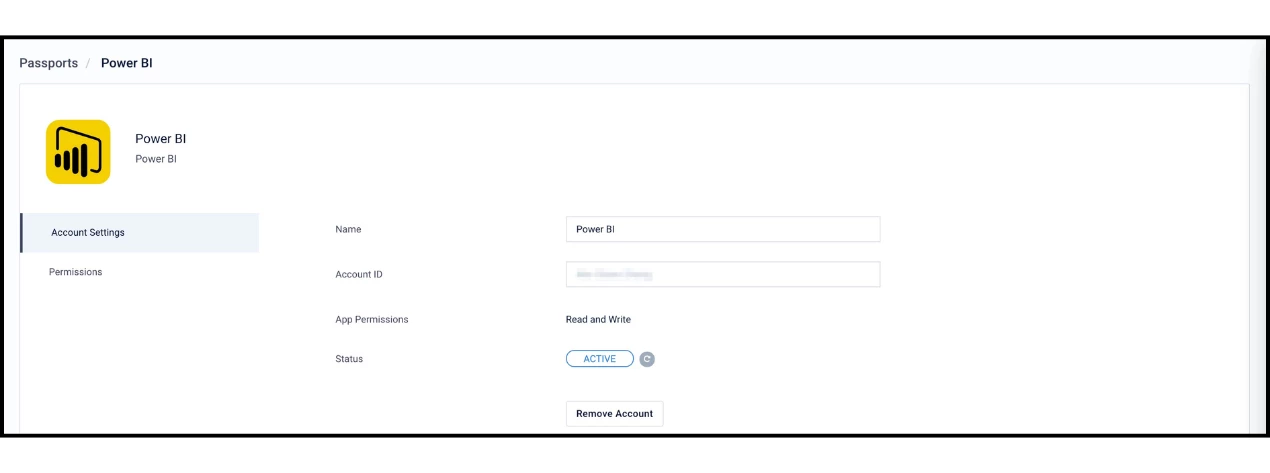
Before you create a Power BI Dashboard card on Appspace, an initial connection must be established between Appspace and a Microsoft Power BI service account. This is stored in a virtual passport in Appspace.
- The passport allows the card to establish a connection with the third-party system at runtime.
- This passport can be used continuously until the service account revokes or cancels the integration.
To learn more about setting up a Power BI passport, visit this article: Cards: Display Power BI Dashboards | Community
Configure your Power BI Dashboard
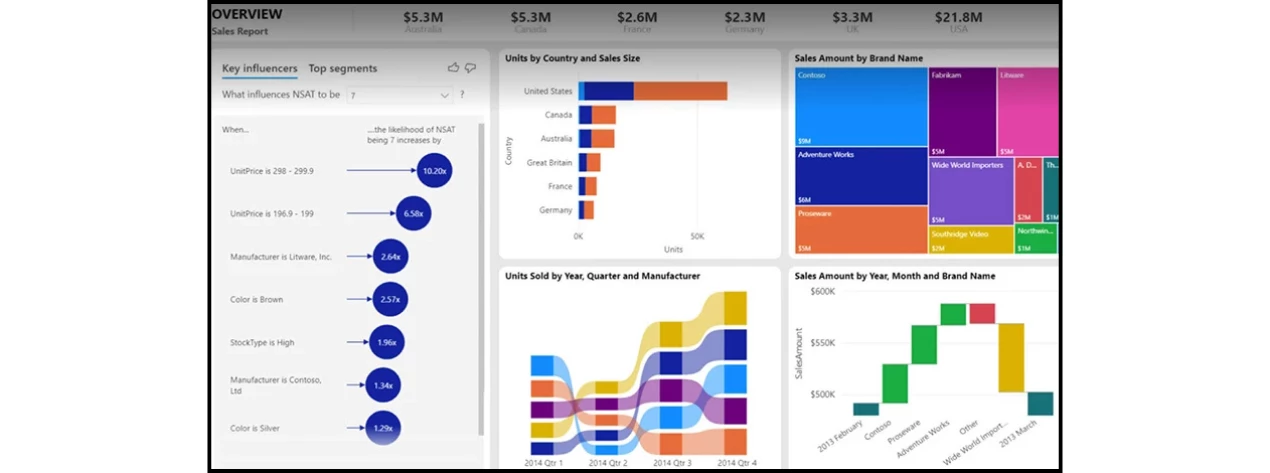
The Appspace Power BI Dashboard card only reflects the dashboard you already have on Power BI; it does not allow you to style or configure your dashboard directly within Appspace.
The only items you can add to the Dashboard card in Appspace are:
- An article
- A caption
- A referral link
Therefore, it is best practice to configure your dashboard in Power BI before you create your card. It’s also important to build your Power BI Dashboard while considering the screens it will be on, such as a 16:9 screen.
If you have updates to add after you configure the Dashboard card in Appspace, you can add the update in the Power BI system, and they will reflect automatically in the Power BI Dashboard card.
Note on Filters: If you want to add filtered reports to your Dashboard card, you should first add filters to the reports on the Power BI site and then add those reports as tiles on the dashboard. You will not be able to add filters on the Appspace card, so these items must be configured ahead of time.
Consider your Dashboard Audience and Location
When creating your Power BI dashboard, it’s important to consider who your audience will be and where the dashboard card will be displayed.
Visual Layout
Audiences who will be viewing your screens from a distance may need a larger, clearer layout compared to those who may be viewing it from a shorter distance.
- The size of your display screen can affect how you design your dashboard and the amount of content you can add.
- Crowding your dashboard with too much information can make it hard for viewers to understand or read.
Data Security
Your audience will also determine what devices you will publish the Dashboard card to.
Use Case: A Dashboard containing confidential or proprietary information should not be added to a device in a public-facing location like a Lobby.
Create your Power BI Dashboard Card
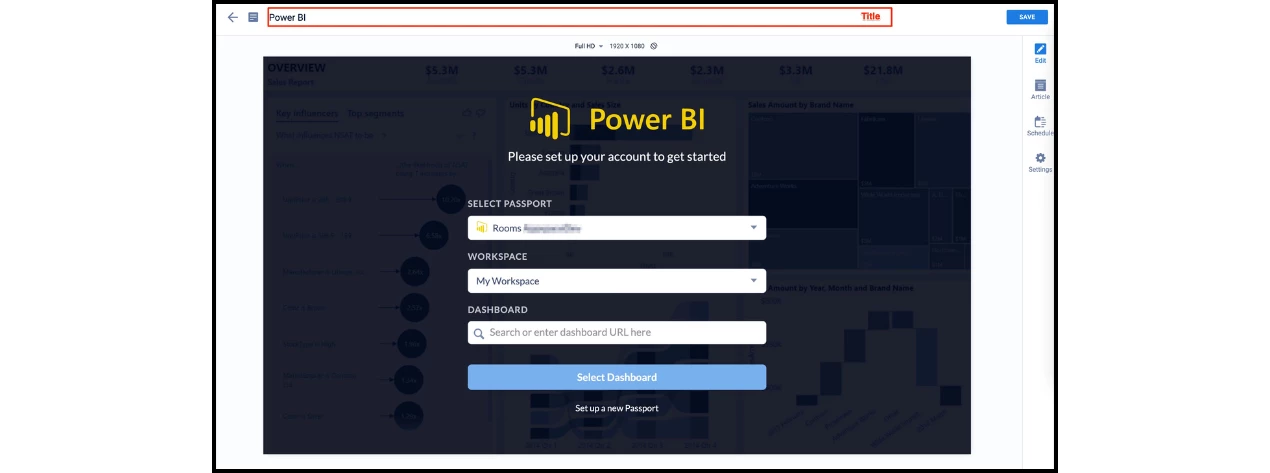
Once the Power BI dashboard is set up, users with publisher permissions can create the Power BI Dashboard card in their Library.
- Link the Dashboard: Select your passport and enter the Power BI dashboard URL (or search for the dashboard).
- Preview: After selecting a dashboard, preview how it will appear on different types of screens and orientations.
- Publish: Confirm the format and layout are correct before publishing to a device.
Keep the Capabilities of Your Devices in Mind
Once the Dashboard card is configured, it can be added to a channel on a supported device. While most devices support displaying a live Power BI dashboard, some devices do not have the processing power required to display live dashboards.
Live vs. Screenshot Mode
- Live Dashboard: Supported devices will render the dashboard interactively.
- Screenshot Mode: For devices that cannot support the live dashboard, a screenshot of the Power BI dashboard will be displayed instead.
Screenshot Specifications
If the dashboard display is not live on these devices, the following rules apply:
- Screenshots are updated every 15 minutes.
- Screenshots are only available in landscape 16:9 (1920 x 1080) and portrait 9:16 (1080 x 1920) aspect ratios.
- If a card is assigned to a different aspect ratio zone, it will use uniform fill.
To view which devices support the live Power BI dashboard, visit this article: Supported Appspace Cards | Community