


Learn how to view your support tickets in the Appspace Intranet Ticketing widget. This article is for employees who use the Appspace app. After you read it, you can check ticket status, comments, and updates on the Intranet homepage.
For: Employees — Intranet Support Tickets
Prerequisites
-
You are signed in to the Appspace app.
-
Your organization added the Ticketing widget to the Intranet homepage.
-
The email you use to sign in to the Appspace app matches the email on your ticketing profile.
View Your Tickets
-
Open the Appspace app.
-
Go to the Intranet homepage.
-
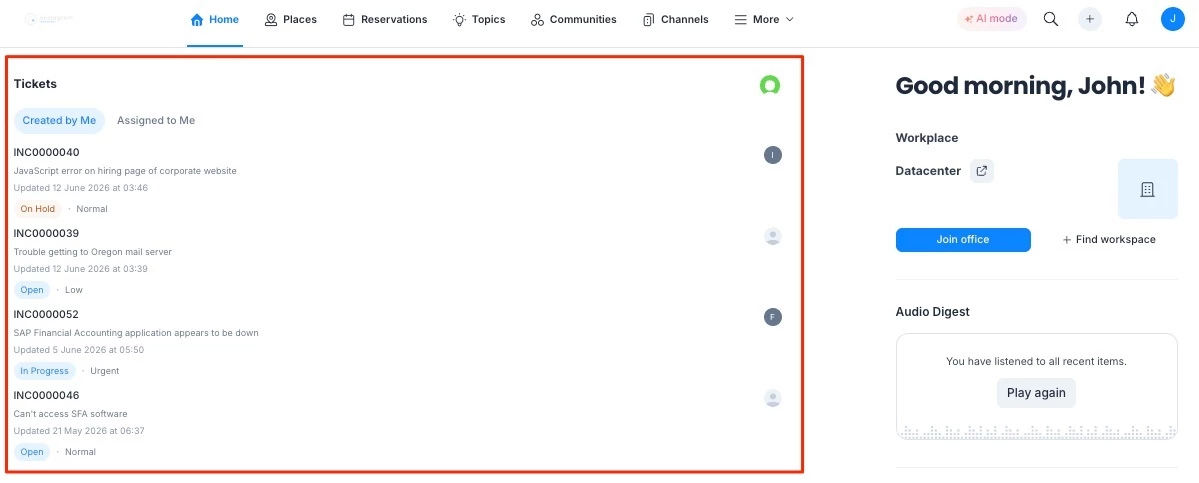
Find the Ticketing widget on the Home page.
-
Click Created by Me to see tickets you raised, or Assigned to Me to see tickets assigned to you. Tabs appear only when your administrator shows both lists.
-
Review the list. Each row can show the ticket number, subject, status, priority, and date. The date is the Created, Updated, or Due date, depending on how the administrator filtered the widget.
-
You see only tickets you created or tickets assigned to you. Status values are Open, In Progress, On Hold, Closed, and Unknown. Priority values are Urgent, High, Normal, Low, and Unknown. You cannot change the status filter in the widget.
-
If the list is empty, the widget shows No Tickets Found and the message “You don't have any open support tickets at the moment.” If tickets cannot load, the widget shows Error and “Unable to load your tickets. Please try again later.”
-
Note: Closed tickets stay hidden unless your administrator turns Show Closed Tickets on. The homepage list shows up to the Max Items value your administrator set (default 5). Click View all to open the All Tickets window, which can show up to 100 tickets. Open the ticketing system to see the full history.
Open Ticket Details
-
Click a ticket in the list.
-
Review the Summary, Status, Assignee, Reporter, Priority, Created and Updated times, and Comments.
-
Click Full Details to open the ticket in ServiceNow, or click Open Ticketing Portal from All Tickets to open the ServiceNow site.
-
Click Done to close the window.
Comments in the widget are read-only. The widget does not list attachments. Open Full Details in ServiceNow to view them. Create tickets, post comments, reassign work, and complete approvals in ServiceNow, not in the widget.
Note: The widget is read-only. Ticket data stays in the browser session for 15 minutes before the list refreshes. There is no offline view.