




This article provides administrators with detailed instructions to register an Amazon Signage Stick with the Appspace platform, enabling centralized management and content delivery.
Prerequisites
- Account Owner or Location Admin user roles with sufficient platform licenses.
- An active Appspace account, with sufficient device licenses to register the device.
- An active Internet connection.
- Sufficient Device licenses to cover the Amazon Signage stick registration, and Content licenses if you intend to display premium content.
- Active Amazon account to register devices to https://console.signage.amazon.com/
Connect and Power On the Device
Follow the instructions below to connect and power on the Amazon Signage Stick.
- Insert the Signage Stick into the display’s HDMI port.
- Connect the power adapter to the Signage Stick and plug it into a wall outlet to ensure stable power supply.
- Turn on the display and select the HDMI input corresponding to the Signage Stick connection.
- Verify the setup by confirming that the Amazon Signage Stick welcome screen appears on the display.
Initial Device Setup
Follow the instructions below to configure the device for the first time.
- Pair the remote by pressing and holding the Home button.
- Select the preferred language.
- Connect the device to the Wi-Fi network. A six digit code will appear on the screen.
Register Device in Amazon Signage Manager
Follow the instructions below to register the device.
- Sign in to https://console.signage.amazon.com/.
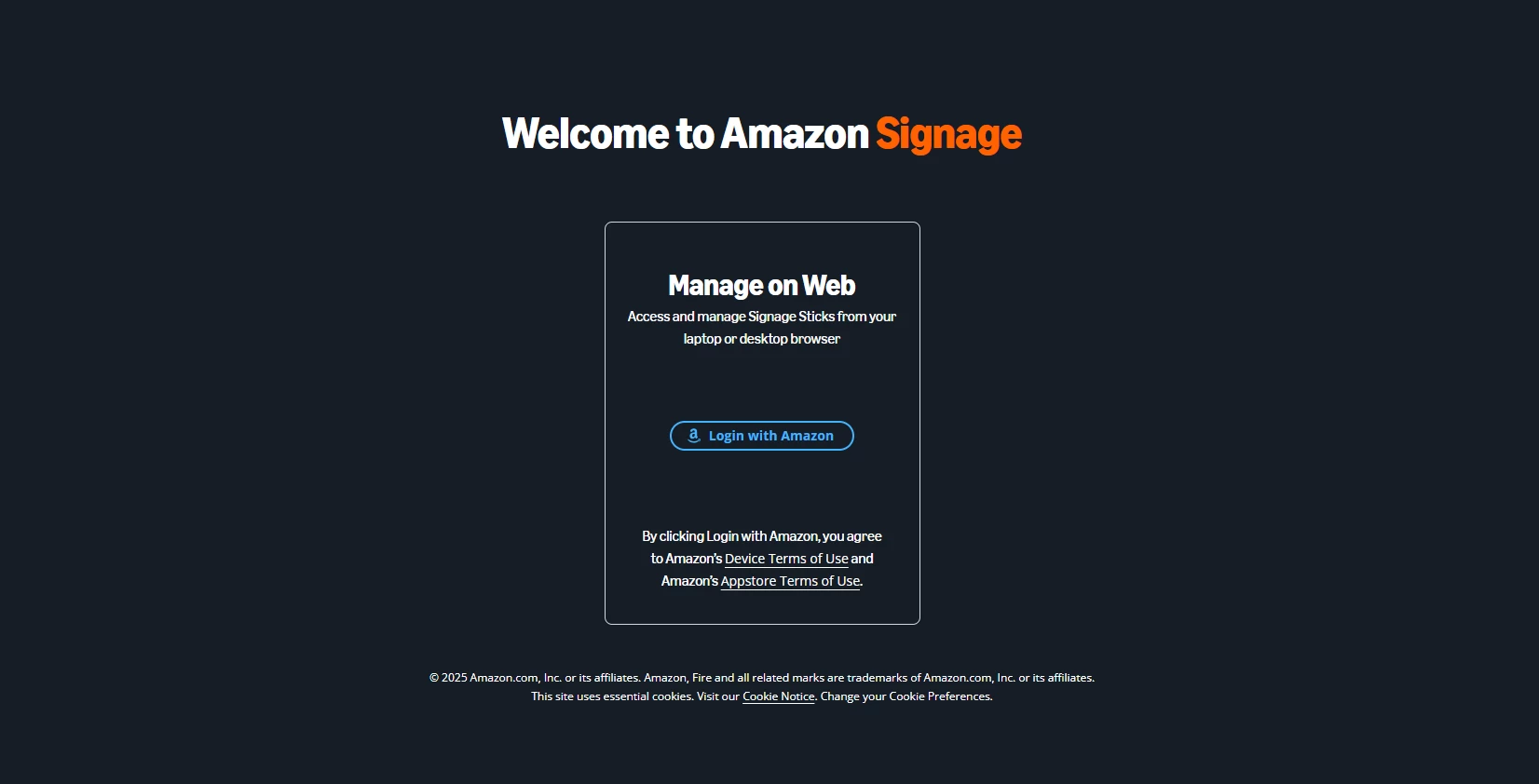
- Once logged in, click Add Sticks to add the new device.
- Enter the six digit code displayed on the screen.
- Select Appspace as the Content Management System provider.
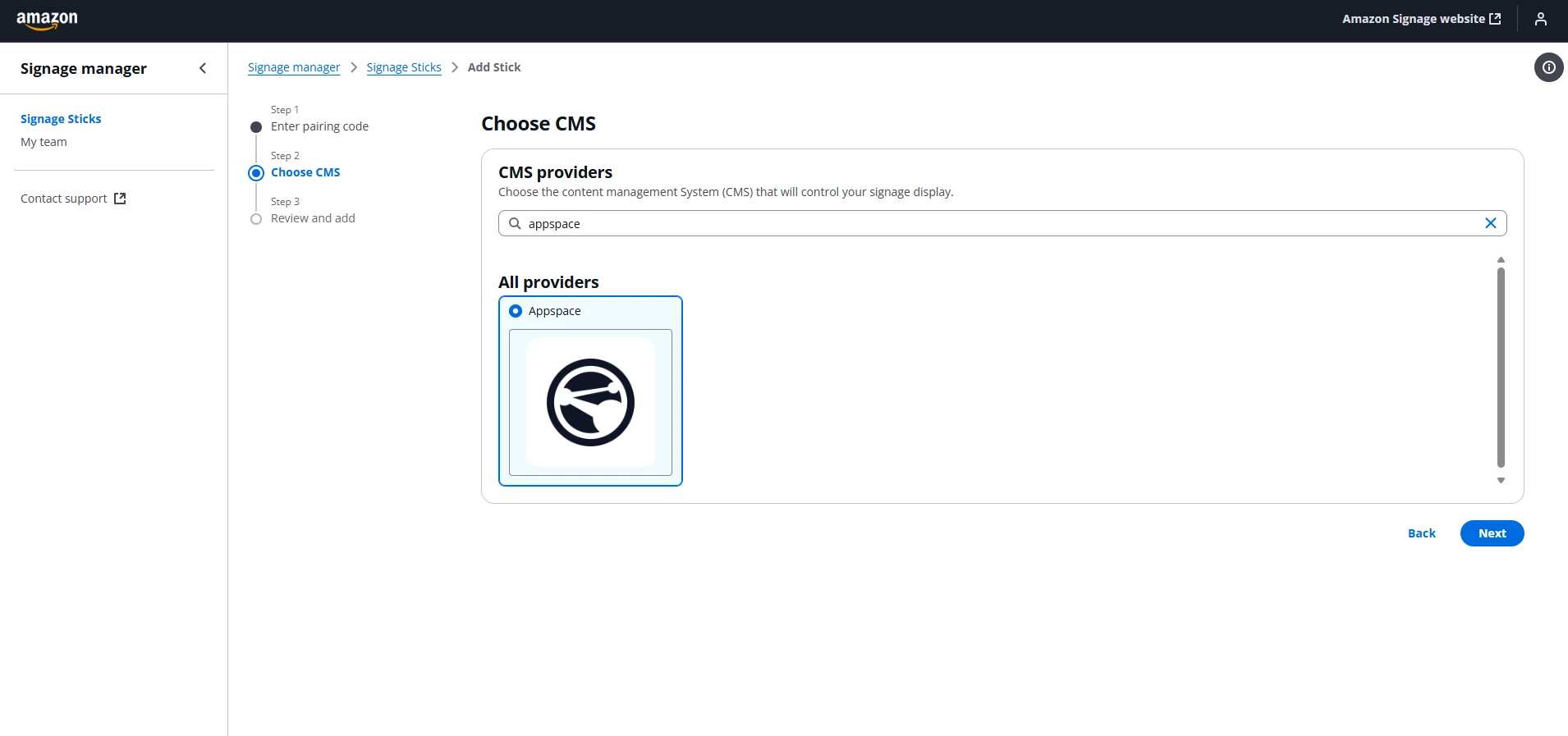
- Click on Save. Your signage sticks will appear in your list of devices.
- Once your signage stick is linked to your Amazon account, the device will auto launch the Appspace App in kiosk mode and the 6 digit Appspace pairing code will be displayed on the screen.
Pair Device with Appspace Platform
Follow the instructions below to pair the registered device with Appspace.
- Sign in to the Appspace Admin Console.
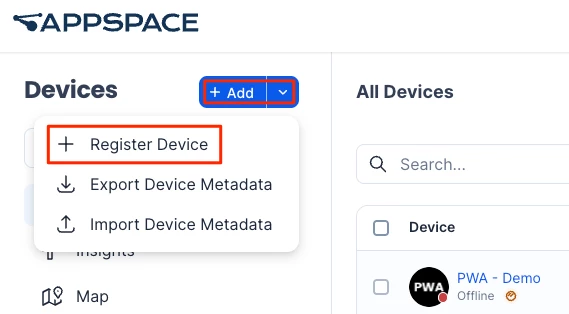
- Navigate to Devices.
- Click +Add > + Register Device.
- Enter the Appspace pairing code shown on the device.
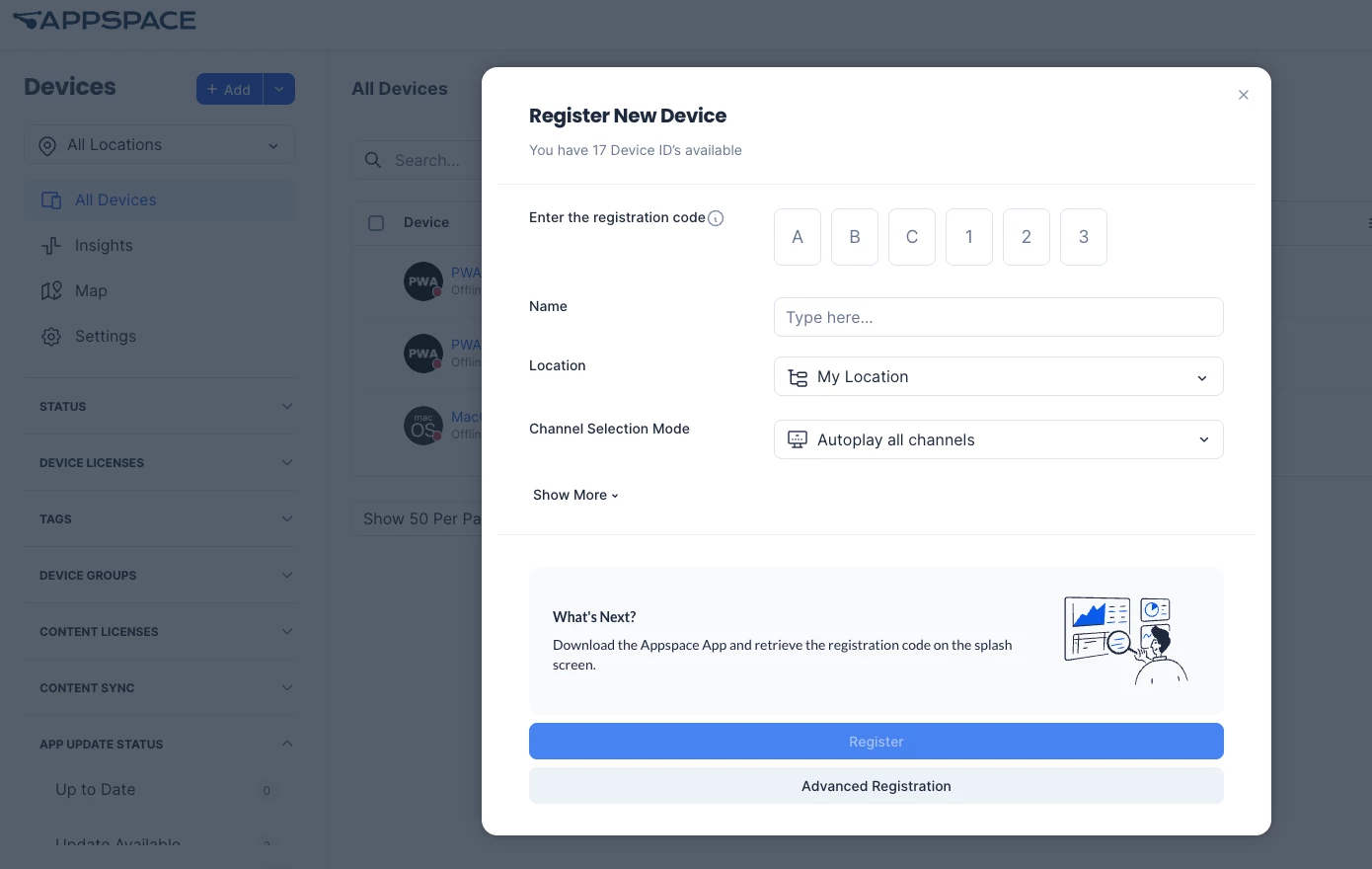
- Assign the desired device name, location, channel, or playlist.
- Once done, click Register.