



Connect Assistants to External Workplace Systems: A Guide to Configuring MCP Client Connections
Appspace Assistants can do more than answer questions about Appspace content. With Model Context Protocol (MCP) client support, you can register external MCP servers so an Assistant can discover their tools and use them during conversations—helping employees complete workplace tasks that span systems such as ServiceNow, Microsoft 365, or Workday without leaving Appspace.
This guide walks account administrators through registering a third-party MCP server in the Admin Console, validating connectivity, enabling the connection on an Assistant, and confirming that tools from the external server are available in conversation. MCP client support requires Assistant framework.
Goal: After finishing this guide, you can register an MCP server, test the connection, enable it on an Assistant, and verify that employees can use discovered tools in Assistant conversations.
Key Benefits
- One place for cross-system work — Employees can ask an Assistant to search Appspace content and act on connected enterprise systems in a single conversation, instead of switching between apps.
- Admin-controlled integrations — You register and manage MCP server connections (name, transport, URL, and authentication settings) from the Admin Console before anything reaches end users.
- Safer rollouts — Validate connectivity with a built-in testing interface before you activate a connection on an Assistant.
- Per-Assistant enablement — Turn MCP client connections on or off for each Assistant instance so only the right assistants use each external server.
- Standards-based extensibility — Use MCP servers that speak Streamable HTTP or Server-Sent Events (SSE), aligning Assistants with industry patterns for LLM tool interoperability.
What This Guide Covers
- What MCP client support adds to Assistants (and what it does not)
- Prerequisites for Assistant framework and external MCP servers
- Where Assistants and MCP Servers sit in the console as of October 2026
- Registering and managing a third-party MCP server connection
- Choosing a transport protocol (Streamable HTTP or SSE) and an authentication mode (Auto or None)
- Testing connectivity and confirming Authentication Mode after you save
- Enabling or disabling an MCP connection on an Assistant
- Confirming tool discovery and end-user conversation behavior
- A realistic IT / employee-service use case
- Troubleshooting common connection and enablement issues
Prerequisites
- Account Owner access to the Assistants module. You also need the Assistants category on under Settings → App Configuration → Appspace Intelligence, with Access Permissions and an AI Provider configured.
- An Assistant built with a determined use case.
- An MCP server that your organization operates or has access to (URL reachable from Appspace), already exposing the tools you want Assistants to use.
- The connection details you will enter when registering the server:
- Server Key (unique key)
- Display Name
- Server URL
- Transport — Streamable HTTP or Server-Sent Events (SSE)
- Authentication Mode — Auto or None
- Familiarity with creating or editing Assistants (see Create and Deploy AI Assistants in Appspace: Your Guide to Building Custom Assistants for Your Organization).
Steps
1. Open Assistants
- Sign in to the Appspace Admin Console.
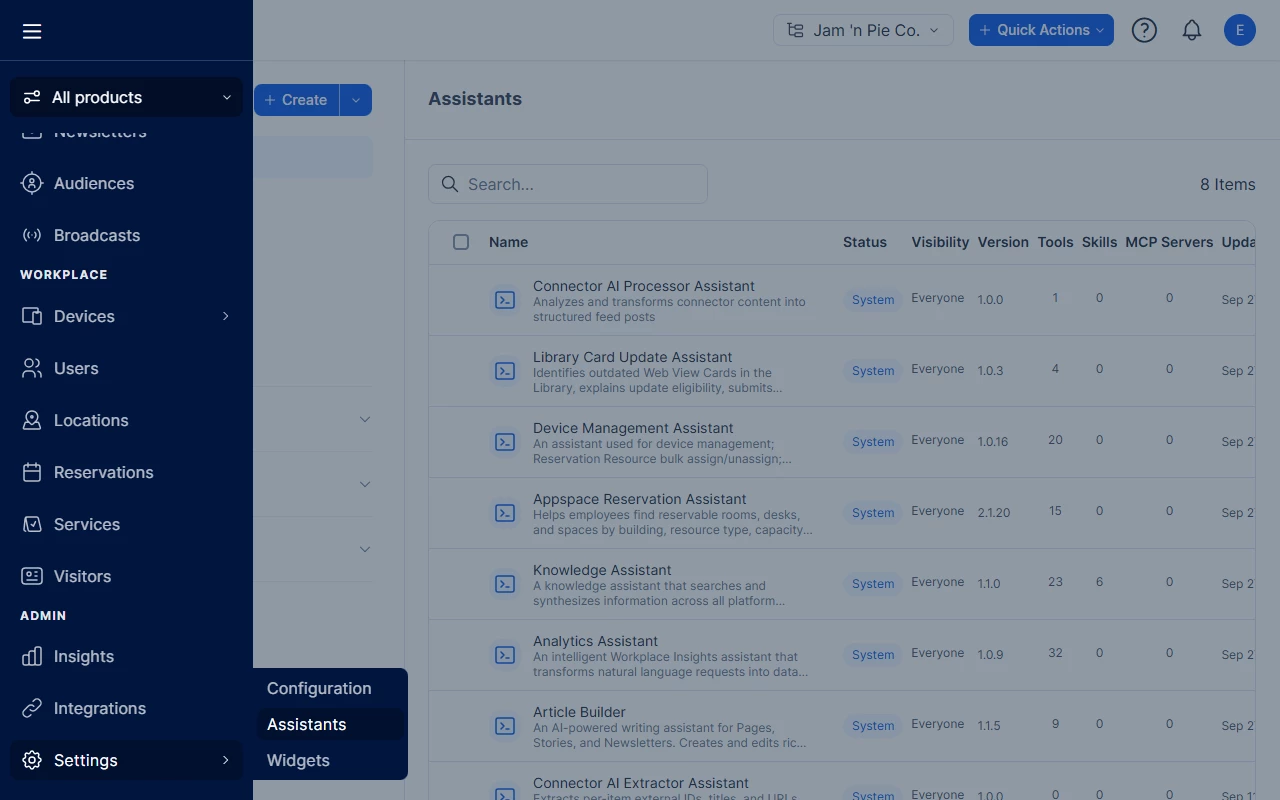
- Open the Menu (the icon at the top left).
- Under ADMIN, hover Settings, then select Assistants. The flyout lists Configuration, Assistants, and Widgets.
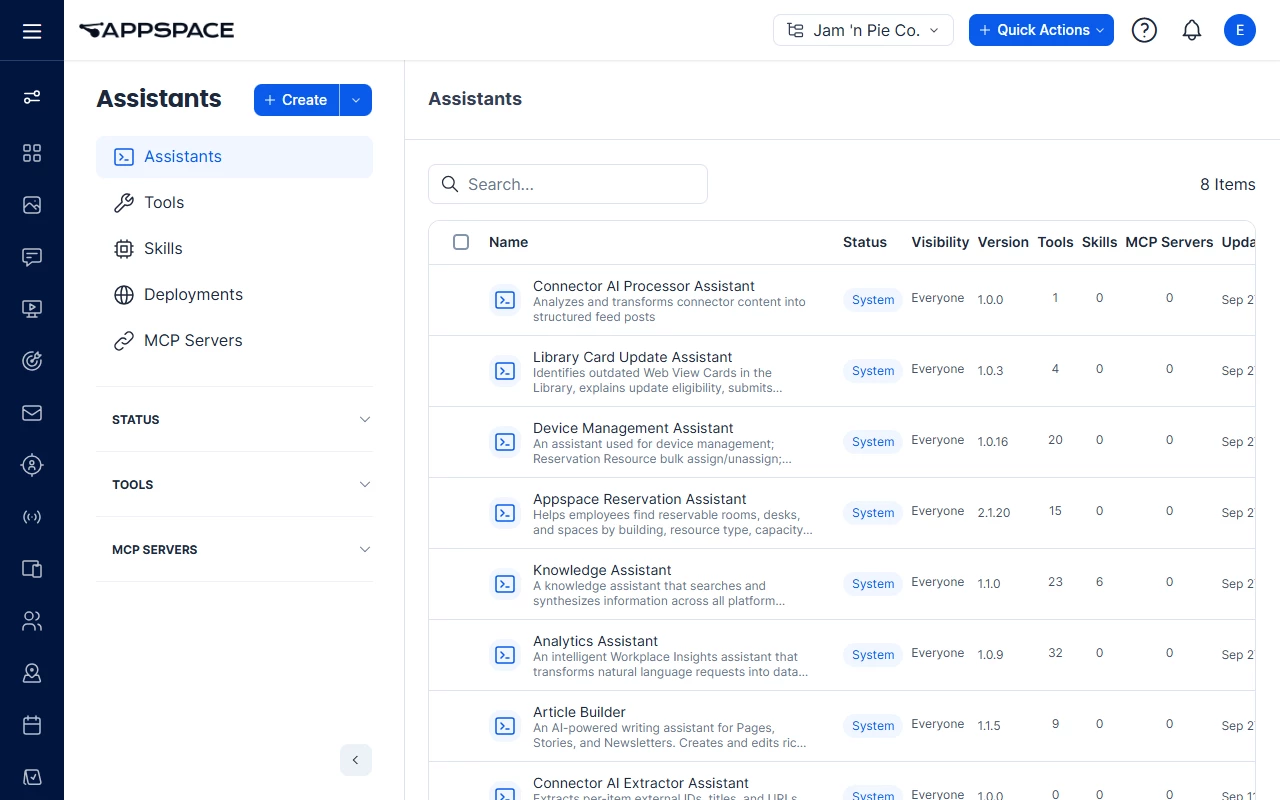
- Confirm the left navigation lists Assistants, Tools, Skills, Deployments, and MCP Servers.
2. Open MCP Servers
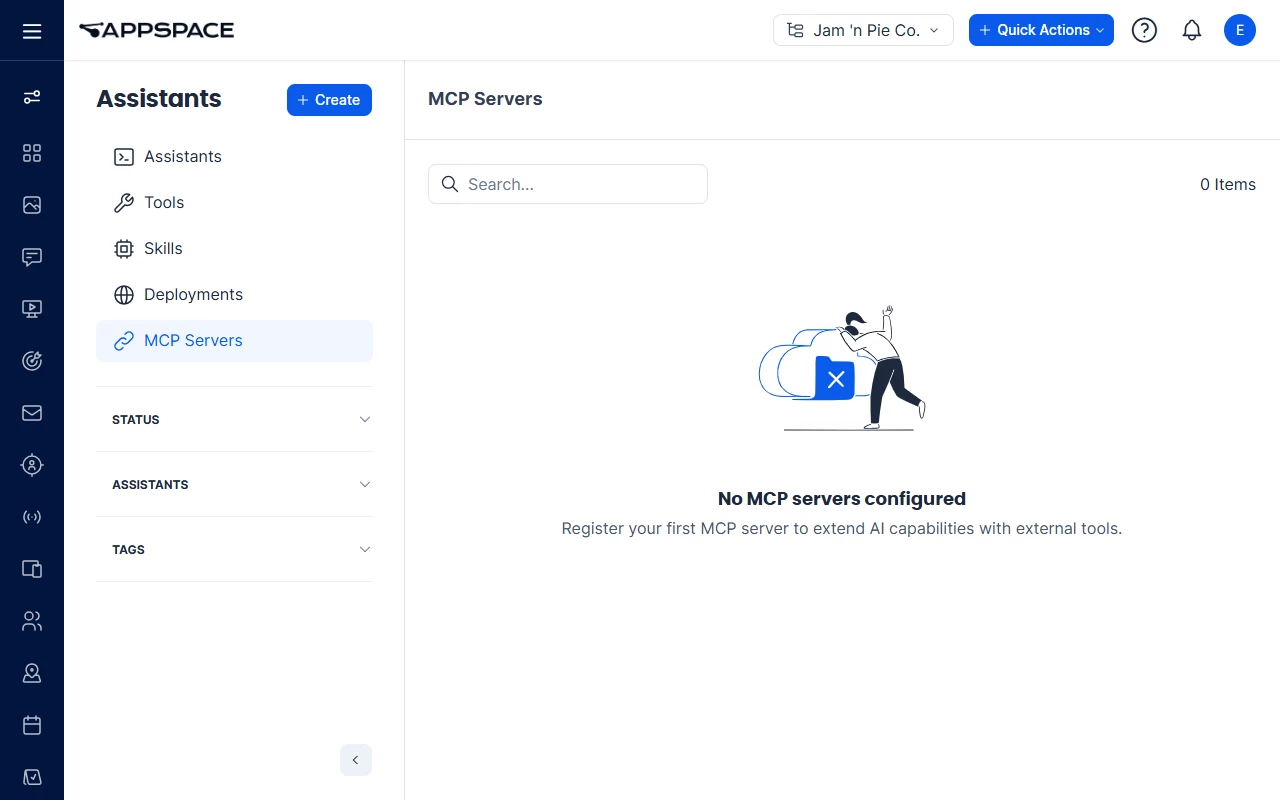
- In the Assistants module, select MCP Servers in the left navigation.
When no servers are registered yet, the page shows No MCP servers configured with guidance to register your first MCP server.
3. Register a new MCP server
- On the MCP Servers page, select Create.
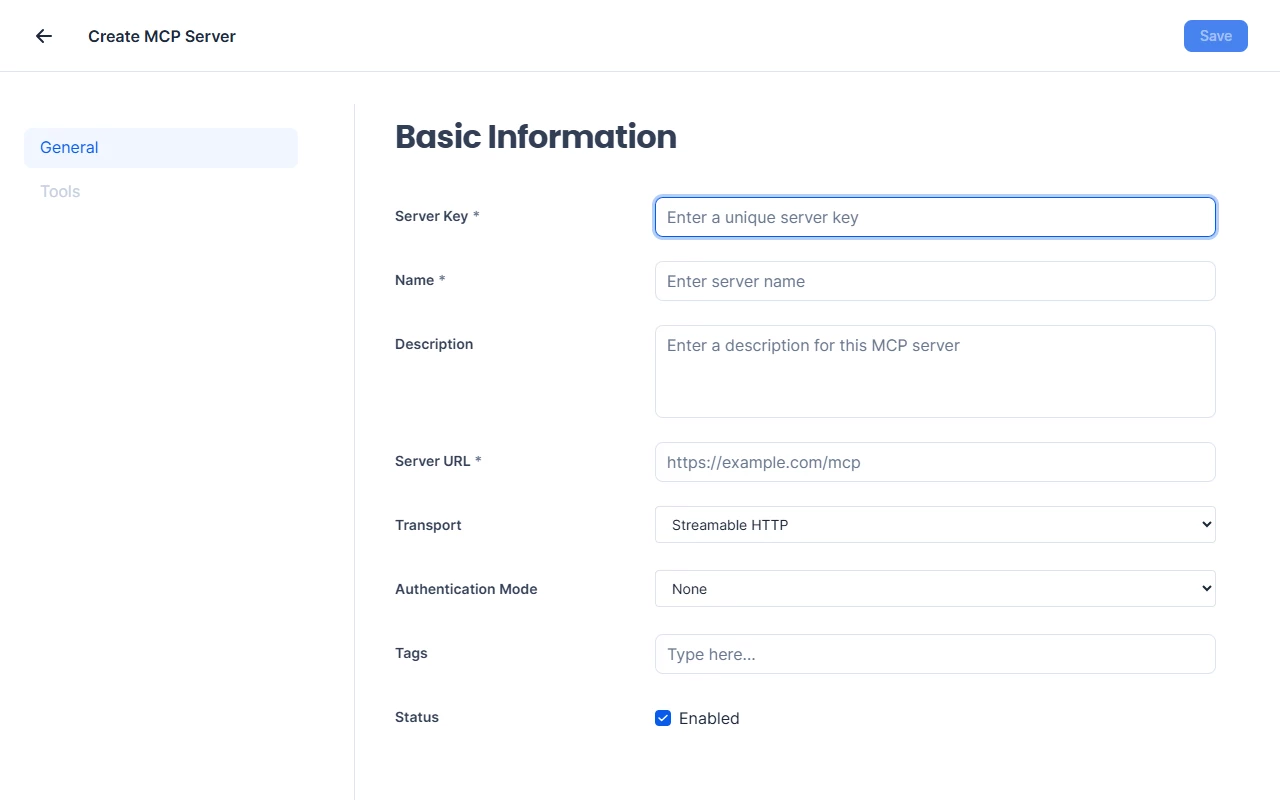
- Complete the Create MCP Server form:
- Server Key (required) — unique key for the server
- Name (required) — clear label for admins (for example,
ServiceNow ITSM MCP) - Description (optional)
- Server URL (required) — MCP endpoint URL
- Transport — Streamable HTTP or Server-Sent Events (SSE)
- Authentication Mode — Auto or None
- Tags (optional)
- Status — Enabled when the server should be available
- Select Save.
- Reopen the server and confirm Authentication Mode. If you chose Auto, the saved value can show None. When the server requires OAuth discovery, continue only if Auto is still selected.
The form has General and Tools in the left nav. On a new server, Tools is visible and not selectable before you save.
4. Test connectivity before activation
- Open the connection you just registered.
- Use the testing interface to validate that Appspace can reach the MCP server and establish a client connection. The testing interface includes a tool test that sends a JSON input and shows the result.
- When Authentication Mode is Auto and the server requires OAuth, complete the sign-in prompt. A successful sign-in refreshes auth status in the form. If sign-in fails or the prompt is closed, start authentication again.
- Resolve URL, transport, network allowlisting, or credential failures before you enable the connection on an Assistant.
5. Review discovered tools
After a successful connection, the MCP client discovers and registers tools exposed by the external MCP server so Assistants can use them.
- Open the server.
- Review the discovered tools and leave enabled only the tools this connection should offer.
6. Configure MCP Settings on an Assistant
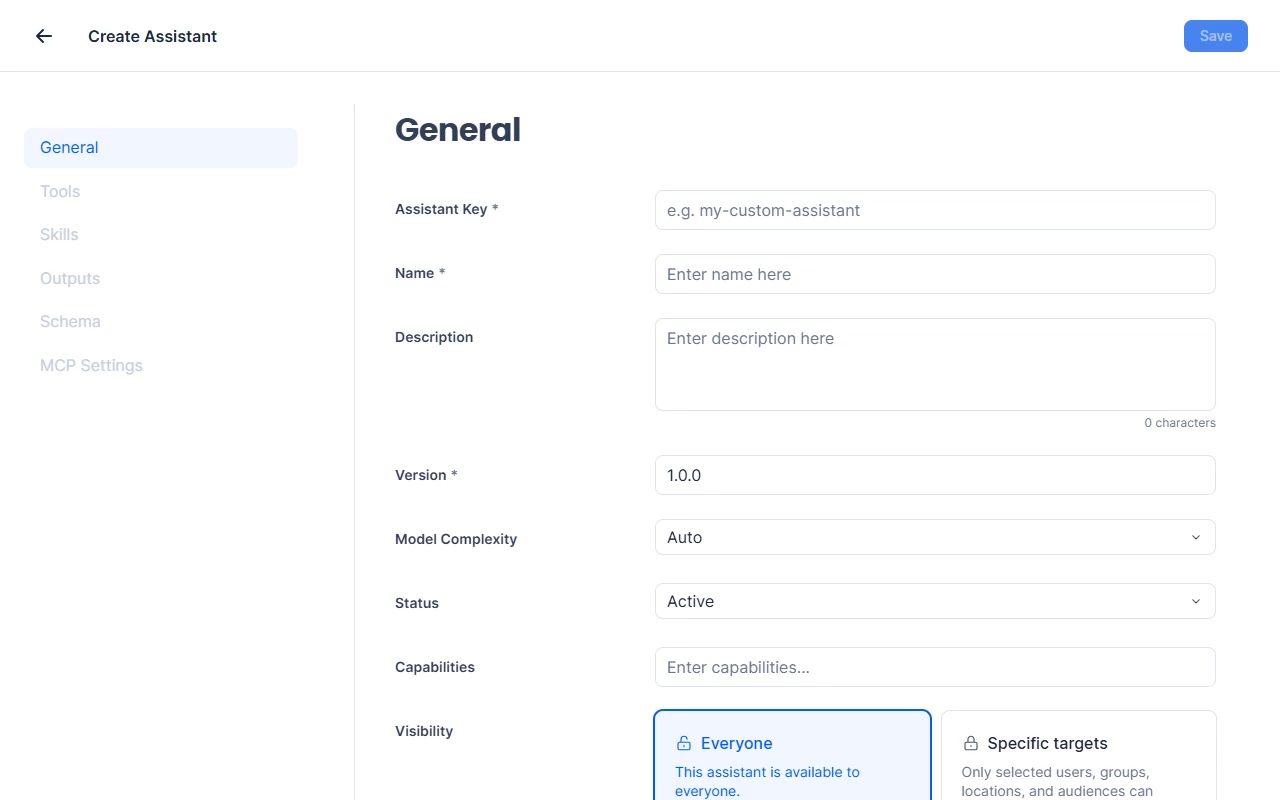
The assistant editor label is MCP Settings. On Create Assistant, the nav lists General, Tools, Skills, Outputs, Schema, and MCP Settings. Skills is for reusable instruction packages (Manage Skills) and is separate from MCP server connections. On a new assistant, Tools, Skills, Outputs, Schema, and MCP Settings are visible and not selectable until you save.
- In Assistants, select Create to create a custom Assistant, or open an existing one.
- Enter Assistant Key, Name, and the other General fields, then select Save.
- Open MCP Settings.
- Enable the MCP server connection(s) this Assistant should use, and select the tools that Assistant may call.
- Leave other connections disabled if they are not needed for this Assistant’s purpose.
- Save the Assistant configuration.
- Optionally use the Assistant’s built-in testing interface to exercise a prompt that should call an MCP tool before you publish the Assistant to employees.
7. Verify the employee experience in conversation
- Open the Assistant as an end user (or use the admin test conversation).
- Ask a question that should require an external tool from the connected MCP server (for example, checking a ticket status or looking up a workplace record—using a safe, non-production example first).
- Confirm the Assistant can invoke the discovered tool and return a useful response in the conversation.
Employees use MCP tools through the Assistant chat experience. There is no separate screen for invoking MCP tools.
Use Case
Scenario: An IT team wants employees to ask one Assistant about workplace content and common ServiceNow requests without jumping between Appspace and the ITSM portal.
The team registers their ServiceNow-facing MCP server in the Admin Console, selects the transport their server supports (Streamable HTTP or SSE), enters the server URL and authentication settings, and runs the connectivity test until it succeeds. They reopen the server and confirm Authentication Mode still shows the value they saved. They enable that MCP connection only on their employee-facing support Assistant (leaving it off on unrelated Assistants) and limit the tools that Assistant can call. When an employee asks the Assistant about an open ticket or a routine access request, the Assistant can use the discovered MCP tools alongside Appspace content tools in the same conversation—reducing context switching and deflecting simple IT questions from the help desk.
Best Practices
- Re-check Authentication Mode after every save — Auto can revert to None. If the server requires OAuth discovery, run the connectivity test only after you confirm Auto is still selected.
- Test every new connection before enablement — Use the built-in connectivity test so misconfigured URLs, transports, or credentials never reach employees.
- Enable MCP per Assistant, not globally by habit — Attach only the servers each Assistant needs, and select the tools that Assistant should call, so tool choice stays focused and easier to govern.
- Name connections for operators — Use names that identify the system and environment (for example,
ServiceNow-prodvsServiceNow-sandbox) so admins can manage connections safely. Name search on the MCP Servers list is unreliable; distinctive names still help when you scan the list. - Treat authentication as a security review item — Involve your security team when a server requires OAuth. Available authentication modes are Auto (OAuth 2.1 discovery) and None.
Troubleshoot
| Symptom | Likely cause | What to try |
|---|---|---|
| No MCP Servers item in Assistants | You lack Account Owner / Assistants admin permission | Open Menu → Settings → Assistants. Confirm the left nav includes Skills and MCP Servers. Confirm Appspace Intelligence Assistants is enabled. |
| Cannot enable MCP on an existing Assistant | Assistant is still on framework v1 | Recreate the Assistant in the current Assistants module (framework v2). |
| Authentication Mode shows None after you saved Auto | The saved mode can be None even when you selected Auto | Reopen the server and confirm the mode. Use None only when the MCP server allows unauthenticated access. For a server that requires OAuth discovery, confirm Auto is still selected. |
| Connectivity test fails | Wrong URL, wrong transport (Streamable HTTP vs SSE), network path blocked, or authentication did not complete | Re-check server URL and transport against the MCP server docs; confirm Appspace can reach the endpoint; complete the OAuth prompt when using Auto; confirm the saved auth mode is still Auto. |
| Connection succeeds but no tools appear | MCP server exposes no tools, or discovery failed after connect | Confirm tools are published on the MCP server; re-run connectivity and tool sync. |
| Search by server name returns nothing | Name search on the MCP Servers list does not reliably match | Scroll or page the list. |
| Assistant does not use external tools in chat | MCP connection disabled for that Assistant, tools not selected for that Assistant, or the prompt does not require the external tool | Enable the connection on that Assistant and select the tools it may call; retest with a prompt that clearly requires the external tool. |
| Looking for a screen to call MCP tools outside chat | MCP tools are used in Assistant conversations | Use Assistant conversations only. |
Related
- Create and Deploy AI Assistants in Appspace: Your Guide to Building Custom Assistants for Your Organization — How to build and deploy a custom Assistant; includes MCP Settings as an advanced editor tab
- Manage Skills — Reusable instruction packages. The Assistants module lists Assistants, Tools, Skills, Deployments, and MCP Servers
- Meet Your Appspace Assistants: A Catalog of Out-of-the-Box AI System Assistants
- Appspace 2602.0.3 Release Notes — Assistants module notes. MCP connections are mentioned at a high level