


If you need technical help with the Appspace platform or Appspace App, an authorized support user can submit and track a support ticket through the Appspace Account Management Portal.
Before submitting a case, visit the Appspace Support page. It can help you determine whether to use the Community or contact Support and identify the information needed for your specific product and issue.
Who Can Submit an Appspace Support Ticket?
The Account Management Portal is available to the Appspace Cloud Services Account Owner and authorized users who have been granted support access for an eligible paid subscription account.
If you cannot access the Support tab, see Grant User Access to the Support Portal.
If you have questions about Appspace products, services, pricing, or scheduling a demonstration, visit the Contact Appspace page instead.
Before You Submit a Support Case
Providing complete information when you open a case helps Appspace Support begin troubleshooting sooner.
Use the Appspace Support page to select your product and issue area. The Dynamic Support Information Assistant provides a checklist of the details needed for your case and helps you prepare a summary to paste into the Account Management Portal.
Depending on the issue, you may be asked to provide:
- A clear description of the problem and its business impact
- The steps needed to reproduce the issue
- Relevant user, content, channel, device, location, or resource names
- The date and time the issue occurred, including the time zone
- The affected Appspace environment
- App or device versions
- Screenshots or a short screen recording
- Exact error messages
- Device logs, HAR files, or other diagnostic files when applicable
How to Create an Appspace Support Case
- Go to the Appspace Account Management Portal.
- Sign in with your Appspace credentials.
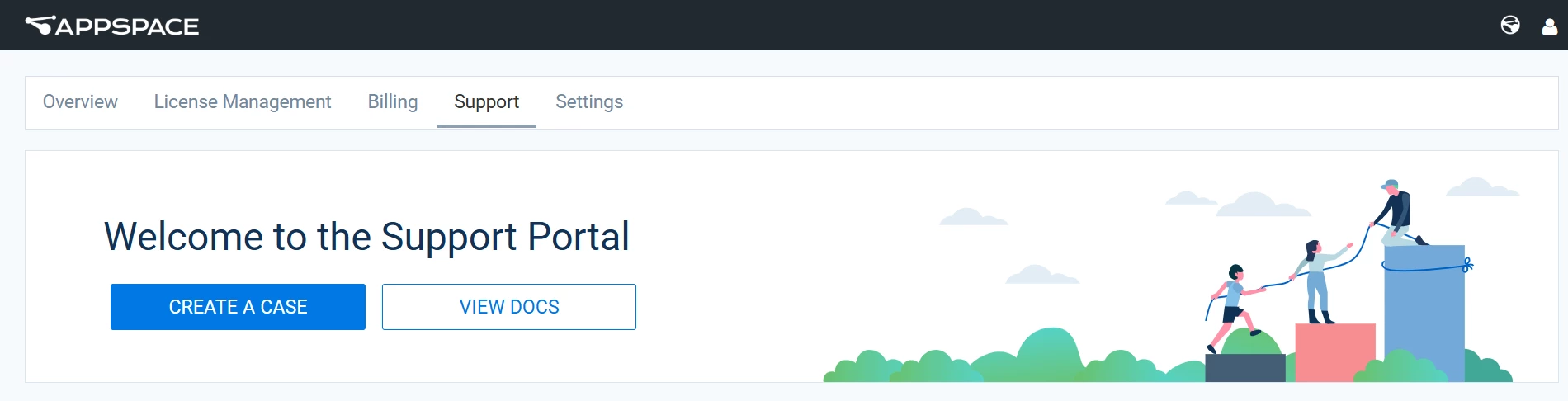
- Select the Support tab.
- Select Create a Case.
- Enter the requested case information, including the subject, issue description, region, and Appspace environment.
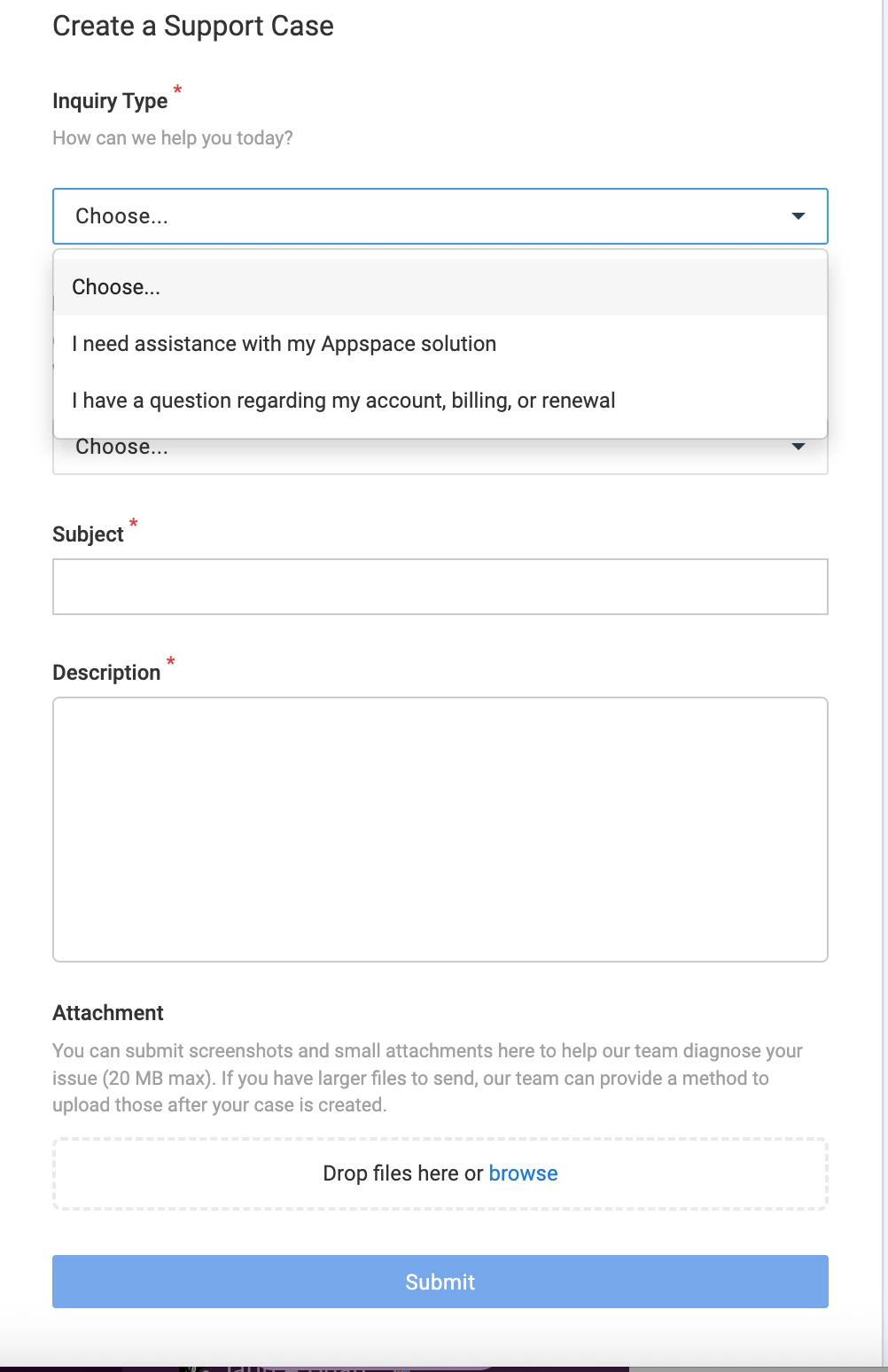
- Add any relevant screenshots, recordings, logs, or other supported attachments.
- Select Submit.
After the case is submitted, the appropriate Appspace Support team will review the information and contact you to continue troubleshooting.
How to View and Update Your Support Cases
- Sign in to the Appspace Account Management Portal.
- Select the Support tab.
- Locate your submitted support tickets under Case History.
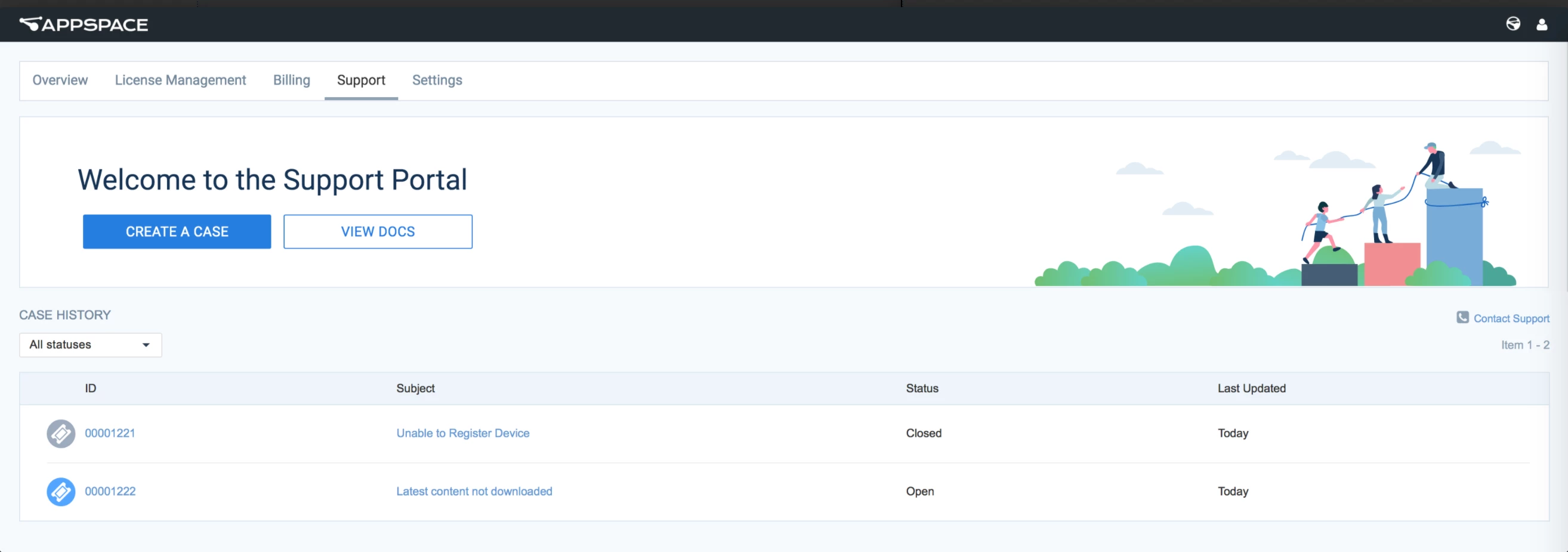
- Select a case to review its status and details, add comments, or upload additional attachments.
Need Help Preparing Your Ticket?
Visit the Appspace Support page to find the right support path and build a detailed case summary for your product and issue area.