This article provides instructions to configure the preferred user interface language in the Appspace Console.
(New) Appspace supports language localization in the Appspace Console for the following sections:
- Top Bar and Side Bar
- Dashboard Content and Widgets
- Library
- Posts
- Channels
- Spaces
- Campaigns
- Newsletters
- Audiences
- Broadcasts
- Devices
- Users
- Locations
- Reservations
- Services
- Visitors
- Analytics
- Integrations
- Settings > Configuration
- Reports
Note
- User-generated names (such as templates and locations) are not translated.
- The following parts and subsections of the Appspace Console are currently not translated:
- Dashboard Banner
- Library > Card Themes > Card Templates
- Devices > Device Tasks
- System > Audit Logs
- Settings > Account Settings
Appspace currently supports the following languages:
- Arabic
- Catalan
- Czech
- Danish
- German
- English
- Spanish
- Finnish
- French
- Canadian French
- Italian
- Japanese
- Korean
- Norwegian
- Dutch
- Polish
- Portuguese
- Romanian
- Slovak
- Swedish
- Thai
- Turkish
- Mandarin
- Greek
- Latin American Spanish
- Latvian
- Lithuanian
- Serbian
- Hindi
- Hungarian
- Bulgarian
- Brazilian Portuguese
- Traditional Chinese
Note
Appspace supports the standard dialect of each language. Regional dialects may be added in the future.
Prerequisites
- An Appspace Platform user license.
- An active Appspace public/private cloud user account.
Change Your Displayed Language on the Appspace Console
Follow the instructions below to change the language displayed on the Appspace Console for a user:
- Log in to your Appspace console.
- Click Users from the ☰ Appspace menu.
- On the Users dashboard, select and click the name of the desired user profile to be managed (this includes your own profile).
- In the Edit User Profile window, select Language from the list of supported languages.
-
Click Save.
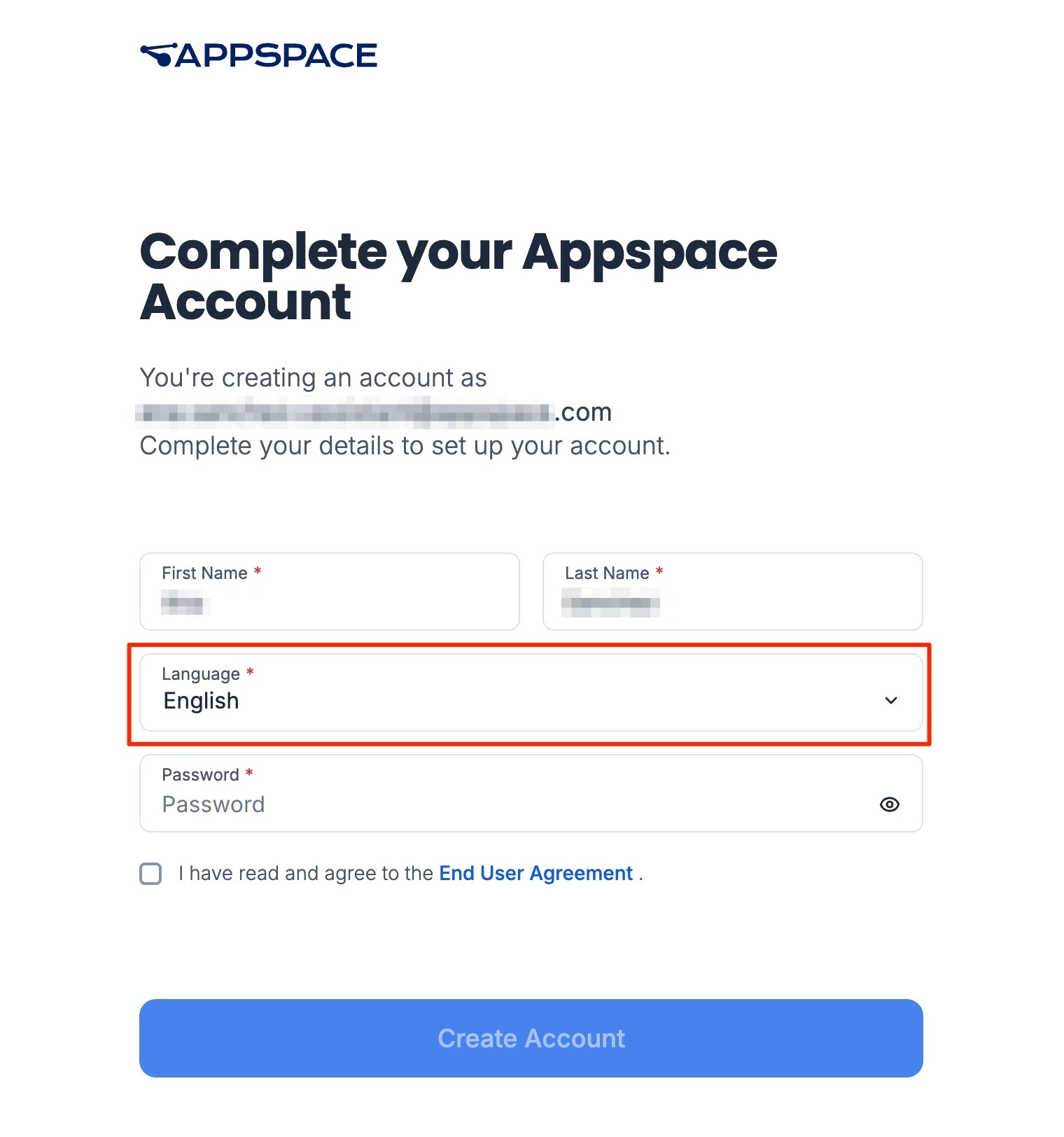
A user can also set their Language when completing their first sign in or the set up of their account.