



Important: This feature currently pending release and and is behind a feature flag.
(New) The Sitemap allows administrators to organize Spaces into a hierarchical structure. You can place Spaces at the top level or nest them beneath other Spaces to create a structure that reflects your organization's departments, teams, resources, or other navigation needs.
The Sitemap can also be used to provide employees with hierarchical Space navigation through the Sitemap widget.
Notes
The Sitemap organizes Spaces within the account. It is separate from Content Hierarchy, which organizes Pages and Stories within an individual Space. To organize Pages and Stories within a Space, see Manage Content Hierarchy in a Space.
A Space does not need to be included in the Sitemap, and multiple Spaces can exist at the top level without a parent.
Prerequisites
Before managing the Sitemap:
-
Ensure that you have permission to manage Spaces.
-
Ensure that the Spaces you want to organize have already been created.
Manage the Sitemap
Follow these steps to add and organize Spaces in the Sitemap:
-
Log in to the Appspace platform.
-
Click the ☰ Appspace menu and select Spaces.
-
Select Sitemap.
-
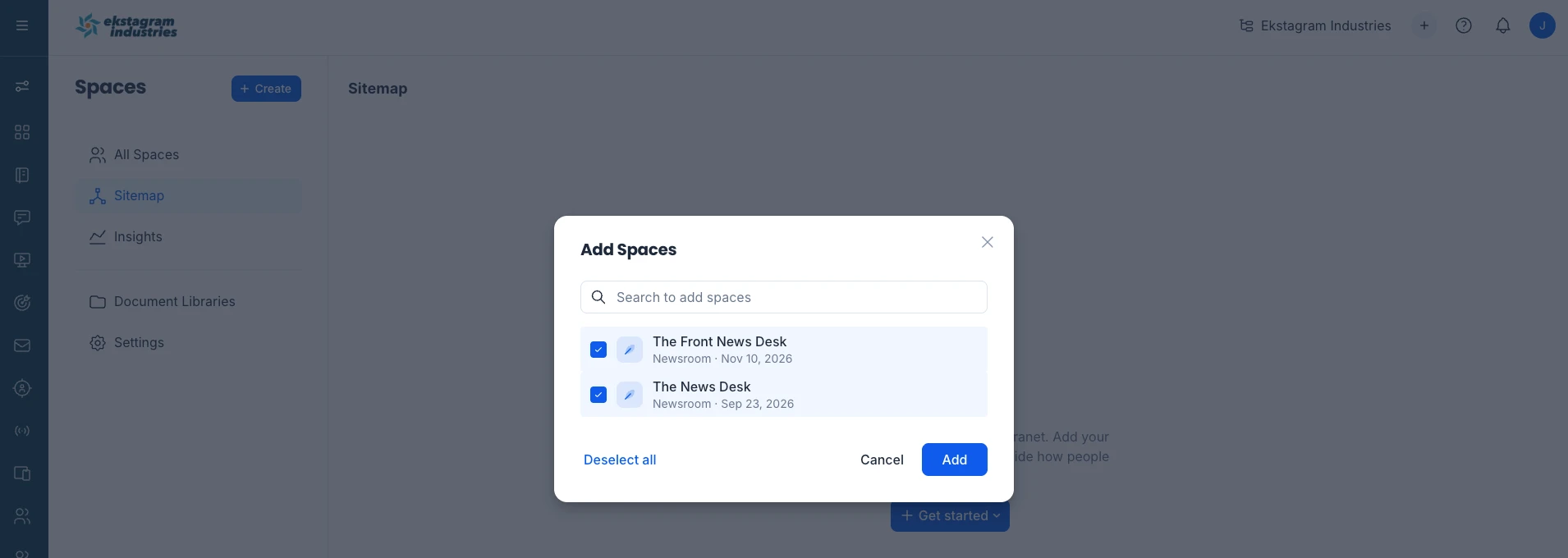
Click Add Spaces to add one or more Spaces to the Sitemap.
-
Search for and select the Spaces that you want to add.
-
Add the selected Spaces to the Sitemap.
-
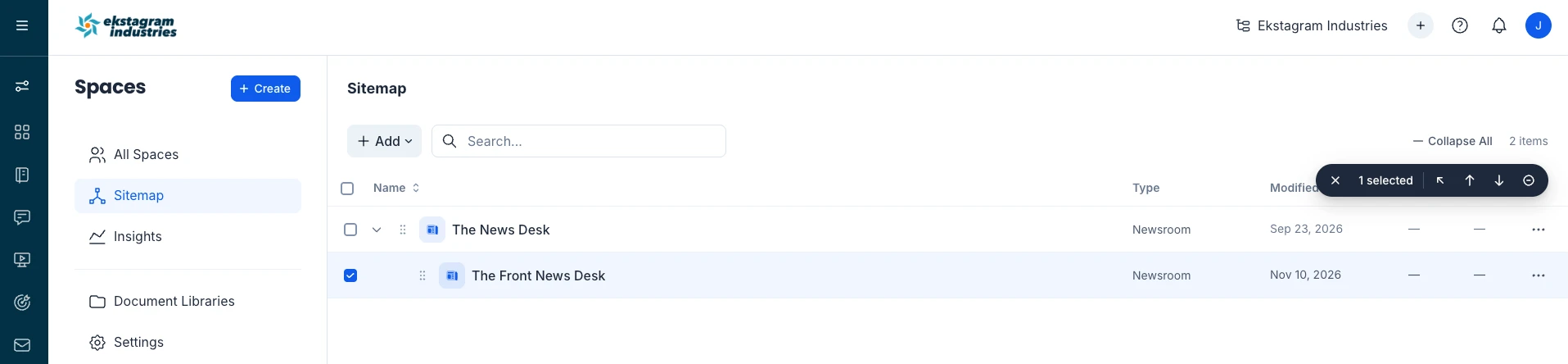
Organize the Spaces as required:
-
Drag a Space to change its position.
-
Drag a Space beneath another Space to make it a child of that Space.
-
-
Use the available expand and collapse controls to review nested Spaces.
-
Use Search to locate a Space in the Sitemap.
A Space can exist without being included in the Sitemap. Adding a Space to the Sitemap determines its position in the hierarchy but does not otherwise change or duplicate the Space.
Manage a Space in the Sitemap
Use the actions available for a Space in the Sitemap to change its position or remove it from the hierarchy.
Depending on the Space's current position, available actions include:
-
Move under… – Move the Space beneath another Space in the Sitemap.
-
Remove from Sitemap – Remove the Space from the Sitemap.
You can also drag Spaces to reorder them or move them between levels of the hierarchy.
Notes
- Removing a Space from the Sitemap removes only its placement in the hierarchy. The Space itself is not deleted or archived.
- Moving or removing a Space in the Sitemap changes only its position in the hierarchy. It does not move, duplicate, delete, archive, or modify the content within the Space.
Set the Sitemap Parent for a Space
You can also place an individual Space in the Sitemap directly from its settings.
-
From Spaces, select the Space that you want to configure.
-
Open the Space settings.
-
Under General, locate Sitemap parent.
-
Configure the Space's position:
-
Select Add to sitemap… to add a Space that is not currently in the Sitemap.
-
Select a parent Space to place the current Space beneath it.
-
Change the selected parent to move the Space beneath a different Space.
-
Remove the Sitemap parent to remove the Space from its current parent relationship.
-
-
Save the Space.
Changes made using Sitemap parent are reflected in the account Sitemap.
Note: Removing the Space from the Sitemap does not delete the Space.
Create Navigation from the Sitemap
You can create Employee App navigation from a Space in the Sitemap.
-
From Spaces > Sitemap, locate the Space that you want to use for navigation.
-
Open the actions menu for the Space.
-
Select Create Navigation.
-
Configure the navigation as required.
-
Save your changes.
The selected Space is used as the starting point for the Space hierarchy displayed by the navigation.
Display the Sitemap Using the Sitemap Widget
The Sitemap widget allows employees to browse part of the Space hierarchy directly from a supported Space surface.
When configuring the widget, select the Space that will act as the root of the displayed hierarchy and configure how the Sitemap is presented.
Configure the Sitemap Widget
Configure the following options as required:
-
Root space – Select the Space that acts as the starting point for the hierarchy displayed by the widget.
-
Show root space – Display the selected root Space in the widget. This option is enabled by default.
-
Top Level Menu Style – Select how the top level of the Sitemap is displayed:
-
Icon Block
-
Header
-
-
Display space description – Display the description for Spaces in the widget.
-
Submenu Style – Select how child Spaces are displayed:
-
Link
-
Icon Block
-
-
Indent Submenu – Indent child Spaces to visually represent their position in the hierarchy.
-
Max Depth – Select how many levels of the Sitemap are displayed. Select a value from 1 to 5. The default is 3.
-
Number of Columns – Select how many columns are used to display the Sitemap: Auto or 1 - 4 columns.
The widget displays the hierarchy beginning from the selected root Space and follows the relationships configured in the account Sitemap.