
Skip the Clicks, Book in Seconds: A Guide to Deep-Linking in Space Reservation
Every reservation in Appspace starts with the same routine: open Employee View, pick a building, set your filters, scroll through results, and then book. Deep-linking in Space Reservation solves this by turning any reservation view into a shareable URL. One click takes an employee to exactly the right page, such as a filtered list of available desks on a particular floor or a building pass page with the date already filled in. These URLs work anywhere you can place a link, whether that is a homepage widget, an intranet page, a post or story, a digital signage display, or simply a browser bookmark.
Key Benefits
- Faster Booking — Employees go from click to reservation in fewer steps by landing directly on the view that matters to them.
- Curated Workplace Experiences — Workplace teams can point employees toward specific buildings, floors, or workspace types by placing targeted links in intranets, widgets, and portals.
- Deeper Platform Integration — Deep links make Space Reservation accessible from anywhere in your digital workplace, including Appspace Home widgets, posts, pages, stories, and external tools.
- Flexible Filtering — A single link can carry pre-set filters for building, floor, zone, date, time, duration, workspace type, capacity, amenities, and more.
Prerequisites
- Premium license: Users must have access to the Intranet in Appspace to open deep links.
- Widget and Theme Permissions: If you plan to embed deep links in widgets or themes, ensure you have the required permissions for creating widgets and configuring themes in the Appspace console.
Understanding Deep-Linking
A deep link is a URL that opens a specific page inside an application rather than dropping you at the front door. In the context of Space Reservation, a deep link opens a particular view within the Places tab so the person clicking it skips every navigation step that would normally come before it. You can create a deep link by navigating to the desired view in Employee View and copying the URL from your browser's address bar. The URL automatically includes parameters that represent your current selections.
Deep links work across three areas of the Places tab in Employee View:
| Section | What It Covers | Example Filters You Can Pre-Set |
|---|---|---|
| Places > Workspaces | Desks, rooms, and other bookable spaces | Building, floor, zone, date, time, duration, workspace type, capacity, amenities, temperature, lighting, status |
| Places > Building Pass | Day, week, or month passes for building access | Date, pass duration (day, week, or month) |
| Places > At the Office | See who is in the office for a given week | Building, week start date, everyone or favorites only |
The Workspaces area also supports Map View (showing the interactive floor plan) and View More Info (showing building-level details).
How Parameters Work Together
Deep link URLs carry parameters that control what the recipient sees when they open the link. Each parameter maps to a filter or selection in the interface, and you can combine as many as you need in a single URL.
For the complete list of supported parameters, values, and formatting rules, refer to the technical documentation: Using Deep Linking for Quick Reservation Access.
Parameter Dependencies
Certain parameters only work when a parent parameter is already present. The following parameters require a building to be defined in the URL before they will work:
- Floor
- Zone/Neighborhood
- Map View (cross-launch)
- View More Info (cross-launch)
If a deep link includes a floor or zone parameter but no building parameter, those filters will simply be ignored when the link opens. Filters that stand on their own (such as date, time, duration, workspace type, capacity, and amenities) have no dependencies and can be used in any combination.
Common Use Cases
Deep links are most valuable when they are placed where employees already go during their workday. Workplace teams can embed deep links to create faster, more personalized booking experiences:
- Quick-Access Widgets on the Homepage: Place deep links in Bookmarks, Shortcuts, App Links, or Web Frame widgets on the Appspace Home screen.
- Floor-Specific Links for Hybrid Teams: Create separate deep links for each floor or zone in a building and share them with the teams assigned to those areas.
- Room Booking for Meeting-Heavy Roles: Build a deep link filtered to rooms with specific amenities (such as video conferencing equipment or a whiteboard) and a pre-set capacity.
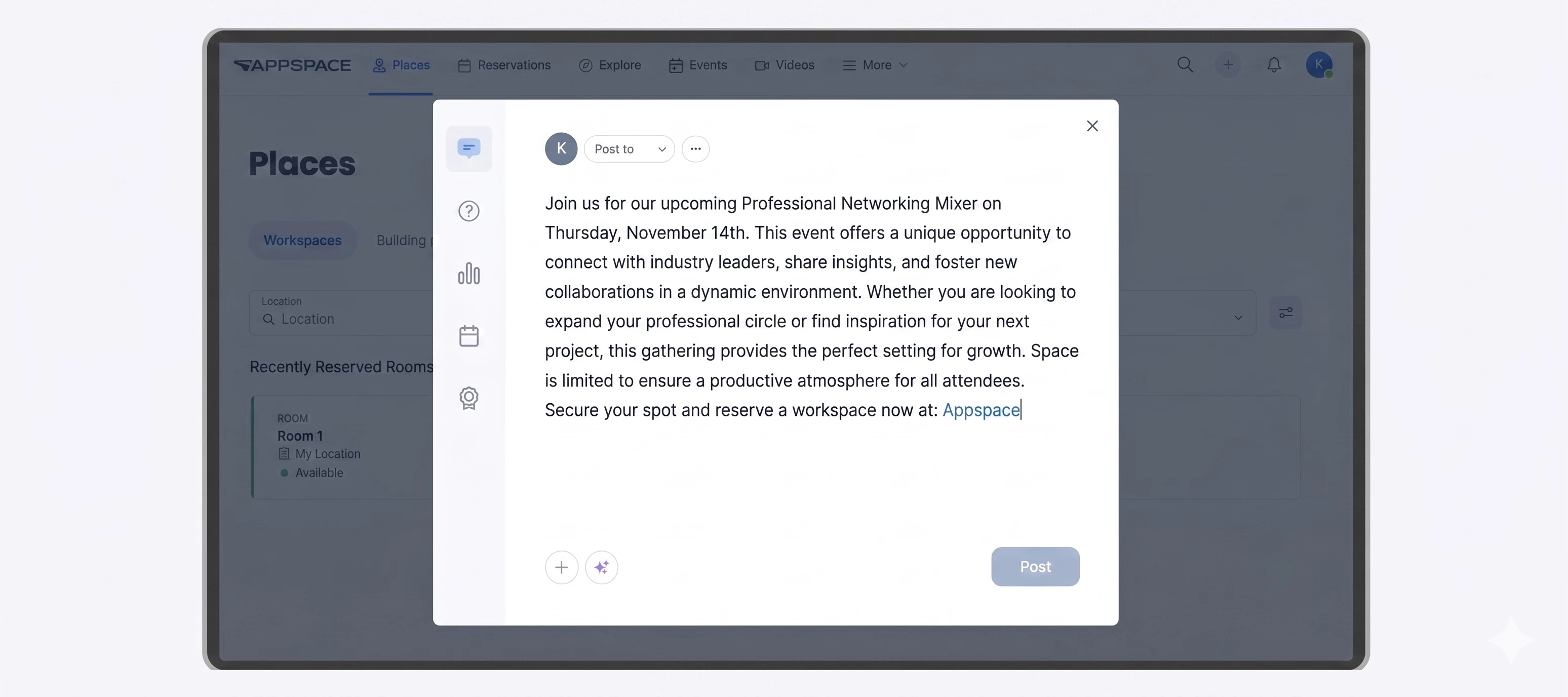
- Building Pass Links in Company Communications: Embed a Building Pass deep link in a post, page, or story announcing an in-office event or collaboration day.
- At the Office Links for Team Coordination: Share an "At the Office" deep link filtered to a specific building and the current week so team members can quickly see who else is planning to be on-site.
- Digital Signage and QR Codes: Display QR codes generated from deep links on digital signage near building entrances or common areas.