
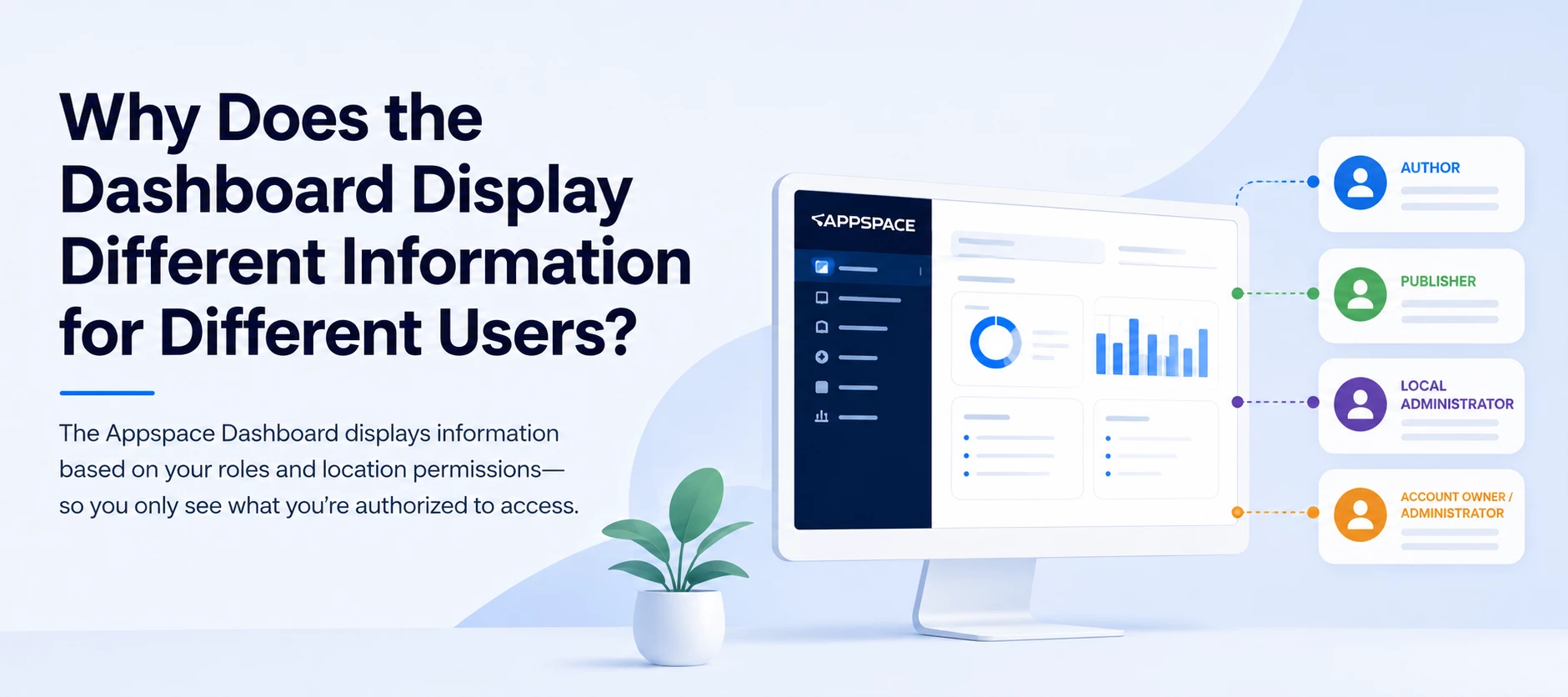




The Appspace Dashboard displays information based on the location you are currently viewing and the permissions assigned to your user account. As you move between parent and child locations, the dashboard automatically updates to display information that is relevant to that part of your organization.
This behavior is expected and helps provide a more focused view of the devices, content, and activity you manage.
How Location Selection Affects the Dashboard
When you change your selected location, the dashboard recalculates the information shown in its widgets and charts.
- Parent locations typically display data across multiple child locations.
- Child locations display information specific to that location.
- Charts and metrics only include data that exists within the selected location.
- Some widgets may appear empty if there is no applicable data for that location.
Why Some Charts May Be Empty
Not every location contains the same types or volume of data. Depending on the selected location, some dashboard widgets may not display information.
This does not necessarily indicate a problem.
Examples include:
- No devices assigned to the selected location.
- No recent activity for the selected location.
- No available data for a specific dashboard metric.
- The selected location does not include the resources tracked by that widget.
How Permissions Work Together with Location
Your assigned role determines what information you are allowed to view, while your selected location determines which information is displayed.
| Factor | What It Controls |
|---|---|
| User Role | Determines which dashboard features and widgets you can access. |
| Location Selection | Determines which devices, content, and metrics are included in the dashboard. |
| Available Data | Determines whether a chart or widget has information to display. |
Example Scenarios
Scenario 1: Viewing the Top-Level Location
- The dashboard aggregates information across your organization.
- Charts typically contain the largest amount of data.
- Overall trends and metrics are visible.
Scenario 2: Viewing a Child Location
- The dashboard filters information to that specific location.
- Some charts may contain fewer results.
- Widgets with no applicable data may appear empty.
Scenario 3: Limited Permissions
- If your role does not include access to certain features, those widgets or data sets will not be displayed regardless of the selected location.
Common Questions
Why do I see fewer charts after changing locations?
The selected location may not contain enough data for every dashboard widget, or the data shown is intentionally filtered to that location.
Why is another administrator seeing different information?
They may be viewing a different location, have access to additional locations, or have different permissions assigned.
Does an empty widget mean something is broken?
No. Empty widgets often indicate that there is no applicable data available for the currently selected location.
Do roles and locations work independently?
No. Your role determines what you are permitted to view, while the selected location determines which data is displayed within those permissions.
Quick Reference
| If... | Then... |
|---|---|
| You switch to a parent location | The dashboard displays information across that location's hierarchy. |
| You switch to a child location | The dashboard filters information to that location only. |
| A location has little or no activity | Some widgets or charts may appear empty. |
| Your permissions change | Available dashboard features update after your session refreshes. |