

Important: The Analytics > Reports > User Activities steps below are no longer the current way to review user and system actions in the Appspace console. Go to Insights > Reports, click + Create, and select Audit Logs. Full steps are in Create and Schedule Audit Logs Reports in Insights.
This article provides instructions to generate CRUD (create, read, update, delete) user activity reports through the Reports module in the Appspace console.
Note
For Appspace on-premise users, Reports can still be found under Admin on the ☰ Appspace menu.
Prerequisites
- Account Owner privileges in Appspace.
Create User Activity Reports
The instructions below show you how to create customized user activity reports by specifying the date and time. Filters such as Account, Resource, and Action can also be applied to narrow down information.
- Log in to the Appspace console.
- Click the ☰ Appspace menu, and select Analytics > Reports.
- Click the User Activities tab.
- Click the Calendar icon, and select the Start and End Dates of the report to be generated. You may also select the Start and End Time by sliding the Hour and Minute sliders to the desired time.
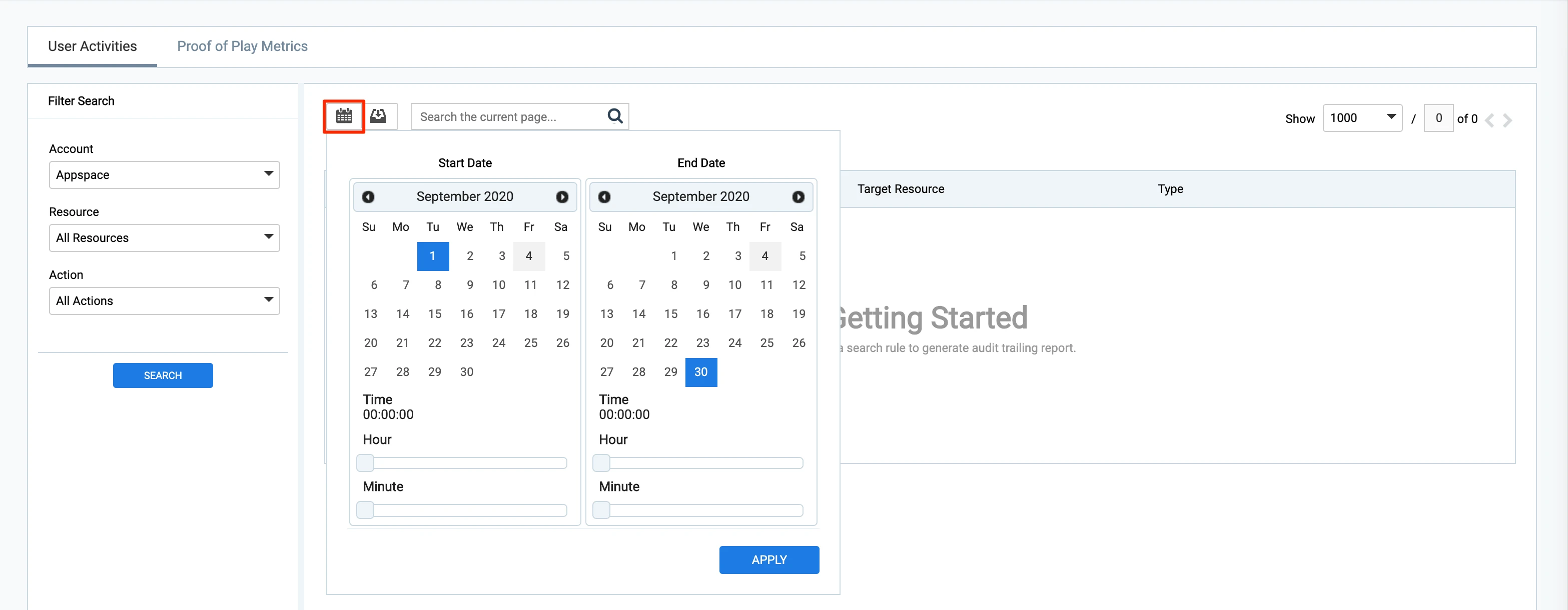
- Click APPLY to generate the user activity report.
- Click the Download to Excel icon to download the report in .xls format to your default download folder.
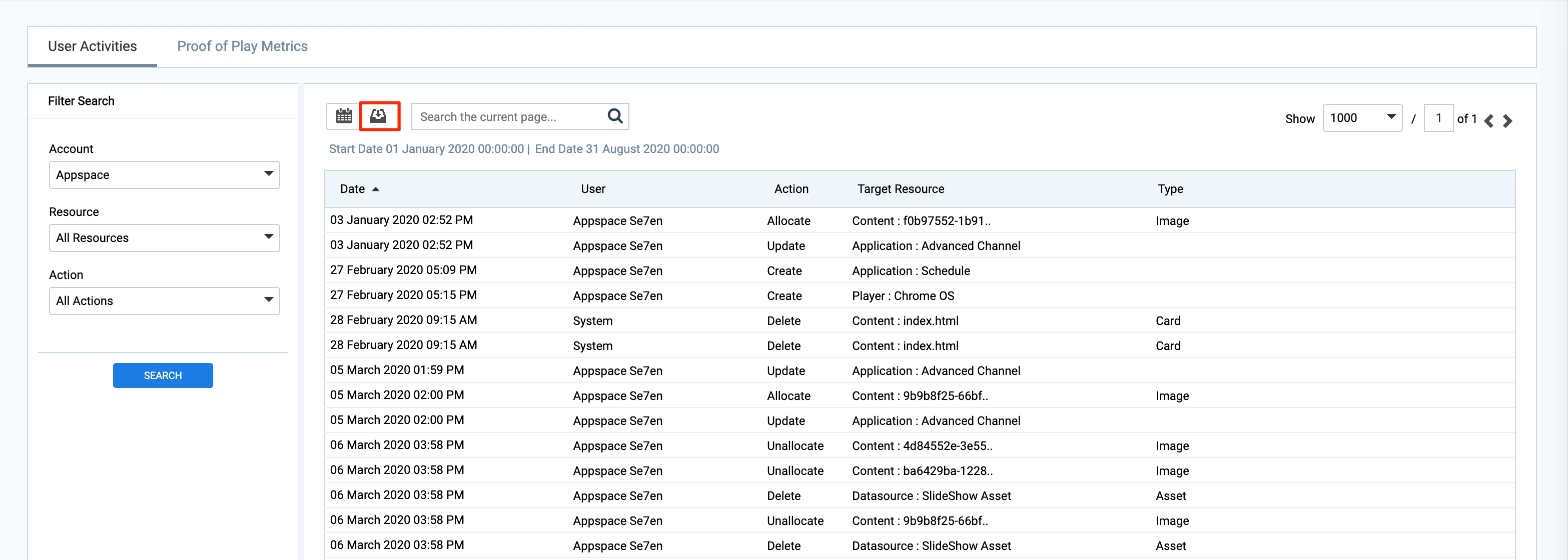
- Optionally, if you wish to further narrow down, or display specific information in the report, you may do one of the following:
- Enter a keyword in the Search bar.
- Filter the report based on the Account, Resource, or Action, by selecting the desired filter options from their respective drop down menus.