


This article provides the instructions to create a collection of media files selected from the Library, to be added to a Media Zone widget as a content playlist, in an Advanced Channel’s layout.
Note
If you’d like to instead create our newer Playlist Channel to publish interactive and robust content quickly (within a few steps), please refer to the Create a Playlist Channel article.
Create Playlists in Advanced Channel
To create a playlist of content in a Media Zone widget, follow the instructions below:
-
Click Channels from the ☰ Appspace menu.
-
Select the desired advanced channel from the Channels tab.
-
Click the Edit tab, and select the layout containing the Media Zone widget.
-
Click the Media Zone widget to display the widget properties window.
-
In the widget’s properties window, select the CONTENT tab, and click the Add Media button to add content to the playlist.
-
Select the desired content from the Library, and click Save.
-
To rearrange the sequence of the content, select the content and drag it to the desired position in the playlist.
Add Content to Layouts
To add content to a layout, follow the instructions below:
-
Click Channels from the Appspace Menu navigation bar.
-
Select the desired advanced channel from the Channels tab.
-
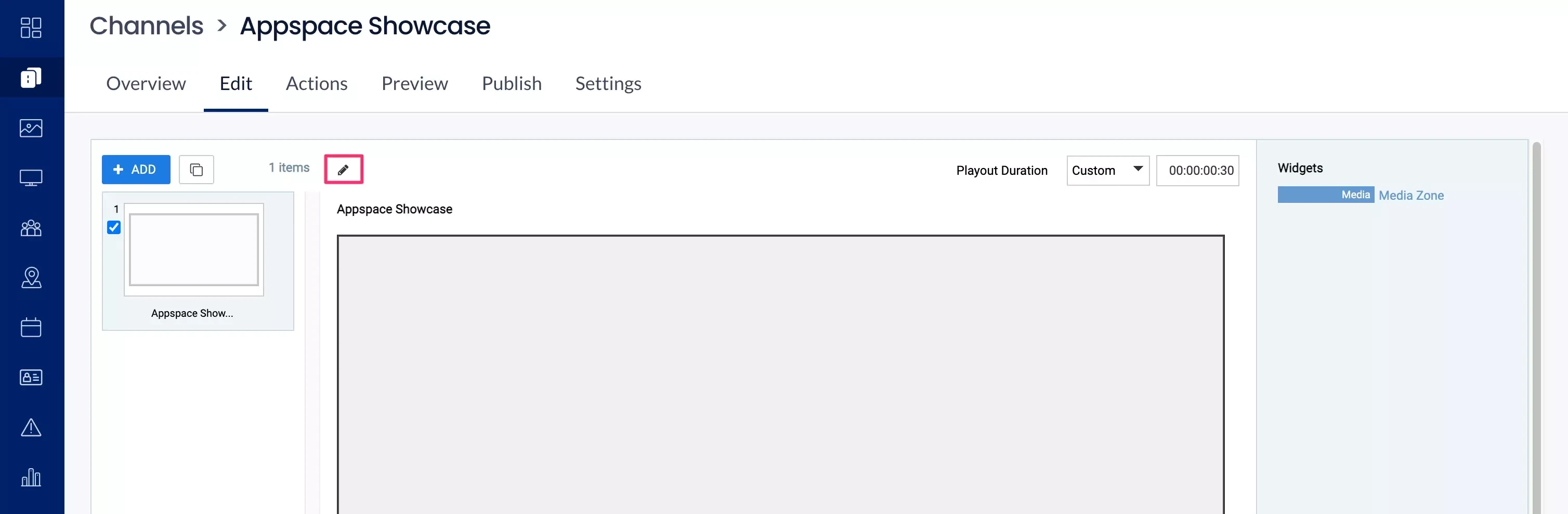
Click the Edit tab, and click the Visual Editor button on the desired layout.
-
Click the ADD MEDIA button in the Visual Editor.
-
Select the media files from the Library, and click Save.
-
In the Visual Editor window click Save.
-
Content will automatically be added to the layout as a SlideShow widget.