





Use Okta to authenticate Appspace users with SAML 2.0 Single Sign-On (SSO).
This guide explains how to create the Appspace integration in Okta and connect it to the Appspace Account Authentication settings.
Before you begin
- Sign in to Appspace with an Account Owner account.
- Make sure you have permission to create and configure applications in Okta.
- Decide whether users will use SSO only or SSO or Appspace Credentials.
Configure SSO in Appspace
- In Appspace, go to Users.
- Select Settings > Account Authentication.
- Select Single Sign-On (SSO).
- Choose either SSO only or SSO or Appspace Credentials.
- Copy the Assertion URL.
Create the Appspace integration in Okta
- In Okta, go to Applications.
- Create a new App Integration.
- Select SAML 2.0.
- Enter an application name, such as Appspace SSO or Appspace SSO & SCIM.
- Continue to the SAML configuration.
Configure the SAML settings
Configure the following values:
| Setting | Value |
| Single sign-on URL | Use the Appspace Assertion URL |
| Audience URI / SP Entity ID | https://cloud.appspace.com |
| Name ID format | EmailAddress |
| Application username | |
| Authentication context class | X.509 Certificate |
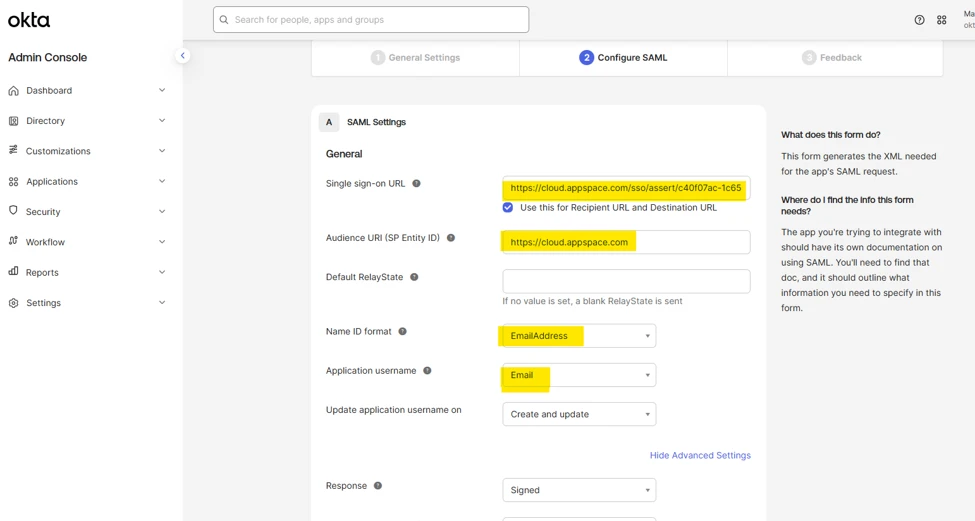
Configure attribute statements
Add the following attribute statements:
| Name | Name format | Value |
| firstname | Unspecified | user.firstName |
| lastname | Unspecified | user.lastName |
| Unspecified | user.email |
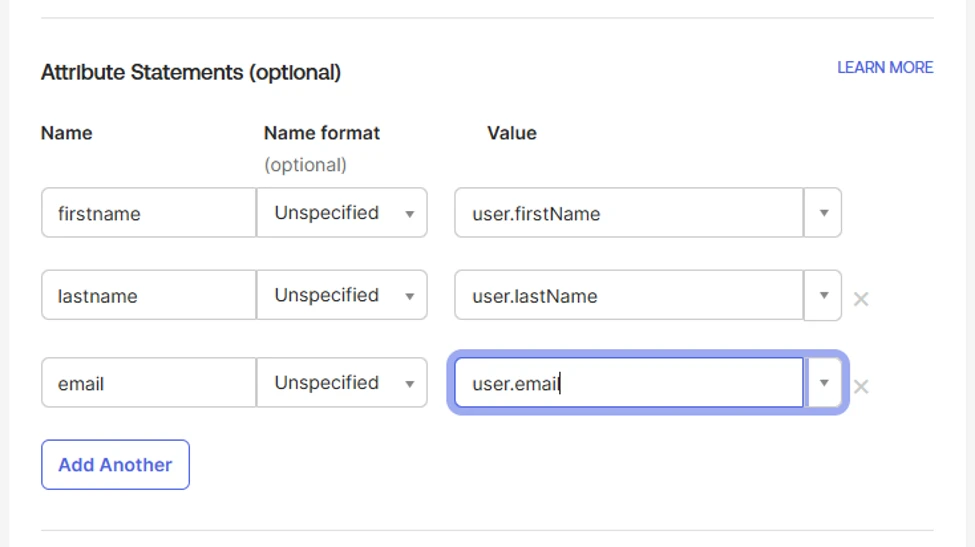
Complete the Okta application
- Select Next.
- Identify the application as an internal application your organization created.
- Finish creating the integration.
Retrieve the Okta SAML configuration
- Open the Appspace application in Okta.
- Select View SAML setup instructions.
- Copy the Sign-On URL.
- Copy the X.509 Certificate.
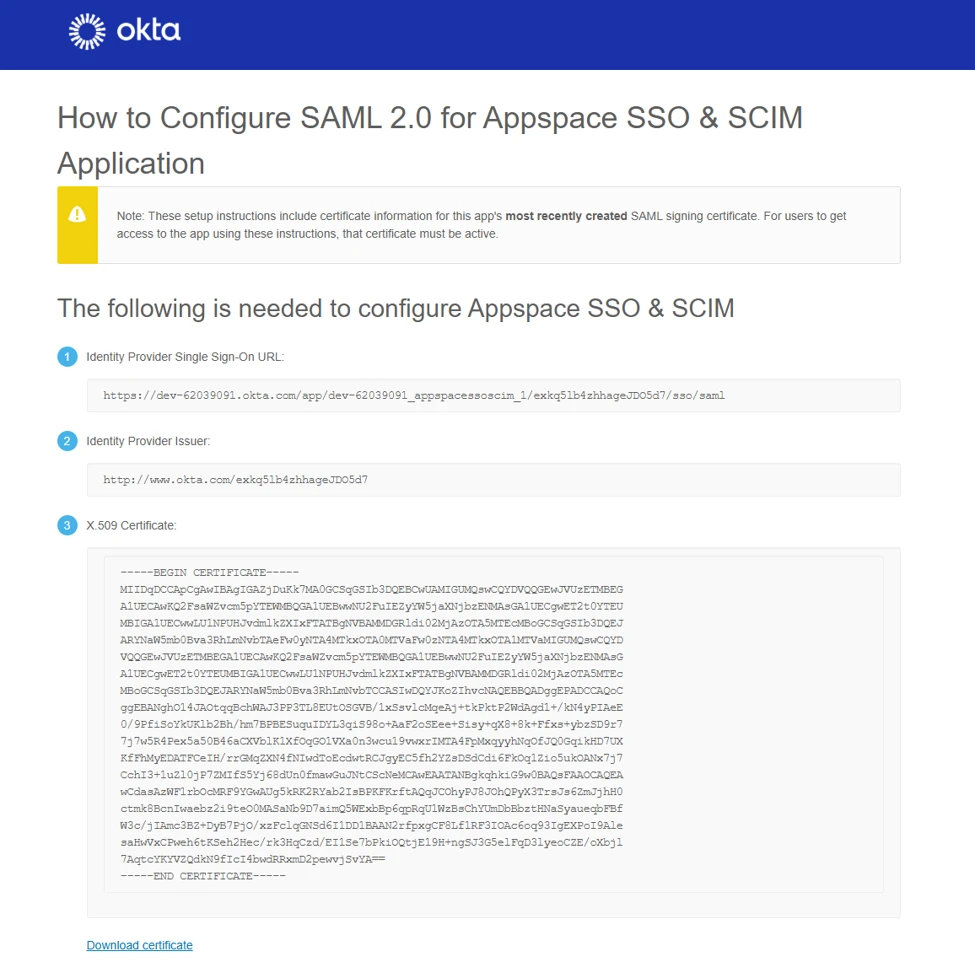
Connect Okta to Appspace
- Return to Users > Settings > Account Authentication in Appspace.
- Enter the Okta Sign-On URL in the Appspace SSO URL field.
- Enter the X.509 certificate in the corresponding Appspace certificate field.
- Save the configuration.
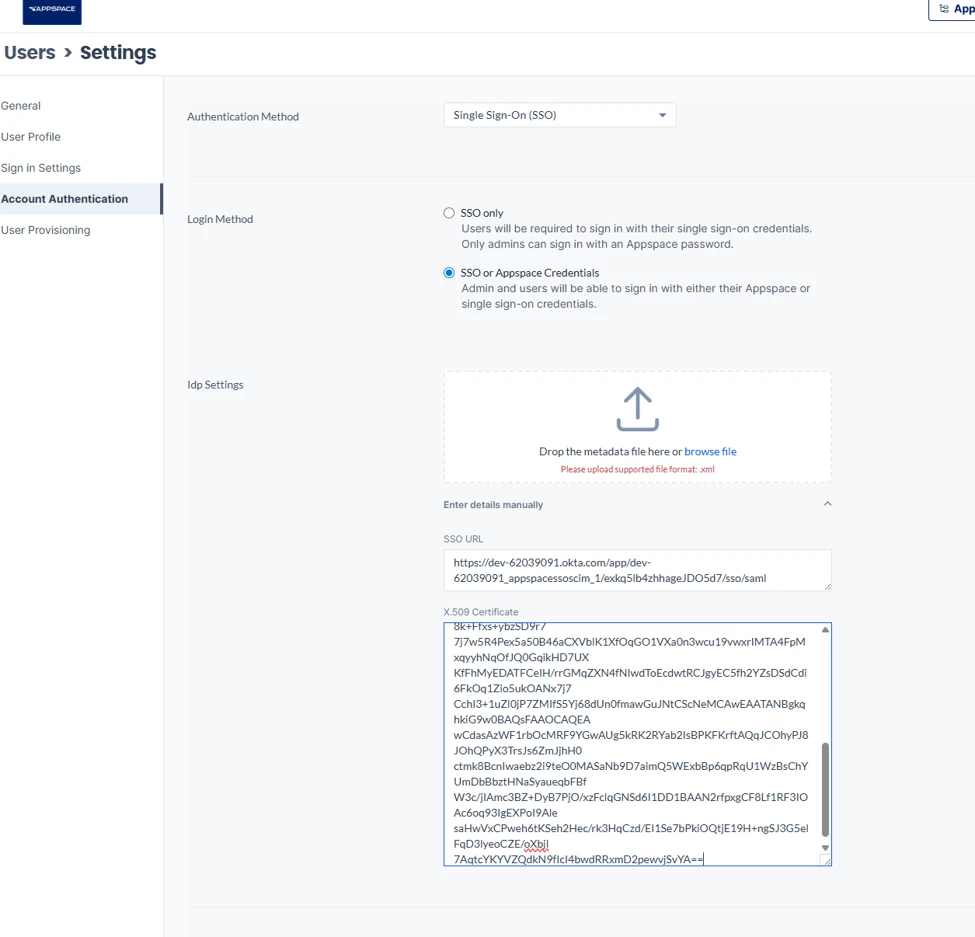
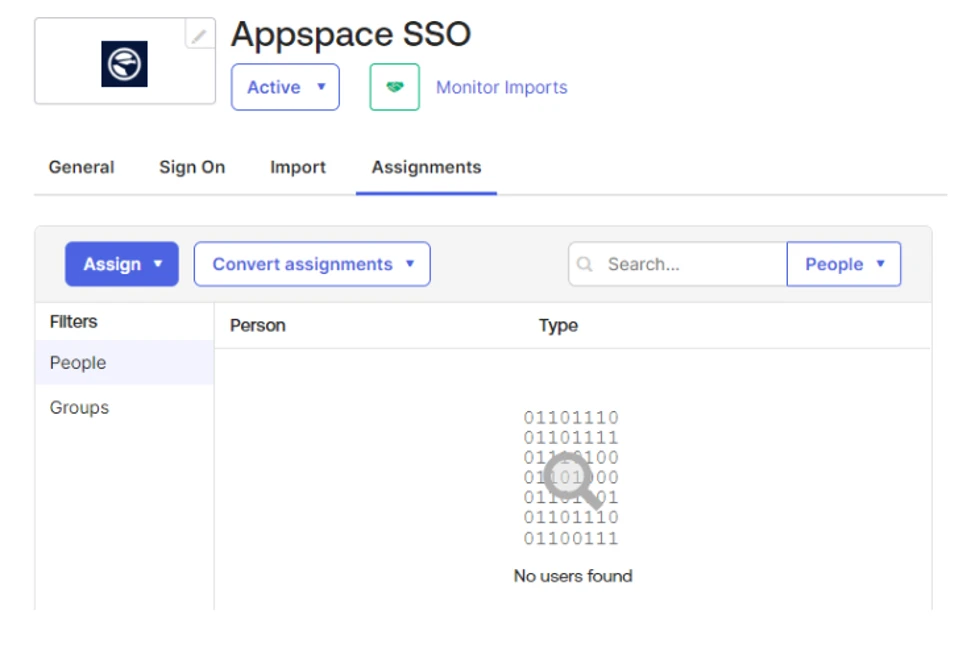
Assign users or groups
Users must have access to the Okta application before they can use it to authenticate to Appspace.
- Open the Appspace application in Okta.
- Select Assignments.
- Assign the appropriate users or groups.
Test SSO
Test the configuration with an assigned user before rolling SSO out more broadly.
If you also want Okta to automatically create, update, deactivate, and organize Appspace users, continue with Configure User and Group Provisioning with Okta.