



Log In to Your Private Cloud from the Default Appspace Page: A Guide to Cloud Redirection
Private cloud (PV Cloud) users often open the default Appspace login page and enter their email there, instead of the private cloud URL. Without Cloud Redirection, Appspace looks for that person in the public cloud (SaaS). The user is not found — they only exist in the private cloud — and they are prompted for a password. Since users don't have a password, they cannot log in.
With Cloud Redirection enabled, Appspace recognizes that the user belongs to a private cloud and automatically sends them there. They land on their private cloud and can access the Employee App.
Goal: After reading this article, you can explain the before-and-after login path to users and complete the customer step that lets Appspace turn Cloud Redirection on.
Key Benefits
- Users can forget the private cloud URL — The default Appspace login page still gets them home.
- No password dead end — Private cloud users are redirected instead of stuck at Enter your password.
- Fewer login issues — A smoother login experience for your users once redirection is active.
What This Article Covers
- Why the default login page fails for private cloud users today
- How Cloud Redirection changes that path
- The two steps that enable redirection (your DNS, then Appspace)
How login works
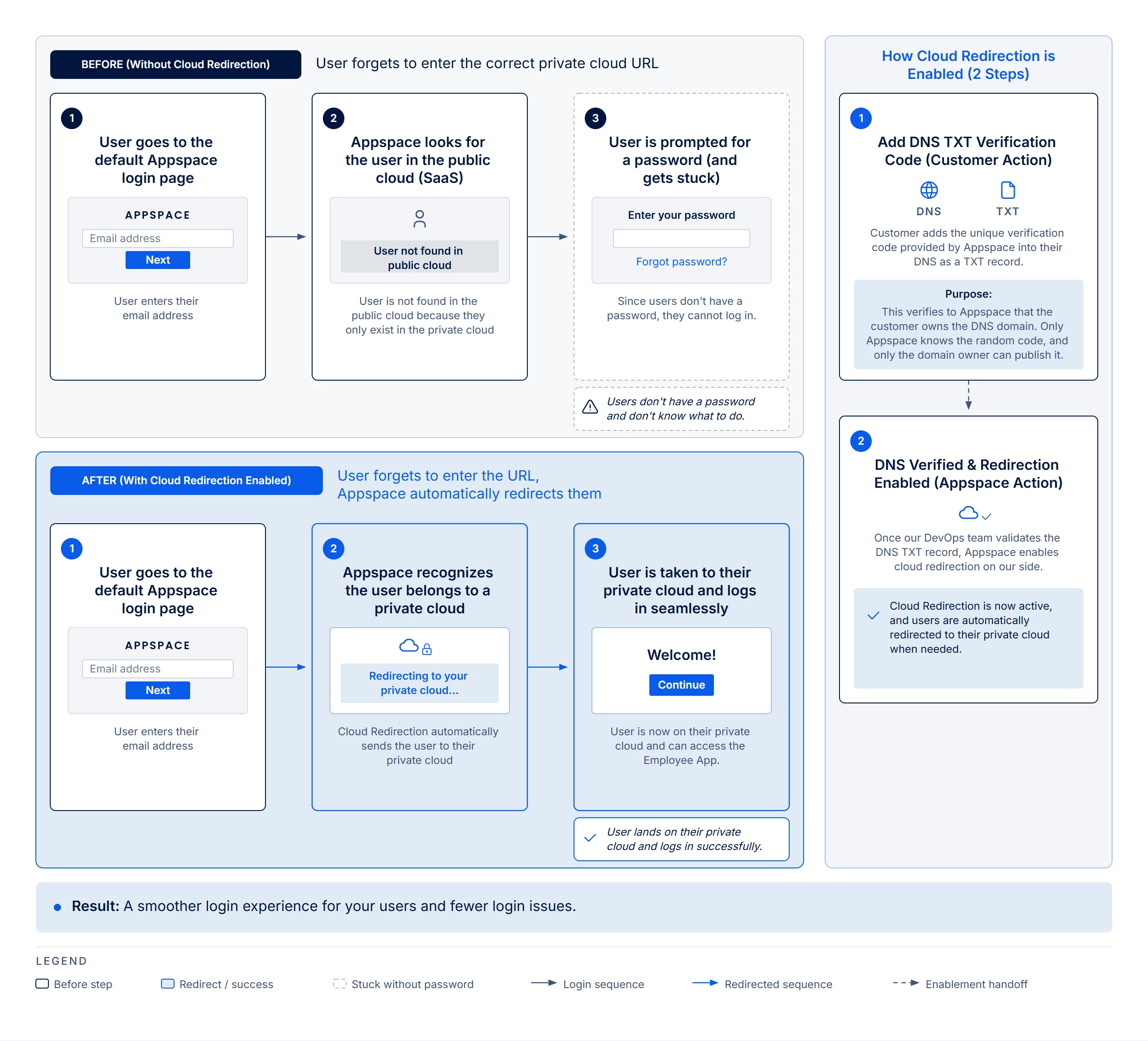
Before (without Cloud Redirection)
- The user goes to the default Appspace login page and enters their email address.
- Appspace looks for the user in the public cloud (SaaS). The user is not found in the public cloud because they only exist in the private cloud.
- The user is prompted for a password (and gets stuck). They see Enter your password and Forgot password? Since users don't have a password, they cannot log in — and they don't know what to do.
After (with Cloud Redirection enabled)
- The user goes to the default Appspace login page and enters their email address — the same starting point.
- Appspace recognizes the user belongs to a private cloud. Cloud Redirection automatically sends the user to their private cloud (Redirecting to your private cloud...).
- The user is taken to their private cloud and logs in seamlessly. They are now on their private cloud and can access the Employee App.
How Cloud Redirection is enabled (2 steps)
1. Add DNS TXT verification code (customer action)
Appspace gives you a unique verification code. Add that code to your DNS as a TXT record.
Purpose: This verifies to Appspace that the customer owns the DNS domain. Only Appspace knows the random code, and only the domain owner can publish it.
2. DNS verified and redirection enabled (Appspace action)
Once our DevOps team validates the DNS TXT record, Appspace enables cloud redirection on our side. Cloud Redirection is now active, and users are automatically redirected to their private cloud when needed.
Work with the Appspace Customer Success team to enable Cloud Redirection. You will receive the verification code from DevOps, validate the DNS TXT record, and turn redirection on.
Use Case
Scenario: Employees open the default Appspace login page instead of your private cloud URL.
Someone on your private cloud types their work email there and expects to continue. Without Cloud Redirection they hit a password prompt they cannot complete. After you publish the DNS TXT record and Appspace enables redirection, that same email on the default page sends them to the private cloud so they can reach the Employee App.
Troubleshoot
| Symptom | Likely cause | What to try |
|---|---|---|
| User is prompted for a password and cannot log in | Cloud Redirection is not enabled. Appspace looked for the user in the public cloud (SaaS); they only exist in the private cloud, and they don't have a password. | Have the user go directly to the private cloud URL until redirection is active. Complete the DNS TXT step and wait for Appspace to enable redirection. |
| User does not know what to do after Forgot password? | Users don't have a password on this path. | Do not treat this as a forgotten-password issue. Point them to the private cloud URL, or finish enabling Cloud Redirection. |