
There are times when permissions within Appspace impact different aspects of the platform, and understanding how, where, when, and why is important. In some instances, users may encounter a 403 Forbidden error when attempting to upload content, which prevents the content from successfully uploading. The only exception to this behavior is if the user specifically designates a private library during the upload process; in this particular case, the upload will succeed.
The root cause of this particular issue is when the user does not have access to write to the common library. When a piece of content is uploaded and a library is not specified, the upload will default to the common library, resulting in the error if the user does not have permissions.
For more information on this options, see Add Users, Send User Invitations, & Manage Users/User Groups.
Step-by-Step Guide
- Log in to the Appspace console.
- Click Users from the ☰ Appspace menu.
- On the Users dashboard, click the All Users ellipsis, and select Configure Common Library.
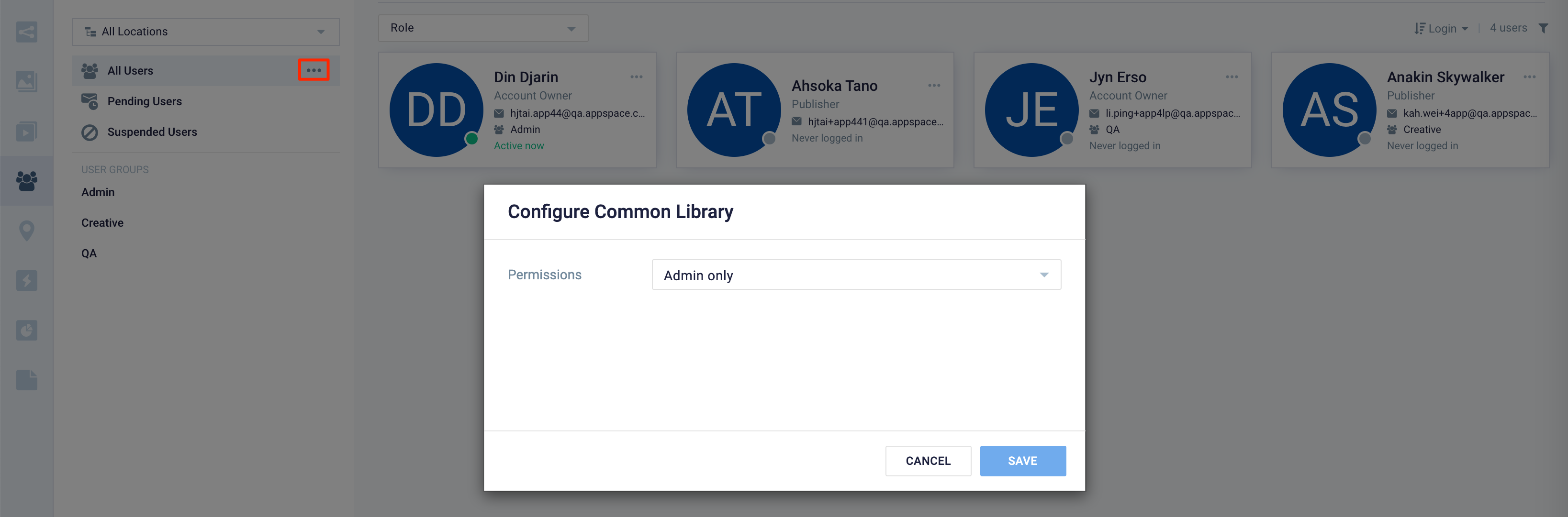
- Select the Permissions for the library:
- Admin only
- Everyone can read & write
- Everyone can read only
- Custom access (assign permissions to specific user or user groups)
Example
- Have a location admin (or lower permissions) user enable the read-only permission for the common library.
- Navigate to a channel.
- Attempt to upload an image.
- View the error.
- Attempt to upload an image to the specified library.
- View the successful upload and where the image file ends up in the libraries.
- Change the read-only configuration back to read-write, and everything should work successfully.
Note: The common library configuration needs to be configured by the account owner and cannot be adjusted by location admins.