

Microsoft Teams Rooms Integration: What's Changed and What You Need to Know
The process for configuring Microsoft Teams Rooms (MTR) devices for use with Appspace Signage has been updated. If you previously set up MTR devices using the Advanced Registration workflow, this guide explains what changed, what it means for your existing devices, and best practices for managing registrations going forward.
For step-by-step instructions on setting up MTR integration from scratch, see Register Microsoft Meeting Room Devices via MTR PMP.
Important: The Microsoft Teams Rooms integration is currently in limited release through Microsoft's TAP (Technology Adoption Program). For the latest information on availability and rollout, refer to Microsoft's roadmap.
Key Benefits
- Streamlined Setup — The new Integrations tab consolidates MTR configuration into a familiar workflow, similar to how Zoom devices are set up.
- Default Location Selection — Choose a default registration location and change it between batches, eliminating the friction of all devices registering to the root location.
- Improved Visibility for Location Admins — Devices register to the selected location instead of the root, so Location Admins can see and manage them immediately.
What This Guide Covers
- What changed between the old and new configuration methods
- What this means for existing MTR devices
- Best practices for location setup and batch registration
Prerequisites
- Account Owner or Location Admin role
- Platform license
- Microsoft Teams Rooms devices enrolled in the Microsoft TAP program for digital signage
What Changed
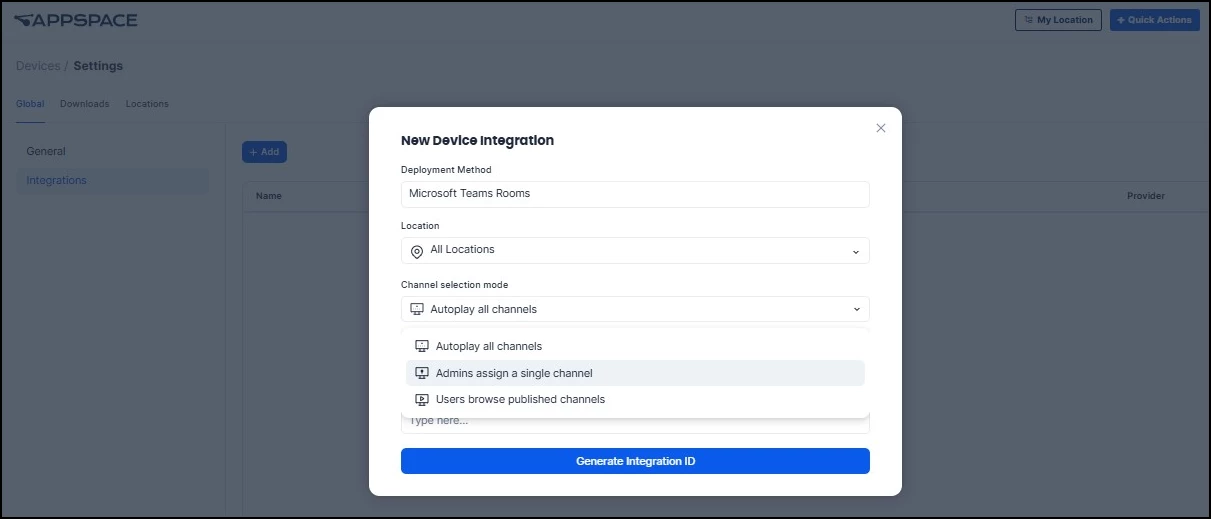
The MTR integration setup has moved from the Advanced Registration workflow to a dedicated Integrations tab under Devices > Settings. The core functionality — generating an integration ID and linking it to the Microsoft Teams Rooms Pro Management Portal — is the same, but the new location adds capabilities that weren't available before.
| Previous Method | New Method | |
|---|---|---|
| Where to configure | Advanced Registration workflow | Devices > Settings > Integrations tab |
| Integration ID | Generated during advanced registration | Generated in the Integrations tab (similar to Zoom setup) |
| Default location | Always registered to the root location | Selectable per integration — can be changed between batches |
| Location Admin visibility | Location Admins could not see devices at the root location | Devices register to the selected location, visible to Location Admins immediately |
| Channel selection | Configured during advanced registration | Configured in the Integrations tab with the same options |
| Device groups and tags | Added separately after registration | Can be added during integration setup |
What This Means for Existing Devices
If you already have MTR devices registered through the previous Advanced Registration method, here's what you need to know:
- Existing devices continue to work. Devices already registered and functioning do not need to be re-registered. Your current integration ID and device assignments remain active.
- New devices should use the new method. Any new MTR devices should be configured through the Devices > Settings > Integrations tab.
- You can move existing devices to new locations. If your existing devices registered to the root location and you want Location Admins to be able to manage them, you can move them from the Devices module to the appropriate location without re-registering.
- Do not disable your current integration ID if you have active devices using it. Disabling or regenerating the ID severs the connection between Appspace and the Microsoft Teams Rooms Pro Management Portal, and all devices using that ID will need to be reconfigured.
Best Practices for Location Setup
The biggest operational improvement in the new method is the ability to choose where devices register by default. Previously, all MTR devices were registered to the root location, which caused friction because Location Admins typically don't have access to the root and couldn't see or manage the devices.
With the new method, you can select any location as the default. Here are two recommended approaches:
Option A: Create a Shared MTR Staging Location
Create a location (e.g., "MTR Devices") that all Location Admins have access to. Register all new devices there, and then let each admin move their devices to the appropriate final location.
This works well for organizations with many Location Admins managing different sites. It provides a single, visible landing spot for new devices without requiring root access.
Option B: Register Directly to Final Locations in Batches
If you're setting up devices floor by floor or building by building, set the Location field to the target location before each batch. Register that batch, then update the location and register the next.
This eliminates the extra step of moving devices after registration, but requires updating the integration settings between batches. Each batch inherits the location that was active at the time of registration.
Related Resources
- Register Microsoft Meeting Room Devices via MTR PMP — Full setup instructions for new MTR integrations
- Appspace on Microsoft Teams Rooms: Digital Signage Best Practices — Content optimization, caching, low bandwidth mode, and design guidance for MTR devices
- Master PWA Caching: A Guide to Content Caching on PWA-Supported Devices — Detailed caching behavior for all PWA devices including MTR