

Create Content Faster with AI: A Guide to the Conversational AI Page and Story Builder
The Conversational AI Page and Story Builder is an intelligent authoring assistant built directly into the Appspace Intranet’s content editor. Instead of starting from a blank page, content creators and publishers can describe what they want in plain language, and the assistant builds a structured, multi-block draft in seconds. Whether you need a company update, an onboarding story, or a multi-section page with headings, lists, and image placeholders, the AI assistant handles the layout and structure so you can focus on the message.
Key Benefits
- Overcome Blank Page Syndrome: Start with a simple conversational prompt and let the assistant generate a complete first draft, ready for your review and refinement
- Build Complex Layouts Conversationally: Create multi-block Pages and Stories with headings, lists, images, and more, just by describing what you need
- Accelerate Your Content Workflow: Spend less time on formatting and structure, and more time on strategy, messaging, and audience engagement
What This Guide Covers
This guide focuses on the following:
- What the AI assistant is and where to find it
- How conversational content creation works for Pages and Stories
- Which content block types the assistant can generate
- Tips for writing effective prompts to get the best results
Prerequisites
Before using the Conversational AI Page & Story Builder, ensure you meet the following requirements:
- Premium License: Your organization must have a Premium Appspace license to access the Intranet
- Publisher Role: You must have the Publisher role to create and edit Pages and Stories
- Appspace Intelligence Enabled: Your Account Owner must have enabled Appspace Intelligence (AI features) for your organization
Where to Find the AI Assistant
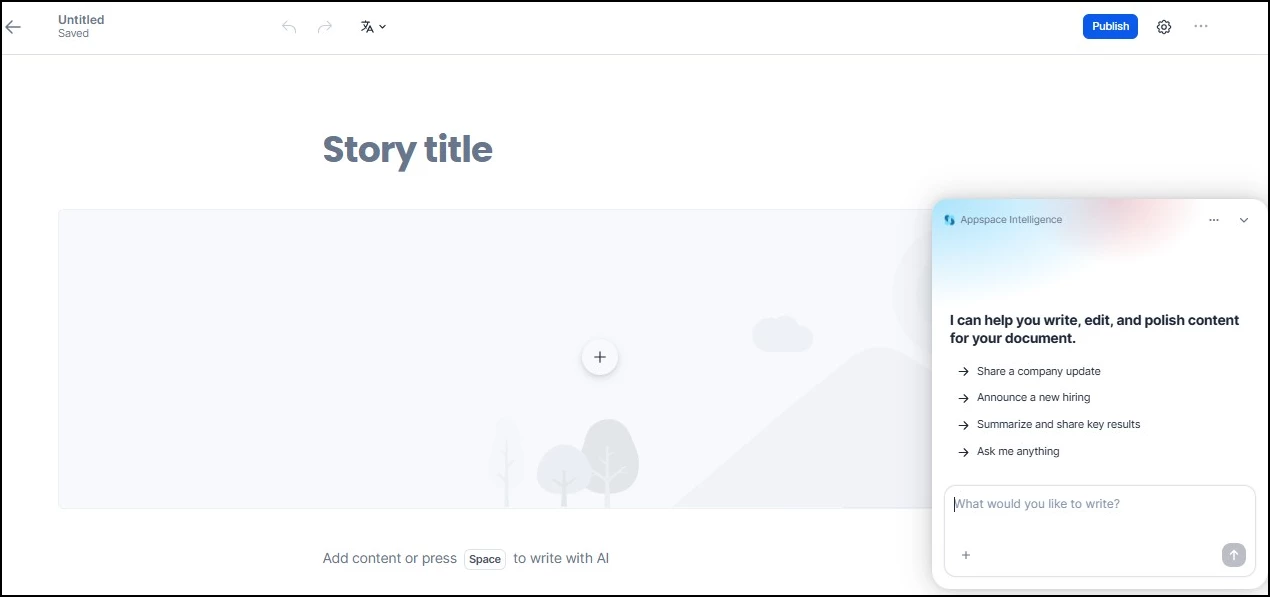
The Conversational AI assistant lives inside the content editor for Pages and Stories. When you open a Page or Story for editing (or start a new one), click the Appspace Intelligence button to open the AI panel. Once open, the panel appears on the right side of the editor and displays the message: "I can help you write, edit, and polish content for your document."
From the panel, you can select one of the suggested prompts (such as "Share a company update" or "Announce a new hiring") or type your own request in the text field at the bottom.
For example, imagine you are an internal communications manager and your team has asked you to create an announcement story for the upcoming Summer Company Picnic. Instead of staring at a blank page and building sections one at a time, you can open a new Story, click the Appspace Intelligence button, and start describing what you need.
How Conversational Content Creation Works
The AI assistant turns a plain-language description into a structured, multi-block draft. You describe the content you need, and the assistant generates headings, sections, body text, and other supported elements, all laid out in the editor and ready for you to review, edit, and publish.
What the Assistant Can Generate
The assistant creates content using the following block types:
- Headings (H1, H2, H3): Organizes your content into a clear hierarchy
- Paragraph Text: Body copy for descriptions, announcements, and explanations
- Bulleted and Numbered Lists: Key points, step-by-step instructions, and quick-reference items
- Image Placeholders: The assistant suggests where images should appear in your layout so you can add them manually
The Workflow at a Glance
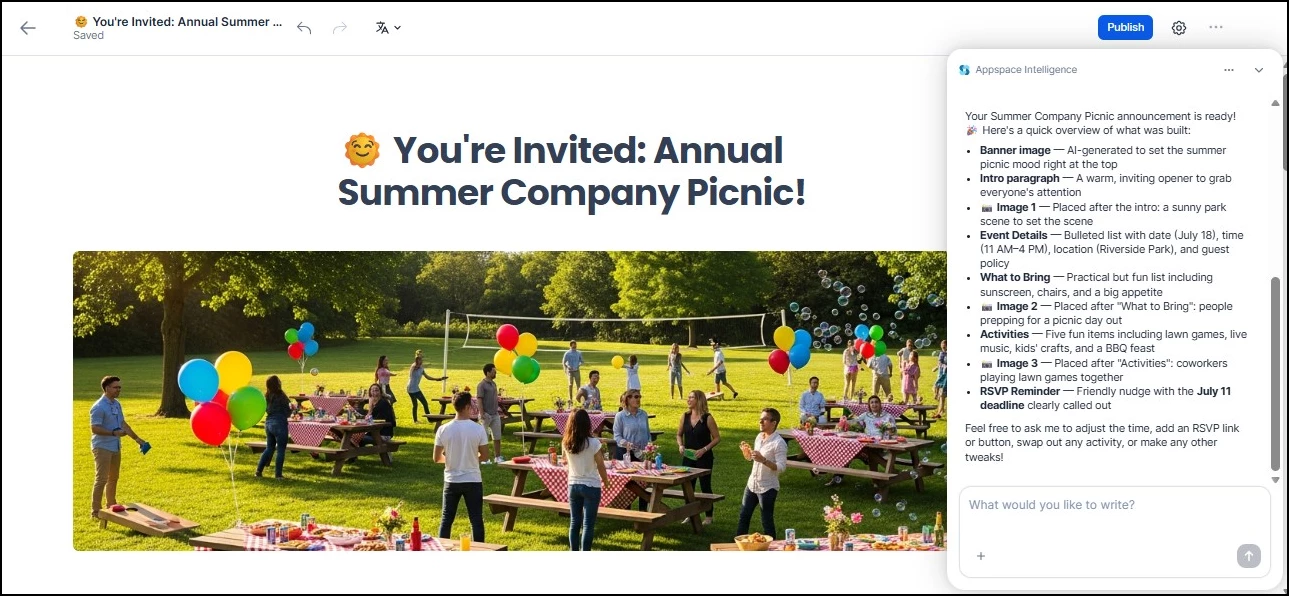
Continuing with the Summer Picnic example, here is what the workflow looks like from prompt to finished draft:
- Prompt: In the Appspace Intelligence panel, you type: "Create a fun, friendly announcement story for all employees about our Annual Summer Company Picnic on Saturday, July 18 at Riverside Park. Use H2 headings to organize it into four sections: Event Details with a bulleted list of date, time, location, and guest policy; What to Bring as a bulleted list; Activities as a bulleted list; and an RSVP Reminder with a deadline of Friday, July 11. Suggest where to place images throughout the story."
- Review: The assistant generates a complete Story draft in the editor. You get an opening paragraph with a warm, inviting tone; H2 headings for Event Details, What to Bring, Activities, and RSVP Reminder; bulleted lists under each section with specific details pulled from your prompt; and a closing sign-off. The structure matches what you asked for, so you can focus on fine-tuning the details rather than building the layout.
- Refine: You want to add a personal touch, so you follow up with: "Add a line about live music and a photo booth to the Activities section." The assistant updates the draft with those additions.
Notice how the prompt uses several strategies at once: it names the audience ("all employees"), specifies the structure ("four sections" with H2 headings), requests specific block types ("bulleted list"), asks for image placement suggestions, sets the tone ("fun, friendly"), and includes concrete details (date, location, RSVP deadline). The more you put into the prompt, the closer the first draft lands to what you need.
Tips for Effective Prompts
The quality of the generated content depends on the detail and clarity of your prompts. Here are some strategies to get the best results:
| Strategy | Example Prompt |
|---|---|
| Be specific about structure | "Create a page with three sections: company mission, team highlights, and upcoming events" |
| Name your audience | "Write an onboarding story for new employees joining the marketing team" |
| Request specific block types | "Add a numbered list of steps for submitting a PTO request" |
| Iterate and refine | "Make the introduction shorter and add a bulleted list of key takeaways at the end" |
| Set the tone | "Write this in a friendly, conversational tone for an all-hands announcement" |