
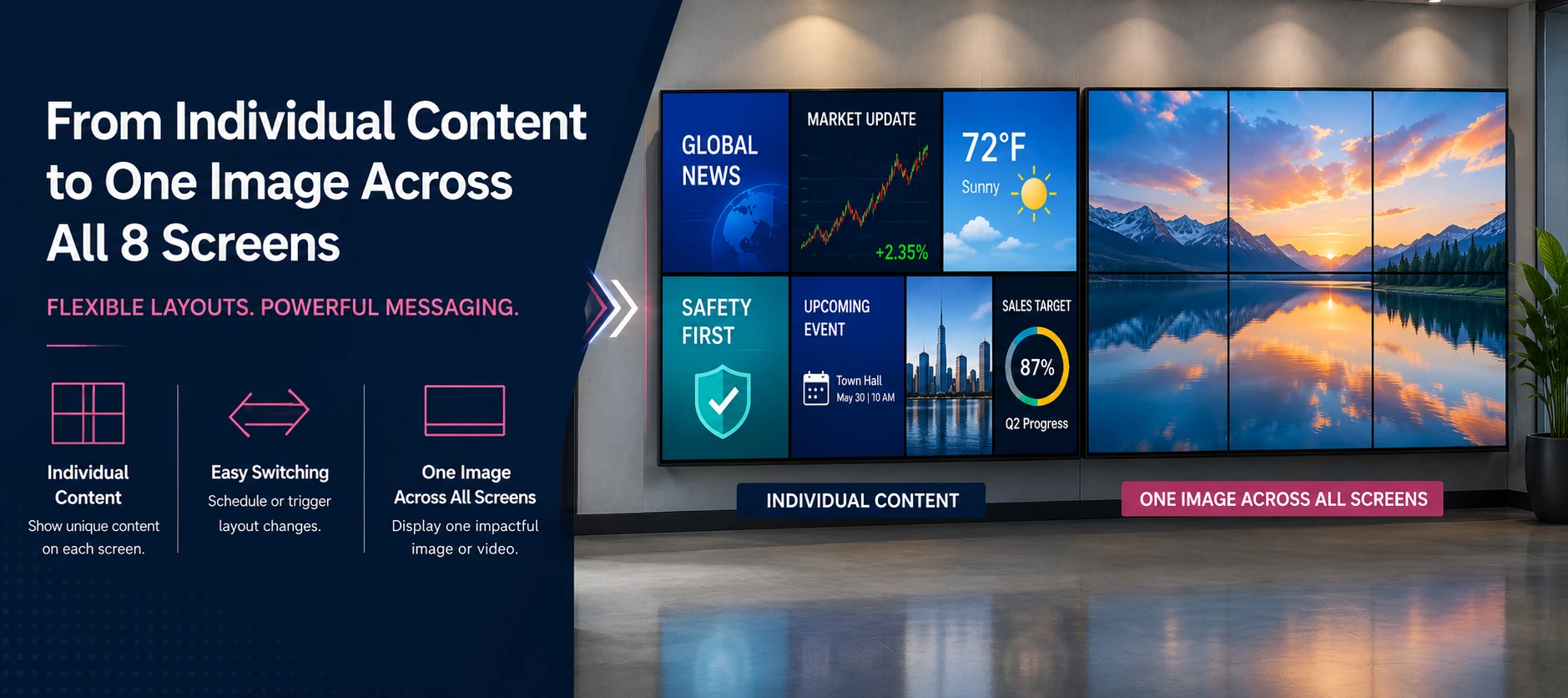




If you're building a video wall, you may want to display unique content on each screen most of the time, then switch to a single image or video that spans all displays for announcements, branding, or presentations.
This configuration is supported, but the overall experience depends on the hardware used to power the displays.
Short Answer
Yes. The recommended approach is to use an Advanced Channel with multiple layouts, paired with a video wall processor or multi-output device.
While daisy-chaining multiple displays is simple, it only supports a single stretched image and cannot display different content on each screen.
How It Works
Create a single Advanced Channel with two layouts:
Layout A — Full Video Wall
- One media zone stretches across all eight displays.
- Displays a single image or video across the entire video wall.
Layout B — Individual Screens
- Eight separate media zones.
- Each display shows its own independent content.
Once both layouts are configured, you can switch between them by scheduling a layout change or triggering it manually. No hardware changes or cable swaps are required.
Hardware Comparison
| Hardware Approach | Individual Content | Full Video Wall | Recommendation |
|---|---|---|---|
| Daisy-chaining (1 device) | No | Yes | Easy to configure but only supports one stretched signal. |
| Network Sync (8 devices) | Yes | Yes | Works well but requires synchronizing multiple players and may experience slight playback delays. |
| Video Wall Processor or Multi-Output Device | Yes | Yes | Recommended. Provides the smoothest transitions and simplest management. |
Troubleshooting
Each screen shows the same stretched image instead of different content.
Cause: The displays are configured using daisy-chaining.
Solution: Daisy-chaining cannot deliver independent content to each display. Use a video wall processor or another supported multi-output solution.
Content appears slightly out of sync across the video wall.
Cause: Multiple media players are attempting to stay synchronized.
Solution: Minor synchronization delays can occur with network-synchronized devices. A video wall processor provides more reliable playback across all screens.
Switching between layouts is difficult to manage.
Cause: Separate channels or hardware inputs are being used.
Solution: Configure a single Advanced Channel with multiple layouts. Switching layouts is much simpler than managing multiple channels or changing display inputs.
Quick Reference
| Need | Recommended Solution |
|---|---|
| Different content on each screen | Advanced Channel with an individual-screen layout |
| One image across all screens | Advanced Channel with a full video wall layout |
| Smooth transitions between layouts | Schedule or manually trigger layout changes |
| Best hardware option | Video wall processor or multi-output device |
| Not recommended for independent content | Daisy-chaining displays |
Related Articles