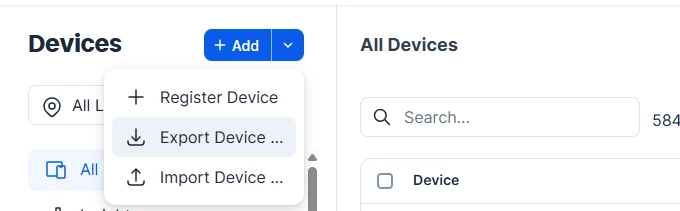
When using Export devices, the export does not include key network and identity details - specifically the device serial number, MAC address, and IP address.
I am currently aligning BSN Cloud with Appspace devices. For this purpose, it would be extremely helpful if the device serial number were included in the export so it can be used as a reliable reference for linking the two datasets.
At the moment, the export only includes:
GUID
Name
Description
Application GUID
Application Name
Group GUID
Group Name
tagsXX
Including the following fields would be much more valuable:
Device name
Type
Sync
Status
Location
Group
Version
App update status
IP
MAC
Serial number
It’s possible that I may be missing a configuration setting. However, when selecting Export devices…, there are no prompts for inputs or export options/requirements, so it’s unclear how to enable additional fields in the export.
Could you please confirm whether serial number / MAC / IP are intentionally excluded, and if so, whether they can be added to the export output (or enabled via an export option)?
Thank you,
Best answer by Kenneth Jeter aka Jeter
Hi there Markus,
My name is Jeter and I’m a Strategic Account Manager here at Appspace.
There are two different lists/reports for Devices. What you are exporting here is the Device List information which does not capture all the details you are looking for. To capture all the relevant information, you will want to create a Device Directory Report.
To do this click the Tribar (Hamburger) at the top left for the Appspace Menu, then scroll to the bottom and select Analytics under the Admin section. Once the Analytics extension loads, you will next click the Report Tab, then ‘Create’. Look for and select the ‘Device Directory Report’.
When Device Directory Report is selected, by default it will target ALL devices, ALL locations, ALL groups etc. You can narrow down the search by editing those fields on the left hand drop down menus if you like, or just click ‘Generate’ to capture everything.
This will then generate the report in a new page, from here you can then Download a excel sheet (.xlxs ) of the report by clicking the Down Arrow towards the top right of the page.
Please let us know if this answers your question and if you have any other items you’d like to follow up on.
Kind regards, Ken Jeter Strategic Account Manager Appspace.com
My name is Jeter and I’m a Strategic Account Manager here at Appspace.
There are two different lists/reports for Devices. What you are exporting here is the Device List information which does not capture all the details you are looking for. To capture all the relevant information, you will want to create a Device Directory Report.
To do this click the Tribar (Hamburger) at the top left for the Appspace Menu, then scroll to the bottom and select Analytics under the Admin section. Once the Analytics extension loads, you will next click the Report Tab, then ‘Create’. Look for and select the ‘Device Directory Report’.
When Device Directory Report is selected, by default it will target ALL devices, ALL locations, ALL groups etc. You can narrow down the search by editing those fields on the left hand drop down menus if you like, or just click ‘Generate’ to capture everything.
This will then generate the report in a new page, from here you can then Download a excel sheet (.xlxs ) of the report by clicking the Down Arrow towards the top right of the page.
Please let us know if this answers your question and if you have any other items you’d like to follow up on.
Kind regards, Ken Jeter Strategic Account Manager Appspace.com