
Migrate Your Cisco Control Hub Integration: A Guide to the Cutover from V1 to V2
This guide covers the process of migrating from version 1 to version 2 of the Cisco Control Hub integration with Appspace. The V2 integration offers enhanced features while preserving your existing content assignments, device settings, and organizational structure.
Key Benefits
The V2 integration includes the following enhancements:
- Existing Version 1 Functionality: All existing capabilities from registering Room Series devices into Appspace to displaying digital signage in half wake mode
- Support for Per-User Cross Launch: Each individual user cross-launching from Control Hub into Appspace will be prompted to connect their Appspace account, allowing them to launch into Appspace with their own login and access
- Support for Navigator: Register both Paired and Stand-Alone Navigators into Appspace for room scheduling
What This Guide Covers
This guide focuses on the following operational actions:
- Disabling the V1 integration in Cisco Control Hub
- Enabling the V2 integration through Workspace Integrations
- Re-enabling digital signage on your devices
- Configuring Cisco Navigators
- Verifying migration success and troubleshooting known issues
Prerequisites
Before proceeding with the integration, ensure you meet the following requirements:
- Control Hub Administrative Access: You must have administrative access to the Cisco Control Hub to perform the integration and migration steps
- Appspace Account Owner Role: Ensure you have the Account Owner role within the Appspace console, along with a valid Platform License
- Existing Paid Account for Navigators: If you plan to use Navigators for room scheduling, ensure you have an existing paid account with Appspace—the Lite account does not support room scheduling features
Important Information Before You Begin
When migrating from version 1 to version 2, here are key considerations to ensure a smooth transition:
What Happens During Migration
- Temporary Signage Mode Disruption: Upon disabling the V1 integration in Cisco Control Hub, all existing devices will temporarily lose their signage mode. Digital signage currently being displayed through Appspace on Webex devices will stop playing until the V2 integration is activated.
- Content Preservation: When migrating to V2, your existing content assignments are preserved. After re-enabling signage mode through V2, devices will automatically continue playing their previously assigned content without requiring manual re-selection.
- Device Settings Retained: Devices will maintain their location assignments, device groups, tags, and licenses.
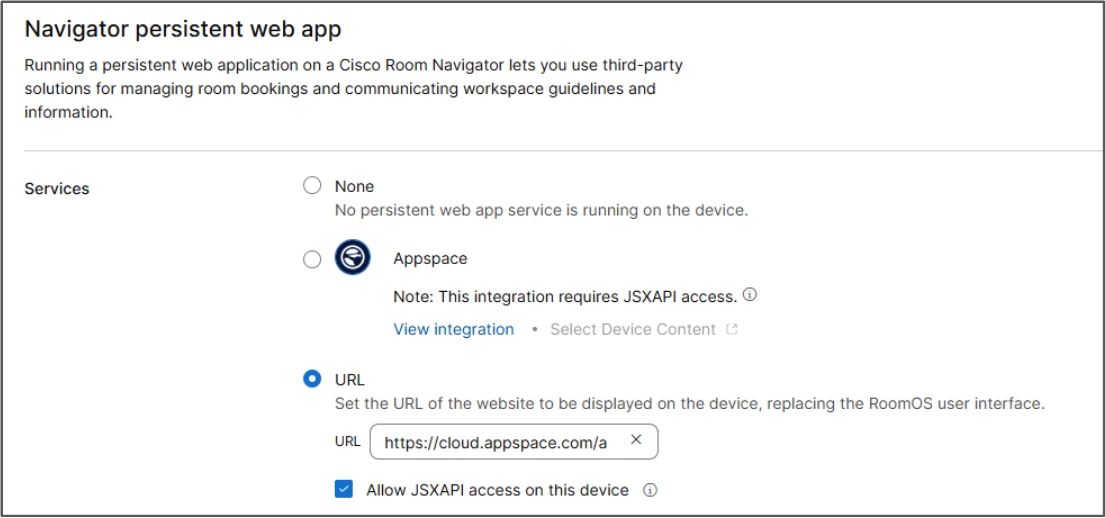
- Navigator Configurations: Cisco Navigators that were using the Signage URL method in V1 will continue to use the Signage URL method in V2. You have the option to update the configuration to use the Appspace integration method at a later time if desired.
Migration Considerations
- Pre-Migration Device Inventory: Before disabling the V1 integration, we strongly recommend running a Device Directory report from the Appspace console. This report will capture all current device information including device names, locations, channels, groups, and tags. Having this reference document will help you verify that all device settings are properly retained after migration.
- Device Reboot May Be Required: Some devices may require a reboot after migration to fully activate the V2 integration and resume normal operation.
Due to these considerations, thorough preparation and planning are essential before initiating the migration process. Administrators should inventory all affected devices and plan for a brief content interruption during the transition period.
Step 1: Disable the Version 1 Integration
Begin by disabling the existing V1 integration in Cisco Control Hub:
- Access Cisco Control Hub: Log into the Cisco Control Hub with your administrative credentials.
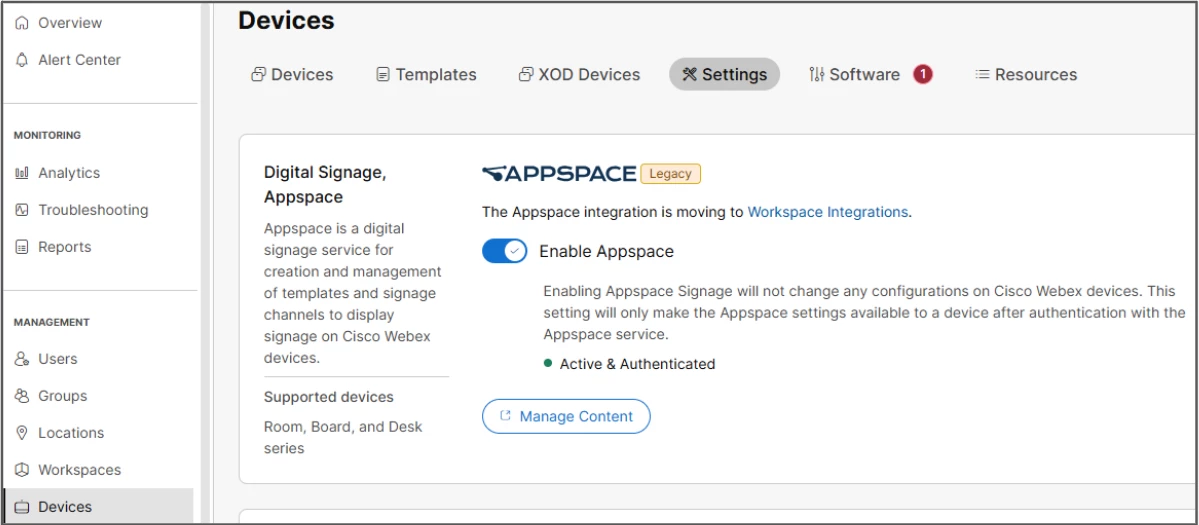
- Navigate to Devices: From the main menu, select Devices and then click on Settings.
- Disable Digital Signage Appspace Integration: Scroll down to the Digital Signage Appspace Integration section. Use the toggle button to turn off the integration.
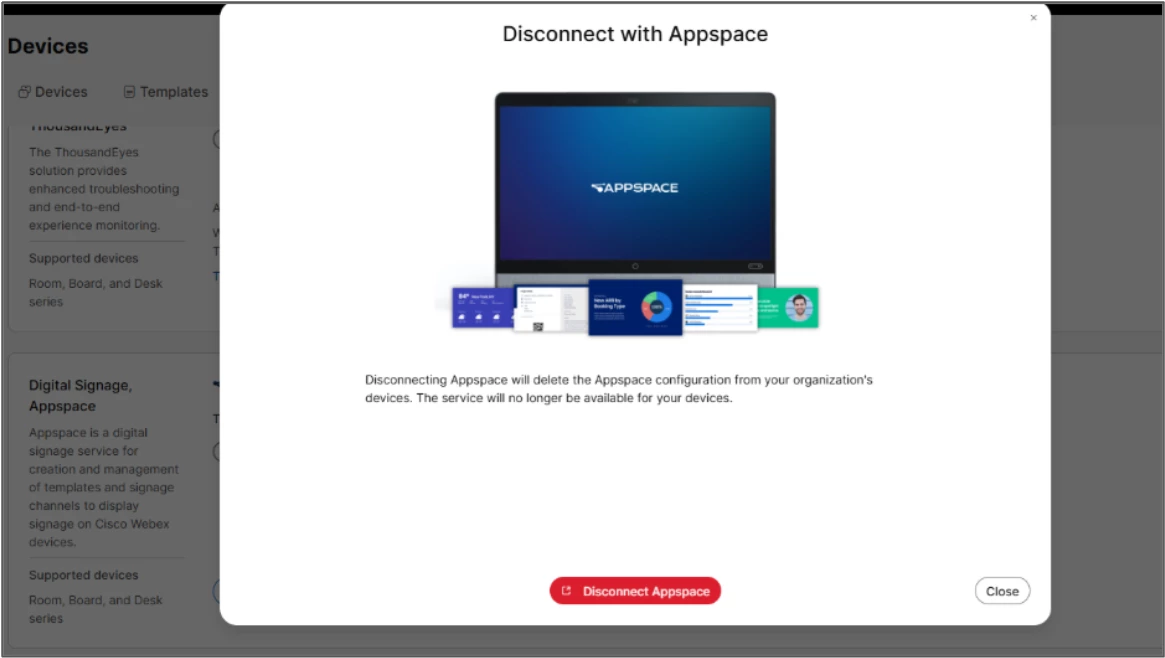
This will temporarily turn off signage on all Cisco devices that
currently have Appspace signage mode enabled with this integration.
Step 2: Enable the Version 2 Integration
Initiate Version 2 Integration
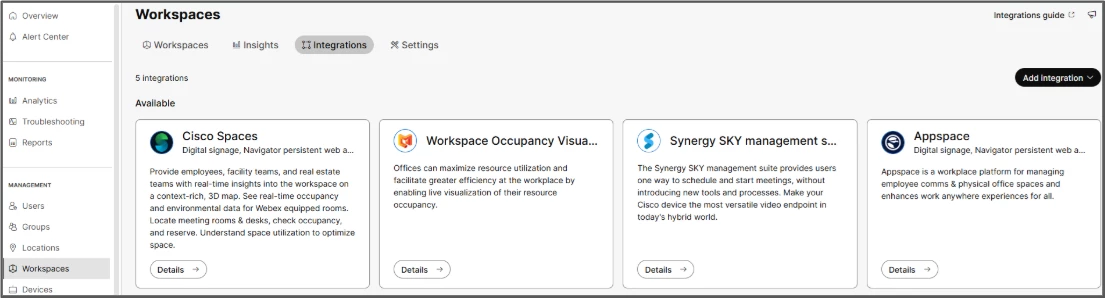
- Go to Workspaces from the main menu.
- Select Integrations and look for the Appspace option under Available Integrations.
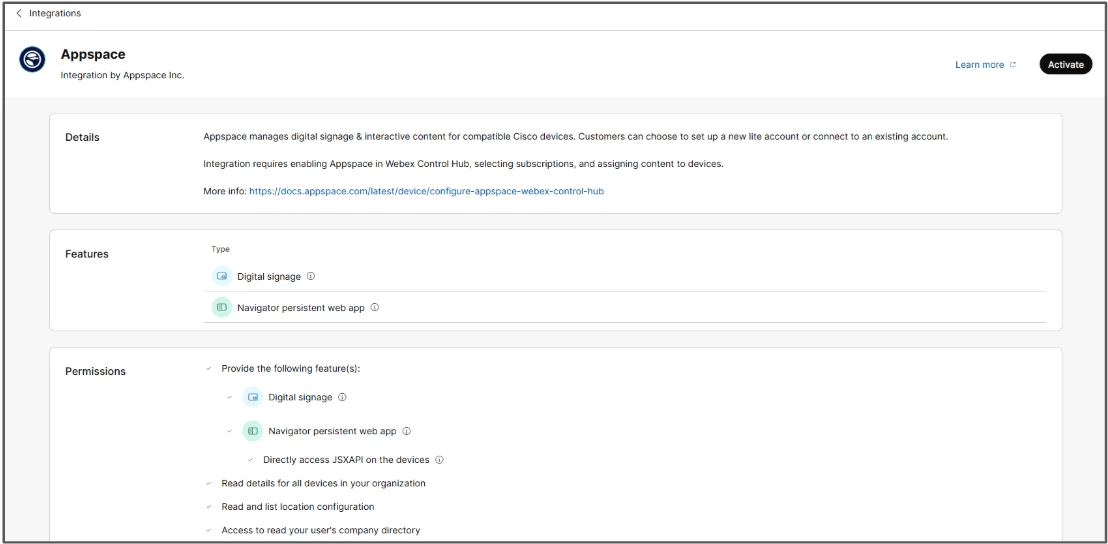
- Click on Appspace to view more details, then click Activate to start the process.
Accept Terms and Continue
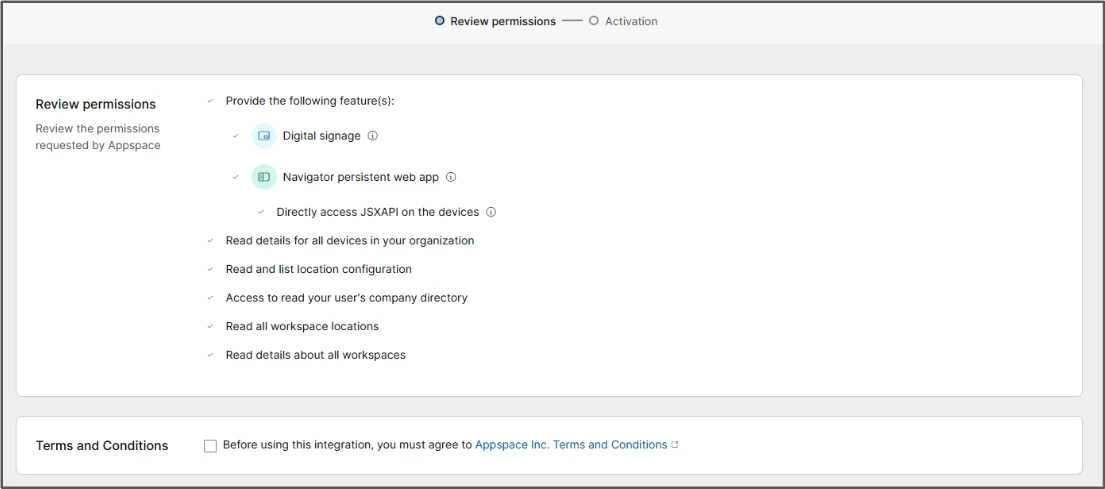
- Read through the scopes of access to Control Hub.
- Accept the terms and conditions.
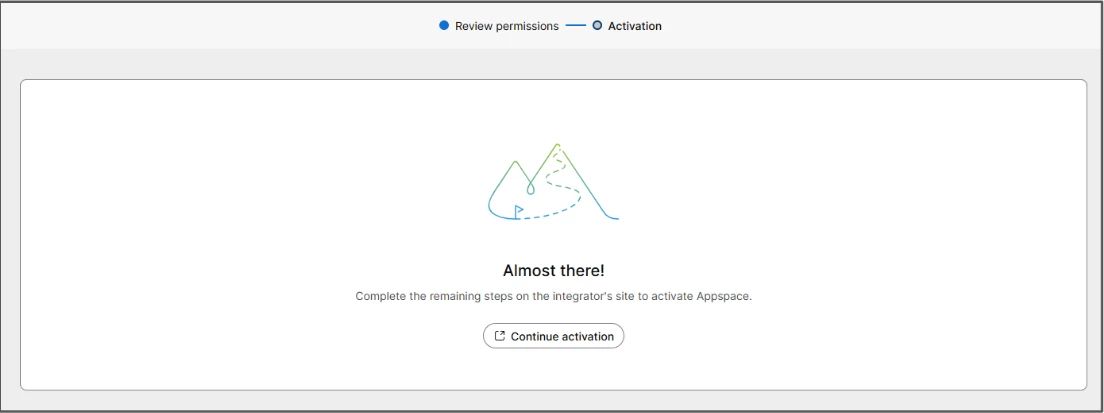
- Click on Activate again. This action may prompt a pop-up window for further actions—ensure your browser allows pop-ups from this site.
Select Integration Type
Choose how to connect to Appspace:
- Existing Paid Appspace Account: Connect to your existing paid account for full features and capabilities
- Free Lite Account: Select for basic digital signage with limited functionality
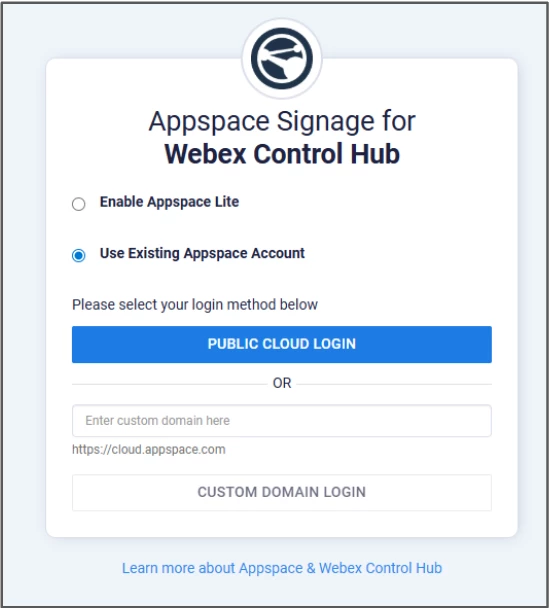
Input your Appspace login credentials to authorize the integration.
After successful authorization, you will see confirmation screens indicating setup is complete.
Step 3: Re-Enable Digital Signage on Devices
You have two options for re-enabling digital signage:
Option A: Bulk Assignment (Recommended for Multiple Devices)
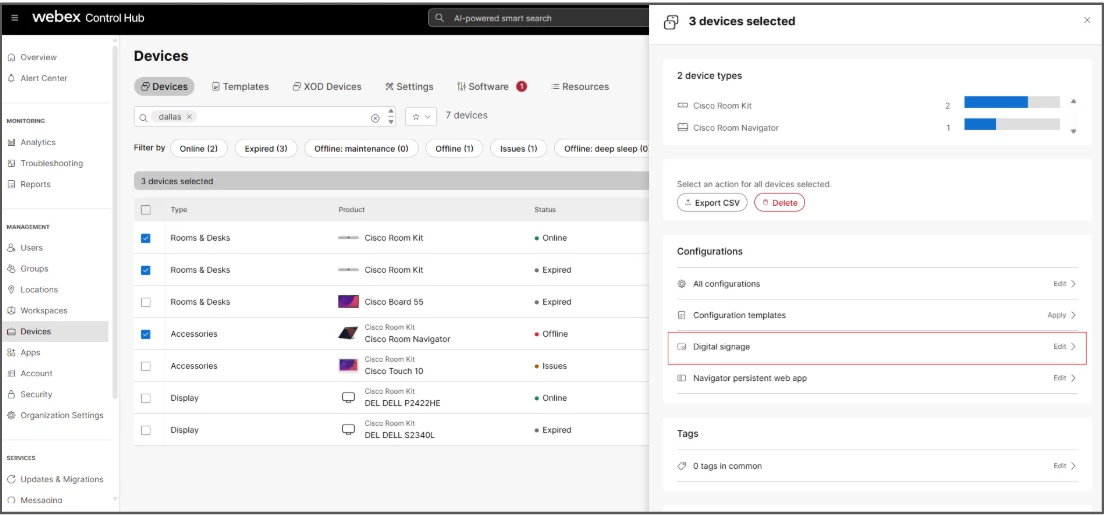
- Navigate to Devices in Control Hub.
- Select multiple devices using the checkboxes.
- Click Edit → Digital Signage.
- Select Appspace as the Service.
- Important: Click Next without selecting content—devices will automatically resume playing their previously assigned content.
- Save your changes.
Option B: Individual Device Assignment
- Navigate to Devices and select a device (e.g., Room Kit).
- Select the Digital Signage option.
- Choose Enable Digital Signage and select Appspace as the service.
- Important: Click Next without selecting content—the device will automatically resume playing its previously assigned content.
- Save your changes.
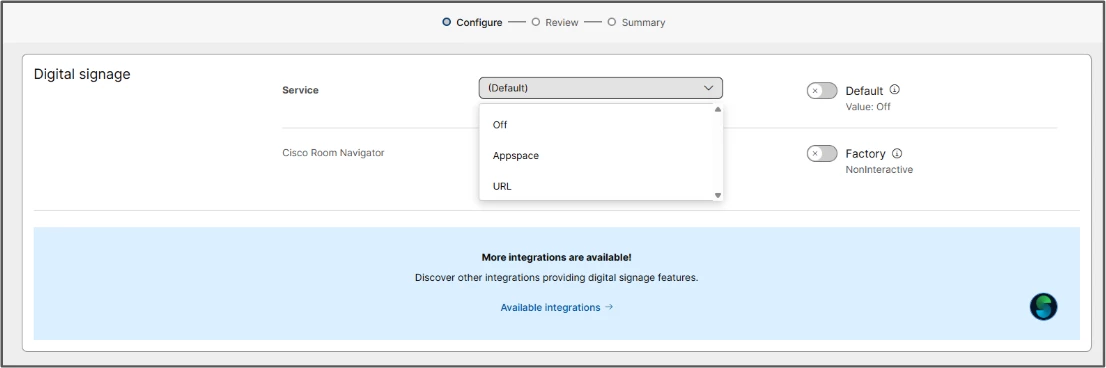
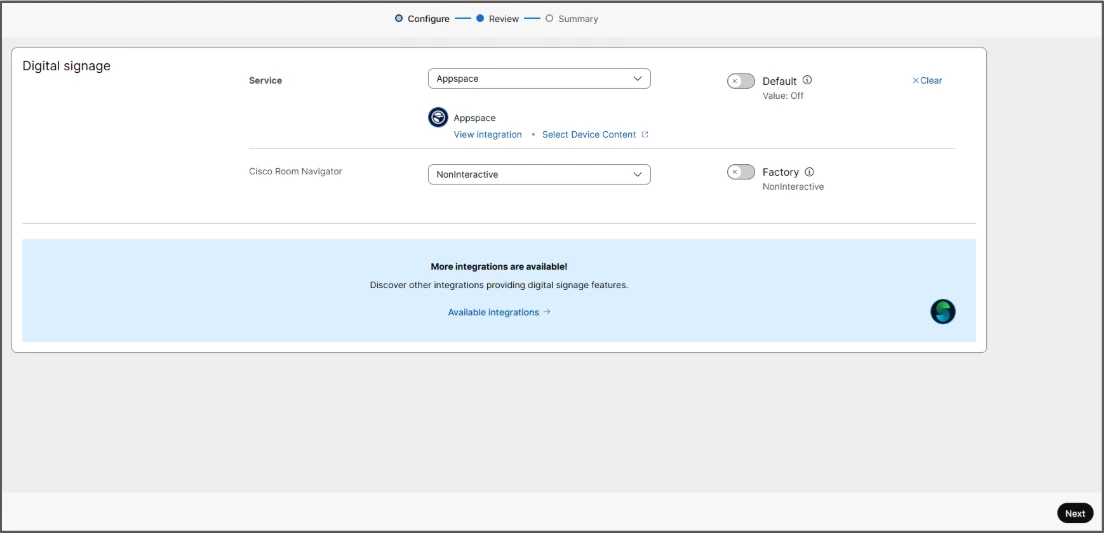
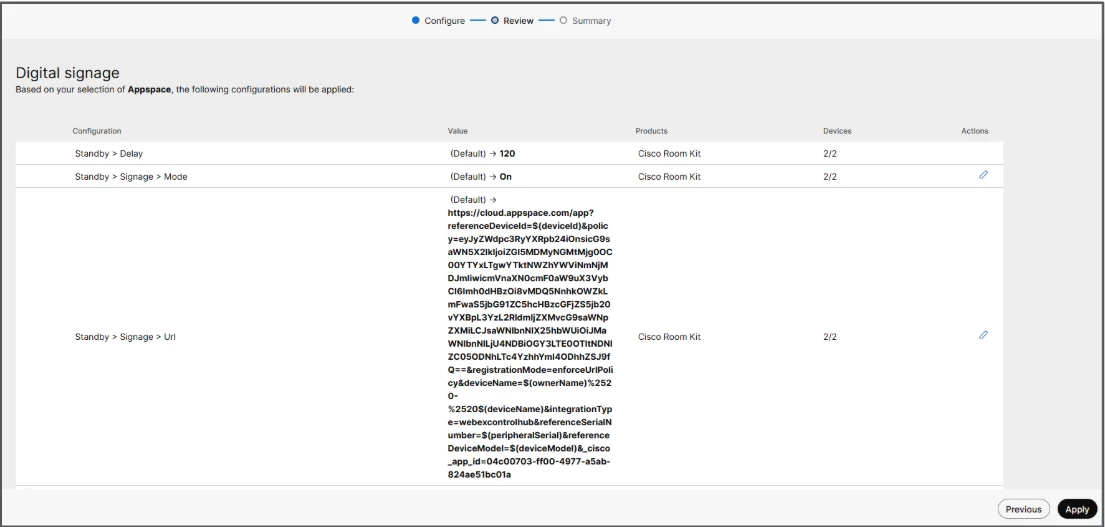
Note: After enabling V2, devices will register themselves in Appspace and automatically resume playing their previously assigned content. If a device doesn’t resume playing content immediately, a reboot may be required.
Step 4: Cisco Navigator Configuration
Note: Cisco Navigators that were using the Signage URL method in V1 will automatically continue using this method in V2. Your existing Navigator configurations are retained during migration. You can optionally update to the Appspace integration method later if desired.
Migration Verification
Verify Device Status
In Appspace, check your device’s status under the Devices module. Device names, locations, channels, groups, and tags should be retained from V1.
Updating Device Configurations
If any device configurations weren’t retained during migration or need adjustment, you can update them using Appspace’s standard workflows.
Known Issues
Lost Communication Status
Issue: Some devices may display a “lost communication” status in the health check, even though content changes continue to sync properly.
Resolution: The device is functioning normally—only the health status display is affected. If needed, try rebooting the device. If the issue persists, contact Appspace Support.
Default Playlist Reversion
Issue: Some devices might revert back to displaying the default Webex Playlist Channel after migration.
Resolution: Simply reassign the desired playlist channel to the device through the Appspace console.
Device Reboot Required
Issue: Some devices may not fully activate V2 features immediately after migration.
Resolution: Reboot the affected devices to complete the migration process.
Content Reassignment Required
Issue: Devices in autoplay mode may revert to “no channel assigned”.
Resolution: Users will need to reassign content.
Frequently Asked Questions
Do I need to manually re-select content for my devices after migrating to V2?
No. Your existing content assignments are preserved during migration. Simply click “Next” when re-enabling signage mode, and devices will automatically resume playing their previously assigned content.
Will my device settings and organization be preserved?
Yes. Devices will maintain their location, device groups, tags, and licenses during the migration to V2.
Do I need to re-license my devices after migrating to V2?
No, device licenses are retained during migration. You should not need to re-license devices unless you’re adding new features or capabilities.
What happens to my Navigators that were using the Signage URL method?
They will continue using the Signage URL method in V2. You have the flexibility to update them to use the Appspace integration method at any time if you prefer.
Is it possible to revert to V1 after migrating to V2?
No, it will not be possible to revert back as Cisco will be deprecating V1 after April 30th, 2026. It’s best to plan your migration carefully.
What should I do if I encounter issues during the migration process?
If you face any challenges during migration, consult the Known Issues section above. For additional support, reach out to Appspace Support or Cisco TAC for assistance.
Can I bulk-enable signage mode on multiple devices at once?
Yes. Webex Control Hub supports bulk assignment of signage mode. Select multiple devices and use the Edit menu to enable digital signage on all selected devices simultaneously.
Conclusion
Successfully completing the steps above will migrate your Cisco Control Hub integration from V1 to V2, maintaining all your existing content assignments, device settings, and organizational structure while gaining access to enhanced features like per-user cross launch.
The migration process is designed to minimize disruption—your devices will automatically resume playing their assigned content once V2 is activated. For any issues during the migration process, refer to the Known Issues section or contact Appspace Support for assistance.