




The Appspace Intelligence settings provide administrators with a centralized location to manage AI-driven features across the platform. These settings allow organizations to enable or disable specific AI capabilities, such as content generation, automated summaries, and intelligent scheduling, ensuring that the use of artificial intelligence aligns with corporate policies and data privacy standards.
The Appspace Intelligence settings can be accessed via Appspace Menu > Settings > Configuration > Appspace Intelligence within the Appspace console.
This article outlines the configuration steps for Appspace Intelligence settings.
In this article:
Prerequisites
- The Appspace Intelligence settings page is accessible only to the Account Owner or a Portal Administrator.
- An active subscription with Appspace Intelligence features enabled.
Important
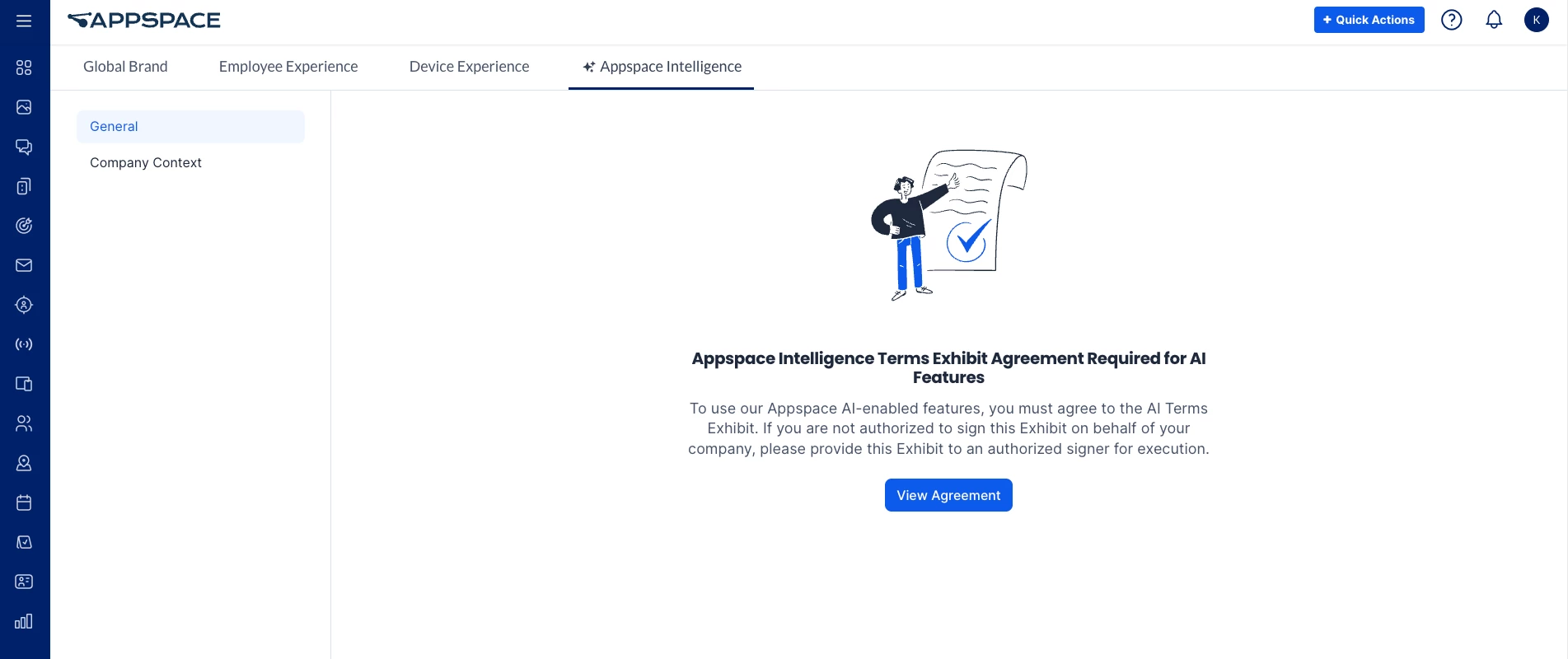
Before enabling Appspace Intelligence, review and accept the Appspace Intelligence Agreement. Once the agreement is accepted, the controls for the different Appspace Intelligence features will be available in the General tab.
Configure General Settings
The General section allows administrators to toggle the primary AI engine and determine the availability of smart features for different user roles and locations.
Note
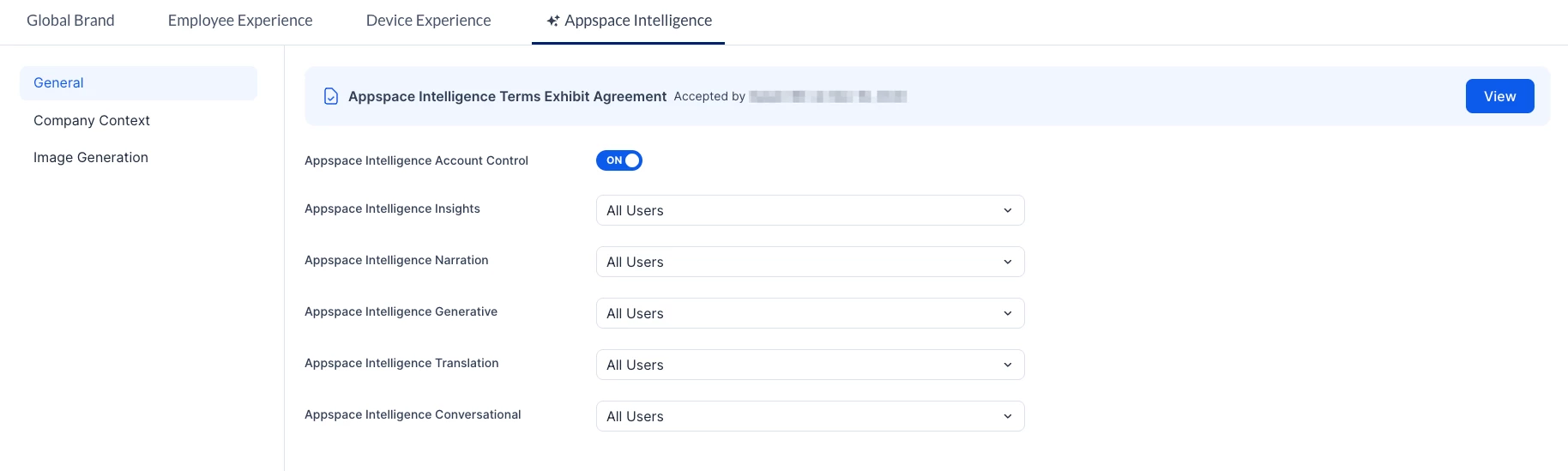
Once the agreement is accepted, different types of AI can be enabled or disabled.
- Log in to the Appspace console.
- Click the ☰ Appspace menu.
- Select Settings > Configuration.
- Click the Appspace Intelligence tab.
- In the General section, perform the following action:
- Appspace Intelligence Account Control: Slide the toggle switch to the preferred option:
- ON – Enable Artificial Intelligence on the Employee Experience.
- OFF – Disable Artificial Intelligence on the Employee Experience.
- Appspace Intelligence Account Control: Slide the toggle switch to the preferred option:
- Once Enabled, administrators can configure access for the following AI features. For each item, select the preferred availability from the dropdown menu:
- Appspace Intelligence Insights - Select from the dropdown menu:
- No Users
- All Users
- Publishers and Account Owners Only
- Specific Users, Group or Locations
- Appspace Intelligence Narration - Select from the dropdown menu:
- No Users
- All Users
- Publishers and Account Owners Only
- Specific Users, Group or Locations
- Appspace Intelligence Generative - Select from the dropdown menu:
- No Users
- All Users
- Publishers and Account Owners Only
- Specific Users, Group or Locations
- Appspace Intelligence Translation - Select from the dropdown menu:
- No Users
- All Users
- Publishers and Account Owners Only
- Specific Users, Group or Locations
- Appspace Intelligence Conversational - Select from the dropdown menu:
- No Users
- All Users
- Publishers and Account Owners Only
- Specific Users, Group or Locations
- Appspace Intelligence Insights - Select from the dropdown menu:
Configure Company Context
The Company Context section allows administrators to provide the Appspace Intelligence engine with specific information about the organization. By defining the company’s mission, values, and industry, the AI can generate more accurate, brand-aligned content and responses tailored to the organization’s unique environment.
- Log in to the Appspace console.
- Click the ☰ Appspace menu.
- Select Settings > Configuration.
- Click the Appspace Intelligence tab.
- Click the Company Context section.
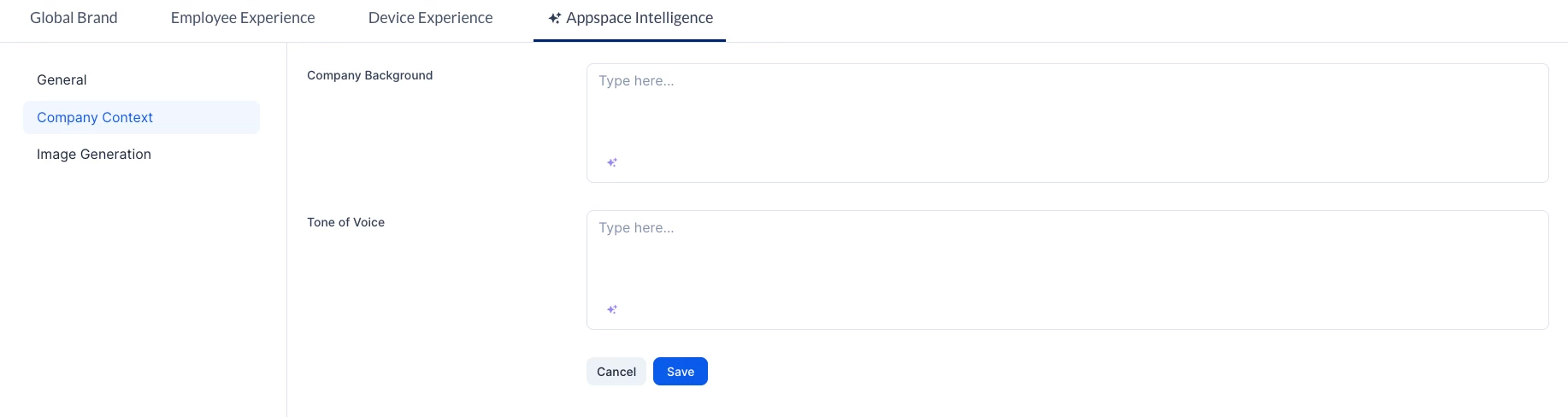
- Perform the following actions to define your organization's profile:
- Company Background – Provide a description of your organization’s history, goals, and culture to help the AI generate more relevant content. If needed, use Appspace Intelligence to help you write it.
- Tone of Voice – Define the preferred communication style (for example Professional, Casual, or Inspirational) to ensure AI-generated content matches your brand's personality. If needed, use Appspace Intelligence to help you write it.
Configure Image Generation
The Image Generation section allows administrators to define specific prompts that guide the AI engine when creating visual content. This ensures that AI-generated images remain consistent with the requirements of different content types.
Note
Enabling AI generative is a pre-requisite. Without it, the Image Generation tab will not be visible.
- Log in to the Appspace console.
- Click the ☰ Appspace menu.
- Select Settings > Configuration.
- Click the Appspace Intelligence tab.
- Click the Image Generation sub-tab.
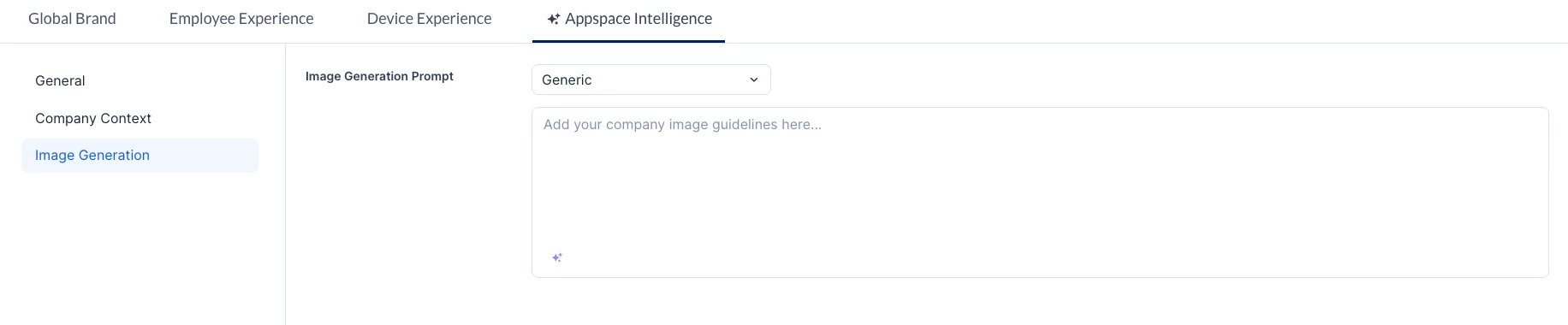
- In the Image Generation Prompt section, configure the following:
- Image Generation Prompt – Select the specific content type from the dropdown menu to define its unique prompt requirements. Options include:
- Generic
- Pages
- Stories
- Posts
- Newsletters
- Cards (Signage)
Note
In the Image Generation tab, if a content type’s prompt is empty, it will fall back to the generic prompt, if one is available.
- Prompt Text Box – Enter the specific instructions that the AI should follow when generating images for the selected target. If needed, Appspace Intelligence can be used to assist with drafting the prompt.
- Image Generation Prompt – Select the specific content type from the dropdown menu to define its unique prompt requirements. Options include: