Appspace on Microsoft Teams Rooms: Digital Signage Best Practices
Introduction
With Appspace’s native integration with Microsoft Teams Rooms (MTRs), you can easily utilize idle meeting room screens for digital signage content. This practice helps engage employees wherever they are and maximizes the use of your existing display real estate.
Key Benefits
- Maximized Real Estate: Leverage existing MTR screens as powerful digital signage communication tools when the room is idle.
- Employee Engagement: Ensure content is displayed to engage employees wherever meeting rooms are deployed.
- Administrative Control: Empower publishers and administrators to maintain performance and reliable content delivery.
What This Guide Covers
This guide will cover the following topics:
- How to optimize content file size and implement caching strategies to manage bandwidth limitations.
- How to assign a content channel during MTR configuration to prevent the Appspace App from closing.
- How to navigate design considerations related to the MTR banner (room name/calendar preview).
Prerequisites
In order to allow for the configuration of Microsoft Teams Rooms and these best practices, you need to meet the following requirements:
- You must have a Appspace Publisher or Administrator role.
- Microsoft Teams Rooms devices are registered and enabled for digital signage integration.
- You must have access to the Microsoft digital signage tenant management page (for banner configuration).
Displaying Digital Signage Content
Limit Content File Size
MTR devices cache content the same way any PWA device does, but you can follow guidelines to reduce bandwidth usage.
- Use Static Content: Publish only static images to assigned channels. Videos stream in full and consume significantly more bandwidth.
- Optimize Resolution: Reduce video and image resolutions to minimize overall content file size.
- Implement Caching: Explore implementing a caching strategy (such as CDN or Reverse Proxy) to improve streaming performance. (Note: Contact your CSM for assistance.)
Assign a Channel During Configuration
Microsoft has a built-in failsafe that causes the Appspace App to immediately close if there is no channel or content assigned to the device. If content has not been assigned to the device, the device will show a "please publish content" message or a black screen while idle. When this happens, the MTR device will launch the Appspace App for a split second and then won't relaunch it until the MTR itself is rebooted.
To prevent this situation:
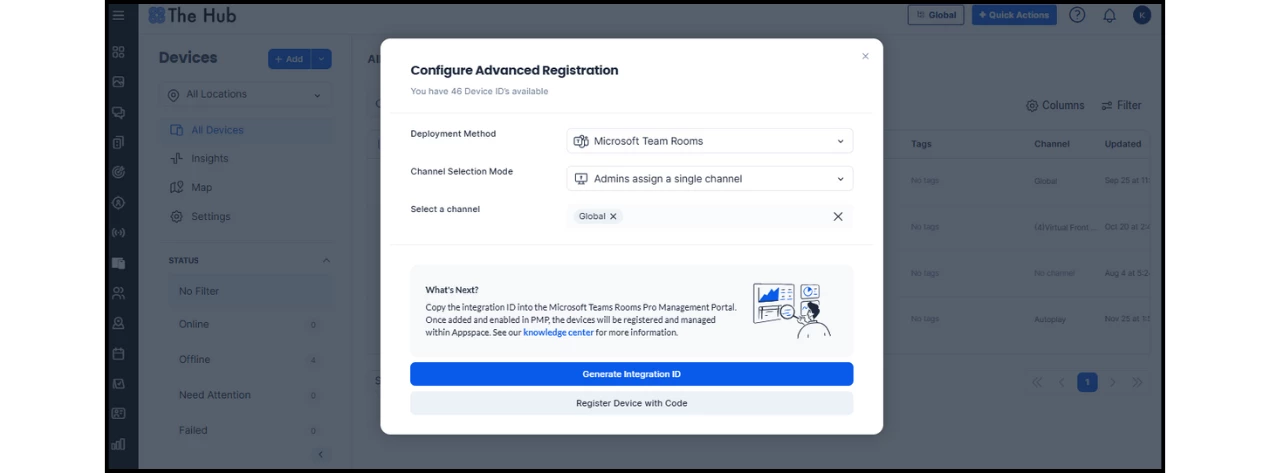
- Single Channel: When generating the MTR integration ID, select "Admins assign a single channel" under the Channel Selection Mode option. This ensures the MTR defaults to a known working playlist.
- One or More Channels: If you want the devices to autoplay on or more channels, ensure at least one channel with content is published to the root location of Appspace so that newly configured MTRs inherit that assignment.
Design Content Around the MTR Banner
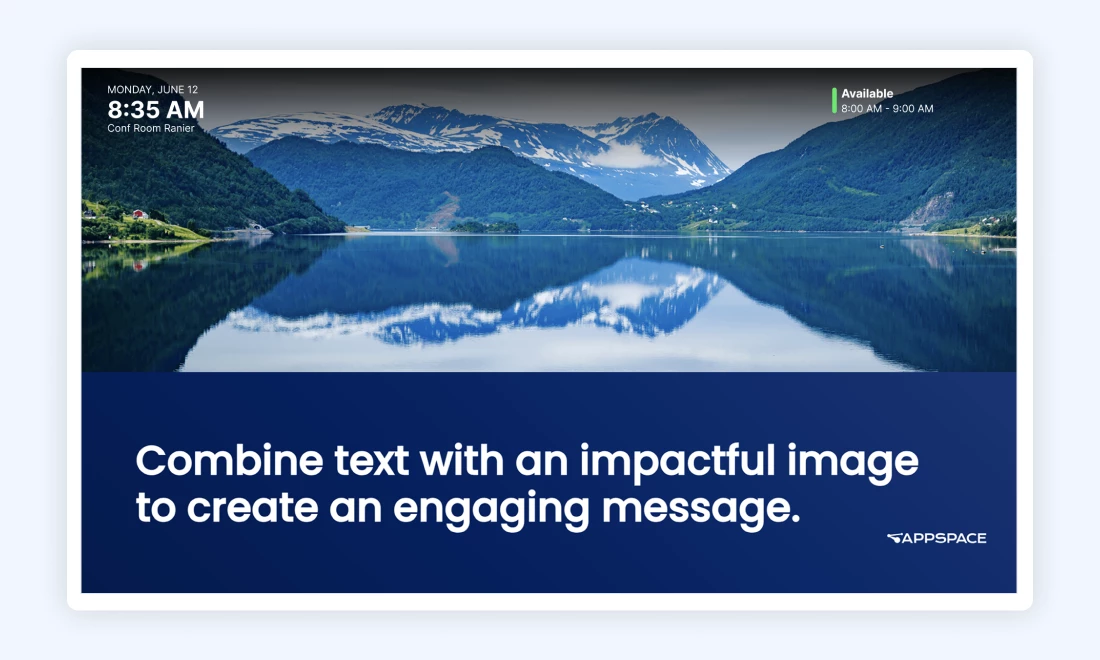
The MTR device automatically displays a banner (including the room name and calendar preview) that takes up the top 15% of the screen height. You have two options with this banner:
- Keeping the Banner: Avoid placing critical text or images in the top 15% of the screen when designing content.
- Disabling the Banner: The banner can be disabled from your Microsoft digital signage tenant management page.
To learn more about this process in Microsoft, check out this page: Digital signage with Teams Rooms - Microsoft Teams | Microsoft Learn