This guide outlines the process for updating the software on your BrightSign devices. Keeping your device software up-to-date ensures optimal performance, access to new features, and enhanced security. We'll cover the standard update workflow for a manual update process, the manual update process using the BrightSign Device Web Server (DWS), and an automated method for managing multiple devices.
Workflow
-
Check if the player property software.softwareupdates is set to true.
-
Check if the deployed version is greater than the minimum version (by default it's usually 1.3).
-
Download the package to the device /tmp/.
-
Unzip.
-
Create a folder at /appspace/ using the name of the build version from the unzipped package. The build version is from /www/_version.json of the unzipped package.
-
If the folder (version) already exists, skip.
-
-
Move unzipped from /tmp/ to the /appspace/<version> folder.
-
Copy the unzipped autorun.brs to /autorun.brs.
-
Copy the unzipped /scripts/upgrade.brs to the active /scripts/upgrade.brs.
-
Copy the unzipped /scripts/post-upgrade.brs to the active /scripts/post-upgrade.brs.
-
Write startupurl inside /_config.json.
Secondary Workflow: Using the DWS
-
Go to the Brightsign Device page (http://<ip>:8080).
-
Go to the SD tab.
-
Ensure the path is /sd.
-
Click the gear icon for autorun.brs and it will open a popup. Choose Rename as autorun.brs.backup and click the RENAME button. This will close the popup.
-
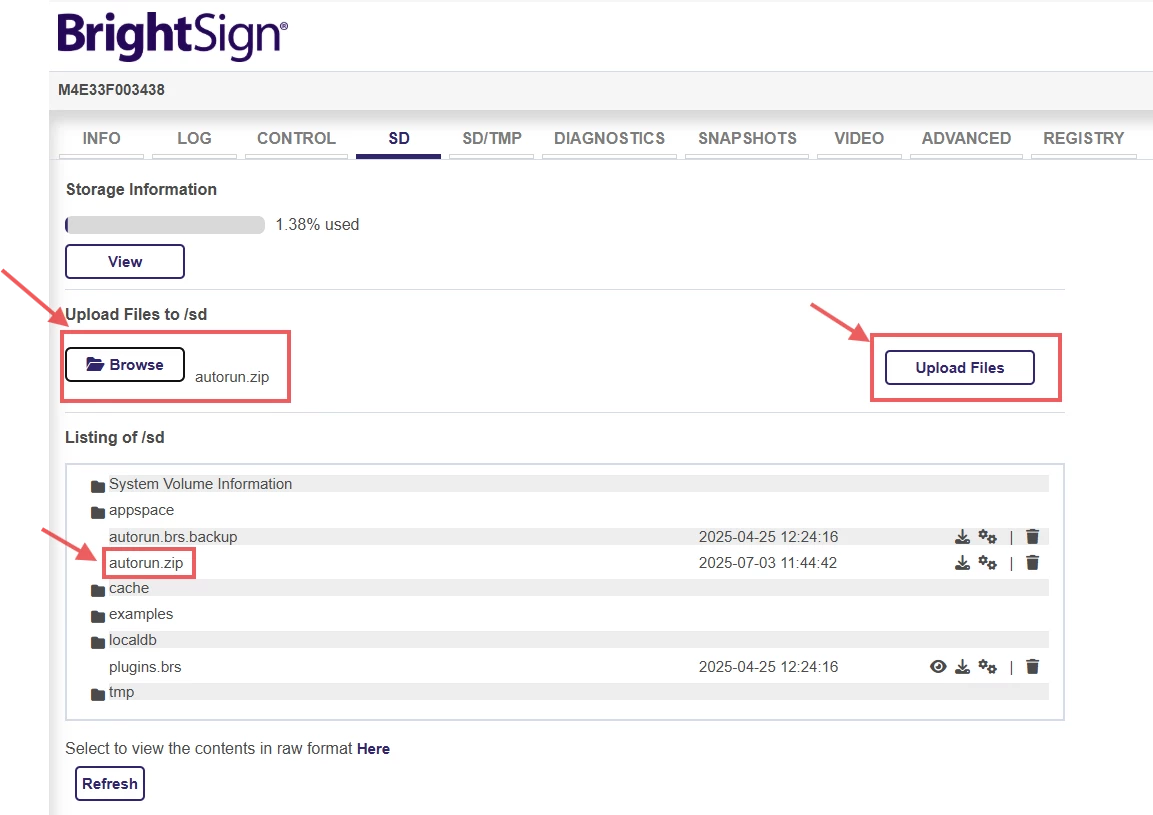
In the same /sd path, click the BROWSE button and pick the new autorun.zip. Click UPLOAD FILES button.
-
After the file has been uploaded, go to the CONTROL page and click the REBOOT button.
-
The device will reboot twice (the first because of clicking the REBOOT button and the second reboot because of the new package deployment).
-
The device will now run using the new package.
-
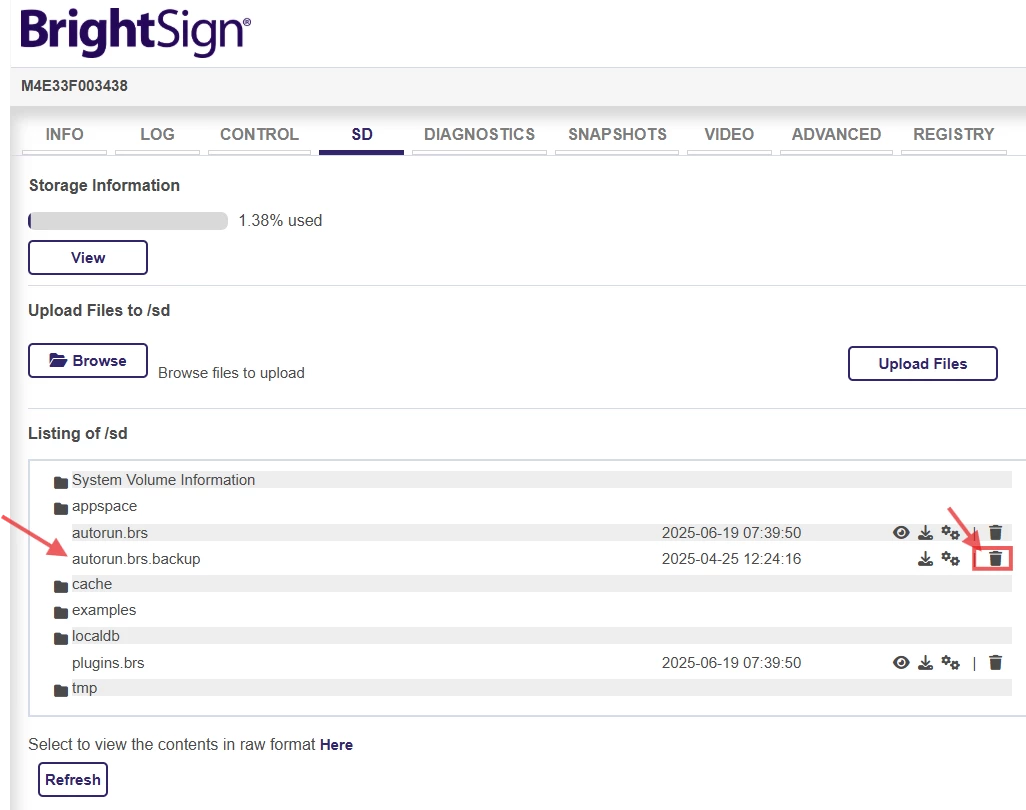
(Optional) For cleanup, delete the autorun.brs.backup file.

Secondary Workflow - Automated
-
Request Files: Brightsign App Update - DWS.postman_collection.json
-
Flow Chart:
-
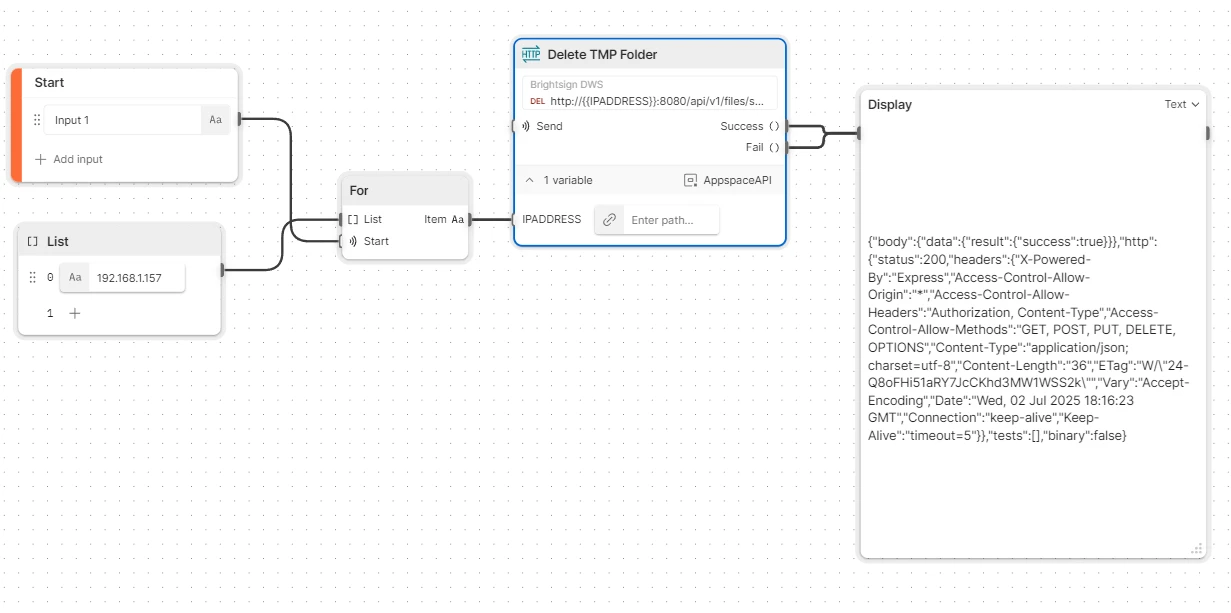
Insomnia: This can be done by creating requests the same as within Postman.
-
Insomnia calls their automation Collection Runners.
-
Create the 3 requests: Delete Autorun, Upload Autorun, Reboot.
-
Create a CSV file with a single column of IP addresses with the column name IPADDRESS.
-
Click Run, then upload the CSV as a data file. The requests will use the items in the IPADDRESS fields as environment variables to replace {{IPADDRESS}}.