




Description
This article explains the steps to install a custom font on the HTML5 player.
Prerequisites
- Custom fonts must be hosted on a public server.
- Font files must be placed in the server's wwwroot folder.
- Custom fonts must be in .ttf or .woff formats only.
- Font names must not have any special characters or spaces.
- HTML players must be version 1.2 and above.
Steps
- Identify the player(s) on which you want the font installed.
- Log into Appspace.
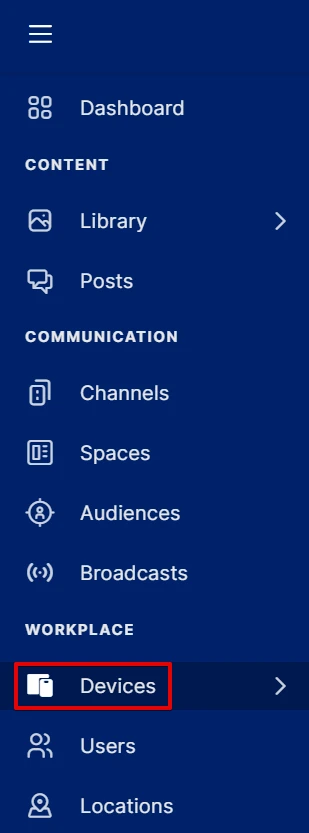
- Select the upper-left menu and select devices.
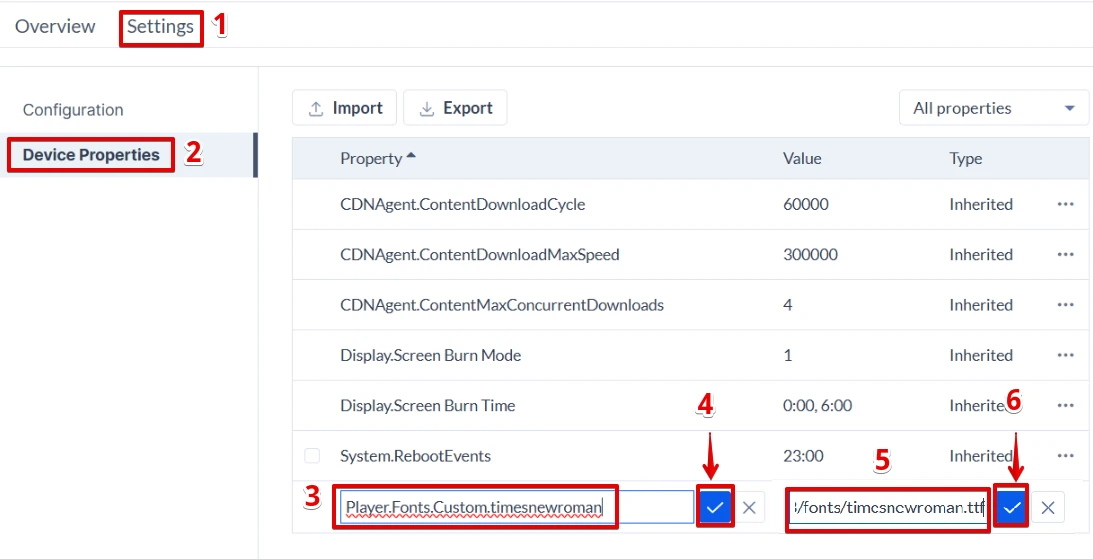
- Select the player, select the settings tab, and select device properties.
- Add a new property using the format: Player.Fonts.Custom.xxxx where xxxx is the name of the font (e.g. Player.Fonts.Custom.magnoliasky). Select the blue checkmark.
- The value is the URL where the font is hosted (e.g. http://172.18.12.98/fonts/magnoliasky.ttf).
- Next, you will need to change the font type where you would like to use it, such as in a widget on an advanced channel. Navigate to any of your text-based widgets and type in the font name. Select apply to save changes.

- Once your player is synced, restart the app on the device. To do this, you may need to make sure there is a keyboard and a mouse connected to the device. Select the CTRL key and select restart app.
