
WARNING - Modifying the main.brs file is no longer advised on Brightsigns as of Jan. 24, 2026. Please reference this article moving forward: Configuring Custom Plugins for BrightSigns.
Adapted from: https://docs.brightsign.biz/advanced/multiscreen-videomode
As of 2/3/23, the following lines need to be manually added to the /autorun/appspace/main.brs in order to leverage the other HDMI outputs in a video wall configuration. The changes are near line 39 in the file.
| Screens: To enable or disable a screen is merely a matter of setting sm[x].enabled or sm[x].disabled, where 'x' is the number of the HDMI output/screen. For each screen required, a new block should be added that includes:
After setting vm.SetScreenModes(sm), because we're utilizing more than one screen, we need to define the amount of screens in the height and width. This is another gotcha line of code that's very easy to miss. Here is what the missing code would look like for finalizing a 2x1 video. aa1=CreateObject("roAssociativeArray") Orientations: As you can see, it's merely a matter of changing the sm[x].display_x or sm[x].display_y values depending on whether the wall is vertical or horizontal. You may need to take into account a bezel offset if perhaps the client screens are physically offset and they wish this effect to translate to the content.
Resolutions: The resolution values can be changed according to the supported resolutions guide from BrightSign. Review those here: https://docs.brightsign.biz/advanced/video-modes Note that at this time the XC series isn't listed in the supported video modes, so it may be the case that some modes are not possible; you'll have to verify with BrightSign at support@brightsign.biz if a mode is supported.
Rotation: To denote the proper screen rotation, change the sm[x].transform value to either = { "normal", "90", "180", "270" } | Consider these two examples: This example assumes a 2 x 1 video wall (1080p—"horizontal row" or a "standard wall") vm=CreateObject("roVideoMode") sm = vm.GetScreenModes()
sm[0].video_mode="1920x1080x60p" 'sm[0].video_mode=“3840x2160x30p:fullres:gfxmemlarge” 'uncomment this line for 4K support sm[0].transform = "normal" sm[0].display_x=0 sm[0].display_y=0 sm[0].enabled=true
sm[1].video_mode="1920x1080x60p" 'sm[1].video_mode=“3840x2160x30p:fullres:gfxmemlarge” 'uncomment this line for 4K support sm[1].transform = "normal" sm[1].display_x=1920 'Not adding an offet for bezels, might need to increase this value if screen 2 is cutoff. sm[1].display_y=0 sm[1].enabled=true
sm[2].enabled=false 'Disabling the other two screens just for testing sm[3].enabled=false 'Disabling the other two screens just for testing
vm.SetScreenModes(sm)
aa1=CreateObject("roAssociativeArray") aa1.MultiscreenWidth = 2 aa1.MultiscreenHeight = 1 aa1.MultiscreenX = 0 aa1.MultiscreenY = 0
This example assumes a 1 x 2 video wall (1080p—"landscape stack"). vm=CreateObject("roVideoMode") sm = vm.GetScreenModes() sm[0].transform = "normal" sm[0].display_x=0 sm[0].display_y=0 sm[0].enabled=true sm[1].transform = "normal" sm[1].display_x=0 sm[1].display_y=1100 ' Bezel compensation of 20 pixels sm[1].enabled=true
sm[2].enabled=false sm[3].enabled=false aa1=CreateObject("roAssociativeArray") aa1.MultiscreenWidth = 1 aa1.MultiscreenHeight = 2 aa1.MultiscreenX = 0 aa1.MultiscreenY = 0
|
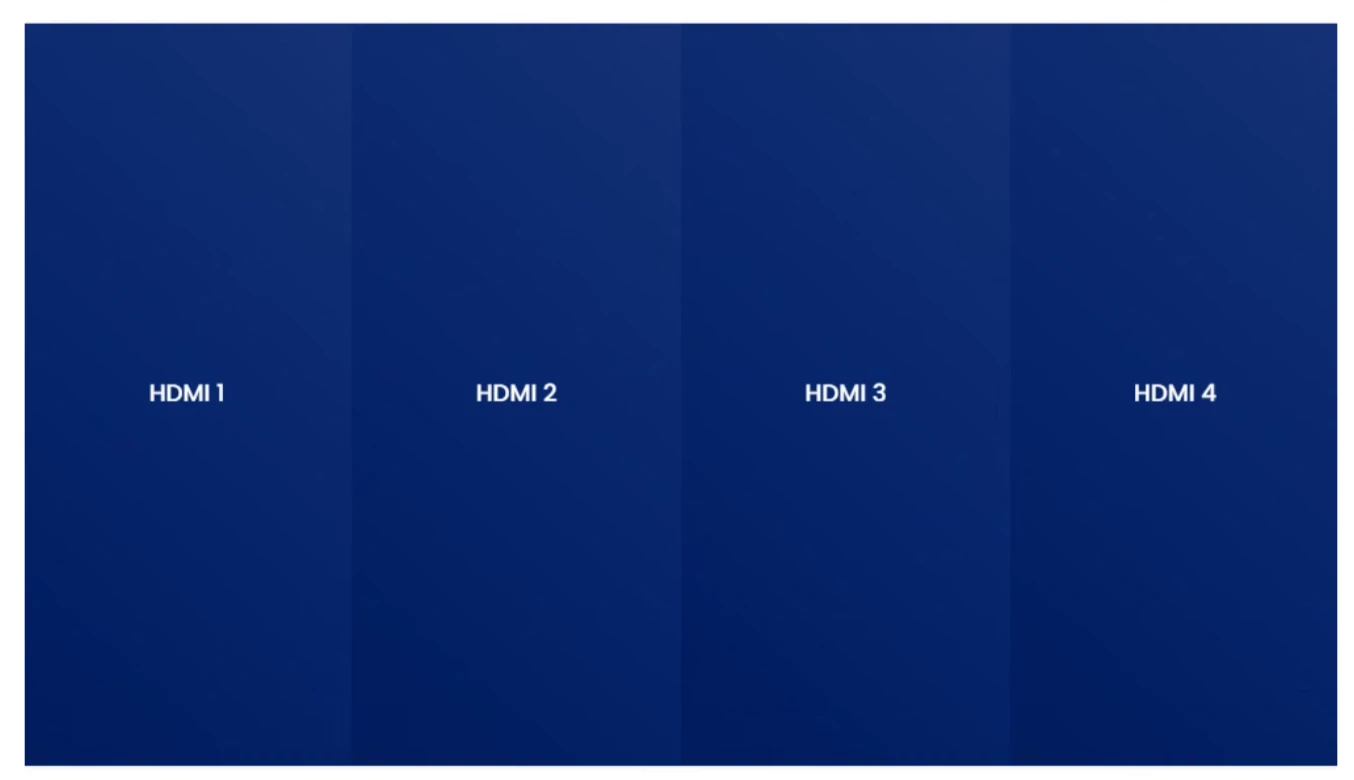
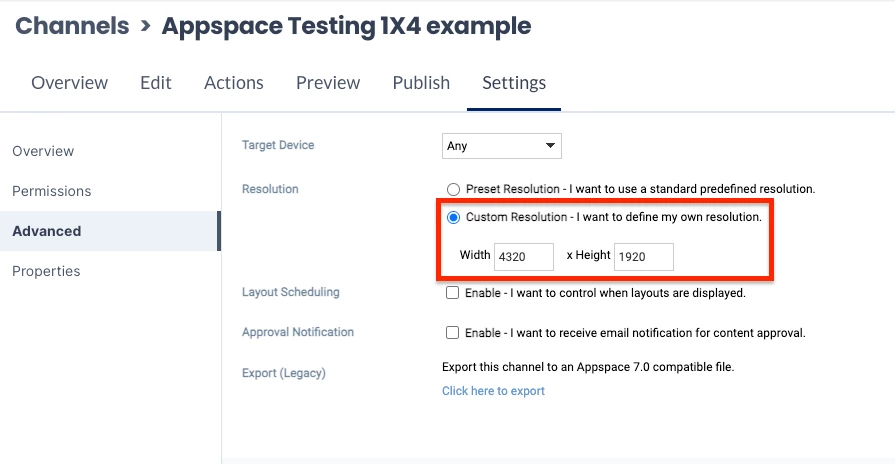
Example of a 4 x 1 Portrait Screen
Create an example advanced channel to test HDMI layouts to ensure they are correct (below). Some clients have had images mismatched due to this after installation; HDMIs may need to be swapped at the unit.
vm=CreateObject("roVideoMode")
sm = vm.GetScreenModes()
sm[0].video_mode="1920x1080x60p"
'sm[0].video_mode=“3840x2160x30p:fullres:gfxmemlarge” 'uncomment this line for 4K support
sm[0].transform = "90"
sm[0].display_x=0
sm[0].display_y=0
sm[0].enabled=true
sm[1].video_mode="1920x1080x60p"
'sm[1].video_mode=“3840x2160x30p:fullres:gfxmemlarge” 'uncomment this line for 4K support
sm[1].transform = "90"
sm[1].display_x=1080 'Not adding an offet for bezels, might need to increase this value if screen 2 is cutoff.
sm[1].display_y=0
sm[1].enabled=true
sm[2].video_mode="1920x1080x60p"
'sm[2].video_mode=“3840x2160x30p:fullres:gfxmemlarge” 'uncomment this line for 4K support
sm[2].transform = "90"
sm[2].display_x=2160 'Not adding an offet for bezels, might need to increase this value if screen 2 is cutoff.
sm[2].display_y=0
sm[2].enabled=true
sm[3].video_mode="1920x1080x60p"
'sm[3].video_mode=“3840x2160x30p:fullres:gfxmemlarge” 'uncomment this line for 4K support
sm[3].transform = "90"
sm[3].display_x=3240 'Not adding an offet for bezels, might need to increase this value if screen 2 is cutoff.
sm[3].display_y=0
sm[3].enabled=true
vm.SetScreenModes(sm)
aa1=CreateObject("roAssociativeArray")
aa1.MultiscreenWidth = 4
aa1.MultiscreenHeight = 1
aa1.MultiscreenX = 0