




Task Templates in the Appspace Console allow IT Administrators to create reusable device task configurations for advanced, monitoring, and configuration tasks. These templates help standardize device task setup by defining the task type, availability, schedule, parameters, and task definitions in one reusable template.
This article provides instructions to create and configure Task Templates in Devices > Settings > Task Templates.
Prerequisites
Before configuring Task Templates, ensure the following requirements are met:
-
Access to the Appspace Console.
-
Administrator permissions to access and configure device settings.
-
Required device task details, such as the task type, schedule, availability, parameters, and task definition.
-
Supported device types and command details required for the task definition.
Create Task Template
- Log in to the Appspace Console.
- Click the ☰ Appspace menu, and then click Devices > Settings.
- Click the Task Templates tab.
- Click the +ADD button to create a task template. The Add Task Template page is displayed.
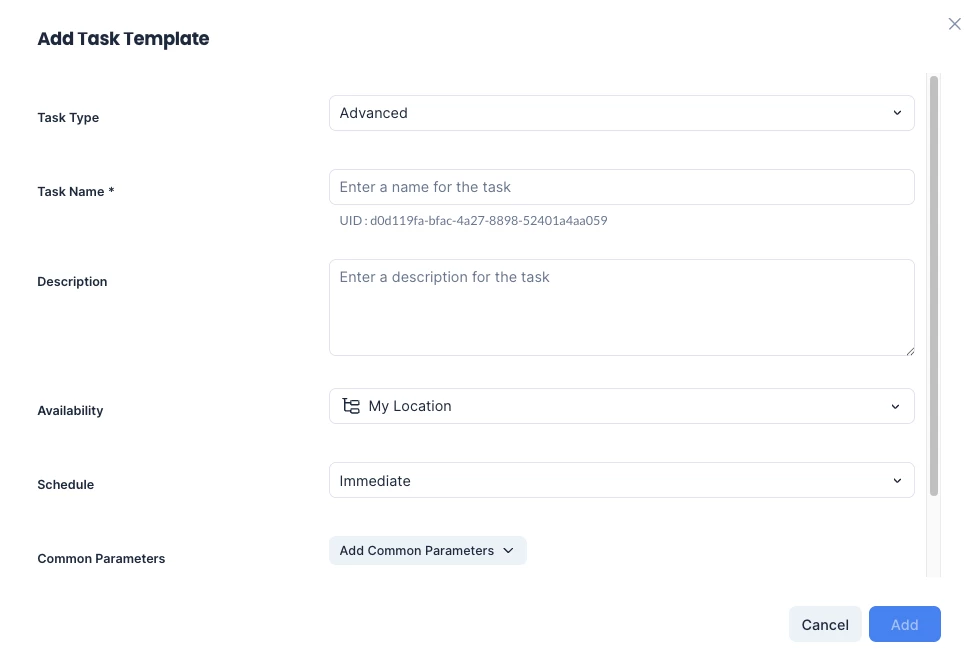
- In the Add Task Template page, configure the following task template details:
- Task Type – Select the task type: Advanced, Monitoring, or Configuration.
- Task Name – Enter a name for the task.
- Description – Enter a description for the task.
- Availability – Define where the task can be deployed. The following availability options are available.
- Global – Makes the task available globally throughout the entire network.
- Specific Location – Displays the network tree UI selection. The task is available only to the selected node. For example, a task made available at the parent network is available for deployment anywhere in that network. If the task is made available only to a specific player group, visibility and deployment are limited to that specific group.
- Schedule – Determine when and how often the task is executed. The following schedule options are available:
- Immediate – Deploys the task immediately.
- Over a Date Range – Allows you to specify a start and end date/time range.
- Only on Device Condition (On Boot) – Runs the task when the device boots.
- On Constant Frequency – Sets a recurrence pattern for every specified number of minutes.
- Common Parameters - Define reusable values that can be referenced by the task template. Click Add Common Parameter, and select one of the options displayed:
- String
- Number
- Binary Stream
- Enumerator
- Boolean
- In the Add Common Parameter panel, configure the following:
- Type – Select the parameter type:
- String
- Number
- Binary Stream
- Enumerator
- Boolean
- Display Name – Enter the display name for the parameter.
- ID – Enter a unique parameter identifier.
- Default Value – Enter the default value for the parameter.
- Description – Enter a description of how the parameter is used.
- Type – Select the parameter type:
- Click Add. The common parameter is added to the task template.
- Task Definition - Click Add Task Definition. Select one of the options displayed:
- HTTP/S
- Script
- RS-232
- Raw Socket
- In the Add Task Definition panel, configure the following:
- In the General tab, configure the following:
- Name – Enter a task definition name.
- Devices – Select one or more supported device types.
- Command – Select the command type:
- HTTP/S
- Script
- RS-232
- Raw Socket
- Method – Select the method for the command:
- GET
- POST
- PUT
- DELETE
- URL – Enter the endpoint URL.
- Headers – Enter the headers, if required. For example, header1=1; header2=2.
- Body – Enter the payload, if required.
- Once done, click Add.
- In the Parameters tab, define variables that can be passed to device commands when the task runs.
- Click Add, and select one of the following parameter types:
- String
- Number
- Binary Stream
- Enumerator
- Boolean
- Once done, click Add.
- In the Transform tab, transform device-specific output into consistent, human-readable output values.
- Click Add, and select one of the following transform types:
- Regex Match
- Regex Pattern
- XSLT
- JSON
- Replace
- Enumerator String
- Once done, click Add.
- The task definition is added to the task template. Review the task template details and click Save.
- In the General tab, configure the following:
- The task template is saved and becomes available for use when creating device tasks.
Edit Task Templates
- Log in to the Appspace Console.
- Click the ☰ Appspace menu, and then click Devices > Settings.
- Click the Task Templates tab.
- On the Task Templates dashboard, select the task template name to edit, or click the ellipsis (...) icon and select Edit.
- Make the required changes, and click Save.
Import Task Templates
- Log in to the Appspace Console.
- Click the ☰ Appspace menu, and then click Devices > Settings.
- Click the Task Templates tab.
- Click the dropdown arrow next to the +ADD button, and select Import.
- Click the Browse button, and navigate to the task template package you wish to import, and click Upload.
- Click Browse.
- Select the task template package to import.
- Click Upload.
Note
When importing, always ensure that the task package is a valid .admpkg file, and not an externally modified file.
Export Existing Templates
- Log in to the Appspace Console.
- Click the ☰ Appspace menu, and then click Devices > Settings.
- Click the Task Templates tab.
- Click the dropdown arrow next to the +ADD button, and select Export.
- Click the Export button.
Note
The task template package will be downloaded to your default download folder with the .admpkg file extension
Delete Task Templates
- Log in to the Appspace Console.
- Click the ☰ Appspace menu, and then click Devices > Settings.
- Click the Task Templates tab.
- On the Task Templates dashboard, click the ellipsis (...) icon for the task template, and select Delete.
- Click Delete.
- Click OK to confirm the deletion.