




The Device Insights feature in the Appspace console provides administrators with a centralized, real-time view of all registered devices within their network. It enables proactive monitoring through key performance indicators such as device health, connectivity, usage metrics, and licensing status – ultimately improving device management and content delivery reliability.
This feature helps administrators:
- Quickly identify offline or underperforming devices.
- View playback health and network status.
- Monitor device check-ins and last communication times.
- Filter and sort devices by location, status, or type.
- Manage device licenses based on subscription usage.
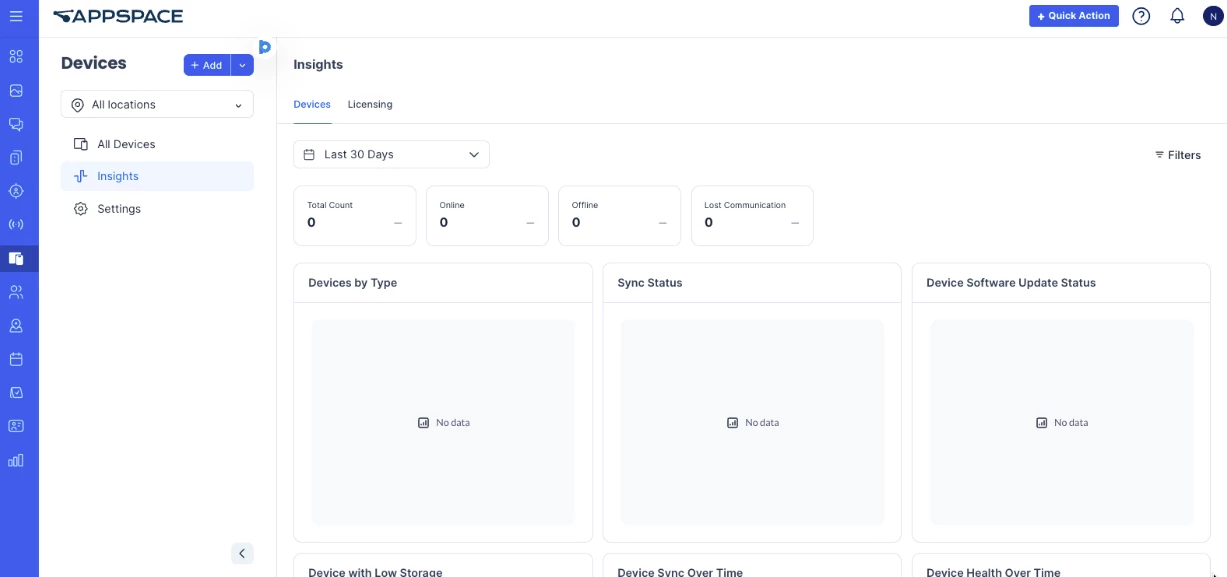
This article explains how to access and use the Device Insights dashboard, including the Devices and Licensing tabs.
Prerequisite
- An Appspace Account Owner that has been assigned a Platform User license.
- Supported Appspace App Devices and Operating Systems.
View Device Insights Dashboard
The following instructions explain how administrators can access and view the Device Insights dashboard in the Appspace console.
- Log in to your Appspace console.
- Click the ☰ Appspace menu, and select Devices.
- On the Devices dashboard, click Insights.
- In the Device Insights dashboard, administrators can access two main tabs:
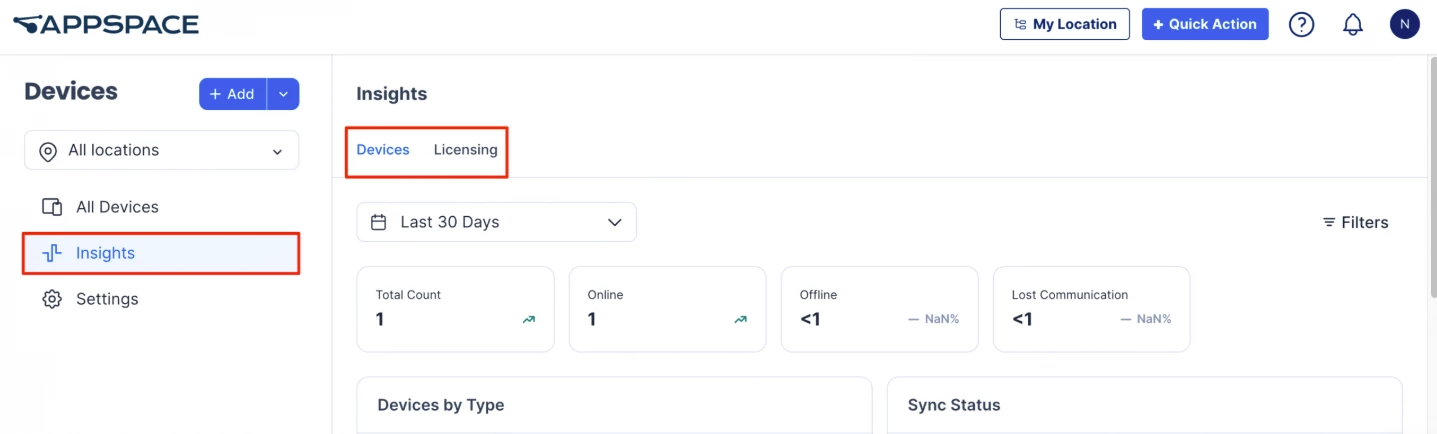
- Devices
- Licensing
Note
Administrators can view all applied filter attributes on the Devices and Licensing Insights dashboards, each represented visually in chart format for better data analysis.
View and Filter Devices
The following instructions explain how administrators can view and manage global device settings in the Appspace console.
- Log in to your Appspace console.
- Click the ☰ Appspace menu, and select Devices.
- On the Devices dashboard, click Insights.
- In the Devices tab, administrators may perform the following actions:
- Filter Devices by Date Range
- Click the calendar icon to apply a date filter to the list of registered devices.
- Last 7 Days
- Last 30 Days
- Last 90 Days
- Last 12 Months
- Last 24 Months
- Current Year
- Previous Year
- Once selected, click Apply.
- Click the calendar icon to apply a date filter to the list of registered devices.
- Filter Devices by Type, Status, and Update State
- Click the Filters icon to open the filter panel.
- In the Filters panel, administrators can apply the following filters:
- Device Type – Select the desired device type to view.
- Health Status – Choose from:
-
Online
-
Offline
-
Failed
-
Lost Communication
-
- Sync Status – Choose either:
-
In Sync
-
Out of Sync
-
- App Update Status – Choose one of the following:
-
Up to Date
-
Update Required
-
Update Available
-
Update Scheduled
-
Update Failed
-
- Once the desired filters are selected, click View to display the filtered results.
- After applying filters, the data is automatically represented in chart format on the Device Insights dashboard for better data analysis. The available charts include:
-
Devices by Type
-
Sync Status
-
Device Software Update Status
-
Device with Low Storage
-
Device Sync Over Time
-
Device Health Over Time
-
Device App Policy Compliance
Note:
Device App Policy Compliance will now reflect the new 9-month app version support policy by changing the text label from 6-month Policy to 9-month Policy. -
App Version by Device
-
View and Filter Device Licensing
The following instructions explain how administrators can view and manage device licensing information in the Appspace console.
- Log in to your Appspace console.
- Click the ☰ Appspace menu, and select Devices.
- On the Devices dashboard, click Insights.
- In the Licensing tab, administrators may perform the following actions:
- Filter Licensing Data by Date Range
- Click the calendar icon to apply a date filter to the list of licensed devices.
- From the calendar, select one of the following date ranges:
- Last 7 Days
- Last 30 Days
- Last 90 Days
- Last 12 Months
- Last 24 Months
- Current Year
- Previous Year
- Once selected, click Apply.
- Filter Licensing Data by Date Range
Use the Device Insights Assistant
The following instructions explain how administrators can use the Device Insights assistant to ask questions about device data directly from the Device Insights dashboard.
- Log in to your Appspace console.
- Click the ☰ Appspace menu, and select Devices.
- On the Devices dashboard, click Insights.
- In the Device Insights dashboard, open the assistant.
- Enter a question about your devices.
- Review the assistant response and visualization.
Administrators can use the Device Insights assistant to view data for:
- Device Health Status – Displays the total number of online, offline, and lost communication devices.
- Sync Status – Displays the percentage of devices that are in sync and out of sync.
- App Version by Device – Displays the percentage of devices running each app version, categorized by device type.
- Device Software Update Status – Displays the percentage of devices in each update status category.
- Devices by Type – Displays the percentage of devices in each device type.
- Device Sync Over Time – Displays the device sync status trend by day of the week.
- Device Health Over Time – Displays the device health status trend by day of the week.
Note
The Device Insights assistant displays responses using visualizations such as metric blocks, pie charts, bar charts, and line widgets, depending on the selected device data.