


Learn how to add a Live Channel in Appspace for live stream playback. This article is for Communicators and IT Administrators who publish live streams to devices or people. After reading, you can create a Live Channel, configure the stream, set permissions, and publish the channel to supported destinations.
For: Communicators and IT Administrators — Live stream channels
Important: For an overview of channel types and when to use each one, see Channels Overview.
Note: You can also stream video through an Appspace Live Channel with Vbrick’s Distributed Media Engine (DME). For partner configuration resources, see Appspace Cisco partner resources.
What’s in this article:
Prerequisites
-
Account Owner or Publisher role.
-
A live stream URL in a supported format, such as HLS or multicast.
-
An Electronic Programming Guide (EPG) provider configured by an administrator if you need EPG data when creating the Live Channel.
Create a Live Channel
-
Log in to the Appspace console.
-
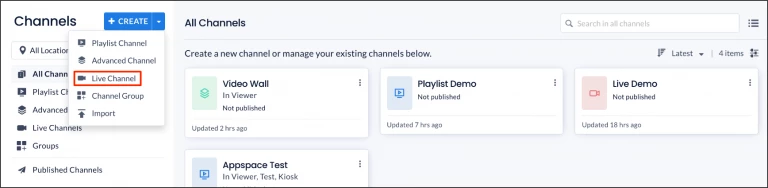
Create the Live Channel using one of these options:
-
Select Channels from the Appspace menu, then click + CREATE.
-
Click the + Quick Action button in the Appspace navigation bar, then select Create Channel.
-
Select the Dashboard tab, then click the + icon on the Channels widget.
-
-
Select Live Channel.
-
Enter a name for the Live Channel.
-
Click Create.
The Live Channel opens so you can configure the stream and continue setup.
-
Select the Edit tab.
-
Enter the Live Stream URL for the stream.
-
Enter the Call Letters and Channel Number for the live stream display.
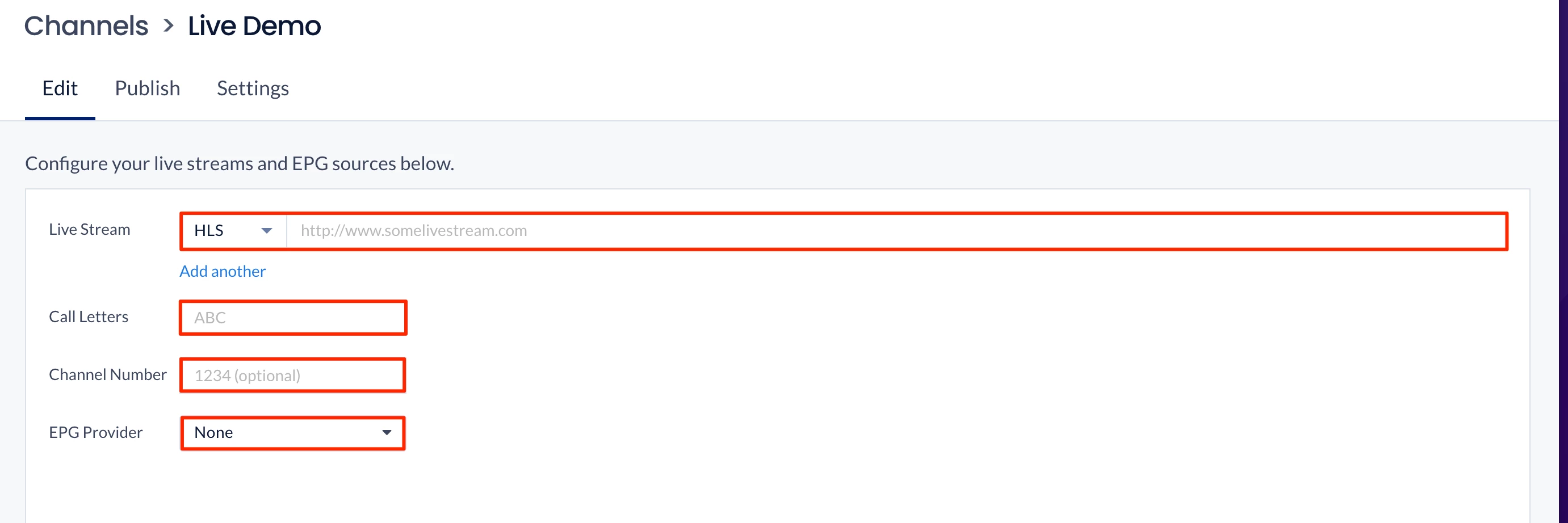
Note: Call Letters are limited to 7 characters. Channel Number is a unique number for the live stream display.
Note: You can add multiple live stream URL formats by selecting the required format from the Live Stream drop-down menu.
-
Optionally, select an EPG Provider from the drop-down menu if one is available.
Note: EPG providers must be configured beforehand before they appear in the drop-down menu.
Note: To display Pro:idiom streams on Appspace App for LG devices, append ?proidiomsession=default to the end of the stream URL. For requirements and examples, see Using Pro:idiom DRM Streams on LG Devices below.
-
Click Save.
The live stream settings are saved for the Live Channel.
Configure Live Channel Settings
Select the Settings tab to configure channel details and permissions.
Overview
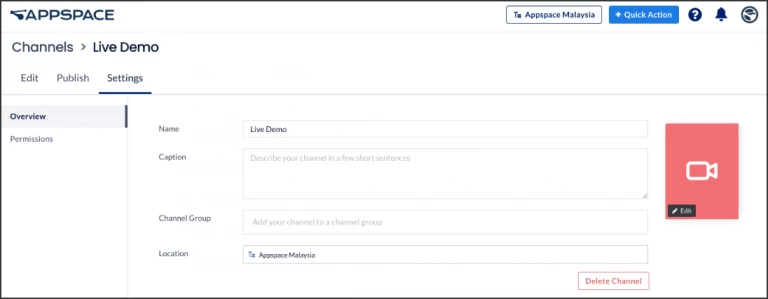
In the Overview side panel, you can configure the following:
-
Name — Enter a name for the Live Channel.
-
Caption — Enter a caption for the Live Channel.
-
Channel Group — Assign a channel group to the Live Channel.
-
Location — Edit the location of the Live Channel.
-
Thumbnail Image — Upload a custom image, or select an icon or color for the Live Channel.
-
Delete Channel — Delete the Live Channel.
Note: Custom thumbnail images should use a 16:9 aspect ratio for the best display results.
Permissions
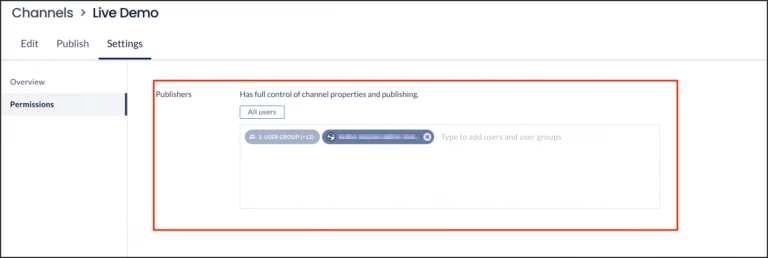
In the Permissions side panel, grant publishing permissions for the Live Channel to users or user groups.
Important: Assign the Author user role before you assign channel permissions to a user.
Publish the Live Channel
Publish Live Channels to devices, device groups, locations, users, user groups, and audiences.
-
Select the Publish tab.
-
Select the devices, device groups, locations, users, user groups, or audiences that can access this Live Channel.
-
Click Save.
The Live Channel is published to the selected destinations.
Note: For publishing instructions, see Publish Content to Apps, Devices, Employees, Email, or Web.
Enable Closed Captions or Subtitles
To enable or disable closed captions or subtitles on live video streams, add the following device property to your device in Locations.
| Device Property | Property Value | Description |
|---|---|---|
|
|
| Enable closed captions or subtitles. |
|
| Disable closed captions or subtitles. | |
|
|
| On BrightSign devices. |
For instructions to add device properties, see Add and Manage Device Properties.
Important: Closed captioning is supported when channel selection mode is set to Autoplay published channels, or when administrators can select a single channel for device playback.
Using Pro:idiom DRM Streams on LG Devices
You can display IPTV channels with Pro:idiom DRM encryption on LG webOS SoC devices running Appspace App.
Requirements:
-
LG devices running webOS 4.0 and above
-
Supported protocols:
-
Realtime Streaming Protocol (RTSP) — Pro:Idiom + RTSP
-
Hypertext Transfer Protocol (HTTP) — Pro:Idiom + HTTP
-
User Datagram Protocol (UDP) — Pro:Idiom + UDP
-
Note: Pro:idiom DRM encryption does not support the Real-time Transport Protocol (RTP).
To display Pro:idiom streams on Appspace App, append ?proidiomsession=default to the end of the stream URL so the LG device receives and displays the stream correctly.
Example URLs:
-
rtsp://172.18.20.46/bbc_world_enecrypted.ts?proidiomsession=default -
udp://@239.1.1.46:8208/?proidiomsession=default