

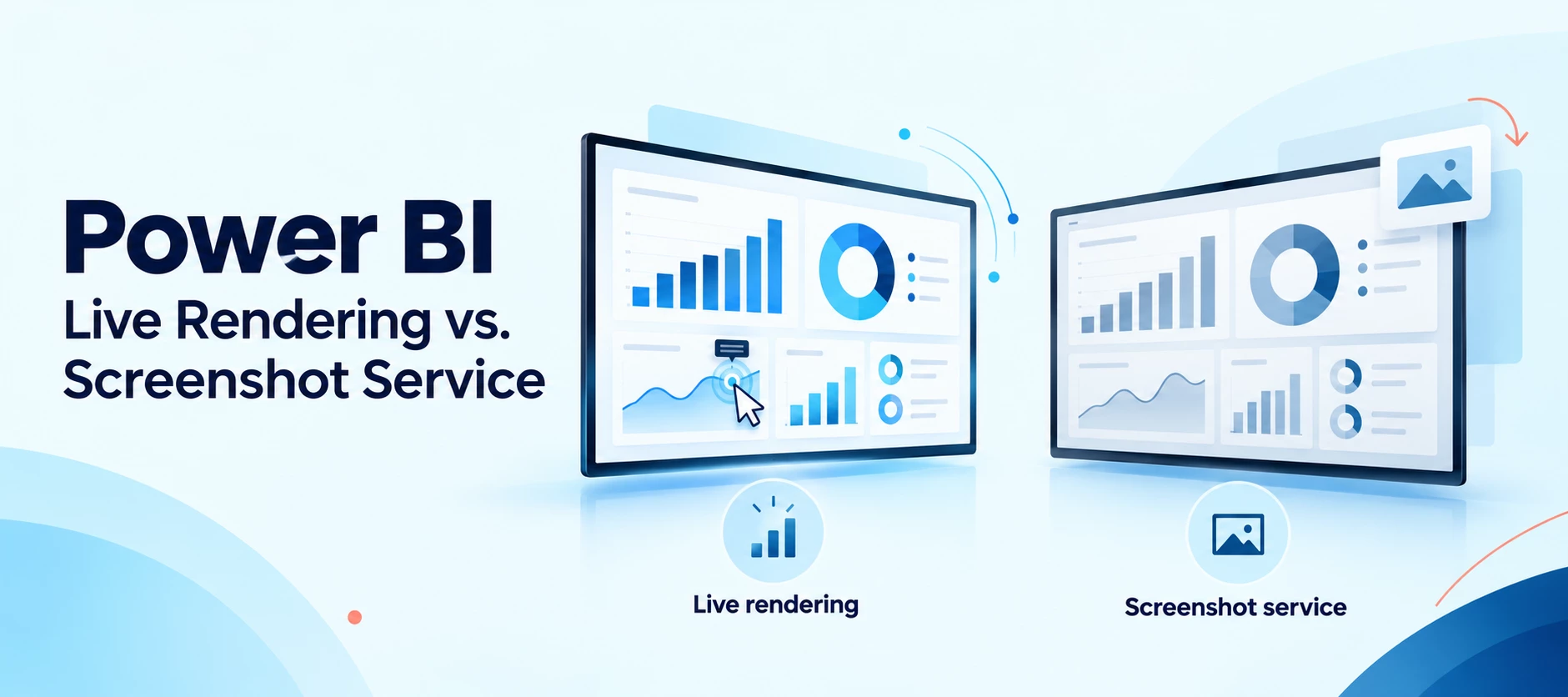




The Appspace Power BI card can display live content or a screenshot. The playback device and its firmware determine the rendering method. Administrators do not select it in the Power BI card or Passport configuration.
Start Here: Check Device Support
Power BI support varies by device platform and firmware version. Before publishing, review the support information and device-specific caveats in these resources:
- Cards: Display Power BI Dashboards and Reports — Review setup instructions, supported devices, and rendering requirements.
- Power BI Dashboard Card: Best Practices — Review guidance for preparing and displaying Power BI content.
Check the Supported Appspace Cards documentation referenced in the setup guide for the latest compatibility information. Use the overview below to understand the differences, then confirm support for your target device.
How Appspace Determines the Rendering Method
| Live rendering | Screenshot service |
|---|---|
| Used on supported devices capable of rendering embedded Power BI dashboards or reports. | Used on supported devices that cannot render live Power BI content. |
| Displays live embedded Power BI content. | Displays a static image refreshed every 15 minutes. |
| May support interaction when the playback device and display support user input. | Does not support interaction because the displayed content is an image. |
| Requires a compatible device platform and firmware version. | Used on Android, LG webOS, Samsung SSP 6.0/Tizen 4, and BrightSign devices running firmware 8.4 or earlier. |
Passport and Card Configuration
The Power BI Passport establishes the authenticated connection between Appspace and Microsoft Power BI. There is no separate Passport setting for live rendering or the screenshot service.
Configure the Passport with the appropriate Delegated Permissions or Application Permissions for your organization’s Power BI use case. This permission choice is separate from the device’s rendering method.
Device Requirements
Check the target device platform and firmware version before publishing the Power BI card. For example:
- BrightSign firmware 8.5 or later: Supports live Power BI dashboards.
- BrightSign firmware 8.4 or earlier: Uses the screenshot service.
- Android, LG webOS, and Samsung SSP 6.0/Tizen 4: Use the screenshot service.
Confirm current support and any device-specific caveats in the documentation linked above before deployment.
Screenshot Service Display Specifications
- Screenshots refresh every 15 minutes.
- Landscape screenshots use a 16:9 aspect ratio at 1920 × 1080.
- Portrait screenshots use a 9:16 aspect ratio at 1080 × 1920.
- If the card is assigned to a zone with a different aspect ratio, Appspace uses uniform fill.
Interaction with Reports and Dashboards
Live rendering may support interactive Power BI content when both the playback device and display support user input. The screenshot service is not interactive.
Filters cannot be added or configured in the Appspace Power BI card. Configure the required filters in Power BI before adding the content to Appspace.
Interactive behavior can vary by content type and playback device. Before deployment, test the following on the target device:
- Page navigation and filter controls
- Touch input or other supported user input
- The card’s display duration, allowing enough time to use the content
Quick Decision Guide
- Need live or potentially interactive content? Choose a device and firmware version that support live rendering, then test the required interactions.
- Using a device that relies on the screenshot service? Expect a non-interactive image refreshed every 15 minutes.
- Need a specific filtered view? Configure it in Power BI before publishing the card.
- Unsure which rendering method your device will use? Check its platform and firmware against the support documentation linked at the top of this article.